Explore Professional Email Powered by OX App Suite →
What OX App Suite Professional Email Hosting Includes
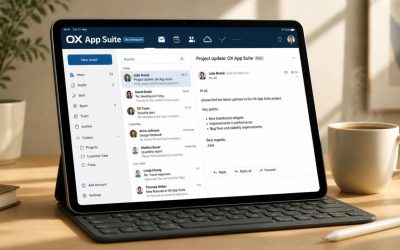
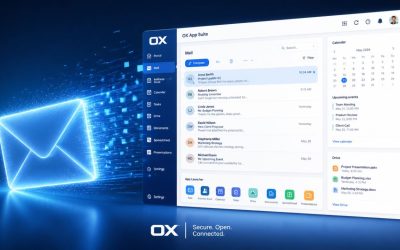
OX App Suite is a hosted email and productivity platform built around the Open-Xchange application framework, bundling webmail, shared calendaring, contact management, and document collaboration into a single login. Professional hosting tiers add custom domain support, expanded storage, and administrative controls suited to teams beyond a single mailbox.
Core Components of a Professional Hosting Plan
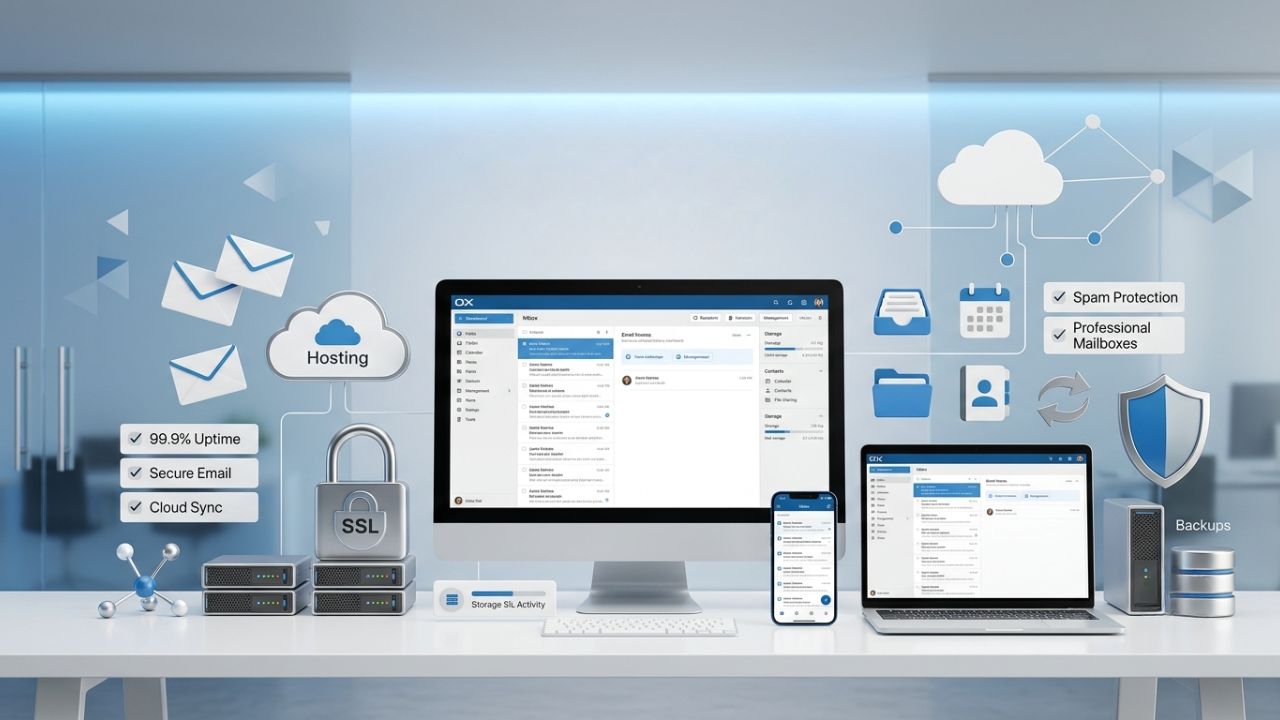
A professional OX App Suite plan is not just a mailbox with a bigger storage number attached to it. It bundles a webmail client, a calendar module with shared availability views, a contacts directory that can sync across a team, and OX Drive for file storage and sharing. Administrators can access a control panel to add mailboxes, assign aliases, and set per-user storage caps without opening a support ticket for routine changes.
Hiya Digital provisions these plans as an Authorized Partner and Reseller of OX App Suite, which means licensing is managed through a partner agreement rather than a direct developer relationship. That distinction matters at renewal time: reseller-managed licensing typically bundles onboarding support and billing consolidation that a direct signup with the underlying platform does not include. However, exact renewal terms should always be confirmed in writing before a contract is signed.
Who Actually Needs the Professional Tier
Solo consultants and single-owner businesses often get by with an entry-level mailbox and basic webmail access, since their support and storage needs remain flat for years. The professional tier earns its cost once a team crosses roughly five to ten mailboxes, adds shared calendars for scheduling across departments, or needs document collaboration that doesn’t depend on emailing file attachments back and forth.
Agencies and growing SMBs are the clearest fit: they need consistent branding across every employee’s email address, predictable per-mailbox costs as headcount changes, and calendar visibility across account managers and creative staff. Enterprises with dedicated IT staff sometimes outgrow even the professional tier and move toward enterprise-grade contracts with custom SLAs. Still, for most mid-sized organizations, the professional plan covers the full feature set without paying for unused capacity. Most reputable business email providers, including OX App Suite, offer uptime commitments of at least 99.9% for paid hosting tiers.
Mailbox Provisioning, Domain Setup, and Migration
Setting up OX App Suite for a business starts with domain verification, mailbox creation, and a decision on how existing email will be migrated. Migration is usually the step that determines whether the rollout feels smooth or chaotic, since it touches historical mail, calendar entries, and contact lists that live outside the new system until they’re imported.
Adding Your Domain and Creating Mailboxes
Domain setup begins with proving ownership, typically through a TXT record added at the DNS level, before any mailbox can send or receive mail on that domain. Once verified, an administrator creates mailboxes individually or in bulk through a CSV import, assigning a primary address and any aliases a role account needs, such as billing@ or support@ addresses that forward into a shared inbox.
OX App Suite’s administrative interface uses a mailbox-level permission model that separates account creation, storage allocation, and mail-flow rules into distinct controls rather than a single blanket admin toggle. A department head can be granted the right to reset passwords for their own team without access to billing or the ability to provision new domains, which is a meaningfully different structure from platforms where administrative access is mostly all-or-nothing. Getting this right at setup avoids a common mistake: granting full admin rights to a junior staff member simply because they were the first person to ask for a login, only to have to unwind that access months later.
 Migration Paths From Existing Email Systems
 Migration Paths From Existing Email Systems
Migrating from Google Workspace, Microsoft 365, or an on-premises Exchange server typically involves IMAP-based transfer for mailbox content, since IMAP (Internet Message Access Protocol) preserves folder structure and read/unread status in a way that simple forwarding does not. Calendar and contact data usually require a separate export/import step because calendar entries include attendee and recurrence data that a plain IMAP transfer doesn’t capture cleanly.
Migration risk tends to concentrate in three areas: mail rules that don’t transfer automatically and must be rebuilt manually, shared mailboxes whose permissions flatten during transfer, and DNS cutover timing, where mail sent during the cutover window can bounce or land in the old system if MX records propagate unevenly. Running the old and new systems in parallel for a short overlap period, rather than cutting over in a single afternoon, catches most of these issues before they affect daily operations. Reviewing a completed migration a few weeks in is also when a stale forwarding rule or an unmigrated shared mailbox usually surfaces, well after the original project is considered “done.”
DNS Records: MX, SPF, DKIM, and DMARC Configuration
Email deliverability lives or dies at the DNS level before a single message reaches an inbox. Mail Exchange (MX) records tell the internet where to deliver mail for a domain, while SPF, DKIM, and DMARC records tell receiving mail servers whether a message claiming to be from that domain should be trusted.
How Each Authentication Record Functions
MX records point a domain to the mail servers responsible for accepting its incoming messages, ranked by priority so a backup server can take over if the primary is unreachable. SPF (Sender Policy Framework) is a TXT record listing which servers are authorized to send mail on a domain’s behalf; receiving servers check the sending server’s IP address against this list and flag or reject messages from unauthorized sources. SPF records are capped at 10 DNS lookups per RFC 7208, and exceeding that limit causes SPF validation to fail rather than degrade gracefully, which is a detail that trips up domains juggling multiple third-party mail senders.
DKIM (DomainKeys Identified Mail) works differently: it attaches a cryptographic signature to outgoing mail, generated from a private key held by the sending server and verified against a public key published in DNS. OX App Suite provisions DKIM for each domain, meaning that every domain hosted under an account has its own signing key pair instead of sharing a single key across all domains on the server. That per-domain provisioning matters for reputation management, since a deliverability problem traced to one domain’s DKIM key doesn’t automatically implicate every other domain hosted alongside it.
DMARC Policy and Reporting
DMARC (Domain-based Message Authentication, Reporting, and Conformance) sits on top of SPF and DKIM, instructing receiving servers what to do when a message fails either check and providing a reporting address where those failures get logged. A domain’s DMARC policy can be set to monitor only, quarantine failing mail, or reject it outright, and most administrators start in monitor mode to see what legitimate mail might get flagged before tightening enforcement.
Renewal reviews commonly surface a stale SPF that nobody remembers adding, usually left over from a marketing tool or a former vendor that was never removed from the record. DMARC reports are how that kind of drift gets caught, since they show every sending source claiming to use the domain, legitimate or not. Setting DMARC to reject without first spending several weeks in monitor mode is a frequent cause of legitimate mail suddenly bouncing because a forgotten sending source that hasn’t been added to SPF gets blocked the moment enforcement tightens.
Spam Filtering, Antivirus, and Phishing Protection
Inbound mail passes through several filtering layers before it reaches a mailbox, checking sender reputation, message content, and attached files for known threat patterns. A layered approach catches more than any single filter alone, since spammers and phishing operators adjust tactics faster than any one detection method can keep up with.
How Layered Filtering Reduces False Positives and Missed Threats
 How Layered Filtering Reduces False Positives and Missed Threats
Reputation-based filtering checks the sending IP address and domain against blocklists and historical sending patterns before content is even scanned, which stops a large share of spam before it consumes further processing. Content-based filtering then examines message structure, embedded links, and language patterns associated with phishing attempts, while attachment scanning checks files against known malware signatures and, for OX Drive-integrated attachments, against the same storage-layer virus scanning applied to files uploaded directly to Drive, rather than only to files arriving by email.
Combining these layers reduces both false positives and missed threats compared to relying on a single filtering method, since a message that looks suspicious based on content alone but comes from a long-established, well-reputed sender is treated differently from the same content arriving from a brand-new domain. Administrators can adjust filter aggressiveness per mailbox when a department, such as sales, needs to receive first-contact emails from unfamiliar senders more often than an internal finance team does.
Handling Quarantine and False Positives
Flagged messages typically land in a quarantine folder rather than being deleted outright, giving both the recipient and an administrator a chance to review before anything is permanently lost. Most quarantine systems allow release-and-whitelist in a single action, so a legitimate sender that was wrongly flagged doesn’t get caught again on the next message.
A common failure pattern is quarantine folders nobody checks, which quietly accumulate legitimate mail from new business contacts alongside genuine spam until someone notices a client complaining that their email “never arrived.” Setting a weekly quarantine review or configuring digest notifications that summarize quarantined mail closes that gap without requiring anyone to check a folder that’s easy to forget manually exists once the initial setup excitement fades.
OX Guard Encryption and Secure Messaging
OX Guard is Open-Xchange’s built-in encryption module, layering end-to-end message and file encryption on top of standard mailbox functionality without requiring a separate email client or plugin. It exists specifically to address a gap that plain TLS-in-transit encryption doesn’t close: protection for message content at rest and in storage, not just protection while it travels between servers.
What OX Guard Actually Encrypts
Standard email security relies on TLS (Transport Layer Security) to encrypt the connection between mail servers during transmission, which protects messages from interception in transit but does nothing once mail is sitting in a mailbox or on a recipient’s device. OX Guard adds PGP-based end-to-end encryption on top of that, encrypting message content and attachments so that even the hosting provider cannot read stored mail without the recipient’s private key.
This matters most for organizations handling client contracts, financial details, or health-adjacent information, where regulatory frameworks like the GDPR (General Data Protection Regulation) require demonstrable data protection measures beyond transit encryption alone. OX Guard also supports encrypting messages to recipients outside the OX App Suite ecosystem entirely, generating a secure link the external recipient can use to read an encrypted message through a browser without needing PGP software of their own, which removes the usual friction of encrypted email requiring both sides to have compatible tools.
When Standard TLS Is Enough, and When It Isn’t
For routine internal correspondence and general business communication, standard TLS-in-transit encryption, combined with SPF, DKIM, and DMARC authentication, covers the realistic threat model most small businesses face. Adding OX Guard on top of that baseline makes sense, particularly when messages contain information that could cause real harm if exposed after delivery, such as signed contracts, financial statements shared with a client, or any correspondence subject to a specific compliance obligation.
The trade-off is usability: encrypted messages require the recipient to either hold a compatible private key or use the secure browser link OX Guard generates, which adds a step compared to opening a normal email. Most organizations end up applying OX Guard selectively to specific mailboxes or message categories, rather than enabling it account-wide, since blanket encryption of routine internal chatter adds friction without a corresponding security benefit.
| Security Feature | OX App Suite (with OX Guard) | Baseline TLS-Only Email |
|---|---|---|
| Encryption while in transit | Yes, TLS/STARTTLS | Yes, TLS/STARTTLS |
| Encryption at rest in mailbox | Yes, PGP-based | No |
| Encrypted delivery to non-users | Yes, secure browser link | Not available |
| Requires recipient software | No, browser-based option available | N/A |
| Per-mailbox activation | Yes, selective enablement | N/A |
| Regulatory documentation support | Suitable for GDPR-adjacent needs | Transit-only, partial |
| Setup complexity for admin | Moderate, key management involved | Minimal |
| Typical use case | Contracts, financial data, compliance mail | General business correspondence |
Calendar, Contacts, and Document Collaboration
Beyond mail, OX App Suite’s collaboration layer is built around shared calendars, a synchronized contacts directory, and OX Documents for in-browser file editing, all accessible from the same login used for webmail. The underlying sync architecture is what lets these tools work consistently across desktop webmail, mobile apps, and third-party calendar clients.
Calendar Sharing and Availability Views
Team scheduling depends on more than just seeing an event on someone’s calendar; it requires knowing whether they’re free without needing to ask. OX App Suite’s calendar module supports free/busy visibility across shared calendars, so a colleague scheduling a meeting can see open time slots without viewing the private details of what’s already booked, and separately supports full delegate access for assistants managing an executive’s calendar directly.
Under the hood, calendar and contact synchronization runs through CalDAV and CardDAV, the open standards for calendar and contact data exchange, rather than a fully proprietary sync layer. That standards-based approach means a user’s calendar can sync into a native calendar app on a phone or desktop, not just the OX web interface, without a custom connector plugin. The trade-off is that some advanced scheduling features, like resource booking for shared conference rooms, are displayed more fully in the native OX interface than in a third-party CalDAV client that only implements the baseline standard.
Document Collaboration Without Leaving the Inbox
OX Documents provides browser-based editing for word processing, spreadsheet, and presentation files stored in OX Drive, letting a team comment on and revise a shared file without downloading it, editing offline, and re-uploading a new version that creates duplicate-file confusion. Version history tracks changes automatically. Hence, an accidental overwrite can be rolled back without needing a separate backup of the file.
For agencies and departments that work heavily in email threads with attachments, this shifts the workflow toward a single shared file that is updated in place, with the email thread linking to it rather than carrying successive versions of attachments. The practical benefit shows up most clearly with client-facing documents like proposals or reports, where earlier attachment-based workflows commonly produced three or four versions of the same file circulating simultaneously, each with a different set of edits nobody had reconciled.
Mobile Access and Cross-Device Sync
Checking business email from a phone is no longer optional for most teams, and how a platform handles mobile access affects both convenience and security. OX App Suite splits mobile access into two paths: a dedicated OX Mail app and native device mail client support, each with different behavior worth understanding before choosing one over the other.
Native App vs. Built-In Device Mail Clients
The dedicated OX Mail mobile app connects directly to the OX App Suite backend, which means push notifications, calendar invitations, and contact sync all update in near real time without relying on the phone’s generic mail sync interval. It also carries over some OX Guard functionality for reading encrypted mail on mobile devices, something that generic mail clients configured via standard IMAP and CalDAV typically cannot replicate.
Configuring a phone’s built-in mail app via IMAP, SMTP, and CalDAV/CardDAV settings works well for basic mail, calendar, and contacts, and some users prefer to keep everything in a single native mail app they already use for personal accounts. The difference shows up in edge cases: a native device client won’t reliably surface OX Guard encrypted content, and calendar delegate permissions set up for an assistant don’t always carry over cleanly through a generic CalDAV connection the way they do inside the dedicated app.
Device Management and Lost-Device Scenarios
Administrators can remotely wipe a mailbox’s synced data from a lost or stolen device without touching the rest of that person’s phone, which matters for BYOD (bring your own device) policies where a company doesn’t own the hardware but still needs to protect business mail on it. This remote wipe applies to the mail, calendar, and contact data synced to the device rather than a full factory reset of personal photos or apps.
A common oversight is treating mobile access as a one-time setup step rather than an ongoing control point: employees leave companies, phones get lost, and unless device access is reviewed periodically, an ex-employee’s phone can retain synced access to company mail long after their last day. Building device de-provisioning into offboarding checklists, alongside the more commonly remembered step of disabling the mailbox itself, closes a gap that otherwise sits open for months.
Contact Hiya Digital for OX App Suite Setup and Migration
Getting mobile device sync, calendar delegation, and OX Guard configured correctly the first time avoids the offboarding gaps and permission mismatches covered above. Hiya Digital, as an Authorized Partner and Reseller of OX App Suite, helps businesses provision mailboxes, configure DNS records, and plan a migration timeline that keeps mail flowing without a disruptive cutover weekend.

Storage, Scalability, and Mailbox Limits
Mailbox storage limits and scalability planning determine whether a business outgrows its email platform in eighteen months or comfortably grows into it over several years. OX App Suite ties mailbox storage and OX Drive file storage together, which affects how administrators should think about per-user allocation.
How Storage Pooling Works Across Mailboxes and Drives
Rather than treating mailbox storage and OX Drive file storage as two entirely separate quotas, OX App Suite’s professional tiers typically pool storage at the account level, letting an administrator allocate more space to a heavy-attachment sales mailbox and less to a lighter-use role account, drawing from a shared pool rather than fixed identical caps per user. This pooled approach avoids the common scenario in which one team member is constantly deleting old mail to stay under quota.
At the same time, another user on the same plan has nearly all their allocation unused. Attachments stored via OX Drive links, rather than as traditional email attachments, count directly against Drive storage, which matters for teams that share large files like design assets or video content by embedding a Drive link in an email rather than attaching the file itself. That distinction can meaningfully extend the effective mailbox lifespan for storage-heavy users once large attachments move to Drive-based sharing rather than traditional attachment-and-forward habits.
Planning for Growth Without Overpaying Upfront
Storage needs rarely grow in a straight line; a marketing team ramping up video-heavy campaigns can spike Drive usage well beyond what headcount growth alone would predict. Rather than provisioning the maximum anticipated storage from day one, most administrators start with a moderate allocation per mailbox and adjust individual users’ allocations upward as actual usage patterns emerge over the first few months.
Enterprises with predictable, large-scale storage needs sometimes negotiate custom storage tiers beyond the standard increments of the professional plan. At the same time, SMBs and agencies more often stay within standard-tier boundaries and reallocate the shared pool as needs shift among team members. Watching for mailboxes that consistently sit near their cap, rather than waiting for a bounce-back message to signal the problem, keeps storage planning proactive instead of reactive.
Plans, Pricing Models, and Renewal Cycles
Pricing for OX App Suite professional hosting typically follows a per-mailbox monthly or annual rate, with cost varying based on storage tier, contract length, and whether add-ons like OX Guard or extended archiving are included. Understanding how introductory and renewal pricing differ is essential before signing, since the rate quoted at signup is not always the rate charged at renewal.
Introductory Pricing vs. Renewal Rates
 Introductory Pricing vs. Renewal Rates
Many hosting providers, including OX App Suite resellers, offer a lower introductory rate for the first contract term that increases at renewal, a pattern common across the broader web hosting and SaaS industry rather than something specific to email hosting. This is a detail worth confirming explicitly in writing before signing: the first-year rate, the renewal rate, and whether that renewal rate is fixed or subject to further increases in subsequent terms. Because Hiya Digital operates as a reseller rather than a direct platform operator, exact pricing and renewal terms are set by current partner agreements.
They should be confirmed directly with Hiya Digital’s team rather than assumed from generic industry patterns. Buyers should specifically ask what happens if a renewal payment is missed, whether there’s a grace period before mailbox suspension, and whether mid-term mailbox additions are billed at the original contract rate or the current rate at the time of addition.
What Typically Drives Cost Up or Down
Storage tier is the most straightforward cost driver: higher per-mailbox storage allocations cost more, and add-ons like OX Guard encryption, extended mail archiving beyond the standard retention window, or premium support response times typically carry incremental per-mailbox or flat monthly fees on top of the base plan.
Annual contracts generally price lower per month than month-to-month billing, reflecting the reduced administrative overhead of a longer commitment. Mailbox count itself doesn’t always scale cost in a purely linear way; some reseller pricing structures include volume-based rate reductions once an account crosses a certain mailbox threshold, similar to how reseller-managed licensing was described earlier in provisioning. Businesses evaluating cost should request an itemized quote showing base per-mailbox rate, any add-on costs, and the specific renewal rate, rather than relying on a single bundled monthly figure that makes it harder to see which component is driving the total.
OX App Suite vs. Google Workspace vs. Microsoft 365
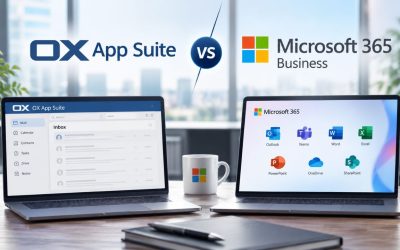
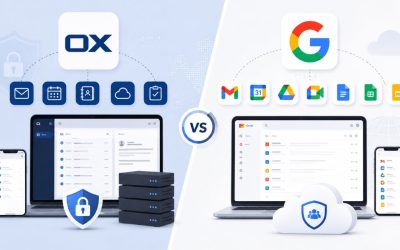
Choosing among OX App Suite, Google Workspace, and Microsoft 365 usually comes down to existing tool familiarity, specific security requirements, and how a team already works, rather than to a single platform being objectively superior. Each platform bundles similar core functions, mail, calendar, contacts, and document collaboration, through a meaningfully different underlying architecture.
Where Each Platform’s Architecture Actually Differs
 Where Each Platform’s Architecture Actually Differs
Google Workspace centers on Gmail’s web interface and Google’s own document formats, with strong real-time collaborative editing but limited native support for standards-based protocols like CalDAV without additional configuration. Microsoft 365 centers around Outlook and Exchange Online, with the deepest native compatibility for organizations already standardized on Word, Excel, and PowerPoint file formats, and typically the most familiar interface for staff coming from a traditional corporate IT background.
OX App Suite differentiates through OX Documents’ browser-based editing paired with standards-based CalDAV/CardDAV sync and OX Guard’s built-in end-to-end encryption, features that require third-party add-ons to replicate in the other two platforms. Administrative permission structures also differ: OX App Suite’s mailbox-level permission separation, described earlier for account provisioning, tends to offer more granular delegation of specific admin functions out of the box compared to Google Workspace’s more consolidated admin console roles, though Microsoft 365’s Exchange admin center offers comparably granular role-based access control for larger enterprise deployments. No single platform wins outright on administrative flexibility; the right fit depends on how finely a specific organization needs to split administrative responsibilities across staff.
Making the Comparison Concrete
| Comparison Point | OX App Suite | Google Workspace | Microsoft 365 |
|---|---|---|---|
| Native document format | OX Documents (ODF/OOXML compatible) | Google Docs/Sheets | Word/Excel/PowerPoint |
| Built-in end-to-end encryption | Yes, OX Guard | Not native, third-party add-on required | Not native, third-party add-on required |
| Calendar sync standard | CalDAV/CardDAV native | Requires added configuration for CalDAV | Exchange ActiveSync/native |
| Typical strongest fit | Teams wanting encryption + open standards | Teams already in Google’s ecosystem | Teams standardized on Microsoft file formats |
| Admin permission granularity | Mailbox-level separation, granular by default | Consolidated console roles | Role-based access control, granular for enterprise |
| Offline document editing | Limited, browser-dependent | Limited, browser-dependent, with offline mode | Strong, native desktop apps |
| Third-party CalDAV client support | Full native support | Partial, added setup required | Partial via ActiveSync bridges |
| Migration complexity from Exchange | Moderate | Moderate to high | Low, native compatibility |
| Storage model | Pooled mailbox + Drive allocation | Separate Gmail and Drive quotas | Separate Exchange and OneDrive quotas |
| Reseller/partner purchasing available | Yes | Limited, mostly direct | Yes, through Microsoft partners |
Frequently Asked Questions
Does OX App Suite pricing include a setup fee separate from the monthly mailbox rate?
Setup fees vary by reseller and by the complexity of the rollout being requested, so it is worth confirming directly with Hiya Digital’s sales team before signing, rather than assuming a flat industry-standard rate applies. A straightforward setup with a small number of mailboxes and no existing mail to migrate typically requires less configuration work than a rollout that migrates years of historical mail, shared calendars, and custom mail-flow rules from an existing Microsoft 365 or Google Workspace environment. Ask specifically whether migration assistance is bundled into the mailbox rate or billed as a separate line item, since that distinction affects the real first-year cost more than the advertised per-mailbox price alone. Getting this itemized in writing before signing avoids a surprise invoice once the technical rollout begins.
Can I migrate an existing Outlook PST archive into OX App Suite mailboxes?
Yes, PST (Personal Storage Table) archives exported from Outlook can generally be imported into OX App Suite mailboxes. However, the practical approach depends on the archive size and whether the folder structure must be preserved exactly. Large PST files with many years of accumulated mail sometimes need to be split or imported in batches to avoid timeout issues during the transfer, which is a detail worth flagging to whoever is handling the technical migration rather than discovering it mid-transfer. Calendar and contact data embedded in Outlook profiles typically require a separate export step, since PST archives primarily capture mail folders rather than calendar entries. Testing the import with a single mailbox before running a full team migration catches formatting or folder-mapping issues early, when they’re still cheap to fix.
Does OX App Suite work with the Outlook desktop application, or only with its own webmail?
OX App Suite supports connecting via standard IMAP, POP3, and SMTP settings, so the Outlook desktop application can be configured to send and receive mail from an OX App Suite mailbox without using OX’s own webmail interface at all. Calendar and contact sync into Outlook typically requires a CalDAV/CardDAV connector, since Outlook’s native calendar sync protocol differs from the open standards OX App Suite uses by default, and some organizations use a bridging plugin to smooth that connection. Users who want OX Guard’s encryption features specifically will need to use OX App Suite’s webmail or mobile app for encrypted messages, since Outlook’s interface doesn’t decrypt OX Guard-protected mail. For teams standardized entirely on Outlook with no encryption requirement, basic IMAP/SMTP connectivity covers day-to-day use without friction.
What happens to mobile access if an employee’s phone is lost or stolen?
Administrators can issue a remote wipe that specifically targets the synced mail, calendar, and contact data on that device, without affecting personal photos, apps, or other data unrelated to the OX App Suite account, which matters most in BYOD environments where the company doesn’t own the hardware. This remote wipe should be triggered the moment a device is reported lost rather than waiting to see if it turns up, since delayed action extends the window during which synced business mail remains accessible on a device outside the company’s physical control. It’s also worth periodically reviewing which devices currently have active sync connections, not just reactively after a loss is reported, since forgotten old devices sometimes retain access long after a phone is replaced. Building this review into a recurring IT checklist, rather than a one-time setup step, closes that gap.
How does OX Guard handle sending encrypted mail to someone who doesn’t use OX App Suite at all?
OX Guard generates a secure browser-based link for recipients outside the OX App Suite ecosystem, allowing them to read an encrypted message and reply via a browser without installing PGP software or holding a private key. This removes the most common barrier to encrypted email adoption: traditional PGP encryption typically requires both the sender and the recipient to have compatible key management set up in advance. The external recipient will typically need to set a password or verify their identity via a secure link before the message content is displayed, adding a brief extra step compared to opening a normal email. For businesses that regularly exchange sensitive documents with external clients who don’t use OX Guard, this bridges the gap without requiring clients to adopt new software.
Are mailbox content backups included, or is that a separate service?
Standard hosting typically includes infrastructure-level backups intended for disaster recovery rather than user-facing, on-demand mailbox restoration for something like an accidentally deleted folder from six months ago. The distinction matters: infrastructure backups protect against catastrophic data loss on the provider’s end, while granular, user-initiated restore points for individual deleted items are sometimes a separate add-on rather than a default inclusion. Ask specifically which backup retention window applies and whether an administrator can restore a single deleted email or folder directly, or if it requires a support request with an associated turnaround time. Organizations with strict data retention obligations, such as those in regulated industries, should explicitly confirm retention windows rather than assume that default backup settings satisfy a specific compliance requirement.
Can two people share access to the same mailbox, like a shared support or sales inbox?
Yes, shared mailbox access is supported through delegate permissions, which can be scoped to read-only, send-as, or full send-and-manage access depending on what a specific role account needs. A shared support@ mailbox, for example, might grant full access to the entire support team. At the same time, a billing@ alias might allow only one or two finance staff members to send from that address, keeping the permission scope tight rather than defaulting to broad access for convenience. Delegate permissions can be adjusted at any time without recreating the mailbox, so as team composition changes, access can be added or removed without disrupting existing mail history. It’s worth periodically auditing who has delegate access to shared mailboxes, since these accounts often accumulate stale access more quickly than individual user mailboxes do as staff rotates through shared support or sales responsibilities over time.
How many custom domains can be connected to a single OX App Suite account?
Most professional hosting plans support multiple custom domains under a single account, useful for businesses operating several brands or regional storefronts that each need their own domain-branded email addresses. Each additional domain requires its own DNS verification, MX record configuration, and a separately provisioned DKIM key pair, since DKIM signing keys are issued per domain rather than shared across all domains on an account. Exact limits on the number of domains included in a given plan tier, and whether additional domains beyond a certain count incur an incremental cost, should be confirmed directly with Hiya Digital’s sales team, based on current plan structures. Planning domain consolidation, rather than adding domains ad hoc as new brands launch, keeps DNS record management more predictable over time.
Is OX App Suite suitable for a business that’s currently using free webmail like Gmail or Outlook.com?
Free webmail services lack custom domain branding, typically offer minimal or no administrative control over multiple users, and generally provide limited to no dedicated support beyond community help forums, all of which become liabilities once a business grows past a single owner-operator. Moving to a professional hosting plan immediately solves the branding gap, since every mailbox uses the company’s own domain rather than a generic provider address, which affects both professionalism and, in some cases, deliverability reputation with clients who filter unfamiliar personal-domain senders more cautiously. The administrative control gap matters as well: free webmail offers no centralized way to provision new employee accounts, revoke access upon departure, or enforce a consistent security policy across a team. For any business with more than one person sending mail on the company’s behalf, the professional tier’s administrative and branding benefits generally outweigh the cost difference from free webmail within the first few months of use.
What should I specifically ask Hiya Digital before signing a contract, beyond the advertised monthly rate?
Beyond the headline per-mailbox price, ask for the exact renewal rate after the initial contract term, whether that renewal rate is fixed for a set number of renewal cycles or subject to further increases, and what grace period applies if a renewal payment is delayed before mailboxes are suspended. Also ask whether migration assistance, DNS configuration support, and initial onboarding are included in the quoted rate or billed separately, since these can add meaningfully to first-year cost if assumed to be bundled when they aren’t. Request confirmation of what happens to mailbox data if the contract isn’t renewed, including how long data remains accessible for export before deletion. Getting these answers in writing, rather than relying on a verbal quote, gives a clear reference point if a renewal invoice later doesn’t match what was expected at signup.
Glossary
MX Record (Mail Exchange Record): A DNS entry that directs incoming email to the correct mail servers for a domain, ranked by priority.
SPF (Sender Policy Framework): A DNS TXT record listing which mail servers are authorized to send email on behalf of a domain, used to reduce sender spoofing.
DKIM (DomainKeys Identified Mail): An email authentication method that attaches a cryptographic signature to outgoing mail, verified against a public key published in DNS.
DMARC (Domain-based Message Authentication, Reporting, and Conformance): A policy layer built on SPF and DKIM that instructs receiving servers how to handle authentication failures and where to send failure reports.
IMAP (Internet Message Access Protocol): A protocol for retrieving email that keeps messages synchronized across multiple devices and preserves server-side folder structure.
POP3 (Post Office Protocol 3): An older email retrieval protocol that typically downloads messages to a single device rather than syncing across multiple devices.
SMTP (Simple Mail Transfer Protocol): The protocol used to send outgoing email between mail servers.
TLS (Transport Layer Security): An encryption protocol that protects data, including email, while it’s in transit between servers.
CalDAV / CardDAV: Open standards for syncing calendar (CalDAV) and contact (CardDAV) data across different applications and devices.
OX Guard: OX App Suite’s built-in end-to-end encryption module for messages and files, based on PGP encryption.
OX Drive: OX App Suite’s integrated file storage and sharing component, used for documents shared via link rather than traditional attachments.
BIMI (Brand Indicators for Message Identification): A standard that allows a verified brand logo to appear next to authenticated emails in supporting inboxes, dependent on a properly enforced DMARC policy.
The Hiya Digital Team is a collective of IT infrastructure specialist engineers, certified systems administrators, and cloud architects driven by a singular mission: building corporate communication systems that just work. As an Authorized Google Partner, the team handles complex global hosting deployments, secure email migrations, and advanced data compliance architectures for businesses across 40+ countries.
With over two decades of technical experience spanning custom premium business email configurations, OX AppSuite deployments, and enterprise-level network security, the Hiya Digital Team writes to demystify domain infrastructure. Their content focuses on actionable technical strategies, anti-phishing security protocols, and seamless cloud collaboration setup, all backed by real-world deployment experience and 24/7 technical support accountability.