Explore Professional Email Powered by OX App Suite →
Custom Domain Mailboxes and Free Webmail: What Changes at the Account Level
Moving from a free address to a domain-based mailbox is not a cosmetic change. It shifts control of authentication, storage, and user management from a third-party consumer platform to an account structure the business itself administers, including how OX applies permissions at the mailbox level rather than the account level.
Sender Reputation Tied to a Business Domain
A message sent from a shared consumer domain carries the reputation of every other sender on that platform, good and bad. A message sent from a private business domain carries only the sending organization’s own history, which means deliverability problems and fixes both trace back to decisions the business controls directly, not to unrelated senders sharing the same infrastructure.
This distinction matters most when a company scales outbound communication, invoicing, client updates, and sales outreach because mailbox providers increasingly weigh domain-level history over individual message content when deciding whether to route mail to the inbox or the spam folder. Most reputable providers target at least 99.9% uptime for mail delivery infrastructure, but uptime alone doesn’t guarantee inbox placement; sender reputation, built over months of consistent domain-level sending, does the heavier lifting there.
Administrative Control Free Webmail Doesn’t Offer
Free webmail treats every address as an independent consumer account with no shared administration layer. A business domain in OX App Suite instead gives one administrator a panel to provision, suspend, or reassign mailboxes without contacting each user individually, which matters the moment an employee leaves and their mail, calendar, and contacts need to be moved to someone else’s control that same afternoon.
OX applies this control through a mailbox-level permission model rather than a single account-wide toggle: an administrator can grant one user calendar-sharing rights without granting mailbox-forwarding rights, or allow a department head to view team calendars without exposing their inboxes. That granularity is the practical difference between “everyone has access to everything” and a structure that mirrors how a real organization actually delegates responsibility.
DNS Records a Business Domain Needs Before Go-Live
Email doesn’t route correctly until the domain’s DNS zone tells the internet which servers are authorized to send and receive on its behalf. Four record types do that work: MX, SPF, DKIM, and DMARC. OX provides a per-domain DKIM key pair as part of the standard setup, rather than sharing a single signing key across unrelated customers.
MX, SPF, and the Mail Routing Chain
MX (Mail Exchanger) records tell sending servers where to deliver incoming mail for a domain; without a correctly weighted MX record, messages either bounce or are routed to the wrong destination. SPF (Sender Policy Framework) records work in the opposite direction, listing which servers are permitted to send mail claiming to be from that domain, and are published as a TXT record rather than a dedicated SPF record type, which was formally deprecated in favor of TXT-only publication.
SPF has a hard technical ceiling worth knowing before a domain accumulates too many third-party senders: the specification caps SPF evaluation at 10 DNS lookups, and exceeding that limit causes the entire check to fail regardless of whether the actual sender was authorized. A domain that includes Hiya Digital’s mail servers alongside a CRM, a marketing platform, and a helpdesk tool can hit that ceiling faster than expected, which is why SPF records need periodic review rather than a set-once approach, a concern covered in full under Renewal Pricing and What to Confirm in Writing.
DKIM and DMARC Alignment
DKIM (DomainKeys Identified Mail) attaches a cryptographic signature to outgoing mail, allowing the receiving server to verify that the message wasn’t altered in transit and that it genuinely originated from a server that holds the corresponding private key. OX App Suite generates this key pair per domain during provisioning, so two unrelated business customers on the same reseller infrastructure never share a signing key, and a compromised key on one domain has no bearing on another.
DMARC (Domain-based Message Authentication, Reporting and Conformance) sits above both SPF and DKIM, telling receiving servers what to do when a message fails either check: quarantine it, reject it outright, or take no action, and optionally sends reports back to the domain owner showing who is sending mail as that domain. A domain with SPF and DKIM configured but no DMARC record leaves the enforcement decision entirely up to whichever mailbox provider receives the message, resulting in inconsistent results across Gmail, Outlook.com, and corporate mail gateways.
| DNS Record | Type | Primary Purpose | Typical TTL | Who Publishes It |
|---|---|---|---|---|
| MX | MX | Directs inbound mail to the correct server | 1–24 hours | Domain registrar / DNS host |
| SPF | TXT | Lists servers authorized to send for the domain | 1 hour | Domain registrar / DNS host |
| DKIM | TXT | Publishes the public key for signature verification | 1 hour | Email provider (per-domain key) |
| DMARC | TXT | Sets enforcement policy for SPF/DKIM failures | 1 hour | Domain owner |
| PTR | PTR | Confirms reverse DNS for outbound IP addresses | 24+ hours | Server/IP owner (often the host) |
| SPF lookup ceiling | — | Maximum nested DNS lookups before a permanent error | Fixed by spec | N/A, protocol limit |
| DMARC policy tags | — | none/quarantine/reject enforcement levels | N/A | Domain owner |
| DKIM selector | TXT | Identifies which key pair signed a given message | Matches key rotation | Email provider |
| Record propagation | — | Time for global resolvers to reflect a DNS change | Minutes to 48 hours | N/A, dependent on TTL and registry |
| BIMI (where supported) | TXT | Displays a verified brand logo in supporting inboxes | 1 hour | Domain owner |
The Internet Engineering Task Force publishes the full SPF specification, including the exact lookup and syntax rules summarized above, in RFC 7208, which describes the Sender Policy Framework protocol that lets administrative domains authorize which hosts can use their domain names and lets receiving hosts check that authorization; see the official RFC 7208 text for the complete mechanism definitions.
OX App Suite’s Core Applications: Mail, Calendar, Contacts, Documents
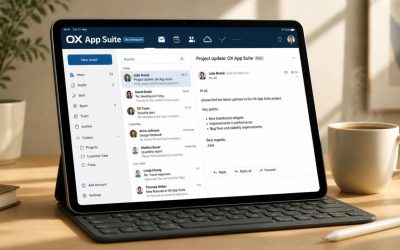
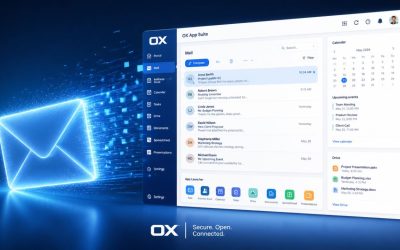
OX App Suite bundles mail, calendar, contacts, and document editing into a single browser interface rather than treating them as separate logins. Every plan includes webmail, calendar, tasks, and address book by default. At the same time, document creation and editing via OX Documents are available only in the higher-productivity tier, not in the base mailbox.
 Webmail Interface and Message Handling
 Webmail Interface and Message Handling
The webmail layer supports the standard set of features a business user expects: forwarders, auto-responders, filters, signatures, and notification rules, configured per mailbox rather than globally, so a sales inbox and a support inbox can run entirely different filtering logic under the same domain. Messages can also be organized through folder rules that execute server-side, meaning sorting happens whether the user is checking mail through the browser, on a phone, or on a desktop client.
Beyond native mailboxes, OX App Suite lets a user connect external IMAP accounts, Gmail, Yahoo, Outlook.com, directly into the same interface, so mail arriving at a personal or legacy address surfaces alongside the primary business inbox without forwarding rules or separate logins. For an agency managing several client-facing addresses, this consolidates what would otherwise be five or six separate webmail tabs into a single, working view, reducing the risk of missed messages due to inconsistent account checks.
OX Documents for Native File Editing
OX Documents is the umbrella term for three in-browser applications, Text, Spreadsheet, and Presentation, built to open and edit Microsoft Office file formats without requiring a locally installed Office license. A document opened from an email attachment can be edited directly in the browser and saved back to OX Drive or re-attached to a reply, which removes the download-edit-reupload cycle that otherwise interrupts a fast-moving email thread.
This matters most for organizations that don’t want to license desktop Office software for every employee who only occasionally needs to open a spreadsheet or edit a proposal. A field technician or part-time contractor can review and mark up a document from any browser without IT provisioning a separate productivity license, while employees who do have desktop Office installed can still work with the same files locally. OX Documents doesn’t require choosing one workflow over the other.
Spam Filtering, Antivirus, and Encryption Layers
Inbox security in OX App Suite operates through several independent layers rather than a single filter: spam scoring before delivery, antivirus scanning of attachments, and an optional encryption add-on called OX Guard for messages that need to remain unreadable to anyone but the intended recipient.
Filtering Logic Before a Message Reaches the Inbox
Spam and antivirus filtering occurs before a message is delivered to the mailbox, combining pattern-based detection with reputation data on sending IPs and domains, as well as signature-based scanning of attachments for known malware. Messages that fail these checks are typically quarantined rather than silently discarded, giving administrators and end users a way to review and release anything flagged as a false positive, rather than losing a legitimate message without knowing it happened.
Renewal reviews commonly surface a stale SPF that nobody remembers adding, a marketing tool, or a former vendor’s mail server left in the record long after the business stopped using it. That kind of orphaned entry is often what quietly erodes filtering accuracy over time, since it widens the set of servers technically authorized to send as the domain. Cleaning those entries out during a periodic DNS review is a maintenance step that pays off more than most administrators expect.
OX Guard and Optional Message Encryption
OX Guard is a separately licensed encryption add-on rather than a default feature of the base mailbox, built on PGP (Pretty Good Privacy) encryption and, in more recent releases, S/MIME as a second supported standard. A user with Guard enabled encrypts and decrypts messages with a single click inside the normal webmail interface, without manually generating or exchanging PGP key pairs, which is the step that historically kept PGP out of mainstream business use despite the technology itself being decades old.
For a recipient who isn’t on OX Guard at all, the system creates a branded guest account so the message can still be decrypted via a secure web page, without requiring the recipient to install any software. That matters for regulated industries, legal, healthcare-adjacent, and financial services, where a business needs to guarantee message confidentiality to external parties who lack their own email infrastructure for comparison, and standard TLS-in-transit encryption alone doesn’t satisfy that requirement once the message reaches the recipient’s mailbox.
Mailbox Storage and Multi-User Administration
Storage limits and user provisioning determine how a domain scales past its first few mailboxes. OX App Suite plans commonly allow up to 50 GB of storage per account for documents and files stored through OX Drive, pooled against the account rather than hard-capped per individual mailbox.
Storage Allocation Per Mailbox
 Storage Allocation Per Mailbox
Storage on OX App Suite is split between mail storage and OX Drive file storage, and the two draw from a shared pool rather than fixed, siloed allocations. A mailbox that stores mostly short correspondence leaves more of the pooled capacity available for a colleague who uses Drive heavily for large design files or contracts. That pooling model behaves differently from providers that assign a hard, non-transferable quota per user, and it’s worth confirming directly with a reseller how pooling is scoped for a given plan tier before assuming unlimited flexibility.
Storage exhaustion tends to surface first as a failure to send or receive rather than a clear warning, which is why proactive monitoring, checking usage before it becomes a support ticket, matters more on shared-pool storage than on hard-capped-per-user storage, where at least the affected mailbox is predictable in advance. An administrator managing ten or more mailboxes benefits from setting an internal review cadence rather than waiting for a bounce notification to flag the problem.
Adding, Removing, and Reassigning Users
New mailboxes are provisioned through an administrative panel rather than a support ticket, and the typical setup, selecting a plan, connecting or registering the domain, and creating individual accounts, is a same-day process for a small team. Adding a new hire’s mailbox or reassigning a departing employee’s mail and calendar data to a manager can be done without waiting on the underlying infrastructure provider, since day-to-day account management runs through the reseller relationship rather than requiring direct contact with Open-Xchange.
Reassignment specifically deserves attention before it’s needed: confirming, at signup, whether a departing employee’s mailbox contents (not just forwarding) can be transferred to another user’s account, and how long that data remains accessible after an account is suspended rather than deleted. Those aren’t universal defaults across all plan tiers, and the answer is worth getting in writing rather than assuming it.
Bring Structure to Storage and Access Before It Becomes a Support Problem
Getting mailbox pooling and admin permissions right from day one avoids the scramble that happens when storage runs out or an offboarding request comes in on short notice. As an Authorized Partner and Reseller of the OX App Suite Email Service, Hiya Digital can walk through plan sizing and permission structure based on your actual team size before you commit to a tier.

Shared Calendars, Contacts, and Team Scheduling
Calendar and contact sharing turn a set of individual mailboxes into a more coordinated workspace. OX App Suite entirely separates calendar permissions from mailbox permissions, so a colleague can see meeting availability without ever having access to the underlying mail thread that scheduled the meeting.
Calendar Sharing and Free/Busy Visibility
A shared calendar in OX App Suite can be set to several visibility levels: full detail, free/busy only, or no access, configured per viewer rather than as a single all-or-nothing toggle, which lets a manager see a direct report’s full schedule while a cross-department colleague sees only open and busy blocks. A scheduling wizard automatically checks proposed meeting times against every invitee’s calendar, flagging conflicts before an invite goes out rather than after someone has already declined.
External calendar subscriptions, public holiday calendars, industry event calendars, and a partner organization’s published availability layer are layered onto the same interface via standard subscription links, so a business doesn’t need a separate calendar tool to track deadlines or holidays that fall outside its own organization. That reduces the number of places an employee needs to check before confirming they’re actually free.
Shared Address Books Across a Domain
A domain-wide Global Address List gives every mailbox in the account visibility into every other internal contact, without requiring each person to build an address book manually. This matters most for onboarding: a new hire has the full internal directory available from their first login rather than needing colleagues to send their own contact cards individually. Personal contact folders remain separate from this shared list, so an employee’s individual client contacts aren’t automatically exposed to the rest of the organization.
The permission separation that governs calendar sharing also applies to contacts: an administrator can expose the internal directory domain-wide while still restricting visibility into a specific department’s external client list to only that department’s mailboxes. That’s a meaningfully different model from platforms where contact sharing is either fully open or fully private with no middle setting, and it’s the same underlying permission architecture discussed under mailbox-level administrative control above.
Mobile Access and Desktop Client Compatibility
An email that doesn’t sync cleanly to a phone stops being usable for most business roles within a week. OX App Suite ships dedicated native apps for iOS and Android and separately supports connecting to standard desktop and mobile mail clients via conventional protocols rather than a proprietary sync layer.
Native Mobile Apps for iOS and Android
 Native Mobile Apps for iOS and Android
The native mobile apps mirror the browser interface’s mail, calendar, contacts, and task functionality, syncing changes in near real time so that an appointment added on a phone during a client meeting appears on the desktop interface without a manual refresh. Push notifications for new mail and calendar reminders work the same way they would in a native consumer mail app. That matters for adoption: employees who find the mobile experience clunky tend to fall back to checking mail through a browser, defeating the purpose of having a dedicated app in the first place.
Android users specifically get calendar and contact synchronization through a dedicated sync app layered on top of the native mail app, separate from how iOS handles the same sync through its built-in account framework. That’s a platform-level difference worth knowing before assuming setup steps are identical across both operating systems. An IT administrator rolling out mobile access to a mixed-device team should expect two slightly different onboarding walkthroughs, not one.
Connecting Outlook, Thunderbird, and Apple Mail
Desktop clients connect to OX App Suite through standard IMAP, POP3, and SMTP settings, the same protocol family used by virtually every mail provider, which means Outlook, Thunderbird, and Apple Mail all connect with conventional server, port, and encryption settings rather than a client built specifically for OX. This matters for organizations with an existing standard desktop client policy; switching the underlying mailbox provider doesn’t force a change in which desktop application employees use day-to-day.
Calendar and contact sync to desktop clients runs over CalDAV and CardDAV, open standards that most modern calendar and contact applications already support natively, rather than a proprietary protocol that locks a business into OX’s own interface for anyone who wants calendar access outside the browser. That standards-based approach is also what makes migration into and out of OX App Suite more predictable than on platforms that rely on closed, provider-specific sync formats. The mechanics of that migration process are fully covered below.
Migrating From Free Webmail or Another Provider
Migration risk is usually the biggest hesitation for a business when switching providers, more than price or feature comparisons. OX App Suite’s import tooling handles the bulk of a mailbox migration automatically, syncing existing mail into the new account through the same CalDAV/CardDAV-compatible framework that governs day-to-day calendar and contact sync once the account is live.
What Transfers Automatically During Migration
The import process connects to the source account, a free webmail provider, a competing paid host, or an on-premises server, using standard credentials and protocol access, then pulls existing mail, folder structure, and often contacts into the new OX mailbox with guided steps rather than a fully manual export-and-reimport process. Most straightforward single-mailbox migrations from a standard IMAP source complete within a working day, though the actual duration scales with mailbox size and the amount of historical mail to transfer.
Calendars generally require more deliberate handling than mail during migration, since calendar data formats vary more between providers than mail formats do, and recurring events in particular are a common point where an import doesn’t map perfectly on the first attempt. Reviewing recurring meetings and shared calendars manually after an automated import, rather than assuming a clean 1:1 transfer, catches the handful of edge cases that automated tooling tends to miss.
Common Migration Failure Points
The most frequent migration problem isn’t the mail transfer itself; it’s the timing of the DNS cutover. If MX records point to the new provider before mailboxes are fully provisioned and tested, incoming mail can be lost in the gap; if the old provider’s mailbox is deactivated before the new one is confirmed to receive mail correctly, the same problem occurs in reverse. A staged cutover, where DNS changes occur only after the new mailboxes are verified to be working, avoids both failure modes.
The second common failure point is authentication drift: SPF, DKIM, and DMARC records configured for the old provider don’t automatically update to reflect the new one, so a domain can complete a mail migration successfully yet still fail authentication checks because the DNS records point to infrastructure the business no longer uses. That’s a DNS-layer task distinct from the mailbox migration itself, and it’s worth confirming as a separate checklist item rather than assuming it happens automatically during the import.
OX App Suite Compared to Google Workspace, Microsoft 365, and Free Email
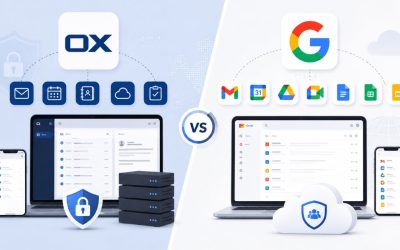
None of the major platforms is strictly better in every dimension; the right choice depends on which trade-offs a business is already comfortable living with. OX App Suite’s differentiator from Google Workspace and Microsoft 365 is bundled cloud storage via OX Drive, included at the mailbox tier rather than sold as a separate product line.
Where OX App Suite Differs From the Alternatives
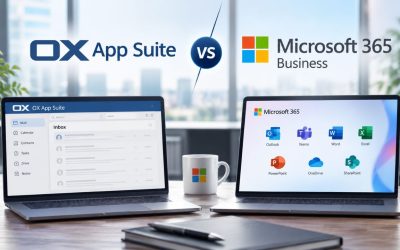
Google Workspace and Microsoft 365 both build their email offering around a broader software ecosystem, Google’s search and productivity tools, Microsoft’s Office desktop suite, and Teams, which businesses already embedded in one of those ecosystems often value more than any single feature comparison. OX App Suite instead positions itself as a focused email and collaboration platform, without requiring a business to adopt an entire vendor ecosystem to get professional mailboxes, which appeals more to organizations that want a lighter-weight, less-bundled tool.
Free webmail sits in a different category entirely, rather than being a genuine competitor on features; it’s the absence of the category. No custom domain, no administrative panel across multiple users, no service-level guarantees, and no dedicated support line when something breaks during business hours. The comparison that actually matters for most businesses evaluating OX App Suite isn’t against free email at all; it’s against Google Workspace or Microsoft 365, where the differences are real but narrower.
When a Different Platform Makes More Sense
A business already standardized on Microsoft’s desktop Office suite, with heavy Teams usage for internal communication, will generally find staying inside Microsoft 365 less disruptive than migrating mail to a separate platform, even if OX App Suite’s storage bundling looks favorable on paper. Similarly, an organization built around Google Docs-based workflows and Google’s collaborative editing model may find switching costs outweigh the benefits of moving to a different document editor inside OX Documents.
OX App Suite tends to fit best for businesses that want professional, secure business email without being locked into a single vendor’s broader software stack, agencies juggling multiple client tools, SMBs that don’t want Office or Google Workspace licensing costs stacked on top of email costs, and organizations that value the encryption flexibility OX Guard offers over what’s natively available in the two larger platforms.
| Comparison Point | OX App Suite | Google Workspace | Microsoft 365 | Free Email |
|---|---|---|---|---|
| Custom domain support | Yes, standard | Yes, standard | Yes, standard | No |
| Included cloud storage at entry tier | Up to 50 GB pooled | 30 GB (Business Starter) | Varies by plan, typically 1 TB+ | Limited, provider-set |
| Native document editor bundled | OX Documents (Text/Sheet/Presentation) | Docs/Sheets/Slides | Requires Microsoft 365 apps tier | None |
| Optional end-to-end message encryption | OX Guard (PGP/S-MIME add-on) | Client-side encryption (enterprise tiers) | Microsoft Purview Message Encryption | Not available |
| Admin panel for multi-user provisioning | Yes | Yes | Yes | No |
| CalDAV/CardDAV desktop sync | Native support | Limited, via workarounds | Via Exchange ActiveSync primarily | Not applicable |
| Vendor ecosystem lock-in | Low | High (Google ecosystem) | High (Microsoft ecosystem) | N/A |
| Reseller/partner-managed billing available | Yes | Limited | Limited | No |
| Typical minimum commitment | Reseller-dependent | Monthly or annual | Monthly or annual | None |
Open-Xchange documents the underlying architecture and feature set referenced above in its own technical materials, including that OX Guard is a fully integrated security add-on to OX App Suite that provides end users with a flexible email and file encryption solution, as detailed in Open-Xchange’s OX Guard technical documentation.
Pricing Models, Renewal Cycles, and Cost Per Mailbox
Cost per mailbox is rarely a single number; it’s shaped by plan tier, introductory versus renewal pricing, and whether add-ons like OX Guard or extra storage are bundled or billed separately. Because Hiya Digital operates as a reseller under reseller-managed licensing rather than as the underlying infrastructure owner, pricing is set within ranges the reseller configures against Open-Xchange’s wholesale licensing structure, not a single fixed public rate.
What Drives the Price of a Mailbox
 What Drives the Price of a Mailbox
Base mailbox pricing typically scales with three variables: how many mailboxes are provisioned on the domain, which storage and productivity tier is selected, and whether add-on modules like encryption or advanced anti-spam are included or billed separately. A five-mailbox domain on a base plan and the same domain on a productivity-inclusive plan with OX Documents and expanded Drive storage can differ meaningfully in monthly cost, even though both technically qualify as “OX App Suite business email.”
Introductory pricing on many hosting and email plans, not unique to OX App Suite, is often lower than the rate applied at renewal, a structure common enough across the hosting industry that it shouldn’t come as a surprise, but specific enough to each reseller’s terms that it’s worth confirming directly rather than assuming. Approximate price ranges vary by reseller and plan tier, so the only reliable number is the one confirmed against a specific account’s actual configuration.
Renewal Pricing and What to Confirm in Writing
The single most useful question to ask before signing isn’t “what’s the price”, it’s “what’s the price at renewal, and how much notice do I get before it changes?” Grace periods for a lapsed or expiring plan also vary by reseller. A universal industry standard doesn’t govern them, so a business relying on assumptions about how long a domain stays active after a missed payment risks losing mail service at exactly the wrong moment.
Getting specific answers in writing before committing protects against exactly that scenario: the renewal rate for the selected plan tier, whether storage or add-on pricing is locked at signup or subject to change independently, and the exact grace period before a lapsed account is suspended versus deleted outright. A reputable reseller will have straightforward answers to all three, and hesitation on any of them is worth treating as a signal in itself.
Frequently Asked Questions
How is OX App Suite pricing typically structured compared to a flat monthly fee?
Pricing usually breaks down into a base mailbox rate plus optional add-ons, extra storage, OX Guard encryption, or a productivity tier that includes OX Documents, rather than a single flat number covering every feature. A five-person team on a base plan pays differently than the same team with encryption and full document editing enabled. Reseller-set introductory pricing can also differ from the pricing that applies after the first renewal cycle. Before comparing OX App Suite to a competitor’s advertised flat rate, it’s worth confirming which of those add-ons are actually included in that competitor’s flat rate, since a “cheaper” flat fee sometimes excludes features that OX bundles by default. Ask specifically whether storage tier, encryption, and document editing are included or billed as separate line items. Hence, the comparison is apples-to-apples rather than comparing a bundled quote against an unbundled one.
What should I ask my reseller before signing an OX App Suite contract?
Beyond the headline price, ask three things directly: the exact renewal rate after any introductory period ends, the grace period before a lapsed account is suspended or deleted, and whether mailbox data transfers to a new administrator when the account owner changes. Also confirm how many DNS lookups your planned third-party integrations (CRM, marketing tools, helpdesk software) will add to your SPF record, since combining several services can approach the 10-lookup ceiling faster than expected. A reseller that answers all of these clearly, in writing, before you sign is a stronger signal of reliability than any feature list, since it shows the commercial terms are stable rather than adjustable after the fact.
Does OX App Suite support Microsoft Outlook?
Yes. OX App Suite connects to Outlook using standard IMAP, POP3, and SMTP protocols rather than requiring a proprietary Outlook plugin, so setup follows the same server, port, and encryption fields used for any standards-based mail account. Calendar and contact sync to Outlook typically runs through CalDAV/CardDAV connectors rather than Exchange ActiveSync, which is the protocol Outlook uses natively with Microsoft 365, worth knowing if an IT team is used to Exchange-specific sync behavior, since CalDAV sync can behave slightly differently around recurring meeting edits. For businesses standardized on desktop Outlook as their primary client but not otherwise tied to the Microsoft 365 ecosystem, this connection method lets them keep the familiar Outlook interface. At the same time, their mailboxes run on OX App Suite infrastructure.
Can I keep using my phone’s default mail app instead of the OX mobile app?
Yes, though functionality differs slightly. OX App Suite’s native iOS and Android apps sync mail, calendar, contacts, and tasks together in one interface with push notifications built specifically for that combined experience. A phone’s default mail app, connected via standard IMAP, will handle mail reliably but typically won’t sync OX-specific calendar and contact data to the same depth unless configured separately via CalDAV/CardDAV. Android, in particular, needs a dedicated sync add-on for full calendar and contact integration outside the native OX app. For users who only need mail on the go, the default app works fine; for users who rely on shared calendars and the internal directory from their phone, the native app is the more complete option.
How does migration handle mail that’s several years old?
Import tools generally pull historical mail along with recent messages, but total migration time scales with mailbox size. Hence, a mailbox holding several years of accumulated mail with large attachments takes meaningfully longer to process than a lean, recently created account. Very large mailboxes, tens of gigabytes, sometimes benefit from a staged migration, moving the most recent one or two years first so the business isn’t waiting on a full historical transfer before day-to-day mail is usable again. It’s reasonable to ask a reseller directly how they handle large historical mailboxes rather than assuming every migration follows the same timeline regardless of size, since this is exactly the kind of detail that varies by provider and by how the source account is structured.
Is OX App Suite suitable for a solo consultant, or is it built for larger teams?
It works at both ends. A solo consultant gets a professional domain address, calendar, and contacts without needing multi-user administration at all, while the same underlying platform scales to dozens of mailboxes with shared calendars, a Global Address List, and delegated admin permissions once a team grows. The mailbox-level permission model that benefits a twenty-person company with departmental access needs goes unused by a one-person account; it’s available if growth requires it, without forcing complexity on an account that doesn’t need it yet. The practical question for a solo user is less about suitability and more about whether the base plan’s storage and feature set match a one-person workload, which is usually the lightest tier a reseller offers.
What happens to backups if my account lapses or I want to cancel?
This varies meaningfully by reseller and should be confirmed directly rather than assumed, since it isn’t standardized across the industry the way protocol behavior like IMAP or SPF is. Ask specifically whether mail and Drive files remain accessible (even in a read-only or export-only state) during a grace period after a lapsed payment, how long that access window lasts before data is purged, and whether a full account export is available on request before cancellation takes effect. Businesses evaluating any email provider, not just OX App Suite, should treat this as standard due diligence, since data retention policies after cancellation are among the least visible terms until they actually matter.
Can OX Guard encryption be used with recipients who don’t have OX App Suite at all?
Yes. When an OX Guard user sends an encrypted message to someone without OX Guard or PGP set up on their end, the system automatically creates a secure, branded guest account so the recipient can decrypt and read the message via a web page, without needing to install any encryption software. This is what makes OX Guard practical for one-off secure communication with clients, partners, or regulators who have no encryption infrastructure of their own: the sender doesn’t need to coordinate key exchange in advance, and the recipient doesn’t need technical familiarity with PGP to open a single secure message.
Does a custom domain email address actually affect whether clients trust a business?
There’s no universal statistic that applies to every industry. Still, the underlying mechanism is well understood: a domain-matched email address signals that a sender controls a piece of verifiable, persistent infrastructure, a registered domain, rather than a free account anyone can create in minutes. For service-based businesses in particular (legal, financial, consulting), a domain-matched address is often one of several small signals a prospective client uses, consciously or not, to gauge legitimacy before a first call even happens. It’s not the only factor, and it won’t compensate for a weak reputation elsewhere, but it removes one easy, low-cost reason for hesitation.
Is OX App Suite compatible with a business that already uses Google Drive or Dropbox for file storage?
Yes, OX App Suite doesn’t require abandoning an existing cloud storage setup to adopt it for email. OX Drive serves as the platform’s bundled storage layer, but a business can continue using Google Drive or Dropbox for file storage while using OX App Suite solely for mail, calendar, and contacts; the two aren’t mutually exclusive. Some workflow friction is possible if employees are used to attaching files directly from Drive or Dropbox inside their previous mail client, since that specific integration depends on what connectors are available in OX’s webmail interface at the time of adoption, which is worth testing directly with a reseller before a full rollout rather than assuming parity with the previous provider’s third-party integrations.
Glossary
MX Record: The DNS entry that tells other mail servers where to deliver incoming email for a domain.
SPF (Sender Policy Framework): A DNS TXT record listing which servers are authorized to send mail on behalf of a domain.
DKIM (DomainKeys Identified Mail): A cryptographic signature attached to outgoing mail that lets receiving servers verify the message wasn’t altered and came from an authorized server.
DMARC (Domain-based Message Authentication, Reporting and Conformance): A policy layer that tells receiving servers what to do when SPF or DKIM checks fail, and optionally reports that data back to the domain owner.
IMAP (Internet Message Access Protocol): A protocol that keeps mail synchronized across multiple devices by storing messages on the server rather than downloading them to a single device.
POP3 (Post Office Protocol 3): An older mail retrieval protocol that typically downloads messages to a single device rather than keeping them synced across several.
SMTP (Simple Mail Transfer Protocol): The protocol used to send outgoing mail between servers.
CalDAV / CardDAV: Open standards for syncing calendar and contact data between a server and desktop or mobile clients.
OX Guard: An optional encryption add-on for OX App Suite based on PGP and S/MIME standards, used for end-to-end message and file encryption.
OX Drive: OX App Suite’s bundled cloud file storage, pooled with mailbox storage on most plans.
OX Documents: The umbrella name for OX App Suite’s browser-based Text, Spreadsheet, and Presentation editing applications.
TLS (Transport Layer Security): The encryption protocol that secures mail in transit between servers, distinct from end-to-end encryption at the message level.
The Hiya Digital Team is a collective of IT infrastructure specialist engineers, certified systems administrators, and cloud architects driven by a singular mission: building corporate communication systems that just work. As an Authorized Google Partner, the team handles complex global hosting deployments, secure email migrations, and advanced data compliance architectures for businesses across 40+ countries.
With over two decades of technical experience spanning custom premium business email configurations, OX AppSuite deployments, and enterprise-level network security, the Hiya Digital Team writes to demystify domain infrastructure. Their content focuses on actionable technical strategies, anti-phishing security protocols, and seamless cloud collaboration setup, all backed by real-world deployment experience and 24/7 technical support accountability.