Migrating business email means moving mailboxes, DNS records, calendars, and stored documents to a new platform while mail keeps flowing. Done in the wrong order, it causes bounced messages and missing history. When done correctly, staff never notice the switch has happened.
Explore Professional Email Powered by OX App Suite →
Why Email Migrations Fail (and What “No Downtime” Actually Means)
The destination platform doesn’t cause most failed migrations; they’re caused by sequencing. A team disables the old mailbox before the new one is confirmed to be receiving mail, or changes the MX record before every mailbox has finished syncing, and messages sent during that gap vanish. OX App Suite’s reseller-managed provisioning model enables Hiya Digital, as an Authorized Partner, to stage a full mailbox environment before a single DNS record changes, providing the mechanical basis for a genuinely zero-downtime cutover.
What Counts as Downtime vs. What’s Just Disruption
A dropped inbound message during an MX record change is downtime, mail is lost or bounced, and no amount of user patience fixes it. A user having to re-enter their password in a new webmail client, or noticing their inbox looks different for a day, is disruption, not downtime. Conflating the two leads teams to either panic over cosmetic changes or, worse, underestimate the risk of an actual MX cutover done without a parallel-run period.
Reseller renewal reviews commonly surface a stale SPF record that nobody remembers adding from a marketing tool retired two years earlier, a detail that has nothing to do with downtime risk but gets flagged as one during migration planning because nobody has looked at the record in years. Distinguishing real downtime risk (unsynced mail, premature MX changes, expired DNS TTLs) from routine cosmetic disruption (new login screen, different folder layout) is the first filter any migration plan needs, because it determines which steps require a maintenance window and which don’t.
The Three Failure Points That Actually Cause Data Loss
Nearly every migration horror story traces back to one of two points: an MX record pointed at the new server before mailbox provisioning finished, or a DNS TTL set to the default 24-hour value. Hence, the old server kept receiving mail for a full day after cutover, or a migration tool that copied message bodies but silently dropped folder structure and read/unread state. None of these are exotic failures; they’re sequencing and configuration mistakes that a documented runbook catches before they happen.
The fix in each case is procedural rather than technical: lower TTLs on MX, SPF, and CNAME records to 300–600 seconds at least 48 hours before cutover so changes propagate in minutes rather than a day; confirm every mailbox shows a completed sync status before touching MX; and run a small pilot migration with two or three real mailboxes before moving the whole organization, checking folder structure and flags survived the copy. A pilot batch costs an afternoon and catches problems that would otherwise surface for the entire company at once.
DNS Cutover Sequencing: MX, SPF, DKIM, and DMARC
DNS is where migrations succeed or fail in the literal sense; get the record order wrong, and mail either stops arriving or starts failing authentication checks. Four record types matter for an OX App Suite cutover: MX (routes inbound mail), SPF (authorizes sending servers), DKIM (signs outbound mail cryptographically), and DMARC (tells receiving servers what to do when SPF or DKIM fail).
SPF Record Structure and the 10-Lookup Limit
SPF records authorize which servers may send mail on a domain’s behalf, and they’re defined in RFC 7208. The record most businesses run into trouble with is the ten-DNS-lookup ceiling: an SPF record that references more than ten additional lookups (via include, a, mx, ptr, or redirect mechanisms) fails validation entirely, and receiving servers may treat the whole record as broken rather than partially valid. A domain that has accumulated includes statements for a CRM, a marketing platform, an old hosting provider, and now OX App Suite can hit that ceiling without anyone noticing until deliverability drops.
During a migration, this is the moment to audit and prune, not just add. Pull the current SPF record, count every nested lookup (each include typically adds its own lookups, not just one), and remove entries for services no longer in use before adding OX App Suite’s sending servers. A record that reads v=spf1 include:_spf.oxappsuite.Example: all after cleanup is both simpler to maintain and less likely to break when a service is added silently. Reseller-provisioned domains get a specific include string from Hiya Digital as part of onboarding; using the wrong one or leaving an old provider’s include in place after cutover is a common cause of intermittent deliverability failures in the weeks after migration.
DKIM Key Provisioning and DMARC Alignment
DKIM works by having the sending server attach a cryptographic signature to outbound mail, which the receiving server verifies against a public key published in DNS. OX App Suite provisions DKIM keys on a per-domain basis during onboarding; each domain added to the account gets its own key pair rather than sharing a single organization-wide key, which matters if a business runs multiple brands or subdomains through the same OX account, since a compromised key on one domain doesn’t expose the others.
DMARC ties SPF and DKIM together and should remain in p=none (monitoring-only) mode throughout the migration window, even if it was previously set to p=quarantine or p=reject. The reasoning is straightforward: during the parallel-run period, mail may briefly be sent from both the old and new infrastructure, and a strict DMARC policy could quarantine legitimate messages that haven’t yet aligned with the new SPF/DKIM records. Once the cutover is confirmed stable, typically after a week of clean DMARC aggregate reports, the policy can be tightened back to quarantine or reject.
Pre-Migration Mailbox Audit and Data Mapping
Before any technical step begins, someone needs a complete inventory of what’s actually being moved, not what IT thinks exists, but what’s confirmed active. It’s common for a company of forty employees to discover sixty provisioned mailboxes, half of them shared aliases, departed-employee accounts still receiving mail, or service accounts tied to billing and monitoring tools nobody remembers configuring.
 Building the Mailbox-to-User Mapping Sheet
 Building the Mailbox-to-User Mapping Sheet
A migration mapping sheet lists every source mailbox, its approximate size, the destination mailbox name, and a status column (active, shared, forwarding-only, or to-be-retired). This isn’t busywork; it’s the reference document that the migration tool and the person running the cutover both work from, and it’s what catches a shared “accounts@” alias that three people access but no one has assigned individual ownership of, which would otherwise fall through the cracks during provisioning.
For businesses with fewer than twenty mailboxes, a spreadsheet is sufficient. Past that, grouping by department or office location helps schedule migration in batches rather than attempting it all at once, which also gives IT a smaller blast radius if one batch surfaces a configuration problem. Each row should also note whether the mailbox uses any client-side rules, forwarding addresses, or auto-responders, since those settings often don’t transfer automatically and must be recreated on the destination side.
Handling Shared Mailboxes, Aliases, and Distribution Lists
Shared mailboxes and distribution lists behave differently during migration and need separate handling from individual user accounts. A distribution list (an alias that fans mail out to multiple recipients without storing it) typically needs to be recreated on the new platform with the same membership; there’s no mailbox content to migrate. A shared mailbox (one that multiple people log into and where mail is stored centrally) needs its content migrated like a regular mailbox, but also requires its access permissions to be rebuilt afterward, since permission grants rarely carry over automatically between platforms.
OX App Suite’s mailbox-level permission model grants access via folder sharing rather than a single shared login, meaning a “support@” mailbox can be configured so that five staff members see incoming mail. Still, only two can send from it, a distinction worth deciding deliberately during migration rather than defaulting to the old provider’s all-or-nothing access, which was often looser than intended simply because reconfiguring it was inconvenient.
Moving Mail Without Losing Anything: IMAP Sync and Import Tools
The actual mail transfer typically happens one of two ways: a live IMAP-to-IMAP sync that copies messages folder by folder. At the same time, both accounts remain active, or a one-time import from an exported archive (commonly .pst or .mbox files) into the new mailbox. Each has different tradeoffs for downtime risk.
Comparing Migration Methods by Data Fidelity and Effort
| Migration Method | Downtime Risk | Folder Structure Preserved | Read/Unread State Preserved | Typical Time for 50 Mailboxes | Requires Both Systems Active |
|---|---|---|---|---|---|
| Live IMAP sync (delta-capable) | Low | Yes | Yes | 2–4 days (background) | Yes |
| One-time IMAP sync (no delta) | Medium | Yes | Usually | 4–8 hours | No, after copy |
| PST/MBOX archive import | Medium–High | Partial (depends on tool) | Rarely | 1–3 days | No |
| Manual forwarding-only cutover | High | No (fresh start) | N/A | Same day | No |
| Self-service migration tool (user-run) | Medium | Yes | Yes | Varies by user pace | Yes |
| Reseller-assisted bulk migration | Low | Yes | Yes | 1–2 days for 50 mailboxes | Yes |
| Hybrid: sync + spot-check export | Low | Yes | Yes | 2–5 days | Yes |
| Direct forwarding rule (no copy) | High (no history moved) | No | No | Minutes | No |
The self-service migration tool built into OX App Suite lets users authenticate with their old IMAP provider directly from the new webmail interface and retrieve historical mail without IT running a bulk job, which is useful for smaller teams or for stragglers after a bulk migration has already moved most of the organization. It’s slower per mailbox than a reseller-run bulk sync but requires no scheduling coordination, since each user runs it on their own timeline.
Verifying Migration Completeness Before Cutover
A migration isn’t done when the progress bar hits 100%; it’s done when someone has spot-checked that message counts roughly match between source and destination, that a sample of folders (not just the inbox) transferred correctly, and that attachments open without corruption. Message count mismatches of a handful of emails are usually explained by system-generated messages that the migration tool deliberately excludes; a mismatch in the hundreds usually means a sync stalled partway through and needs to be rerun for that mailbox specifically.
The practical check that catches most problems: pick three mailboxes at random, not the ones IT already tested, and have the actual mailbox owner confirm their sent folder, a deep subfolder, and one email with a large attachment all look correct. Migration tools tend to handle the inbox reliably and handle deeply nested folder structures or older attachment formats less consistently, so testing only the inbox gives a false sense of completeness.
Security Configuration During Migration: OX Guard and Encryption
Migration is also the point where security settings either get carried forward correctly or get quietly reset to defaults, and defaults are rarely as strict as what a mature email environment has configured over time. Two-factor authentication, encryption settings, and spam filter allowlists/blocklists all require explicit attention rather than assuming they’ll transfer.
OX Guard: End-to-End Encryption for Sensitive Mailboxes
 OX Guard: End-to-End Encryption for Sensitive Mailboxes
OX Guard, OX App Suite’s built-in encryption and digital-signature layer, uses OpenPGP-based end-to-end encryption for mailboxes that need it, which is a meaningfully different security model from transport-layer encryption (TLS) alone. TLS protects mail in transit between servers; it stops an eavesdropper from reading the message as it crosses the network, but the message still sits in plaintext on the mail server itself once delivered.
OX Guard instead encrypts the message content directly. Hence, the body is readable only by someone who holds the corresponding private key, whether the message is in transit across the network or at rest in storage. That distinction is easy to overlook during migration, since both models appear as “encrypted” in a feature checklist, even though they protect against different threats.
Rebuilding Spam Filter Rules and Allowlists
Every mature mailbox accumulates spam filter exceptions over time: a client whose emails kept getting flagged, a newsletter someone actually wants, an internal tool that sends automated alerts from an address that looks spammy to a generic filter. None of these carry over automatically during a platform migration, resulting in a wave of “why did I stop getting X” tickets in the first week if nobody accounted for it.
The practical fix is to export the old platform’s allowlist and blocklist entries (most webmail interfaces have a settings page listing them) before migration begins, then re-enter them in OX App Suite’s spam filtering configuration as part of mailbox setup rather than reactively after users complain. For organizations using the SpamExpert-style anti-spam and anti-virus layer that pairs with OX App Suite hosting, filter sensitivity is configured at the domain level with per-mailbox overrides so that a company-wide baseline can be set once and individual exceptions layered on top rather than configuring every mailbox from scratch.
Ready to Move Without the Downtime Risk?
As an Authorized Partner and reseller of OX App Suite Email Service, Hiya Digital handles the DNS sequencing, mailbox provisioning, and security configuration outlined above as a managed process rather than leaving it to a DIY runbook. Hence, the parallel-run window closes cleanly instead of turning into a week of deliverability tickets.

Calendar, Contacts, and CalDAV/CardDAV Continuity
Mail gets the most attention during migration, but the loss of calendar and contact data causes just as much disruption. A sales team that loses shared calendars mid-quarter, or an office that can’t see conference room availability for a week, feels that pain immediately and visibly.
OX App Suite syncs calendars and contacts using the open CalDAV and CardDAV protocols rather than a proprietary sync layer, which means any client that speaks those standards, Apple’s Calendar and Contacts apps, Thunderbird, most Android calendar apps, can connect directly without needing a dedicated plugin. This matters during migration specifically because it means calendar continuity doesn’t depend on every user installing new client software before cutover; existing CalDAV-compatible clients can often just be repointed at the new server address.
Migrating Shared Calendars and Permission Structures
Shared calendars carry two things that need to survive migration: the events themselves and who has permission to view, edit, or manage them. OX App Suite separates these permission levels explicitly; a colleague can be granted “view free/busy only” access to a calendar without seeing event details, or full edit access, or something in between, which is a more granular structure than the “shared or not shared” toggle many legacy platforms offer. It’s worth making a deliberate decision during migration rather than defaulting every shared calendar to full visibility, since that was simpler on the old system.
Recreating this structure takes actual planning time, not just a data copy: someone needs to map which calendars were shared with whom and at what permission level on the old system, since that metadata often doesn’t transfer via a generic calendar export/import and must be rebuilt manually. Budgeting an afternoon for a team of ten shared calendars is realistic; skipping this step means the first week post-migration is spent fielding “I can’t see the conference room calendar anymore” tickets one at a time.
Contact Group and Global Address List Rebuilding
Personal contacts generally migrate cleanly through standard vCard export/import, since vCard is a well-supported format across nearly every email platform. Organization-wide contact structures, a Global Address List that auto-populates with every employee, or department-level contact groups usually need to be rebuilt natively in the new platform rather than imported because those structures are typically generated dynamically from the user directory rather than stored as static contact records.
For OX App Suite, the Global Address List populates automatically from provisioned mailboxes once the reseller-managed account setup is complete, which means it doesn’t need manual recreation the way department-level custom groups do, but any custom contact group built manually on the old platform (a “Preferred Vendors” list, a “Board Members” group) does need to be rebuilt by hand, since those are user-created structures with no equivalent auto-generated source.
Storage Planning: OX Drive and Mailbox Pooling
Storage is one of the more overlooked planning items in a migration, largely because most teams only think about mailbox size and forget that cloud file storage, OX Drive in OX App Suite’s case, is a separate allocation that also needs a migration plan if the business was using something like Dropbox, Google Drive, or OneDrive previously.
How Storage Pooling Changes Capacity Planning
Many providers, including OX App Suite under Hiya Digital’s reseller plans, pool storage across mailbox and Drive allocations at the account level rather than hard-capping each user individually, meaning a business with generous headroom on mostly-empty mailboxes can lean more heavily on Drive storage for a few power users without buying additional per-user capacity, as long as the pooled total stays within plan limits. This is a meaningfully different model from a fixed per-mailbox cap, and it changes how a migration team should size the target plan: total the combined projected mailbox and Drive usage across the organization rather than sizing each user identically.
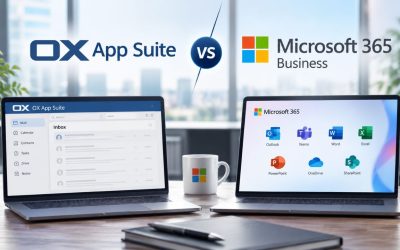
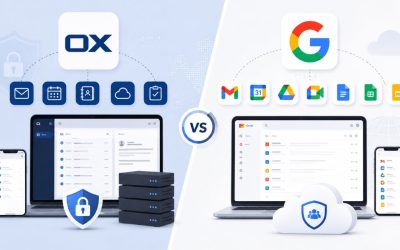
Comparing OX App Suite, Google Workspace, and Microsoft 365 on Core Plan Features
| Feature | OX App Suite (via Hiya Digital) | Google Workspace | Microsoft 365 |
|---|---|---|---|
| Base cloud file storage per user | Up to 50 GB (plan-dependent) | 30 GB (Business Starter) | 1 TB (Business Basic) |
| Storage pooling across mailbox/Drive | Yes, account-level | Partial (pooled storage add-ons) | No (per-user allocation) |
| Native office document editor included | Yes (OX Documents) | Yes (Docs/Sheets/Slides) | Yes (Office apps) |
| Calendar sync protocol | CalDAV/CardDAV (open standard) | Proprietary + CalDAV support | Proprietary (Exchange ActiveSync) |
| End-to-end mailbox encryption option | Yes (OX Guard, OpenPGP-based) | Not native (add-on required) | Not native (add-on required) |
| Reseller-managed provisioning available | Yes | Limited (mostly self-serve) | Yes (via CSP partners) |
| Self-service migration tool included | Yes | Yes (Data Migration Service) | Yes (Migration wizard) |
| Minimum typical seat count for custom pricing | 1 | 1 | 1 |
Non-Google, non-Microsoft comparisons rarely get the same scrutiny. Still, the storage-pooling distinction above is the detail that most affects a mid-migration capacity decision: businesses moving off Microsoft 365’s flat 1 TB-per-user allocation sometimes assume they need an equivalent flat cap elsewhere, when pooled storage under OX App Suite may cover the same total usage across the organization more efficiently, provided usage is genuinely uneven across users rather than uniformly high.
Document Collaboration Cutover: OX Documents vs Office 365 Files
Beyond raw file storage, teams that actively co-edit documents need to consider where real-time collaboration occurs during the migration window, since a document being edited simultaneously on two different platforms is a recipe for version conflicts.
Migrating Existing Cloud Files Into OX Drive
 Migrating Existing Cloud Files Into OX Drive
Files stored in a previous cloud storage provider don’t migrate automatically with mail; they require a separate transfer, typically via a desktop sync client that points to both the old and new storage locations simultaneously, or a bulk export/import for larger archives. OX Drive supports folder-level synchronization through both browser access and native desktop/mobile apps, so the most reliable approach for teams with substantial existing file libraries is running the old and new storage locations in parallel through a sync client for a transition window, verifying folder structure and file counts match, before removing access to the old provider.
Shared folder permissions in cloud storage face the same rebuilding requirement described earlier for shared calendars; permission grants are rarely portable between providers and need to be manually reassigned once files land in OX Drive, ideally against the same mailbox-to-user mapping sheet built during the pre-migration audit so nothing gets missed.
Handling In-Progress Documents During the Transition
The riskiest migration moment for collaborative documents isn’t the bulk file transfer; it’s a document actively being edited by multiple people the week the cutover happens. The practical approach is freezing new edits on a small list of genuinely high-traffic shared documents 24–48 hours before cutover, migrating those specific files last (after everything else has already moved and been verified), and communicating the freeze window directly to the handful of people who touch those files daily rather than a blanket announcement nobody reads.
For the much larger set of documents that aren’t under active simultaneous editing, a straightforward bulk export-then-import handles the transfer without needing any freeze period, since there’s no concurrent-edit conflict risk to manage. Sorting documents into these two buckets, actively co-edited versus static, before migration day turns a potentially chaotic cutover into a short, contained freeze on a handful of files rather than an organization-wide pause.
Mobile and Desktop Client Reconfiguration
Server-side migration can be flawless, and users will still report “email is broken” if their phone or desktop client isn’t reconfigured to point at the new server. This is consistently the most support-ticket-heavy phase of any migration, not because it’s technically hard, but because it touches every individual device rather than a central system.
Native Client Behavior vs. Dedicated Mobile Apps
OX App Suite can be accessed in two structurally different ways on mobile and desktop: through standard IMAP/SMTP/CalDAV/CardDAV settings in any native mail app (Apple Mail, the default Android mail client, Outlook desktop), or through OX App Suite’s own dedicated mobile apps for iOS and Android. The native-client path uses generic protocol settings and works everywhere but requires manually re-entering server addresses, ports, and authentication during migration; the dedicated app path handles configuration automatically once a user logs in with their new credentials, at the cost of being a separate app rather than using whatever mail client the user already has open throughout the day.
Neither approach is universally better; a user who already uses Outlook desktop for calendar-heavy work generally prefers to stay in native Outlook via IMAP/CalDAV rather than switching apps, while a user who wants the fastest path to a working mobile setup with the least manual configuration usually prefers the dedicated app. Migration communication should offer both options rather than mandating one, since forcing an unfamiliar app on someone comfortable with their existing client tends to generate more support tickets than it prevents.
Building a Device Reconfiguration Checklist
 Building a Device Reconfiguration Checklist
A reconfiguration checklist sent to users ahead of cutover, listing the new IMAP/SMTP server addresses and port numbers, along with a step-by-step guide for both the native-client and dedicated-app paths, substantially reduces support ticket volume compared to a generic “your email is moving, check your inbox for details” announcement. The checklist should also flag that old client configurations don’t need to be deleted immediately; leaving the old account configured but inactive on a device for a few days is harmless and gives a fallback if the new configuration has an issue, whereas deleting the old profile immediately removes that safety net.
Desktop clients using cached IMAP profiles sometimes continue showing old mail alongside new mail for a brief period after reconfiguration. In contrast, the client reindexes; this is a display artifact, not a data problem, and it typically resolves within an hour once the client finishes its initial sync of the new account. It’s worth proactively mentioning in the reconfiguration checklist so it doesn’t generate a wave of “duplicate emails” tickets.
Admin Controls, Permissions, and Post-Migration Governance
Migration doesn’t end when mail starts flowing through the new system; it ends when administrative control, security policy, and account governance are confirmed to match (or intentionally improve on) what existed before. This is the phase most likely to be skipped under deadline pressure, and it’s the one that determines whether the new environment stays clean or slowly accumulates the same governance drift as the old one.
Rebuilding Admin Roles and Delegated Permissions
Most mature email environments have more than one administrator, often with different scopes: an IT lead with full account control, an office manager who can reset passwords and create mailboxes but can’t touch billing, and an external consultant with read-only access to a specific department. OX App Suite’s admin panel supports this kind of role separation through delegated admin permissions rather than an all-or-nothing owner account, which is worth configuring deliberately during migration rather than defaulting everyone with any admin need to full owner access, a shortcut that tends to accumulate unnecessary risk over time as former contractors or departed staff retain access nobody remembers granting.
Reseller-managed accounts under Hiya Digital add one more layer worth understanding at this stage: Hiya Digital, as the Authorized Partner of record, typically retains billing and licensing-level access to support renewals and provisioning changes, while day-to-day administrative control (mailbox creation, password resets, permission grants) sits with the business’s own designated admin, a division of responsibility worth confirming explicitly during setup so there’s no ambiguity later about who controls what.
Post-Migration Audit: Confirming Nothing Was Left Behind
Two to four weeks after cutover, a short audit closes the loop: confirming DMARC reports show clean alignment (no unexpected sending sources still showing SPF or DKIM failures), verifying no mail is still arriving at the old provider’s servers if they haven’t been fully decommissioned yet, and checking that the mailbox-to-user mapping sheet built during pre-migration audit has every row accounted for, nothing left in a “to be reviewed” state indefinitely.
This is also the point to decommission the old email service formally rather than leaving it running indefinitely “just in case,” since an old mailbox environment left active with stale DNS records still pointed at it is a common source of confusion and, occasionally, a security gap if nobody’s monitoring it anymore. A documented decommission date, set during migration planning rather than decided reactively months later, keeps this from becoming an open-ended loose end.
Frequently Asked Questions
How much does migrating to OX App Suite typically cost beyond the per-mailbox subscription price?
Beyond the recurring per-mailbox fee, most businesses budget for two variable costs: migration labor (either self-managed staff time or a reseller-assisted migration fee) and any temporary overlap period during which both the old and new email services run simultaneously. That overlap typically lasts one to four weeks, depending on the organization’s size, so factor a few extra weeks of the old provider’s cost into the transition budget rather than assuming the switch happens the instant the new plan starts. Specific proration and renewal terms vary by reseller agreement, so confirm exact figures directly with Hiya Digital before signing rather than assuming a flat per-seat number applies uniformly across plan tiers.
Can I migrate only part of my organization first and move the rest later?
Yes, and for organizations larger than roughly twenty mailboxes, a phased migration by department or office location is generally the safer approach rather than moving everyone simultaneously. A phased approach means running a hybrid state for longer, some staff on the old system, some on OX App Suite, which requires slightly more DNS and routing coordination (mail addressed to already-migrated users needs to route correctly even while the domain’s MX still technically points elsewhere for the remaining group, often handled through a temporary forwarding rule rather than a full MX split). It’s more coordination overhead but meaningfully reduces the blast radius if a configuration issue surfaces partway through.
Does OX App Suite support Outlook, or do users have to switch to a new interface entirely?
OX App Suite works with Outlook on desktop via the standard IMAP and CalDAV/CardDAV protocols. Hence, users who prefer to stay in Outlook for calendar and mail management can generally do so. However, full Exchange ActiveSync-style deep integration (some advanced shared-calendar features specific to Exchange environments) isn’t identical to a native Microsoft 365 setup. Teams with a heavy reliance on Outlook-specific automation or macros should test those workflows against OX App Suite’s IMAP implementation during the earlier-mentioned pilot migration phase, rather than assuming full feature parity, since a handful of Outlook add-ins are built specifically for Exchange’s proprietary protocol rather than standard IMAP.
What happens to email sent to the old provider after we’ve switched but before we officially cancel that service?
This is exactly why the MX record change happens only after mailbox sync is confirmed complete. Why do DNS TTLs get lowered days in advance? A properly sequenced cutover means essentially no mail should arrive at the old provider after MX propagates, typically within minutes given a low TTL. As a safety margin, most migration plans keep the old mailbox service active (but not the primary MX target) for one to two weeks post-cutover, specifically to catch any straggling messages sent by contacts whose own systems cached an old DNS record longer than expected, which does occasionally happen even with correct TTL settings.
Will our custom domain email addresses (like [email protected]) work the same after migration?
Yes, the actual email addresses don’t change during a platform migration; only the underlying mail server infrastructure and DNS records pointing to it change. Anyone emailing [email protected] before or after migration reaches the same address, provided the DNS cutover is completed correctly. The one exception worth flagging: if the pre-migration mailbox audit uncovers old aliases or forwarding addresses that were never formally documented, those may need to be explicitly recreated on the new platform since they won’t transfer automatically if nobody knew they existed to migrate them in the first place.
How does OX App Suite handle mailbox backups, and do I need a separate backup solution?
OX App Suite includes standard retention and recovery mechanisms as part of the hosted service. Still, the specifics of backup frequency, retention windows, and disaster-recovery guarantees vary by reseller plan tier, so this is a question worth asking Hiya Digital directly and getting confirmed in writing before migration rather than assuming a default. Businesses subject to regulatory retention requirements (financial services, healthcare-adjacent, legal) should independently verify that the plan’s retention window meets their specific compliance obligations, since a general business email plan’s default retention isn’t necessarily designed to satisfy a specific regulatory standard.
Is OX App Suite suitable for a business currently on Google Workspace, or is it mainly for Microsoft 365 migrations?
OX App Suite’s self-service and reseller-assisted migration tools support importing from any standard IMAP-based provider, which includes Google Workspace, Microsoft 365, and most other commercial email hosts, since IMAP is a common protocol across all of them rather than something specific to one platform. The migration mechanics described throughout this guide- DNS sequencing, mailbox sync, calendar/contact rebuilding- apply the same way regardless of which platform mail is coming from; the main difference is that Google Workspace’s Contacts and Calendar data export formats sometimes require an extra conversion step compared to a native CalDAV/vCard export, worth flagging to whoever runs the migration in advance.
What’s the biggest mistake businesses make when migrating their email themselves without help?
The most common self-managed migration mistake is changing the MX record before confirming every mailbox has finished syncing. Teams. Teams under deadline pressure sometimes treat the MX cutover as the finish line rather than the last step, and mail sent in the gap between an incomplete mailbox and the MX change doesn’t arrive anywhere. The second most common mistake is skipping the pre-migration mailbox audit described earlier and discovering mid-migration that there are more active mailboxes, shared aliases, or forwarding rules than anyone had documented, which turns a planned weekend migration into a multi-week scramble.
Can mobile devices access OX App Suite without installing a dedicated app?
Yes, any mobile mail app that supports standard IMAP, SMTP, CalDAV, and CardDAV protocols can connect to OX App Suite by entering the appropriate server settings manually, without requiring the dedicated OX App Suite mobile app. The dedicated app simplifies setup (automatic configuration after login). It adds some OX-specific interface features not present in a generic mail app. Still, it’s a convenience layer rather than a requirement; a user who prefers their phone’s default mail app for consistency across personal and work accounts can stay there through standard protocol configuration.
How do I confirm my organization’s grace period and renewal terms in writing before committing to a migration?
Ask Hiya Digital directly, before signing, for written confirmation of three specific items: the exact grace period length after a renewal payment is missed before mailbox access is suspended, whether pricing at renewal is guaranteed to match the introductory rate or is subject to change, and whether storage or feature tiers can be downgraded mid-term if usage drops. The reseller agreement sets these terms and can vary, so a verbal summary during a sales conversation isn’t a substitute for the specific language in the service agreement. Request the relevant clauses in writing and keep them on file rather than relying on memory of what was discussed.
Glossary
MX Record: A DNS record that tells the internet which mail servers are responsible for receiving email for a domain.
SPF (Sender Policy Framework): A DNS-based authentication method that lists which servers are authorized to send mail on behalf of a domain, defined in RFC 7208.
DKIM (DomainKeys Identified Mail): An authentication method that adds a cryptographic signature to outbound mail, verified against a public key published in DNS.
DMARC (Domain-based Message Authentication, Reporting, and Conformance): A policy layer built on SPF and DKIM that tells receiving servers what to do with mail that fails authentication and provides reporting on authentication results.
IMAP (Internet Message Access Protocol): A protocol for retrieving and managing email that keeps messages stored on the server and synchronized across multiple devices.
SMTP (Simple Mail Transfer Protocol): The protocol used to send outbound email between mail servers.
CalDAV / CardDAV: Open standard protocols for syncing calendar and contact data, respectively, across different clients and servers without requiring a proprietary sync tool.
TTL (Time to Live): The length of time a DNS record is cached before a resolver checks for an updated version; lower TTLs mean faster propagation of DNS changes.
OX Guard: OX App Suite’s built-in OpenPGP-based encryption and digital signature feature for end-to-end protection of mailbox content.
OX Drive: OX App Suite’s cloud file storage and synchronization component.
OX Documents: The collective term for OX App Suite’s browser-based document editors (OX Text, OX Spreadsheet, OX Presentation).
Reseller-Managed Provisioning: An account setup model in which an Authorized Partner (such as Hiya Digital) configures and manages mailbox and licensing infrastructure on behalf of the end business, rather than the business self-provisioning directly with the underlying platform.
The Hiya Digital Team is a collective of IT infrastructure specialist engineers, certified systems administrators, and cloud architects driven by a singular mission: building corporate communication systems that just work. As an Authorized Google Partner, the team handles complex global hosting deployments, secure email migrations, and advanced data compliance architectures for businesses across 40+ countries.
With over two decades of technical experience spanning custom premium business email configurations, OX AppSuite deployments, and enterprise-level network security, the Hiya Digital Team writes to demystify domain infrastructure. Their content focuses on actionable technical strategies, anti-phishing security protocols, and seamless cloud collaboration setup, all backed by real-world deployment experience and 24/7 technical support accountability.