Discover Professional Email Powered by OX App Suite →
Startup Email Requirements That Free Webmail Doesn’t Meet
Early-stage teams usually start with whichever email service is the fastest to set up, only to discover its limits as client volume grows. A startup’s real requirements, a matching domain, dependable delivery, shared access for a small team, and predictable costs, surface only after the free option starts causing friction. Under a reseller-managed licensing model, a provider provisions mailboxes against a signed domain rather than a generic consumer address, which is the first structural difference that matters here.
 Domain Credibility and First Impressions
 Domain Credibility and First Impressions
A message from [email protected] reads differently than the same message from a free consumer domain, and recipients notice within seconds, often before reading the content. Investors, enterprise procurement teams, and even freelance clients quietly use the sending domain as a filter for legitimacy. A mismatched domain doesn’t just look informal; it can trigger stricter spam scoring at the receiving mail server, since consumer webmail domains carry different reputation signals than a dedicated business domain with its own DNS records.
Custom-domain email also signals permanence. A startup that changes its email provider every year because free storage ran out sends a subtle signal of instability to anyone paying attention to header details or reply-to addresses. Provisioning mailboxes under a reseller-managed license means the domain, mailbox count, and storage allocation are tied to a business account rather than an individual’s personal sign-up, which matters when a founder leaves or a team restructures and when access needs to transfer cleanly.
Team Growth Without Re-Platforming
Founders frequently underestimate how quickly the mailbox count needs to grow once hiring starts, and free platforms rarely offer a clean way to add five, ten, or twenty accounts under a single domain with shared administration. A business-grade platform separates the domain-level setup from individual mailbox provisioning, so adding a new hire’s account doesn’t require touching DNS again or re-authenticating the whole domain.
This separation also avoids the re-platforming problem: startups that begin on free webmail and later need real business email often face a disruptive migration exactly when they can least afford downtime, mid-fundraise, mid-launch, or mid-hiring-spree. Starting with mailbox architecture built for expansion (defined limits per plan tier, straightforward account addition, and centralized admin control) means the underlying platform doesn’t need to change as headcount does, only the number of provisioned mailboxes.
OX App Suite Components Startups Actually Use
OX App Suite bundles webmail, calendar, contacts, and document tools into a single interface, eliminating the need for separate logins for each function. For a startup without a dedicated IT hire, that consolidation reduces the number of systems someone has to manage, secure, and remember passwords for, which matters more at five employees than at five hundred.
OX Drive for File Storage and Sharing
OX Drive serves as the platform’s file storage and sharing layer, allowing users to store documents, sync folders across devices, and generate shareable links without routing files via email attachments and for a startup juggling pitch decks, contracts, and design files, keeping those documents inside the same platform as the mailbox avoids the sprawl of using one tool for email and an unrelated one for storage, each with its own permissions model to manage separately.
Version handling within OX Drive also matters for small teams editing shared documents under deadline pressure; a founder and a co-founder editing the same investor update benefit from a single source of truth rather than emailing attachments back and forth and losing track of which version is current. Storage inside OX Drive draws from the same pool as the mailbox allocation on most plan tiers, which is a detail worth confirming directly with a reseller before assuming unlimited separate storage for files.
Webmail Interface and Daily Usability
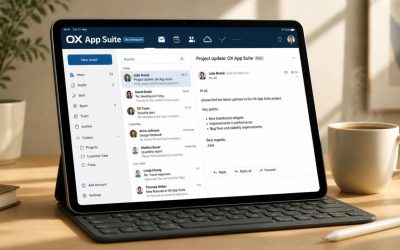
The webmail interface handles the core daily tasks of reading, composing, organizing, and searching mail, and its usability determines whether a team actually adopts the platform or reverts to forwarding everything to a personal account. OX App Suite’s webmail supports threaded conversations, customizable folder structures, and inline calendar previews when a meeting invite lands in the inbox, reducing the number of tab switches during a normal workday.
Search performance across large mailboxes is a frequent early complaint with lower-tier email platforms, and it becomes a real productivity cost once a startup has a year or two of client correspondence archived. A webmail client built for business use typically indexes mail more thoroughly than consumer-grade alternatives, and the difference is most evident when someone needs to find an old contract clause or a specific vendor thread from 18 months ago.
DNS Configuration for Custom Domain Email
Getting a custom domain to work with any email platform requires four DNS record types to work together correctly: MX, SPF, DKIM, and DMARC. Misconfiguring any one of them doesn’t necessarily prevent mail from being sent. Still, it quietly degrades deliverability, which is often worse than an outright failure because the problem goes unnoticed until a client says they never received an invoice.
MX Records and Mail Routing
An MX (Mail Exchange) record tells the internet which mail server should receive messages sent to a domain, and it includes a priority value so multiple servers can be listed as primary and backup. Getting this record wrong, pointing it at the wrong host, or leaving a stale record from a previous provider is the single most common cause of “my email isn’t working” tickets during a provider switch, since incoming mail keeps routing to the old destination until the record propagates and the previous host is fully decommissioned.
DKIM (DomainKeys Identified Mail) provisioning is per domain. It adds a cryptographic signature to outgoing mail, allowing receiving servers to verify that the message wasn’t altered in transit and that it genuinely originated from an authorized server. Each domain gets its own key pair generated at setup, published as a TXT record, and rotated periodically for security hygiene. A startup managing more than one domain, a marketing domain and a product domain, for instance, needs DKIM provisioned separately for each, since keys aren’t automatically shared across domains even under the same account.
SPF and DMARC for Deliverability
SPF (Sender Policy Framework) publishes a TXT record listing which mail servers are authorized to send on a domain’s behalf, and receiving servers check this list before deciding how much to trust an incoming message. SPF records carry a hard technical constraint worth knowing before adding a fourth or fifth marketing tool that sends mail on the domain’s behalf: the specification defined in RFC 7208 caps SPF evaluation at 10 DNS lookups, and exceeding that limit causes the record to fail validation entirely rather than simply ignoring the extras, a detail that trips up startups stacking multiple SaaS tools that each ask for an SPF include line.
DMARC (Domain-based Message Authentication, Reporting and Conformance) sits on top of SPF and DKIM, telling receiving servers what to do when a message fails either check, quarantine it, reject it, or take no action, and optionally sends reporting data back to the domain owner. Starting DMARC in monitor-only mode before moving to enforcement is standard practice, since jumping straight to a reject policy on a misconfigured setup can silently block legitimate mail, including a founder’s own outgoing newsletter, before anyone notices the records need adjustment.
Security Features Built Into the Platform
Startups rarely have a dedicated security team, which makes platform-level protection more important than it would be for an enterprise with its own security operations staff. OX App Suite layers encryption, spam filtering, and access controls into the base platform rather than treating them as paid add-ons bolted on afterward.
OX Guard and Message Encryption
 OX Guard and Message Encryption
OX Guard is OX App Suite’s built-in encryption module, handling end-to-end message encryption and digital signatures using OpenPGP and S/MIME standards without requiring a separate desktop client or plugin. For a startup handling sensitive material, signed contracts, financial figures during a raise, or early product specs under NDA, having encryption available inside the same webmail interface removes a common excuse for skipping it, since the friction of a separate encryption tool is usually what kills adoption on small teams.
Key management under OX Guard happens per user, meaning each mailbox holder generates and controls their own encryption keys rather than relying on a shared organizational certificate. That’s a meaningful distinction from platforms where encryption is centrally managed and effectively invisible to the end user. It gives individual accountability for sensitive threads, but it also means a lost private key can lock a user out of previously encrypted mail, which is worth documenting in onboarding so a departing employee’s encrypted archive isn’t orphaned.
Anti-Spam and Anti-Virus Filtering
Spam and phishing filtering typically runs at the mail-transfer layer before a message ever reaches the inbox, scoring incoming mail against known spam patterns, sender reputation databases, and attachment scanning for malicious payloads. For a startup fielding cold outreach, recruiting spam, and the occasional phishing attempt impersonating a vendor invoice, filtering quality directly affects how much manual triage a small team has to do daily, time that’s expensive when everyone is wearing multiple roles.
Two-factor authentication adds a second layer specifically against credential theft, which remains one of the most common ways small-business mailboxes are compromised, usually through a reused password exposed in an unrelated breach. Enabling it at the mailbox level, rather than leaving it optional, closes off the most common attack path for a startup’s inbox, particularly the founder’s account, which is frequently the highest-value target since it often has payment authority and access to sensitive threads across the whole company.
| Security Feature | Encryption Standard | Configured By | Typical Availability |
|---|---|---|---|
| OX Guard | OpenPGP / S/MIME | Individual user | Most business tiers |
| TLS in transit | TLS 1.2/1.3 | Platform-level, automatic | All tiers |
| Two-factor authentication | TOTP-based | Admin or user opt-in | Most business tiers |
| Anti-spam filtering | Signature + heuristic scoring | Platform-level, automatic | All tiers |
| Anti-virus attachment scanning | Signature-based | Platform-level, automatic | All tiers |
| DKIM signing | RSA key pair, per domain | Admin, at domain setup | All tiers |
| DMARC policy enforcement | Reject / quarantine / none | Admin, at domain level | All tiers |
| Login audit logging | Timestamped access records | Admin visibility only | Business/enterprise tiers |
| Mailbox-level access restriction | IP or device-based rules | Admin | Enterprise tiers typically |
| Data residency / hosting region | Regional data center selection | Set at account provisioning | Varies by reseller agreement |
Shared Calendars and Team Collaboration
Coordinating a five-person team’s schedule over email threads or a separate calendar app creates friction that compounds as headcount grows. OX App Suite’s calendar and contacts modules live inside the same account as the mailbox, so scheduling a client call doesn’t require switching to an unrelated tool or manually cross-checking availability across platforms.
Shared Calendar Permissions
Calendar sharing inside OX App Suite operates on a permission-tiered model. An admin or calendar owner can grant view-only access, free/busy visibility without event details, or full edit rights, and those permissions can differ for each person on the same calendar. A founder might give an executive assistant full edit access while giving an outside contractor only free/busy visibility, avoiding the common problem of either over-sharing sensitive meeting details or under-sharing to the point that double-booking becomes routine.
This granularity matters more for startups than it might initially seem, since small teams often mix full-time staff, contractors, and outside advisors, all of whom need some visibility into scheduling without equal access to what’s on the calendar. Setting permission tiers once at the account level, rather than negotiating access thread by thread, keeps scheduling friction low as the team adds its third, fourth, and fifth outside collaborator over the company’s first year.
Contacts and Document Collaboration
Shared contact directories mean a new hire doesn’t start from a blank address book; client and vendor contacts entered by one team member become visible to others with appropriate permissions, reducing duplicate entries and outdated contact information scattered across individual mailboxes. For a startup where the same three or four vendor relationships get referenced constantly, a shared directory removes a small but recurring friction point.
Document collaboration inside the suite (as covered under file storage) lets multiple users edit shared files without emailing versions back and forth, and combining that with shared calendars and contacts means a startup can run internal coordination entirely inside one login rather than stitching together a calendar app, a separate CRM, and a file-sharing tool. That consolidation is less about any single feature and more about reducing the number of places information can go stale or get duplicated across a growing team.
Get Set Up With an Authorized OX App Suite Partner
Coordinating shared calendars, contacts, and document access across a growing team only works if the underlying domain and mailbox setup were configured correctly from day one. Hiya Digital, an Authorized Partner and Reseller of OX App Suite Email Service, helps startups provision mailboxes, configure DNS records, and set collaboration permissions correctly the first time, without the trial-and-error that DIY setups often involve.

Mobile Access and Cross-Device Sync
Startup teams rarely work from a single device, and email needs to behave consistently whether someone is checking mail from a laptop, a phone between meetings, or a tablet on a flight. OX App Suite supports both a dedicated mobile app and standard protocol-based access for teams that prefer their device’s native mail client.
Native Mobile App vs. Standard Protocol Access
The dedicated OX mobile app pulls mail, calendar, and contacts through a unified sync layer built specifically for the platform, which generally delivers faster push notifications and tighter calendar-to-email integration than connecting through a generic mail client. It also tends to handle OX-specific features, such as viewing OX Guard-encrypted messages or Drive file previews, more fully than a third-party client can, since those features aren’t part of any universal mobile mail standard.
Connecting through a device’s native mail app instead, using standard IMAP and CalDAV/CardDAV protocols, gives up some of that tight integration but offers more flexibility for users who prefer to keep all their accounts (personal and business) in one familiar interface rather than running a separate app for each platform. Both paths are legitimate, depending on how a team actually works day-to-day; the trade-off is between feature access depth and interface consistency across a person’s other accounts.
Sync Reliability Across Multiple Devices
Two-way sync means a message read on a phone shows as read on the laptop moments later, and an event added to the calendar from a tablet appears everywhere else without a manual refresh. For a founder who constantly reads and replies on a phone but drafts longer messages on a laptop, sync lag of even a few minutes creates real confusion about what’s actually been handled versus what’s sitting unanswered.
Sync reliability generally depends more on network conditions and device app settings than on the platform itself. Still, a common startup mistake is enabling push sync on too many devices with aggressive polling intervals, which can drain mobile device batteries without meaningfully improving responsiveness. Setting sync intervals deliberately, near-instant for the primary device, slightly longer for secondary ones, tends to strike a better balance for a team that doesn’t need every device buzzing simultaneously for every new message.
Mailbox Storage and Team Scalability
Storage limits rarely feel urgent until a team has been sending and receiving attachments for a year. At this point, a founder discovers that the inbox is nearly full and that nobody has archived anything. Planning for storage growth from the start avoids a scramble later, particularly for teams that regularly exchange large design files, video assets, or data exports.
Storage Pooling Across Mailbox and Drive
 Storage Pooling Across Mailbox and Drive
On most OX App Suite plan tiers, mailbox storage and OX Drive file storage draw from a shared allocation rather than two entirely separate quotas, meaning a user who stores few files but receives large email attachments can still run into space constraints even with an apparently generous plan. This pooled model differs from platforms that allocate mail and file storage completely independently, and it’s worth understanding before assuming Drive usage won’t affect mailbox headroom.
Admins typically get visibility into per-user consumption across both mail and Drive from a single dashboard, which makes it easier to spot the one team member whose video file exports are quietly consuming the shared pool faster than everyone else’s mail traffic. Addressing that early, moving large files to archived cold storage or a dedicated project drive, avoids the more disruptive fix of upgrading the entire team’s plan tier to accommodate one heavy user’s storage habits.
Adding Mailboxes as the Team Grows
Adding a new mailbox under an existing domain is generally a matter of provisioning within the admin console rather than a technical DNS change, since the domain-level records (MX, SPF, DKIM, DMARC) were already established for the account. That separation between domain setup and individual mailbox provisioning is what makes scaling from three employees to fifteen relatively low-friction, compared to platforms where each new address requires re-verifying domain ownership.
Plan tiers typically define storage per mailbox and total mailbox count differently, so a startup anticipating rapid hiring should check whether adding mailboxes requires a tier upgrade or simply an incremental per-seat cost within the existing tier. Reseller-managed accounts (as covered under startup requirements) generally handle provisioning directly, eliminating the need for a founder to interact with a self-service portal not designed for rapid headcount growth.
Migration Paths for Startups Switching Providers
Startups that outgrow free webmail or inherit a poorly configured setup from an earlier co-founder eventually face a migration decision. Migration risk is real but manageable when the DNS cutover and mailbox transfer are sequenced correctly rather than done all at once under time pressure.
Common Migration Failure Points
The most common migration failure isn’t the mailbox data transfer itself; it’s DNS propagation timing, where the old MX record is deactivated before the new one has fully propagated across the internet’s resolvers, creating a window during which inbound mail bounces or silently disappears. Propagation can take anywhere from a few minutes to 48 hours, depending on the DNS provider and record TTL settings, and rushing the cutover during that window is the single most preventable cause of “we lost emails during the switch” complaints.
A second common failure point is incomplete SPF record updates: a startup switches mail providers but forgets to remove the old provider’s include line from the SPF record while adding the new one, which can push the record toward or past the 10-lookup ceiling (as covered under DNS configuration) and cause deliverability problems on both the new and any remaining legacy sending sources. Auditing the full SPF record during migration, not just adding a new line, prevents this compounding problem.
Sequencing a Low-Risk Cutover
A lower-risk sequence generally looks like: provision mailboxes and import historical mail on the new platform first, verify everything is accessible and searchable, lower the DNS TTL on MX and SPF records a few days ahead of cutover to speed up propagation, then switch the live MX record during a low-traffic window like a weekend, with the old provider’s mailboxes left active as a fallback for at least a week. This staged approach costs a little more planning time but avoids the scenario where a client email bounces during a critical week because the cutover happened without a fallback.
Renewal reviews commonly surface a stale SPF that nobody remembers adding, usually from a marketing tool trial that was never actually adopted, and cleaning that up during a migration, rather than just appending a new record on top of an already cluttered one, tends to improve deliverability beyond what the migration itself was meant to fix. Treating migration as an opportunity to audit the whole DNS configuration, not just swap providers, is generally worth the modest extra effort.
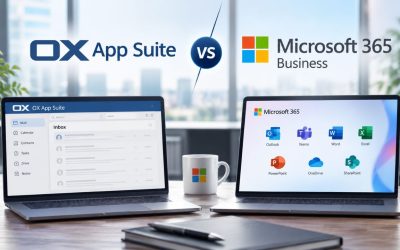
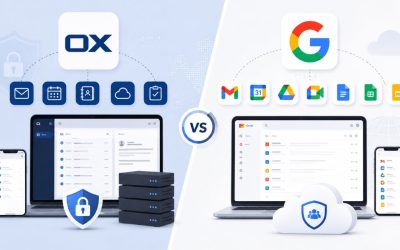
OX App Suite Compared to Google Workspace and Microsoft 365
Startups evaluating email providers usually shortlist OX App Suite alongside Google Workspace and Microsoft 365, and the right choice depends more on collaboration style and existing tool stack than on any single feature.
Document Collaboration Approach
OX Documents provides in-browser document, spreadsheet, and presentation editing directly within the suite, functioning similarly to Google Docs or Microsoft’s web-based Office apps but built as a native component of the same platform that handles mail and calendar rather than a separate product line. For a startup that wants document editing, mail, and calendar under one account and one admin console, that consolidation is a meaningful differentiator against providers that treat productivity apps and email as separate product suites requiring separate licensing decisions.
Teams already standardized on Google Docs or Microsoft Word for external collaboration with clients and investors may find switching document tools adds friction, since file format compatibility, while generally solid, isn’t always pixel-perfect across platforms for complex spreadsheets or heavily formatted documents. That tradeoff, platform consolidation versus compatibility with what clients already use, is usually the deciding factor more than any individual feature comparison.
Choosing Based on Team Workflow
Google Workspace tends to suit teams already embedded in Google’s ecosystem (Android devices, existing Gmail accounts, Google Ads or Analytics integration), while Microsoft 365 suits teams standardized on Windows and desktop Office applications with offline editing as a priority. OX App Suite tends to suit startups prioritizing a consolidated admin experience, built-in encryption through OX Guard rather than as an add-on, and a reseller relationship that includes direct setup support rather than a self-service-only model.
None of these platforms is universally superior; each optimizes for a different combination of ecosystem lock-in, collaboration style, and support model. A startup already committed to Google’s broader advertising and analytics tools has a reasonable case for staying within that ecosystem for email as well. In contrast, a startup prioritizing data control, built-in encryption, and hands-on setup support via a reseller has a reasonable case for OX App Suite.
| Comparison Point | OX App Suite | Google Workspace | Microsoft 365 |
|---|---|---|---|
| Built-in message encryption | Yes, via OX Guard | Add-on / limited native | Add-on via Microsoft Purview |
| Document editor origin | Native to suite (OX Documents) | Native (Docs/Sheets/Slides) | Native (Office web apps) |
| Primary sync protocol | CalDAV/CardDAV + proprietary app sync | Google’s proprietary sync + CalDAV support | Exchange ActiveSync/MAPI |
| Storage model | Pooled mail + Drive | Pooled across Gmail/Drive | Pooled across Outlook/OneDrive |
| Setup support model | Reseller-assisted (varies by partner) | Largely self-service | Largely self-service |
| Offline desktop client | Limited compared to alternatives | Limited (browser-first) | Strong (native Outlook/Office) |
| Ecosystem lock-in | Lower | Higher (Google services) | Higher (Microsoft services) |
| Admin console scope | Mail, calendar, Drive, Documents unified | Mail, Drive, Meet, Chat unified | Mail, OneDrive, Teams unified |
Pricing Models and Total Cost of Ownership
Startups watching every dollar need to understand not just the sticker price of an email plan but how pricing behaves over time, since the number quoted at signup is rarely the number charged at renewal.
Introductory Pricing vs. Renewal Rates
 Introductory Pricing vs. Renewal Rates
Email hosting pricing commonly follows an introductory-rate structure, where the first term (often 12 months) is priced lower than subsequent renewal terms, a pattern common across the hosting industry generally and not unique to any single provider. Approximate per-mailbox pricing for business-tier OX App Suite plans typically falls within a moderate monthly range, depending on the storage tier and add-ons. However, exact figures vary by reseller agreement and should be confirmed directly rather than assumed from advertised rates, since introductory pricing is not guaranteed to repeat at renewal.
Grace periods, the window after a plan expires during which mailboxes remain accessible before suspension, also vary by reseller and plan tier, and this is a detail worth getting in writing before signing rather than assuming a standard industry default applies. A startup that assumes a 30-day grace period when the actual policy is shorter risks a service interruption during what’s often already a busy renewal season, since renewal timing rarely aligns conveniently with a founder’s calendar.
What Drives Total Cost Beyond the Base Plan
Add-ons, additional storage blocks, extra mailbox licenses beyond the base tier, or premium security features not included in lower plan tiers are where actual monthly spend commonly diverges from the advertised starting price. A startup budgeting for email costs should ask specifically what’s included in the base tier versus what triggers an add-on charge, particularly regarding storage overages and mailbox counts beyond the initial bundle.
Proration on mid-cycle mailbox additions also varies by reseller: some charge a full month for any mailbox added, regardless of when in the billing cycle it occurs, while others prorate to the exact day. This difference matters more than it initially seems for a startup hiring throughout the year rather than in predictable batches. Getting these terms, grace period length, proration method, and add-on triggers confirmed in writing at signup avoids budget surprises that surface only at renewal, when switching costs and effort make negotiating leverage weaker than it was at initial signup.
Frequently Asked Questions
What should I ask my reseller before signing an OX App Suite contract?
Beyond the advertised monthly rate, ask specifically for the renewal-term price in writing, not just the introductory rate, since renewal pricing is where budgets are most commonly caught off guard. Ask what the grace period is if payment lapses, whether it’s measured in calendar days or billing cycles, and whether mailboxes become read-only or fully suspended during that window. Also ask how mid-cycle mailbox additions are billed, full month or prorated, since this affects cost planning for a startup hiring irregularly throughout the year rather than in predictable batches. Finally, confirm whether the storage quota is pooled across mail and Drive or allocated separately, since assuming separate quotas when they’re actually pooled is a common source of unexpected storage warnings a few months into using the platform.
Does OX App Suite work with Outlook?
Yes, OX App Suite supports the standard IMAP, SMTP, and CalDAV/CardDAV protocols so that Outlook can connect to an OX App Suite mailbox as a standard IMAP account for email. However, calendar and contact sync fidelity through Outlook’s native connectors can vary depending on how Outlook implements CalDAV support in a given version. Users who want full calendar and contact integration alongside mail, without protocol translation gaps, generally get a more complete experience with OX App Suite’s web interface or mobile app than with Outlook’s desktop client. For teams standardized on Outlook for reasons such as existing rules, signatures, or add-ins, the IMAP connection is functional for day-to-day mail. Still, it is worth testing with a single mailbox before rolling it out to the full team, since calendar sync behavior is the area most likely to need adjustment.
Can I migrate mailboxes from Google Workspace or Microsoft 365 to OX App Suite without losing data?
Migration between platforms typically preserves mail history via IMAP-based transfer tools that copy folder structures and message content from the source mailbox to the destination mailbox. Calendar and contact data generally require a separate export/import step rather than transferring automatically alongside mail, since calendar formats (like .ics exports) and contact formats (like .vcf/CSV) move through different channels than the mail transfer itself. The realistic risk isn’t usually data loss during the transfer; it’s timing risk around the DNS cutover window, where inbound mail can bounce briefly if the old MX record is deactivated before the new one has propagated. Running both mailboxes in parallel for one to two weeks after a migration, rather than deactivating the old account immediately, is the safest way to catch anything that didn’t transfer cleanly before it becomes an actual problem for the business.
Is OX App Suite suitable for a two- or three-person startup, or is it built for larger teams?
OX App Suite scales down reasonably well for very small teams, since mailbox provisioning and plan tiers are typically priced per seat rather than requiring a minimum team size to access core features such as shared calendars, OX Guard encryption, or DNS-authenticated custom-domain email. A two-person founding team gets the same domain credibility and security features as a fifty-person company, just at a proportionally lower total cost. The value proposition strengthens noticeably as the team grows to roughly five to ten people, when shared calendar permission tiers, centralized admin control, and consolidated document collaboration start to solve coordination problems that a two-person team wouldn’t yet feel acutely. Starting on the platform early, even as a two-person team, avoids the migration effort of switching later when those coordination needs arise.
How does OX App Suite handle mobile device access for a team that’s mostly working from phones?
Mobile access works either through a dedicated OX mobile app, which syncs mail, calendar, and contacts via a purpose-built sync layer, or through standard protocol connections (IMAP and CalDAV/CardDAV) if a team member prefers their phone’s native mail app. The dedicated app generally handles OX-specific features more fully, such as viewing OX Guard-encrypted messages and previewing Drive files inline. At the same time, the native-app route offers more flexibility for someone managing multiple email accounts within a single familiar interface. For a mostly mobile-first startup team, testing both access methods with one or two team members before standardizing across the company helps identify which approach better fits actual daily habits, since the right choice often comes down to personal workflow preference rather than a technical limitation of either method.
What backup protections are available for mailbox data in OX App Suite?
Backup practices vary by reseller agreement and plan tier, so the specific retention window and backup frequency should be confirmed directly with the partner provisioning the account, rather than assumed based on general industry norms. What’s generally consistent across business email platforms, including OX App Suite, is that platform-level backups protect against infrastructure failures but aren’t a substitute for a startup’s own data retention practices, particularly for legally significant correspondence such as signed contracts or compliance-relevant threads. A practical habit for startups is to periodically export or archive critical email threads outside the mailbox itself, especially before any account changes like a mailbox reassignment or an admin transition, since platform backups are designed for disaster recovery rather than as an easily searchable, long-term archive for the end user.
Does adding OX Guard encryption slow down sending or receiving mail?
OX Guard encryption adds processing overhead when composing and reading an encrypted message, since the client must perform the cryptographic operations locally. Still, this overhead is typically negligible for typical message sizes and doesn’t meaningfully affect delivery speed for either the sender or the recipient. The more relevant consideration isn’t speed but compatibility: an encrypted message sent through OX Guard is fully readable only by a recipient who also has the corresponding decryption key set up, meaning encrypted correspondence works best between parties who’ve both configured OX Guard or a compatible OpenPGP/S/MIME client on their end. For most day-to-day business correspondence, encryption is optional and used selectively for genuinely sensitive threads rather than applied to every outgoing message, since requiring every recipient to have compatible encryption set up would create friction for routine mail.
Can I use OX App Suite with multiple custom domains under a single account?
Yes, most business-tier plans support hosting multiple domains under a single account, with each domain requiring its own DNS setup, including a separately provisioned DKIM key pair, since keys aren’t shared automatically across domains even under the same billing account. This is common for startups that run a separate marketing domain from their primary product domain, or for companies that manage multiple brands. Mailbox allocation across domains typically draws from the same overall plan tier count rather than each domain getting an independent mailbox quota, so a startup planning multiple domains should confirm with their reseller how mailbox counts are split or shared across those domains before assuming each domain gets its own separate allocation under the same plan.
How do OX App Suite’s collaboration tools compare for a fully remote startup team specifically?
For a fully remote team, the value of having calendar, contacts, mail, and document editing consolidated under one login is arguably higher than for a co-located team, since remote teams rely more heavily on visibility into asynchronous schedules and shared access to documents to compensate for not being in the same room. Shared calendar permission tiers let a remote team maintain visibility into each other’s availability across time zones without making full calendar details visible to everyone, which matters when team members are spread across regions with different working hours and varying levels of appropriate access. Document collaboration inside OX Documents means a distributed team edits shared files directly rather than emailing versions across time zones and losing track of which version is current. This problem compounds specifically when team members are rarely online simultaneously to resolve version conflicts in real time.
Is business email hosting through OX App Suite a reasonable choice for a pre-revenue startup, or should I wait?
Cost is rarely the deciding factor here, since business email pricing per mailbox is generally modest relative to other pre-revenue startup expenses, and the credibility cost of running client or investor correspondence through a free consumer domain tends to outweigh the modest monthly savings of delaying a proper setup. The more relevant question for a pre-revenue startup is whether the domain and email setup will need to change again soon. If the company name, domain, or team structure is still likely to shift significantly, it may be worth finalizing those decisions before investing setup time into DNS configuration and mailbox provisioning that would need to be redone. For a startup with a settled domain name and at least an initial go-to-market strategy underway, setting up proper business email early is generally better done before the first serious client or investor conversation than after.
Glossary
MX Record (Mail Exchange Record): A DNS record that specifies which mail server should receive email for a domain, including a priority value for multiple servers.
SPF (Sender Policy Framework): A DNS TXT record listing which mail servers are authorized to send email on behalf of a domain, used to reduce spoofing.
DKIM (DomainKeys Identified Mail): A cryptographic signing method that lets a receiving server verify an email genuinely came from an authorized sending server and wasn’t altered in transit.
DMARC (Domain-based Message Authentication, Reporting and Conformance): A policy layered on top of SPF and DKIM that tells receiving servers what to do with messages that fail authentication checks.
IMAP (Internet Message Access Protocol): A protocol for retrieving and syncing email across multiple devices, keeping read/unread status and folder structure consistent.
POP3 (Post Office Protocol 3): An older mail retrieval protocol that typically downloads mail to a single device rather than syncing across multiple devices.
SMTP (Simple Mail Transfer Protocol): The protocol used to send outgoing email between mail servers.
TLS (Transport Layer Security): An encryption protocol that secures data, including email, while it’s in transit between servers.
CalDAV/CardDAV: Standard protocols for syncing calendar and contact data, respectively, across devices and applications.
OX Guard: OX App Suite’s built-in message encryption module supporting OpenPGP and S/MIME standards.
OX Drive: OX App Suite’s integrated file storage and sharing component.
OX Documents: OX App Suite’s native in-browser document, spreadsheet, and presentation editor.
The Hiya Digital Team is a collective of IT infrastructure specialist engineers, certified systems administrators, and cloud architects driven by a singular mission: building corporate communication systems that just work. As an Authorized Google Partner, the team handles complex global hosting deployments, secure email migrations, and advanced data compliance architectures for businesses across 40+ countries.
With over two decades of technical experience spanning custom premium business email configurations, OX AppSuite deployments, and enterprise-level network security, the Hiya Digital Team writes to demystify domain infrastructure. Their content focuses on actionable technical strategies, anti-phishing security protocols, and seamless cloud collaboration setup, all backed by real-world deployment experience and 24/7 technical support accountability.