Get Professional Email Powered by OX App Suite →
What OX App Suite Calendar and Collaboration Tools Include
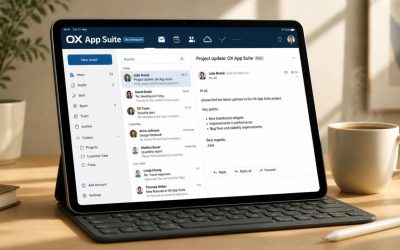
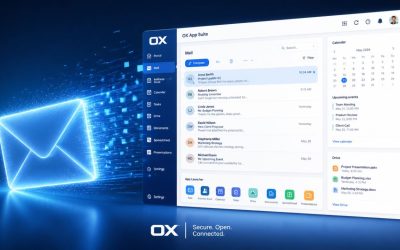
OX App Suite bundles four collaboration components around the mailbox: a shared calendar, a contacts directory, a document editing suite (OX Documents), and a file storage layer (OX Drive). Each component talks to the others through the same web interface, so a meeting invite can pull a contact’s details, attach a file from Drive, and post directly to a shared calendar without leaving the browser tab.
How the Components Connect to the Mailbox
Calendar entries, contacts, and documents in OX App Suite are not separate products bolted onto email; they share the same account provisioning layer as the mailbox itself. When an administrator creates a user, that single account automatically receives calendar, contacts, and Drive storage, all addressable through one login and one set of permission settings. This differs from stitching together a mail server and a third-party scheduling tool, where the two systems must be kept in sync manually.
A department that adds a new hire in OX App Suite typically has that person visible in the company directory, able to see shared calendars they’ve been granted access to, and able to open shared Drive folders within minutes of account creation. Solo consultants tend to use only the calendar and contacts pieces. At the same time, agencies and SMBs lean more heavily on document collaboration and shared folders once a team crosses roughly five to ten people working on overlapping client work.
Where This Fits Compared to Bolt-On Scheduling Tools
Businesses that use a generic IMAP mailbox paired with a separate calendar app often encounter duplicate contact lists and calendar invites that don’t match those on the shared team calendar. OX App Suite avoids this by keeping calendar, contacts, and mail event data (such as meeting invites sent via email) tied to the same backend record, so accepting an invite in the inbox updates the calendar automatically rather than requiring a second sync step.
The trade-off is that OX App Suite’s collaboration tools are built for teams that want a single connected system rather than best-of-breed apps. A team that specifically wants a dedicated project management tool or a heavyweight video conferencing suite will still need to integrate external services, since OX App Suite’s strength lies in calendar, contacts, mail, and document handling rather than full project management. That distinction matters when scoping a rollout, because expecting OX to replace a dedicated PM tool leads to mismatched expectations during onboarding.
Shared Calendar Architecture and CalDAV Synchronization
Shared calendars in OX App Suite let individuals, teams, and resources (such as meeting rooms) publish their availability for colleagues to view or book. Underneath the web interface, calendar data syncs to desktop and mobile clients through CalDAV, the standard protocol most calendar apps already support.
CalDAV as the Sync Layer
CalDAV, defined in RFC 4791, is an extension of WebDAV that lets a client read, write, and query calendar events stored on a server using standard HTTP methods. OX App Suite exposes each user’s calendars and any shared calendars they can access via a CalDAV endpoint, so Apple Calendar, Thunderbird, and most Android calendar apps can connect without a proprietary plugin. This matters for IT teams supporting a mixed fleet of devices because CalDAV support is nearly universal, not tied to a single vendor’s ecosystem.
A practical wrinkle arises when a company standardizes on Outlook desktop, since Outlook’s native calendar sync has historically favored Exchange ActiveSync over CalDAV. Where that gap exists, OX App Suite typically bridges it via a connector component rather than asking Outlook users to switch clients. However, administrators should confirm the current connector’s availability with their reseller before assuming full native support. Teams running Apple Mail, Thunderbird, or mobile-first workflows generally experience the smoothest CalDAV experience, with no bridging needed.
Booking Shared and Resource Calendars
Resource calendars represent shared assets, a conference room, a company vehicle, a piece of equipment, rather than a person, and OX App Suite treats them as bookable entities that respond to invitations the same way a colleague would. When someone schedules a meeting and adds the third-floor conference room as a resource, the system checks the resource’s existing bookings and either confirms or flags a conflict, eliminating the double-booking problem that spreadsheet-based room signup sheets create.
Team calendars work slightly differently: rather than being booked, they’re subscribed to, with each member choosing how much detail to reveal to others (full event details, free/busy only, or nothing). A marketing team of eight people sharing one team calendar might set most members to show full details internally. In contrast, external contractors on the same calendar see only free/busy blocks. Getting that visibility setting wrong is one of the more common early-rollout mistakes, since a calendar shared too openly by default can expose meeting subjects that should stay internal.
Contact Management and CardDAV Synchronization
The contacts module in OX App Suite functions as both a personal address book and a shared company directory, with entries synchronized to phones and desktop clients through CardDAV rather than manual export/import cycles.
 Personal Contacts vs. the Global Address Book
 Personal Contacts vs. the Global Address Book
Every user gets a private contacts folder they fully control, separate from the Global Address Book (GAB), which is populated automatically from provisioned mailboxes and can include shared organizational entries an administrator publishes. This split matters operationally: a sales rep’s personal client contacts remain private to that rep, while company-wide entries, such as the support line or a shared vendor contact, live in the GAB, where everyone sees the same up-to-date version. When an employee leaves and their account is deprovisioned, their personal contacts folder is removed with the account, while GAB entries they didn’t own remain untouched.
Search behavior differs between the two as well. GAB lookups are typically instant as users type an address into the “To” field of an email, pulling from the same directory that powers autocomplete. In contrast, personal contacts search only within that individual’s own folder unless explicitly shared. Agencies managing dozens of client contacts per account manager tend to keep client-specific contacts personal and reserve the GAB for internal staff and recurring vendors, which keeps the directory from becoming cluttered with entries only one person ever needs.
CardDAV Sync to Phones and Desktop Apps
CardDAV mirrors the CalDAV model for contact data: it’s a standard protocol that lets a phone’s native contacts app or a desktop client pull from and push to the OX App Suite contacts store without a manual export step. Once a device is configured with CardDAV, adding a contact on a phone during a client call appears in the web interface within a normal sync interval, and edits made in the browser show up on the phone the same way.
The practical benefit is most evident during staff transitions and device changes: a new phone configured with CardDAV pulls the full contact set immediately, rather than requiring a restored backup or a manually retyped list. One pattern that surfaces repeatedly during onboarding reviews is a user who set up CardDAV once on an old device and never reconfigured it on a replacement phone, quietly losing sync for months without noticing since the old contacts stayed cached locally. Confirming that CardDAV is active on current devices, not just historically configured once, is a small check worth adding to any offboarding or device-refresh checklist.
Document Collaboration with OX Documents and OX Drive
OX Documents provides browser-based editing for text, spreadsheets, and presentations. At the same time, OX Drive handles file storage and sharing; together, they let a team draft, comment on, and store files without leaving the same login used for mail and calendar.
Real-Time Editing in OX Documents
OX Documents supports multiple people editing the same text file, spreadsheet, or presentation simultaneously, with changes appearing for other editors as they’re typed rather than requiring a save-and-refresh cycle. Version history is kept automatically, so a document that gets accidentally overwritten or edited in an unwanted direction can be rolled back without anyone needing to have manually saved a separate backup copy beforehand.
This matters most for teams drafting shared documents such as proposals, budgets, or onboarding checklists, where multiple stakeholders need to contribute without emailing versions back and forth. A finance team building a shared budget spreadsheet, for instance, can have three people entering figures in different tabs at once, with formulas recalculating live rather than each person working from a stale local copy. The limitation worth noting is that OX Documents targets everyday business documents rather than advanced desktop-application features; teams with heavy formatting or macro-dependent spreadsheets should test their specific files before standardizing on browser-based editing for that workflow.
File Sharing and Storage Pooling Through OX Drive
OX Drive stores files in folders that can be shared with specific colleagues, whole teams, or external parties via a link, and it syncs to a desktop client, similar to how consumer cloud storage tools work, keeping a local copy in sync with what’s in the browser. Storage for Drive typically draws from a pooled allocation tied to the domain or plan rather than a hard per-user cap, which lets an administrator give one team more working space during a busy project without provisioning individual storage increases on an account-by-account basis.
External sharing uses expiring links with optional password protection, which is the more common approach for sending a large file to a client who doesn’t have an OX App Suite account, rather than emailing an attachment that may be blocked by size limits. A recurring pattern worth flagging: teams that migrate from consumer file-sharing habits sometimes leave shared links open indefinitely rather than setting expiration dates, which becomes a cleanup task during any later security review. Setting expiration by default at the time of share creation avoids that accumulation.
Task Lists and Team Coordination Tools
Beyond calendar and documents, OX App Suite includes a tasks module for assigning and tracking to-do items, which integrates with the calendar view. Hence, deadlines appear alongside meetings rather than living in a disconnected list.
Assigning and Tracking Shared Tasks
 Assigning and Tracking Shared Tasks
Tasks in OX App Suite can be assigned to a single owner or delegated among team members, with status fields (not started, in progress, done) and due dates that surface on the assignee’s calendar as a visual reminder. A manager creating a task list for a project can see completion status updates in real time as team members mark items done, without needing a separate status meeting to collect that information verbally.
This works well for lightweight coordination, tracking a handful of deliverables tied to a specific deadline, but teams running complex multi-stage projects with dependencies, Gantt-style timelines, or resource allocation across many contributors typically outgrow the tasks module and connect a dedicated project management tool alongside it. Recognizing that boundary early, rather than trying to force a complex project into the tasks module, avoids frustration a few months into a rollout when the team wants dependency tracking, OX’s tasks feature isn’t built to provide.
Recurring and Reminder-Based Task Workflows
Recurring tasks, a weekly report, and a monthly compliance check can be set to regenerate automatically on a schedule, eliminating the need to manually recreate the same task each cycle, with reminders delivered through the same notification system used for calendar alerts. This keeps repetitive but important administrative work from getting missed simply because nobody remembered to log it that week.
Notification timing is configurable per task or per user default, and teams that set reminders too far in advance often find them ignored, much like an overly early meeting reminder gets dismissed without action. A pattern worth adopting deliberately: setting reminder lead time to match how far in advance the task actually needs preparation, same-day for routine items, several days ahead for anything requiring coordination with other people, rather than leaving every task on the same default interval regardless of complexity.
Consult Hiya Digital Before Standardizing Your Team’s Workflow
Choosing which OX App Suite tools to standardize on, calendars, tasks, or both, is easier with guidance from someone who’s configured it for teams like yours. Hiya Digital, as an Authorized Partner and Reseller of OX App Suite Email Service, can walk through your team’s current workflow and map it to the right setup before you commit.

Mobile Access and Cross-Device Sync
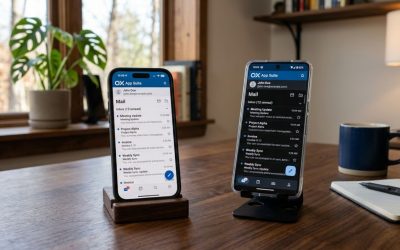
OX App Suite is accessible through a dedicated mobile app as well as through native calendar, mail, and contacts apps configured via CalDAV, CardDAV, and standard mail protocols, giving administrators a choice between a unified app experience and integration with whatever client software staff already use.
Native OX App vs. Built-In Phone Apps
The OX App Suite mobile app presents calendar, contacts, mail, and Drive in a single interface that mirrors the web experience, which suits users who want everything in a single app icon and consistent navigation across features. Push notifications for new mail, calendar invites, and task reminders come through this app directly, and offline access to recently viewed documents is generally more reliable here than through a browser tab on a phone.
Configuring a phone’s built-in Mail, Calendar, and Contacts apps instead, using IMAP for mail, CalDAV for calendar, and CardDAV for contacts, gives up the single-app convenience but keeps everything inside apps the user already knows, which some staff prefer over installing another dedicated app. The practical difference shows up in notification handling: native OS apps generally integrate better with a phone’s overall notification and widget system, while the OX App Suite app centralizes everything but requires its own permissions and battery-usage allowances to behave reliably. Neither approach is objectively better; the choice depends on whether a team values a single consolidated app or native integration with tools already in daily use.
Keeping Devices Consistent Across a Team
A team standardizing on a single access method rather than letting each person choose independently tends to have fewer support tickets, since troubleshooting a sync issue is faster when everyone’s devices are configured the same way. IT administrators onboarding new hires benefit from documenting a single recommended setup path, either “install the OX App” or “configure native CalDAV/CardDAV/IMAP”, rather than supporting both in parallel across a growing team.
Device loss or replacement is where inconsistent configuration causes the most friction: a lost phone running the unified app can usually be handled by revoking that device’s session from the web interface, while a phone using native protocol connections may have separate CalDAV, CardDAV, and mail sessions that each need individual attention during offboarding. Building device deprovisioning into a written offboarding checklist, rather than relying on someone remembering every connection type an employee’s phone used, closes a gap that otherwise surfaces months later during an account audit.
Permission Models and Access Controls
Calendar sharing, contact folder access, and Drive permissions in OX App Suite are each governed by their own tiered permission structure, allowing an administrator or individual user to grant exactly the level of visibility a colleague needs, rather than an all-or-nothing share.
Calendar Sharing Permission Tiers
OX App Suite separates calendar sharing into distinct tiers rather than a single shared/not-shared toggle: viewers might see only free/busy blocks, others might see full event details without edit rights, and a smaller group might get full edit and delegate-booking permissions on someone else’s calendar. This granularity allows an executive assistant to have full control over a manager’s calendar, while the rest of the department sees only free/busy availability for scheduling purposes.
Setting these tiers correctly during the initial rollout avoids two opposite failure modes: sharing too openly, which exposes meeting details that should stay confidential, or sharing too narrowly, which forces people to ask “are you free Thursday?” over chat instead of checking the calendar directly. A pattern that shows up in team reviews is a shared calendar left at its original default permission level from setup, months after the team’s actual confidentiality needs changed. Periodically revisiting sharing settings as the team’s composition shifts helps catch this before it becomes an actual disclosure problem.
| Permission Tier | Calendar Behavior | Drive/Folder Behavior | Typical Use Case |
|---|---|---|---|
| No Access | The calendar is not visible at all | Folder invisible in listings | External contractors, unrelated departments |
| Free/Busy Only | Time blocks visible, no event titles | Not applicable | Cross-department scheduling |
| Read-Only Details | Full event details visible, no edits | View and download files only | Team members needing context, not control |
| Read/Write | Can create and edit their own events on the calendar | Can upload, edit, and delete files | Active project collaborators |
| Delegate/Admin | Can book and manage on behalf of the owner | Can manage folder permissions for others | Executive assistants, folder owners |
| Author (Drive-specific) | Not applicable | Can add new files but not modify existing ones | Contributors submitting drafts for review |
| Public Link (expiring) | Not applicable to calendars | Time-limited, optionally password-protected external access | Client deliverables, one-off external shares |
| Public Link (no expiry) | Not applicable to calendars | Persistent external access until manually revoked | Rarely recommended; needs periodic audit |
Folder-Level Access Inheritance
The Drive and Documents folders in OX App Suite use inherited permissions by default, meaning a subfolder created within a shared parent folder inherits that parent’s access list unless someone explicitly overrides it. This saves setup time for straightforward team structures but can quietly over-share a subfolder that was meant to be more restricted than its parent, a common gap when a sensitive HR-related subfolder gets created inside a general company-wide shared drive without anyone adjusting its permissions separately.
Auditing folder permissions periodically, rather than setting them only at creation, catches drift that accumulates as folders are nested deeper and shared more broadly over time. A department that started with three shared folders and grew to thirty over two years often has permission sprawl nobody planned deliberately; each folder made sense on its own, but the aggregate access map no longer matches who should actually see what. Larger organizations tend to assign one person, not necessarily an IT admin, as the owner responsible for periodically reviewing their department’s folder structure.
Security Features for Calendar and Collaboration Data
Calendar, contact, and document data in OX App Suite is protected primarily through encryption in transit, granular access controls, and OX Guard for message-level encryption, with two-factor authentication available to lock down the account layer these tools all sit behind.
Encryption and OX Guard’s Role
 Encryption and OX Guard’s Role
All communication between clients and OX App Suite servers runs over TLS, which protects calendar sync, contact sync, and Drive file transfers from interception in transit, just as it protects webmail sessions. OX Guard extends protection specifically to email content using PGP-based encryption and digital signatures, allowing a sender to encrypt a message so that only the intended recipient’s private key can decrypt it; this is most relevant to email itself rather than to calendar or Drive data. Still, it shares the same account-level key management as the rest of the suite.
Two-factor authentication adds a second verification step at login, which matters more for collaboration tools than it might initially seem, since a compromised account doesn’t just expose email; it exposes every shared calendar, contact list, and Drive folder that account has access to. A single compromised login in a system with heavy sharing and inherited folder permissions can expose far more than one mailbox would, which is the main argument for enabling two-factor authentication account-wide rather than leaving it optional per user.
Compliance Posture for Collaboration Data
Security and compliance credentials, ISO/IEC 27001, SOC 2 Type I or II, GDPR-relevant data handling practices, apply at the infrastructure level that hosts OX App Suite, and businesses in regulated industries should confirm current certification status and data residency directly with their provider rather than assuming a specific standard applies by default. Reputable providers generally target strong uptime commitments (most credible providers aim for at least 99.9% uptime) alongside these compliance frameworks. However, exact SLA terms vary by plan and should be confirmed in writing.
For collaboration tools specifically, GDPR relevance shows up in how contact data and shared documents containing personal information are stored and who can access them. A shared Drive folder containing client personal data inherits the same data-protection obligations as that data would have anywhere else, regardless of which app displays it. Businesses handling EU client data should treat folder permission hygiene (covered under Access Controls above) as a compliance control, not just a convenience setting, since uncontrolled access to a folder containing personal data is itself a compliance gap.
OX App Suite vs. Google Workspace vs. Microsoft 365 for Collaboration
Businesses evaluating OX App Suite’s calendar and collaboration tools typically compare them with Google Workspace and Microsoft 365, since all three bundle email with calendar, contacts, and document editing under a single login.
Feature Parity and Where Each Platform Differs
 Feature Parity and Where Each Platform Differs
Google Workspace and Microsoft 365 both offer real-time document collaboration, shared calendars, and mobile sync, all of which are comparable in concept to OX App Suite’s offerings. Still, the underlying protocols and ecosystem lock-in differ meaningfully. OX App Suite’s reliance on open standards like CalDAV and CardDAV means calendar and contact data sync to virtually any compliant client without a proprietary connector. In contrast, Google Workspace and Microsoft 365 favor their own sync protocols (Google’s API-based sync and Exchange ActiveSync, respectively) that work best within their own client apps.
Document collaboration depth is where Google Workspace and Microsoft 365 tend to have a maturity edge, since both have had years longer to build out advanced formatting, add-on ecosystems, and third-party integrations than OX Documents has. Teams with simple to moderate document needs, proposals, budgets, and meeting notes rarely notice a gap. In contrast, teams with heavy dependency on advanced spreadsheet macros or presentation animation effects should test their specific files against OX Documents before switching, since that’s where the difference is most likely to surface.
| Feature | OX App Suite | Google Workspace | Microsoft 365 |
|---|---|---|---|
| Calendar sync protocol | CalDAV (open standard) | Google Calendar API | Exchange ActiveSync |
| Contact sync protocol | CardDAV (open standard) | Google Contacts API | Exchange ActiveSync |
| Real-time document editing | Yes, via OX Documents | Yes, via Docs/Sheets/Slides | Yes, via Word/Excel/PowerPoint Online |
| Native email encryption | OX Guard (PGP-based) | Client-side encryption (add-on tier) | Microsoft Purview Message Encryption |
| Third-party client compatibility | Broad, via open protocols | Good, via IMAP/API | Strongest with Outlook specifically |
| Storage model | Pooled per domain/plan | Pooled or per-user, plan-dependent | Per-user with pooled add-on options |
| Resource/room booking | Yes, native resource calendars | Yes, native | Yes, native |
| Offline document access | Limited compared to desktop suites | Available via offline mode | Strong via desktop apps |
| Add-on/extension ecosystem | Smaller, more curated | Large marketplace | Large marketplace |
Migration Complexity Between Platforms
Moving calendar and contact data between any of these three platforms is generally more straightforward than moving document libraries, since CalDAV/CardDAV-based systems and API-based systems both support standard export formats like iCalendar (.ics) and vCard (.vcf) that the others can import. Document migration is where friction shows up, since formatting fidelity across Google Docs, Microsoft Word, and OX Documents isn’t always perfect in complex files. Teams should expect to spend time rechecking formatting on their most complex documents after any cross-platform move, rather than assuming a one-click import preserves everything exactly.
Businesses switching from Google Workspace or Microsoft 365 to OX App Suite should plan the calendar and contacts migration as a distinct project phase separate from the document migration, since the former is typically quick and low-risk, whereas the latter benefits from prioritizing only actively used documents rather than automatically migrating an entire historical archive. Migration timing and downtime specifics are covered in full under Migration and Licensing Considerations below.
Migration and Licensing Considerations for Collaboration Data
Moving calendar, contact, and document data into OX App Suite from another platform and understanding how collaboration tools are licensed both affect how smoothly a rollout goes and what it costs to sustain.
Planning a Calendar and Document Migration
A typical migration sequence starts with contacts and calendars, since .ics and .vcf exports are widely supported and import cleanly with minimal formatting loss, followed by document migration prioritized by what’s actively in use rather than a full historical dump. Running the migration in a staging window, moving a pilot group first, confirming sync behavior and permission mapping, then rolling out to the full team, catches configuration issues before they affect everyone at once, which is a meaningfully lower-risk approach than a single company-wide cutover.
The most common failure pattern during collaboration-tool migrations isn’t data loss but permission mismatch: a folder that was shared with a specific group on the old platform doesn’t automatically map to an equivalent shared group in the new system, and files that were supposed to remain visible to a team end up restricted to just the migrating administrator until someone notices and re-shares them. Building a permission-verification step into the migration plan, checking a sample of migrated folders against who could see them before the move, catches this before it becomes a week of “I can’t find that file anymore” tickets.
Licensing and Storage Allocation
OX App Suite’s collaboration tools are typically licensed as part of the same per-mailbox or per-domain plan that covers email, rather than as a separate add-on, though exact plan inclusions and storage allocations vary by reseller and tier and should be confirmed directly rather than assumed. Because Hiya Digital operates as an Authorized Partner and Reseller rather than the underlying infrastructure provider, published pricing should be treated as an approximate range, with final plan details, storage pooling limits, and any renewal-cycle terms confirmed in writing before purchase.
Renewal reviews commonly surface a shared Drive folder still holding files from a project that wrapped up a year earlier, quietly consuming pooled storage nobody remembered to reclaim, a pattern of collaboration-tool storage growing unnoticed until an allocation limit gets hit. Businesses budgeting for OX App Suite should ask specifically how storage pooling works across the domain, whether calendar and contact data count against the same pool as Drive files, and how renewal pricing might change as the team and its document library both grow.
Frequently Asked Questions
Does OX App Suite’s calendar work with Outlook on the desktop, or only with its own web interface?
OX App Suite’s calendar syncs through CalDAV by default, and Apple Calendar, Thunderbird, and most Android calendar apps connect to it without any extra software. Outlook desktop is more particular, since its native sync historically favors Exchange ActiveSync-style connections over CalDAV. In practice, this usually means a connector component bridges the gap for Outlook users rather than leaving them without calendar sync entirely. Still, the exact connector setup and any licensing implications should be confirmed with your reseller before assuming full native Outlook support out of the box. Teams standardized on Apple Mail, Thunderbird, or mobile-first calendar use generally see smoother sync, with no bridging step required. If Outlook is a hard requirement for your team, ask specifically during the sales conversation how calendar sync is configured for Outlook users on your plan, since setup steps can differ from the general CalDAV configuration used for other clients.
What happens to shared calendar and Drive permissions when an employee’s account is deactivated?
When an account is deactivated, that person’s private contacts folder and personal calendar are typically removed along with the account. Still, the resources they had access to, shared calendars, and shared Drive folders, don’t automatically transfer ownership or reassign to someone else. If the deactivated employee was the sole owner of a shared folder or delegate on a manager’s calendar, an administrator generally needs to reassign ownership before deactivation completes manually, or that resource can become orphaned and harder to access afterward. This is a common gap in offboarding checklists that focus only on disabling mail access. Before deactivating any account with significant collaboration responsibilities, folder ownership, calendar delegation, and task assignments, review what that account owns and reassign it first, rather than discovering the gap when someone else needs access weeks later.
Can external clients or contractors see our shared calendars and Drive folders without a full OX App Suite account?
External access to Drive files typically works through expiring, optionally password-protected public links rather than requiring the external party to have their own account, which covers the most common case of sending a deliverable to a client. Shared calendar access for people entirely outside your OX App Suite domain is more limited; external parties generally see availability through a standard meeting invite (accept/decline, see the event on their own calendar) rather than being granted ongoing view access to your internal shared team calendar the way an internal colleague would be. If a contractor needs continuous internal calendar visibility rather than just meeting invites, that typically requires provisioning them a limited account rather than relying on external sharing links, which has licensing implications worth clarifying before assuming it’s included.
How does OX App Suite handle version history if two people edit the same document at once and something gets overwritten?
OX Documents maintains automatic version history as changes are made, regardless of whether one person or several are editing simultaneously, so a document that ends up in an unwanted state after concurrent editing can typically be rolled back to a previously saved version. This differs from a system with no built-in versioning, where an overwrite could mean permanently lost work unless someone had manually saved a separate backup copy beforehand. That said, version history depth (how far back you can roll back, and for how long) can vary by plan tier, so teams doing heavy simultaneous editing on business-critical documents should confirm the specific retention window for version history on their plan rather than assuming it’s unlimited.
Is there a specific mobile app, or do we need to configure our phones manually?
There’s a dedicated OX App Suite mobile app that bundles mail, calendar, contacts, and Drive into one interface with its own push notifications. It’s generally the simpler setup path for non-technical staff since it doesn’t require configuring separate protocol connections. The alternative is configuring a phone’s built-in Mail, Calendar, and Contacts apps individually using IMAP, CalDAV, and CardDAV, respectively, which keeps everything within apps staff already use but requires more initial setup per device and per protocol. Neither is strictly better; the practical difference shows up in notification behavior and app-switching habits rather than functionality. Teams should pick one approach and document it as the standard onboarding path, rather than supporting both configurations in parallel, which significantly reduces support tickets during new-hire setup.
How much storage do shared calendars, contacts, and Drive files actually use, and does it count against my mailbox storage?
The calendar and contact data footprint is generally negligible compared to file storage; the practical storage question almost always comes down to Drive and document files rather than calendar entries or contact records. Storage is typically pooled at the domain or plan level rather than allocated as a hard per-mailbox cap, meaning Drive usage across the whole team draws from one shared allocation. This means one team member with a large shared folder of client deliverables can consume a disproportionate share of the pool if nobody’s monitoring usage. Ask your reseller specifically whether Drive storage counts against the same pool as mailbox storage or against a separate collaboration-specific allocation, since plans do vary on this point and it affects how you budget for growth.
Can we restrict which employees are allowed to create public, no-expiry sharing links for Drive files?
Administrative controls in OX App Suite generally allow restricting sharing capabilities at the role or group level, including limiting who is permitted to create persistent (non-expiring) public links versus who can only create time-limited shares. This matters because no-expiry links left active indefinitely are a recurring source of unintentional exposure during later security reviews, as covered under Security Features above. Rather than relying on individual users to remember to set expiration dates, administrators can enforce expiration as a default policy across the entire domain, removing the option to create permanent public links altogether for most roles. If your team handles sensitive client files regularly, ask specifically whether the link-expiration policy can be enforced domain-wide rather than left as an optional setting each user configures themselves.
Does OX App Suite support two-factor authentication specifically for calendar and Drive access, or only for email login?
Two-factor authentication in OX App Suite applies at the account login level, meaning it protects calendar, contacts, Drive, and mail together rather than being configured separately for each module. Logging into the account once with 2FA grants access to everything that account can see. There isn’t a separate 2FA requirement specific to opening the calendar versus opening mail; the protection is at the front door, not per feature. Because a single compromised login can expose every shared calendar, contact list, and Drive folder that account has permission to view (not just the inbox), enabling 2FA account-wide, rather than leaving it optional per user, meaningfully reduces the blast radius of a single compromised password.
What’s the realistic timeline for migrating an existing team’s shared calendars and Drive folders into OX App Suite without losing data?
Timeline depends heavily on team size and how much document history needs to be moved. Still, calendar and contact migration (via .ics and .vcf export/import) is typically the fastest phase, often completed within a day or two for a small- to mid-size team. Document and Drive migration takes longer and should be scoped by the volume of actively used files rather than the total historical archive size, since prioritizing recent, in-use documents over a full historical dump both speeds up the migration and reduces the permission-mapping work described under Migration Considerations above. A staged rollout, pilot group first, full team after confirming sync and permissions work as expected, adds some calendar time but substantially lowers the risk of a company-wide disruption on migration day.
Should a small business with fewer than 10 people bother with the full collaboration suite, or use OX App Suite for email?
Team size alone isn’t the deciding factor; the more relevant question is whether the team already coordinates schedules, shares files, or maintains a contact list across multiple people, which most businesses do even on a small scale. A five-person consultancy sharing a client contact list and a few proposal documents gets real value from Drive and contacts even without needing the full permission-tiering complexity a fifty-person company would use. The collaboration tools scale down gracefully; a small team can use basic sharing without configuring granular permission tiers, so the decision is less about company size and more about whether the team currently relies on ad hoc methods (emailing files back and forth, a shared spreadsheet of contacts) that a connected system would meaningfully simplify.
Glossary
CalDAV: An open protocol (RFC 4791) that lets calendar clients read and write events on a remote server, enabling calendar sync across different apps and devices without a proprietary connector.
CardDAV: The contacts equivalent of CalDAV; an open protocol for syncing address book entries between a server and client apps.
OX Guard: OX App Suite’s PGP-based encryption component, used to encrypt email content and attachments so only the intended recipient can decrypt them.
OX Drive: The file storage and sync component of OX App Suite, comparable in function to consumer cloud storage tools, with folder-level sharing and permission controls.
OX Documents: The browser-based text, spreadsheet, and presentation editor built into OX App Suite, supporting real-time multi-user editing and automatic version history.
Global Address Book (GAB): The shared, organization-wide contacts directory populated from provisioned mailboxes, distinct from each user’s private personal contacts folder.
Resource Calendar: A calendar representing a bookable shared asset (meeting room, vehicle, equipment) rather than a person, which accepts or flags booking conflicts automatically.
Two-Factor Authentication (2FA): A login security measure requiring a second verification step beyond a password, protecting account-wide access to mail, calendar, contacts, and Drive together.
Pooled Storage: A storage allocation model where usage across mailbox, calendar, and Drive draws from one shared limit at the domain or plan level rather than fixed per-user caps.
iCalendar (.ics) / vCard (.vcf): Standard file formats for exporting and importing calendar events and contact records, respectively, widely supported across platforms for migration purposes.
The Hiya Digital Team is a collective of IT infrastructure specialist engineers, certified systems administrators, and cloud architects driven by a singular mission: building corporate communication systems that just work. As an Authorized Google Partner, the team handles complex global hosting deployments, secure email migrations, and advanced data compliance architectures for businesses across 40+ countries.
With over two decades of technical experience spanning custom premium business email configurations, OX AppSuite deployments, and enterprise-level network security, the Hiya Digital Team writes to demystify domain infrastructure. Their content focuses on actionable technical strategies, anti-phishing security protocols, and seamless cloud collaboration setup, all backed by real-world deployment experience and 24/7 technical support accountability.