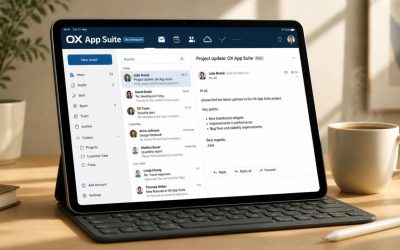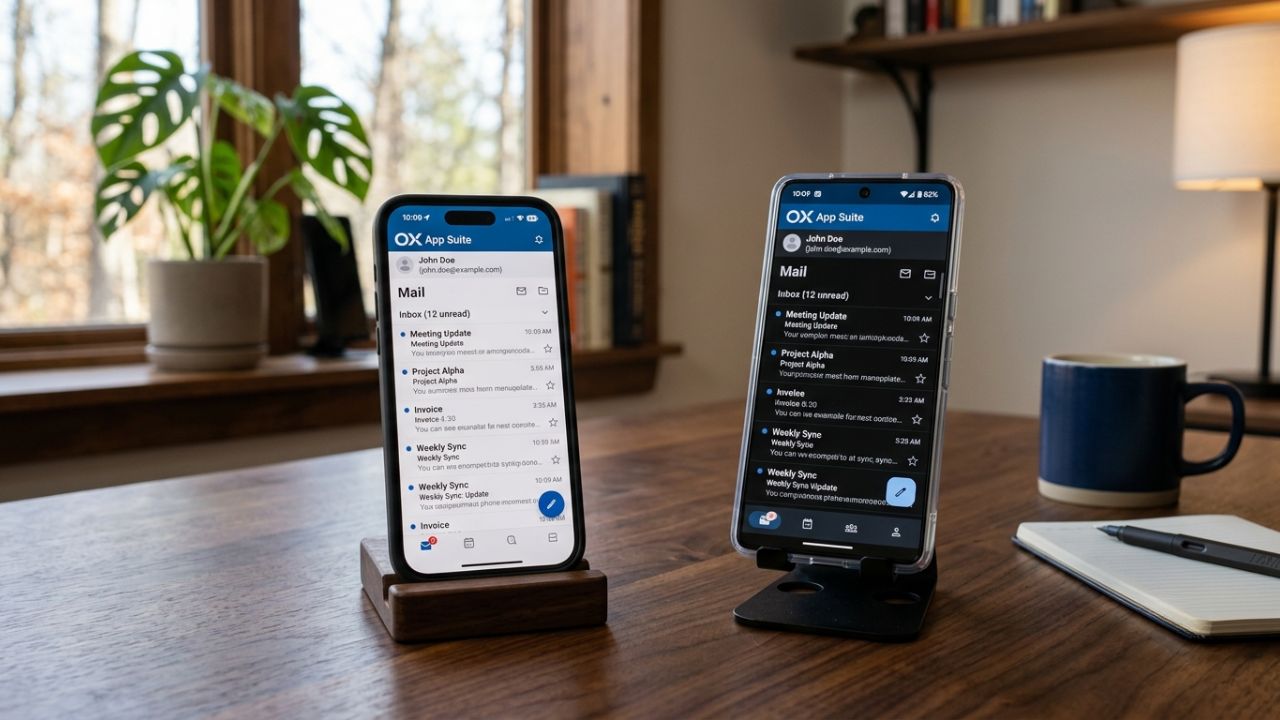
Getting mail, calendar, and contacts working correctly on a phone is where most OX App Suite deployments succeed or stall. Installation, account provisioning, push delivery, sync behavior, security controls, and the mobile issues that most often arise in real deployments all play a role in getting this right. A single misconfigured setting during provisioning can lead to sync failures or delayed notifications weeks later. Getting the fundamentals right from the start saves significant troubleshooting time down the line.
Upgrade to Professional Email Powered by OX App Suite →
OX App Suite Mobile App Architecture and Sync Protocols
The OX App Suite mobile client is not a repackaged webmail page. It’s a native application that communicates with the OX middleware via a dedicated API layer, while calendar and contact data flow through separate synchronization channels, which is why a mailbox can look perfectly configured yet still show stale appointments on a phone. Understanding which channel handles which data type is the first troubleshooting skill worth building.
How Mail, Calendar, and Contacts Move Differently
Mail retrieval in the mobile app typically runs over IMAP, with TLS wrapping the connection end-to-end. At the same time, outbound messages are routed through SMTP, with authentication enforced at the submission port. This is standard behavior across most business email platforms. Still, OX layers its own session handling on top, which means a mailbox can authenticate successfully for mail. At the same time, calendar requests fail independently if a separate credential or scope has been revoked. Administrators who only test “does mail arrive” often miss this distinction until a user reports a missing meeting.
Calendar and contact sync on OX App Suite typically runs over CalDAV and CardDAV rather than piggybacking on the mail protocol, which is a meaningful architectural difference from platforms that bundle everything into a single proprietary sync stream. CalDAV and CardDAV are open standards, so the same account can, in many configurations, be added to a phone’s native calendar app as a secondary connection if the administrator has exposed that endpoint. That flexibility is useful for edge cases, but it also means calendar sync failures need their own diagnostic path instead of being lumped in with mail delivery problems.
Why Sync Intervals Differ From Desktop Behavior
Desktop webmail sessions refresh continuously because the browser tab stays active and connected. A phone cannot behave the same way without draining the battery, so the mobile app relies on a mix of push triggers and periodic background refresh windows that the operating system itself throttles. iOS and Android each apply their own background execution limits, which means two employees with identical mailbox settings can see slightly different delivery timing purely because of how their device vendors manage background tasks that day.
This is a common source of “my coworker gets mail faster than me” tickets, and it’s rarely a server-side problem. The practical fix is to confirm that the app has background refresh and notification permissions enabled at the OS level, since OX cannot force a phone to wake up if the operating system has decided to defer that app’s background activity. Renewal reviews and support tickets alike often trace back to a permission that was quietly disabled during a routine phone update, rather than to anything wrong with the mailbox configuration itself.
Installing the OX App Suite App on iOS and Android
The OX App Suite mobile app is distributed through the Apple App Store and Google Play Store under the provider’s branding or a white-labeled name, depending on how the reseller has packaged the deployment. Installation itself is straightforward, but the meaningful differences between the mobile app and a generic native mail client show up immediately after the first login screen.
Where the Mobile App Diverges From Native Mail Clients
A generic native mail client, like the built-in iOS Mail app or a basic Android mail app, typically only pulls IMAP and SMTP settings and treats the mailbox as an isolated inbox. The dedicated OX App Suite app instead authenticates against the full middleware session, which means calendar, contacts, and, in many configurations, OX Drive files become available within a single app rather than requiring three separate native integrations. This matters for onboarding speed: a new hire can be handed one login and one app instead of a checklist of four separate account setups.
The trade-off is that the dedicated app pulls more from the account on first sync, which can make initial setup feel slower on a large mailbox with years of history, especially over a weak cellular connection. Native clients that only sync recent mail headers will feel faster on day one, but leave calendar and contacts unconfigured until a second and third setup pass. For most business users, the one-app approach saves more time over the following months than it costs during the first sync. Still, field technicians provisioning dozens of devices in a single sitting should expect the initial pass to take longer per device than a bare IMAP setup would.
 Confirming You Have the Correct App Before Installing
 Confirming You Have the Correct App Before Installing
Search results for “OX App Suite” can surface older or regionally rebranded versions of the same underlying app, and installing the wrong build is one of the more common setup mistakes reported during onboarding. The safest approach is to obtain the exact app name and store link directly from whoever provisioned the mailbox, rather than trusting the first search result, since a reseller-managed deployment may use a custom app identity that only matches their backend.
Once the correct listing is confirmed, installation follows the standard mobile app pattern: download, open, and proceed to account entry. It’s worth checking the app’s last update date in the store listing before installing on a fleet of company devices, since a stale build can lack security patches or compatibility fixes for the current middleware version. This five-minute verification step avoids a much longer troubleshooting session later when a user reports login failures that turn out to be an outdated client talking to an updated server.
Configuring Your Mailbox on iOS Devices
iOS handles account provisioning slightly differently from Android because of how Apple manages background app permissions and notification entitlements. Getting these right during initial setup prevents most “mail isn’t arriving on my phone” tickets that surface in the first week after onboarding.
Step-by-Step Account Entry on iOS
Setting Up the Mailbox
- Open the OX App Suite after installation, then select the option to add a new account.
- Enter the full email address exactly as provisioned, including the custom domain if one is in use.
- Enter the mailbox password or, where the administrator has enabled it, complete authentication through a single sign-on prompt.
- Allow the app to auto-detect server settings; most deployments resolve this automatically without manual server entry.
- When prompted, grant notification and background refresh permissions before finishing setup.
Auto-detection works because the mailbox domain typically contains the DNS records needed to locate the correct mail server, similar to how autodiscover works on other platforms. When auto-detection fails, it’s frequently because a DKIM key was rotated or a subdomain used for mail services was renamed without updating the record the app relies on for discovery, which is a distinct issue from the DKIM signature validation that protects individual outbound messages. In reseller-managed environments, per-domain DKIM key provisioning is typically handled during onboarding. Hence, a discovery failure after the account has been live for months is more likely due to a DNS record edit than to an original setup error.
If auto-detection fails and manual entry is required, the incoming and outgoing server hostnames, ports, and encryption type must be entered exactly as provided by the mailbox administrator. A single mismatched port or an encryption setting left at the wrong value is enough to cause an authentication failure that looks identical to a wrong-password error, sending many users down the wrong troubleshooting path. Confirming the exact server details in writing before attempting manual setup saves repeated login attempts that can trigger temporary account lockouts on some configurations.
Handling iOS-Specific Notification and Permission Prompts
iOS asks for notification permission as a distinct step from installing the app, and declining that prompt is one of the most common reasons push mail silently stops working after setup appears successful. Because the prompt only appears once under normal circumstances, a user who taps “don’t allow” out of habit must manually re-enable it in the iOS Settings app rather than being prompted again in OX App Suite.
Background App Refresh is a second permission that operates independently of notification access, and both need to be enabled for consistent mail delivery timing. A device with notifications allowed but background refresh disabled will often still receive alerts. Still, the underlying data may not actually update until the app is opened manually, creating a gap between what the notification banner implies and what the inbox actually contains. Walking a new user through both settings during onboarding, rather than assuming the default prompts were accepted, removes a recurring support request during the first month of use.
Configuring Your Mailbox on Android Devices
Android’s more open permission model gives administrators finer control over mobile deployments but also introduces greater variation across manufacturers, since brands like Samsung and Xiaomi add their own battery management layers on top of stock Android behavior.
Step-by-Step Account Entry on Android
 Step-by-Step Account Entry on Android
Setting Up the Mailbox
- Install the app from Google Play and open it to the add-account screen.
- Enter the email address and password, or complete single sign-on if the administrator has configured it.
- Confirm auto-detected server settings, or enter them manually if prompted.
- Grant notification permissions when Android requests them (required starting with Android 13).
- Disable manufacturer-level battery optimization for the app if delivery delays appear after setup.
Android account provisioning generally follows a similar mailbox-level permission model to iOS, where the credentials entered determine which mailbox features the app can access, but the enforcement point differs. In a reseller-managed deployment, an administrator can restrict a specific mailbox to certain client types at the server level, so a correctly entered password can still fail to unlock full functionality if that account is scoped to desktop-only or webmail-only access. This is a deliberate administrative control in some business deployments, not a bug, and it’s worth confirming with whoever manages the mailbox before assuming a setup error.
The manual server entry on Android asks for the same incoming and outgoing details as on iOS. Still, It Also exposes more granular security options during that step, including the ability to select specific TLS behavior per connection. Selecting the wrong option here doesn’t always produce an immediate error; some misconfigurations allow the account to be added successfully but degrade sync reliability over the following days as the app repeatedly retries a connection method that the server doesn’t fully support. When an Android account works initially but becomes unreliable within a week, revisiting the manual server settings is a faster diagnostic step than assuming a broader server issue.
Managing Manufacturer Battery Optimization
Stock Android’s background execution limits are manageable. Still, manufacturer-specific battery management layers are often more aggressive. They can suspend the OX App Suite’s background processes even when the user has granted all the permissions the app requests. This is one of the most underreported causes of delayed mail on Android devices because, from the user’s perspective, every setting appears correct.
The fix is manufacturer-specific: most Android skins include a battery optimization exclusion list where individual apps can be marked as unrestricted, separate from the standard Android permission screens. Devices from Samsung, Xiaomi, Huawei, and OnePlus each place this setting in a different menu path, so a single generic instruction sheet handed to a mixed-device workforce will inevitably confuse some users. Maintaining a short device-specific reference for the two or three most common manufacturers in a given organization resolves far more delivery-delay tickets than repeatedly troubleshooting the mailbox itself.
Push Notifications and Real-Time Delivery on Mobile
Push notifications are what most users mean when they ask whether mobile mail is “instant.” Still, the underlying delivery mechanism differs meaningfully from how a desktop client keeps up to date, and understanding that difference helps set realistic expectations during onboarding.
How Push Delivery Actually Works on Mobile
Rather than the phone continuously polling the mailbox, push-capable mobile platforms register the device with the operating system’s push infrastructure, and the mail server sends a push notification when new mail arrives, prompting the app to briefly wake and fetch the message. This approach conserves battery far better than constant polling would. Still, it introduces a dependency on the OS-level push service functioning correctly, which is entirely outside the mail server’s control.
OX App Suite’s mobile push mechanism extends beyond mail to related services; file changes synced through OX Drive can trigger similar wake-and-fetch behavior in supported app versions, which is a meaningful difference from mail-only mobile clients that have no awareness of document activity at all. This matters for teams that rely on Drive for shared project files accessed from phones, since a document update can surface as a notification alongside new mail rather than requiring a separate app check. The trade-off is that enabling notifications for multiple data types increases the frequency of wake events, which is worth mentioning to users who are sensitive to notification volume during setup.
Diagnosing Delayed or Missing Push Notifications
When push notifications stop arriving after previously working, the fault most often lies in one of three places: the OS-level push service itself, a battery optimization setting that has silently re-enabled after a system update, or a network condition, such as a restrictive public Wi-Fi network that blocks the push service’s outbound connection. Testing over cellular data instead of Wi-Fi is a fast way to rule out network-level blocking as the cause.
A less obvious cause is a device that has been offline for an extended period, such as during international travel with data roaming disabled; some push registrations expire and need the app to be manually reopened once connectivity resumes before delivery resumes automatically. Advising frequent travelers to manually open the app after any extended period of switched-off connectivity, rather than assuming push will silently recover, avoids the recurring “my mail stopped after my trip” ticket. None of these points to a mailbox-level fault, which is worth ruling out early so troubleshooting time isn’t spent checking server-side settings that were never the issue.
Talk to an Authorized OX App Suite Partner Before You Standardize Mobile Rollout
Getting push delivery, permissions, and manufacturer-specific battery settings right across an entire device fleet is easier with guidance from someone who has walked other teams through the same rollout. As an Authorized Partner and Reseller of OX App Suite, Hiya Digital can help configure your mailboxes and walk your team through mobile setup so the rollout goes smoothly the first time.

Calendar and Contacts Sync Across Devices
Calendar and contact behavior on mobile is where the difference between OX App Suite’s open-standards approach and a fully proprietary sync system becomes most visible to end users, particularly in organizations that mix personal and shared calendars.
Two-Way Sync Behavior for Appointments
Appointments created on a phone sync back to the server and become visible on desktop and webmail within the same refresh window that governs incoming mail, which means a meeting added during a commute is typically visible to colleagues before the user reaches the office. This two-way behavior extends to edits and cancellations, not just new entries, so deleting a duplicate appointment on mobile removes it from all devices rather than leaving orphaned copies on other devices.
Recurring appointments deserve particular attention because a single edit to one occurrence versus the entire series behaves differently depending on which option the mobile interface presents, and choosing the wrong one is a common source of calendar confusion after a schedule change. Users unfamiliar with the distinction between editing “this event” and “this and following events” can inadvertently split a recurring series into fragments that no longer sync as a single entity. A short walkthrough of this distinction during onboarding prevents a disproportionate number of calendar support tickets, given how rarely the issue actually originates from a technical fault.
Shared Calendar Permissions on Mobile
Shared calendars introduce a permission layer that mobile devices inherit from the server rather than controlling locally, and this separation between viewing rights and editing rights is where most confusion arises. A user granted view-only access to a manager’s calendar can see appointment details on their phone but will find edit controls disabled or absent, which sometimes gets reported as a bug rather than the intended permission structure working correctly.
OX App Suite’s shared calendar permission model allows administrators to set different access levels, from free/busy visibility only through full edit rights, and mobile clients respect the level assigned on the server rather than exposing a separate mobile-specific permission set. This consistency is genuinely useful for security, since it closes the gap that a mobile app might otherwise exploit to circumvent restrictions enforced elsewhere. When a user reports being unable to edit a shared calendar entry from their phone, confirming their assigned permission level at the server is a faster diagnostic step than assuming the mobile app itself is malfunctioning.
Mobile Security Controls and Two-Factor Authentication
Mobile devices carry greater inherent risk than desktop access because they’re more easily lost, stolen, or left unlocked in public settings, which makes the security controls available in the OX App Suite mobile app worth configuring deliberately rather than leaving them on default settings.
Two-Factor Authentication for Mobile Login
 Two-Factor Authentication for Mobile Login
Two-factor authentication on OX App Suite mobile typically layers a time-based one-time code or a push-approval prompt on top of the standard password, meaning a stolen password alone isn’t enough to access the mailbox from an unrecognized device. Enabling this at the account level protects mobile access the same way it protects webmail and desktop clients, since the authentication layer sits above the individual client rather than being client-specific.
The practical friction point is app-specific passwords: some legacy mail protocols don’t support interactive two-factor prompts, which historically forced administrators to issue a separate app password for older clients, thereby bypassing the second factor entirely. Confirming which authentication method the current version of the OX App Suite mobile app supports before rolling out two-factor authentication fleet-wide helps prevent a security upgrade from accidentally locking out users still running an older app build that expects the legacy flow.
Encryption and Remote Data Protection
Mail data in transit between the mobile app and the server is encrypted by default. Still, message content encryption at rest and end-to-end encryption for message bodies are separate layers that OX Guard provides as an add-on rather than default behavior baked into every mailbox. OX Guard handles PGP-style encryption and decryption for both mail and files, and, where enabled, encrypted messages composed on the desktop can typically be decrypted and read in the mobile app using the same key material, rather than requiring a separate mobile-specific encryption setup.
For lost or stolen devices, the more immediately useful control is often the ability to remotely revoke a device’s active session from the account’s security settings, which cuts off mail, calendar, and Drive access without requiring a password reset that would also lock out every other device the user owns. This is a meaningful distinction from simply changing the account password as a first response to a lost phone, since a password change alone doesn’t immediately terminate an already-authenticated mobile session that may still be actively syncing. Building session-revocation into a documented lost-device procedure, rather than defaulting to a password reset, closes that window faster.
| Security Control | Applies to Mobile App | Setup Location | Bypass Risk if Skipped |
|---|---|---|---|
| Two-factor authentication | Yes | Account security settings | High password-only access remains valid |
| OX Guard message encryption | Optional add-on | Requires separate activation | Message bodies remain unencrypted at rest |
| Remote session revocation | Yes | Account security settings | Lost device retains active mail session indefinitely |
| TLS in-transit encryption | Yes, on by default | No user action required | Rare disabling requires manual misconfiguration |
| App-specific password fallback | Version-dependent | Legacy protocol support only | Bypasses two-factor prompt if issued |
| Device passcode/biometric lock | OS-level, not OX-managed | Phone settings | App data is exposed if the device itself is unlocked |
| Auto-lock timeout for the app | Varies by app version | In-app settings, where supported | Extended exposure window if the device is left unattended |
| Remote wipe of app data only | Varies by MDM integration | Requires mobile device management enrollment | Full account compromise if the device is lost or unmanaged |
Offline Access and Local Data Handling
Mobile connectivity isn’t guaranteed, particularly for field staff and frequent travelers, which makes it important to understand exactly what the OX App Suite caches locally and what it doesn’t, so you can set realistic expectations for offline use.
What Content Is Available Without a Connection
 What Content Is Available Without a Connection
Recently synced mail, cached calendar entries, and downloaded contacts remain viewable without an active connection because the app maintains local copies for exactly this purpose. Composing a new message offline is typically supported as well, with the draft queued for delivery once connectivity returns rather than failing outright, which matters for anyone working through a flight or a dead zone.
Older mail that hasn’t been synced to the device and mail stored in folders the app hasn’t recently opened generally won’t be available offline unless the mailbox settings specify a larger local sync window. This is a deliberate storage trade-off rather than an oversight: syncing an entire multi-year mailbox history to every phone would consume device storage most users don’t want to allocate to mail. Administrators managing storage-constrained devices, such as older phones issued to field teams, can typically adjust the sync window to balance offline availability against local storage consumption.
Storage Pooling Between Mail and Drive
On the server side, many OX App Suite deployments pool storage for mail attachments and OX Drive files under a single quota rather than allocating separate fixed limits to each, which affects how offline caching behaves on mobile devices. A mailbox approaching its combined quota may see the app more aggressively trim older cached content to make room for new mail, even if Drive usage rather than mail volume is what’s driving the account toward its limit.
This pooled model has a practical upside for users who work heavily with attachments: moving a large file from a mail attachment into OX Drive and linking it instead often reclaims mailbox space without deleting the file itself, since Drive storage and mail storage draw from the same pool rather than being walled off from each other. Field teams that regularly exchange large documents benefit from being taught this workflow early, since it directly reduces the frequency of storage-related sync interruptions on mobile compared to leaving every large file as a raw attachment.
Common Mobile Sync Problems and Fixes
Most recurring mobile issues fall into a small number of categories, and recognizing the pattern quickly saves significant troubleshooting time compared to working through a generic reset-everything checklist.
Authentication and Login Failures
 Authentication and Login Failures
A login that previously worked and suddenly fails is most commonly caused by a changed password that hasn’t been updated in the mobile app, an expired session token, or an account placed in a grace period following a licensing or renewal lapse. Reseller-managed accounts that enter a grace period after a missed renewal often continue to authenticate for a limited window, making the underlying cause harder to spot until access is lost entirely. Confirming renewal status in writing with the reseller is worth doing before assuming a technical fault, as covered under mailbox provisioning.
A second, less obvious cause is a device clock that has drifted significantly out of sync with real time, since some authentication protocols reject requests where the timestamp falls outside an acceptable tolerance window. This is rare, but when it happens, it’s disproportionately confusing because every setting in the app appears correct and the error message rarely points to the actual cause. Checking that automatic date and time are enabled on the device is a thirty-second step worth adding to any login-failure checklist before escalating further.
Duplicate Messages and Calendar Entries
Duplicate mail typically appears when an account has been added to more than one client or added twice to the same client after a failed setup attempt wasn’t fully removed before retrying. Removing and re-adding an account without confirming that the original entry has been fully deleted is one of the most common self-inflicted causes of duplication, since a partially removed account can continue polling in the background even after a new one is added.
Duplicate calendar entries often stem from an appointment being added directly on the device. At the same time, sync was temporarily interrupted, creating a local-only copy that later reconciles with the server version once connectivity returns, resulting in two visually similar entries instead of one updated entry. This resolves on its own in most cases within one additional sync cycle, but instructing users to wait a sync cycle before manually deleting what appears to be a duplicate prevents them from accidentally deleting the version the server considers authoritative.
OX App Suite Mobile vs. Native Mail Clients and Outlook
Choosing among the dedicated OX App Suite app, a native phone mail client, and Outlook’s mobile app comes down to which features a given team actually uses day-to-day, since each option makes a different trade-off between simplicity and integrated functionality.
Feature Comparison and When Each Makes Sense
Outlook’s mobile app is a reasonable choice for organizations already standardized on Outlook desktop, since the interface and folder behavior will feel familiar. Still, it typically doesn’t expose OX-specific features like Drive file access or OX Documents editing directly, instead treating the mailbox as a generic IMAP account. A native phone mail client offers the fastest, lightest setup for users who genuinely only need mail and don’t use calendar sharing or document collaboration. Still, it forfeits the single-login convenience that makes the dedicated app worth the slightly longer first sync.
The dedicated OX App Suite app is the stronger choice for any team using OX Documents for collaborative editing on the go, since document previews and light editing are built into the same app that already includes mail and calendar, rather than requiring a separate document viewer app. Teams should weigh this against onboarding friction: a workforce already comfortable with a specific native client will need a change-management conversation before a switch, even when the dedicated app offers more integrated functionality in the long run.
Where Native Clients Still Have an Edge
Native clients generally integrate more tightly with the phone’s own contacts, dialer, and system-wide search, since operating system vendors give their built-in apps deeper hooks into these functions than they extend to third-party apps. A user who relies heavily on tapping a contact’s name directly from a text message or call log to jump into an email thread may find that workflow smoother in the native client than in the dedicated app, depending on the phone’s OS version and how deeply the OX app has been permitted to integrate.
Battery behavior can also differ slightly, since native clients are often more tightly optimized by the OS vendor for background efficiency than third-party apps can achieve. However, this gap has narrowed considerably in recent OX App Suite releases. For most business users, the functionality gained from the dedicated app outweighs this marginal difference. Still, it’s a legitimate consideration for field staff on older devices with limited battery capacity working full shifts away from a charger.
| Comparison Point | OX App Suite App | Native Phone Mail App | Outlook Mobile |
|---|---|---|---|
| Calendar sharing with permission levels | Full support | Not supported natively | Partial, Exchange-dependent |
| OX Drive file access | Built in | Not available | Not available |
| OX Documents editing | Built in | Not available | Not available |
| Initial sync time on a large mailbox | Longer | Fastest | Moderate |
| Single sign-on support | Yes, where enabled | Varies by device | Yes, a Microsoft account is required |
| Push notification source | OX push service | OS-native push | Microsoft push service |
| Offline draft queuing | Yes | Yes | Yes |
| Best fit | Teams using the full OX feature set | Mail-only, minimal-footprint use | Teams standardized on Outlook desktop |
Frequently Asked Questions
Does the OX App Suite mobile app work if my company also uses Google Workspace for some teams?
Yes, but the two systems don’t share a single mobile app; a device would need the OX App Suite app for the OX-hosted mailbox and Gmail’s app for any Google Workspace mailbox separately, since the two platforms don’t offer a unified mobile client. Organizations mid-migration between the two, or running a split deployment for different departments, should expect users to manage two separate mobile apps until consolidation is complete. This is more relevant during an acquisition or merger scenario, where two email systems temporarily coexist, than in a stable single-platform deployment, and it’s worth flagging to IT before rollout. Hence, users aren’t surprised to need a second app.
Can I add my OX App Suite mailbox to Apple’s built-in Mail app instead of the dedicated app?
In most configurations, yes, since the mailbox exposes standard IMAP and SMTP endpoints that Apple Mail can connect to directly, though doing so forfeits calendar sharing permission levels, Drive access, and OX Documents editing that only the dedicated app exposes. Some reseller-managed deployments restrict which client types can connect at the server level for security reasons, so confirming with your mailbox administrator before attempting a manual IMAP setup helps prevent a login that appears to fail for no clear reason. Field technicians should ask specifically about client restrictions during onboarding rather than assuming standard IMAP access is always open.
How much local storage does the OX App Suite app typically use on a phone?
This varies significantly based on the configured sync window and how many attachments and Drive files the user regularly opens on mobile. Still, a typical business mailbox with a 30-day local sync window and moderate attachment use commonly falls in the low hundreds of megabytes rather than gigabytes. Heavy Drive users who frequently open large presentation or spreadsheet files for offline editing will see noticeably higher local storage consumption than mail-only users. Users on storage-constrained older devices should ask their administrator whether the sync window can be shortened before assuming the device itself needs a storage upgrade.
What happens to my mobile access if my company’s OX App Suite subscription lapses?
Behavior during a lapsed renewal depends on the specific grace-period terms your reseller has set, and mobile access typically continues to function for a limited window before being suspended, as with desktop and webmail access. Because this window and its exact conditions vary by reseller agreement, the most reliable step is to ask your provider directly what your specific grace period covers and to get the answer in writing before the renewal date arrives, rather than assuming a standard industry figure applies to your account. This is worth confirming at the time of signing rather than after a lapse has already occurred.
Does two-factor authentication need to be set up separately on each device?
The two-factor authentication requirement is tied to the account rather than the individual device. However, each new device still needs to complete its own first-time verification step, typically a one-time code or an approval prompt sent to an already-trusted device or authenticator app. Adding a second phone after the first is already configured usually takes under a minute if the authenticator app or backup codes are on hand, but losing access to the original second-factor device without backup codes saved can lock a user out of adding any new device until an administrator manually intervenes.
Can I use OX Guard encrypted mail on mobile the same way I do on desktop?
When OX Guard is enabled for an account, encrypted and signed messages composed on desktop can generally be opened and decrypted in the mobile app using the same key material, without requiring a separate mobile-specific key setup. The practical limitation shows up with recipients outside the organization who don’t have OX Guard themselves; those messages typically arrive as a link to a secure web portal rather than decrypting automatically in their own mail client, which is worth explaining to users before they send an encrypted message to an external contact expecting normal delivery.
Will switching from a native mail app to the dedicated OX App Suite app cause me to lose any existing mail on my phone?
No mail is lost from the server itself in either scenario, since both app types read from the same mailbox rather than storing a unique, non-recoverable copy locally. What can happen is a temporary re-download period after switching apps, since the new app builds its own local cache from scratch rather than importing the previous app’s cached files, which can take longer than expected on a large mailbox over a slow connection. Users switching apps should be advised to do so over Wi-Fi rather than cellular data if the mailbox has years of history, to avoid a lengthy initial resync eating into their data plan.
How do I confirm whether my reseller-managed OX App Suite plan includes mobile device management support?
This isn’t standardized across resellers, so the most reliable approach is to ask directly whether your specific plan tier includes mobile device management integration, remote wipe capability for company-issued devices, and what the process is for enrolling a new device, rather than assuming a given feature is included by default. Getting this in writing before a company-wide device rollout avoids discovering a gap in remote-wipe capability only after a device has already been lost.
Does the mobile app support shared or delegated mailboxes, not just a user’s own account?
Yes, when server-side permissions have been granted, a user can typically access a shared or delegated mailbox from within the mobile app alongside their own account, rather than needing separate app installations or logins for each. The permission level assigned to that delegation, from view-only through full send-and-manage access, carries over from the server the same way individual calendar permissions do, and mobile clients don’t expose broader access than what was configured centrally. Anyone managing a shared support or billing mailbox on their phone should confirm their exact delegation level with the administrator if certain actions, such as sending from the shared address, appear unavailable.
What’s the fastest way to tell if a mobile sync problem is device-specific or affecting the whole team?
Checking whether the same issue reproduces on a second device or asking a colleague to check their own mobile access to the same or a different mailbox on the same server is the fastest triage step before escalating to broader server-side troubleshooting. A problem isolated to one device points to a local permission issue, battery optimization, or an app version issue. In contrast, an issue affecting multiple unrelated devices simultaneously points toward a server, DNS, or push-service-level cause that a single device reset won’t fix. Keeping a simple log of which devices, app versions, and OS versions are affected speeds up this diagnosis considerably when escalating to a reseller’s support team.
Glossary
IMAP (Internet Message Access Protocol): The protocol most mobile mail apps use to retrieve and sync mail from a server while keeping messages stored centrally rather than downloading and deleting them from the server.
SMTP (Simple Mail Transfer Protocol): The protocol used to send outbound mail from a client to a mail server and between mail servers.
CalDAV / CardDAV: Open standards for syncing calendar and contact data, respectively, used by OX App Suite to keep appointments and contacts consistent across mobile, desktop, and third-party calendar apps.
TLS (Transport Layer Security): The encryption protocol that protects mail data while it moves between a mobile device and the mail server.
OX Guard: An add-on security module for OX App Suite that provides PGP-style encryption and decryption for mail and files, available across desktop and mobile.
OX Drive: OX App Suite’s cloud file storage and sync component, accessible from the mobile app alongside mail, calendar, and contacts.
OX Documents: OX App Suite’s built-in office suite for viewing and editing text, spreadsheet, and presentation files directly within the app.
Push notification: A message delivery method where the operating system’s own push service wakes an app to fetch new content, rather than the app continuously checking the server itself.
Grace period: A limited window after a subscription renewal is missed during which access may continue before being suspended, with exact terms set by the reseller agreement.
Two-factor authentication (2FA): A login security method requiring both a password and a second verification step, such as a one-time code or approval prompt, before granting account access.
The Hiya Digital Team is a collective of IT infrastructure specialist engineers, certified systems administrators, and cloud architects driven by a singular mission: building corporate communication systems that just work. As an Authorized Google Partner, the team handles complex global hosting deployments, secure email migrations, and advanced data compliance architectures for businesses across 40+ countries.
With over two decades of technical experience spanning custom premium business email configurations, OX AppSuite deployments, and enterprise-level network security, the Hiya Digital Team writes to demystify domain infrastructure. Their content focuses on actionable technical strategies, anti-phishing security protocols, and seamless cloud collaboration setup, all backed by real-world deployment experience and 24/7 technical support accountability.