Try Professional Email Powered by OX App Suite →
What OX App Suite Email Hosting Means for a Small Business
OX App Suite is a business email and productivity platform built on Open-Xchange, packaging webmail, shared calendars, contacts, and document collaboration into one interface rather than a bundle of separate apps. For a small business, that means a single login and a single admin panel instead of stitching together a mail server, a calendar tool, and a file-sharing service from different vendors.
How the Platform Reaches Small Businesses and Customers
Open-Xchange licenses OX App Suite to hosting providers and telecoms rather than selling mailboxes directly to end users in most markets. This reseller-managed licensing model means that businesses that actually use the platform typically buy it through a partner that handles provisioning, billing, and support. At the same time, the underlying mail infrastructure and software updates remain Open-Xchange’s responsibility. Hiya Digital operates in this layer as an Authorized Partner, configuring accounts and handling day-to-day account requests without owning or developing the mail servers themselves.
This structure changes how a buyer should evaluate the offer. A reseller’s support responsiveness, onboarding process, and account management matter as much as the platform’s feature set, because the reseller is the point of contact for renewals, mailbox changes, and troubleshooting. Two businesses on the identical OX App Suite plan can have very different experiences depending on which partner sold it to them. When comparing quotes, ask specifically what the partner handles in-house versus what gets escalated to the infrastructure provider, since escalation paths add response time during outages.
Where OX App Suite Fits Against Free and Basic Webmail
A business running on a free webmail account tied to a personal address, or on a domain-based email with no collaboration layer, quickly hits limits: no shared calendars, weak spam filtering, and an unprofessional sender address. OX App Suite addresses the professionalism gap immediately by putting the business’s own domain in the From field, and it addresses the collaboration gap by including calendar and contact sharing in the base plan rather than as a paid add-on.
The trade-off is that OX App Suite requires DNS-level setup that free webmail does not: MX records, SPF, and typically DKIM before the domain sends reliably. A solo consultant with minimal collaboration needs may not require the shared calendar and document layer that OX App Suite includes, making a simpler, forwarding-based email service sufficient. Businesses with two or more people coordinating schedules, sharing contact lists, or co-editing documents get more direct value from the bundled approach than from paying separately for calendar and file-sharing tools.
Core Mailbox and Collaboration Features
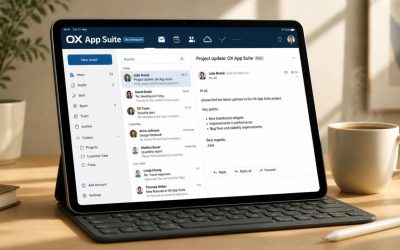
Beyond sending and receiving mail, OX App Suite bundles calendar, contacts, and document tools into a single interface, which is the platform’s main differentiator from a bare-bones IMAP mailbox. Each module shares the same permission system, so access granted to a colleague in one area can extend to related areas without separate logins.
 Shared Calendars and Contact Management
 Shared Calendars and Contact Management
OX App Suite’s calendar module supports shared and delegated calendars, meaning a manager can grant a colleague view or edit access to specific calendars without sharing the entire mailbox. Under the hood, calendar and contact sync uses the CalDAV and CardDAV protocols, the same open standards used by Apple Calendar and many desktop clients, rather than a closed proprietary sync layer. That matters in practice: a business switching desktop or mobile calendar apps later is not locked into an OX-only client because any CalDAV/CardDAV-compatible app can connect.
For a small team of five to twenty people, shared calendars typically replace a separate scheduling tool for internal meeting coordination. However, external client-facing booking pages still usually need a dedicated scheduling app. Contact sharing follows the same permission model as calendars, so a sales team can maintain one shared contact list visible to the whole group while keeping personal contacts private. The practical benefit shows up during onboarding: a new hire sees the team’s shared calendars and contacts from day one, rather than waiting for someone to manually forward invites.
Document Collaboration and File Storage
OX Documents provides in-browser editing for word processing, spreadsheet, and presentation files, comparable in concept to Google Docs but positioned as part of the mailbox suite rather than a separate product. OX Drive handles file storage and sync, allowing a business to keep shared folders accessible via the webmail interface, a desktop sync client, or mobile apps. Files attached to an email can be saved directly into Drive, and Drive files can be attached to outgoing mail as links instead of full attachments, which keeps message sizes down.
A marketing team drafting a proposal collaboratively benefits from real-time co-editing in OX Documents without needing a separate file-sharing subscription. The trade-off against dedicated productivity suites is maturity: OX Documents covers core formatting and collaborative editing well, but power users who do advanced spreadsheet modeling or complex slide design sometimes find its feature set narrower than Microsoft 365’s native apps. Businesses whose document needs are mostly proposals, internal memos, and simple spreadsheets rarely notice the gap; those running heavy financial models usually keep a separate spreadsheet tool regardless of which email platform they choose.
Spam Filtering, Antivirus, and Threat Protection
Deliverability and security depend on filtering incoming threats without blocking legitimate mail, a balance that gets harder as spam and phishing techniques evolve. OX App Suite pairs its mailbox platform with SpamExpert-style filtering and encryption tools purpose-built for the suite rather than bolted on afterward.
Encryption and Message-Level Security With OX Guard
OX Guard is Open-Xchange’s built-in encryption module, adding PGP-based end-to-end encryption and digital signatures directly within the webmail interface rather than requiring a separate plugin or external key management tool. A user can encrypt an outgoing message with a few clicks, and OX Guard manages key generation and storage, so the sender doesn’t need to manually understand PGP key exchange. This matters for businesses handling sensitive client data, legal correspondence, financial documents, and healthcare-adjacent communication, where standard TLS-in-transit encryption alone doesn’t satisfy client expectations for message confidentiality.
Encryption in transit (TLS/STARTTLS) protects mail as it moves between servers, but it does not protect the message content once it’s stored on a server or forwarded elsewhere; end-to-end encryption through OX Guard addresses that gap for messages that require it. Most day-to-day business email doesn’t require OX Guard-level encryption, and enabling it for every message adds friction for recipients who need a matching key to decrypt. The realistic pattern is selective use: OX Guard for contracts, financial statements, or anything a business would not want exposed if a mail server were ever compromised, standard TLS for routine correspondence.
Spam, Phishing, and Antivirus Filtering
Inbound filtering typically runs before mail ever reaches the mailbox, scanning for spam signatures, known phishing patterns, and malware attachments using continuously updated threat definitions. A well-tuned filter catches the obvious junk without flagging legitimate vendor invoices or client replies as spam, which is where cheaper or poorly maintained filtering services tend to fail. Quarantine handling matters here, too: a business needs visibility into what was blocked, along with an easy way for an admin or user to release a legitimate message rather than silently losing it.
Reviewing quarantine logs during a renewal check often reveals senders that were silently blocked for months without anyone noticing, usually because no one checked the quarantine folder after initial setup. Two-factor authentication on mailbox logins closes a separate but related gap: filtering stops external threats, while 2FA prevents account takeover from credential theft; a security posture that covers only one leaves an obvious hole. Businesses handling payment information or client PII should treat both as non-negotiable rather than optional add-ons, since a compromised mailbox is often the entry point for larger fraud attempts, such as invoice redirection scams.
DNS Records and Domain Authentication Setup
None of a hosted mailbox’s spam filtering or encryption matters if the domain’s DNS records aren’t configured correctly, because receiving mail servers use those records to decide whether a message is trustworthy before it ever reaches an inbox. Getting MX, SPF, DKIM, and DMARC right is the single most common cause of deliverability problems in small-business email migrations.
MX, SPF, and DKIM Configuration
 MX, SPF, and DKIM Configuration
The MX (Mail Exchange) record tells other mail servers where to deliver messages for a domain, pointing to OX App Suite’s mail servers once provisioning is complete. SPF (Sender Policy Framework), published as a TXT record, lists which servers are authorized to send mail on the domain’s behalf; receiving servers check this list and can reject or flag mail from unauthorized sources. SPF has a hard technical limit worth knowing regardless of provider: RFC 7208 caps SPF evaluation at 10 DNS lookups, and exceeding that limit causes the entire SPF check to fail (a “permerror”), which can tank deliverability even when the record looks correct at a glance.
DKIM (DomainKeys Identified Mail) adds a cryptographic signature to outgoing mail, allowing receiving servers to verify that the message wasn’t altered in transit and that it genuinely came from an authorized sending server. OX App Suite provisions DKIM on a per-domain basis, generating a unique key pair for each domain hosted under the account rather than sharing a single key across all customers on the platform, a detail worth confirming with any provider, since shared DKIM keys make it harder to isolate deliverability problems if one domain on the shared key gets flagged for abuse. A business migrating an existing domain needs to add the new SPF include and DKIM TXT records before cutting over the MX record, not after, to avoid a gap in which outgoing mail fails authentication.
DMARC Policy and Reverse DNS
DMARC (Domain-based Message Authentication, Reporting and Conformance) builds on SPF and DKIM by telling receiving servers what to do when a message fails either check: quarantine it, reject it outright, or take no action. It also generates reports showing who is sending mail using the domain’s name. Open-Xchange’s own documentation on message authentication standards covers the platform-specific configuration steps for domains hosted on OX infrastructure. Starting DMARC in monitoring-only mode before moving to enforcement is standard practice, since a business often doesn’t know which services are sending mail on its behalf (billing systems, CRM tools, marketing platforms) until DMARC reports reveal them.
Reverse DNS (PTR records) matters less directly for a hosted mailbox customer, since the hosting provider controls the sending IP’s reverse DNS configuration. Still, it’s worth understanding as a factor in overall deliverability. A mismatched or missing PTR record on the sending server is a common reason legitimate mail lands in spam even when SPF and DKIM pass, and it’s one of the first things to check with a provider’s support team during a deliverability investigation. BIMI (Brand Indicators for Message Identification), which displays a verified logo next to messages in supporting inboxes, sits atop a properly enforced DMARC policy and is worth considering once DMARC is stable with a quarantine or reject policy. However, it remains a lower priority for most small businesses than getting the core three records right first.
Storage Allocation and Mailbox Provisioning
Storage limits and how easily an admin can add or resize mailboxes affect both day-to-day usability and long-term cost as a business grows. OX App Suite’s storage model differs from that of some competitors in ways worth understanding before committing to a plan size.
How Mailbox and Drive Storage Pool Together
Rather than allocating storage strictly per mailbox with no flexibility, OX App Suite plans pool storage across mailboxes and Drive files at the account or domain level, allowing an admin to allocate more space to a heavy-storage user and less to a light user without buying separate storage tiers for each. This pooling model suits small businesses with uneven usage patterns, a sales rep with large attachment volumes, and a part-time bookkeeper with minimal mail, who can share a pooled allowance more efficiently than if each were locked into an identical fixed quota.
The practical limitation is that pooled storage requires active management; without oversight, a single heavy user can consume most of the shared allowance, leaving others running close to their limits. An admin should check storage distribution periodically rather than assuming the pool self-balances, particularly after onboarding a new employee whose usage pattern is still unknown. For a five-person business, this rarely becomes a problem within the first year, but attachment-heavy industries, design agencies exchanging large files, and agencies handling video content hit pooled limits faster than a typical services business and should size the plan with headroom rather than the minimum tier.
Adding, Removing, and Resizing Mailboxes
Provisioning a new mailbox in OX App Suite is typically an admin-panel task rather than a support ticket, meaning a growing business can add a hire’s mailbox the same day without waiting on a reseller. Removing a mailbox when someone leaves the company similarly doesn’t require deleting their mail immediately; most setups allow converting a departing employee’s mailbox to a forwarding-only or archived state so incoming client mail isn’t lost during the transition.
Resizing an individual mailbox’s storage allocation within the pooled account is generally straightforward through the same admin panel, though moving between plan tiers (adding more total pooled storage for the whole account) usually does involve contacting the reseller, since it changes the billing agreement. A business anticipating rapid headcount growth should ask the reseller directly how mailbox additions are billed mid-cycle, prorated to the renewal date versus billed in full, since this varies by partner and affects cash flow planning more than it affects the technical setup itself.
Choosing a Reseller Matters as Much as the Platform
Comparing DNS setup complexity against migration risk, as covered above, is only half the decision; who actually provisions and supports the account shapes the day-to-day experience just as much as OX App Suite’s feature set. Hiya Digital works as an Authorized Partner handling account setup, DNS guidance, and ongoing support requests for OX App Suite customers, which means a business gets a direct point of contact instead of navigating a support queue shared across an entire infrastructure provider’s customer base.

Migrating From an Existing Email Provider
Migration is usually the single biggest source of anxiety in switching email providers, because a botched cutover risks lost mail, missed client messages, and downtime during the transition window. OX App Suite migrations follow a predictable pattern, but the details depend heavily on the source platform.
Migrating Mail, Calendars, and Contacts
Most OX App Suite migrations use IMAP-based transfer tools to copy existing mailbox content, folders, messages, and their read/unread status from the old provider into the new mailboxes before the domain’s MX record changes. Calendar and contact migration typically runs separately, exporting from the old system in standard formats (iCalendar for calendars, vCard for contacts) and importing into OX App Suite’s CalDAV/CardDAV-based sync layer, using the same standards-based approach referenced earlier for shared calendars. Running mail migration and DNS cutover as separate steps, rather than simultaneously, reduces the window where messages could be misrouted.
The following sequence covers a typical small business migration:
Standard Migration Sequence
- Provision new mailboxes in OX App Suite without changing MX records yet.
- Run the IMAP mail transfer to copy historical mail into the new mailboxes.
- Export and import calendars and contacts via iCalendar/vCard or direct CalDAV/CardDAV sync.
- Add SPF and DKIM records for the new domain alongside the existing ones.
- Test outbound and inbound mail using the new mailboxes without changing MX yet.
- Lower the domain’s MX record TTL 24–48 hours ahead of cutover to speed propagation.
- Change the MX record to point to OX App Suite’s mail servers.
- Monitor both old and new mailboxes for a short overlap window to catch delayed mail.
- Remove the old provider’s SPF include once cutover is confirmed stable.
- Decommission the old mailbox provider’s plan after the overlap window closes.
Migration reviews often surface an old provider’s SPF record that was never removed months after cutover, quietly adding an unnecessary DNS lookup toward the RFC 7208 ten-lookup limit covered under DNS Setup. That’s a small detail, but it illustrates the general pattern: most migration failures trace back to DNS records left half-updated rather than to the mail transfer itself failing outright.
Downtime, Data Loss Risk, and Rollback Planning
 Downtime, Data Loss Risk, and Rollback Planning
A well-planned migration keeps customer-facing downtime close to zero, since lowering the MX TTL in advance and running an overlap window means mail keeps flowing throughout the cutover rather than stopping while records propagate. The realistic risk isn’t total mail loss; reputable providers don’t lose entire mailboxes, but rather partial gaps: messages sent during the exact propagation window sometimes land on whichever server was authoritative at that moment, which is why monitoring both inboxes during the overlap matters more than treating a cutover as an instant switch.
Rollback planning means keeping the old provider’s account active and unmodified until the new setup is confirmed stable for at least a few business days, not canceling immediately after cutover to save a partial month’s cost. A business with strict compliance requirements around email retention should also confirm, before migrating, whether historical mail needs to be preserved in an archival format separate from the live mailbox transfer, since some compliance frameworks require records retention independent of which provider currently hosts the mailbox.
Pricing Structures: Introductory Rates and Renewals
Email hosting pricing is rarely as simple as the advertised per-mailbox rate, and OX App Suite plans sold through resellers follow the same general pattern seen across the hosting industry: an attractive introductory rate followed by a renewal at a different price.
Introductory Pricing Versus Renewal Costs
Reseller-sold plans commonly price the first term, often 12 months, lower than the ongoing renewal rate, a structure common across hosting generally and not unique to OX App Suite specifically. The renewal increase itself varies by reseller and isn’t something a buyer can verify from the platform’s own pricing page, since Open-Xchange licenses the software rather than setting the end-customer retail price. A business budgeting for year two should ask the reseller directly, in writing, what the renewal rate will be, rather than assuming it matches the introductory quote, since this is the single most common source of billing surprises in hosted email.
Add-ons, additional storage blocks, OX Guard licensing (if not bundled in the base plan), premium support tiers, typically billed separately from the core mailbox price, and a quote that looks cheaper than a competitor’s may simply be excluding features the competitor bundles in by default. Comparing quotes on a like-for-like feature basis, not just the headline mailbox price, avoids the common trap of switching providers for a lower sticker price and then discovering the new plan needs several paid add-ons to match what the old plan included by default.
What to Ask a Reseller Before Signing
A grace period, the window after a renewal payment is missed before mail service is suspended, varies significantly between resellers and directly affects business continuity risk if a payment method expires or an invoice gets missed internally. Confirming the exact grace period length in writing before signing, rather than assuming a standard industry figure, prevents an unpleasant surprise if an autopay card fails during a busy period. Proration for mid-cycle mailbox additions is a similar detail worth confirming up front rather than discovering on the next invoice.
Beyond pricing mechanics, it’s worth asking who handles support escalations when an issue is beyond the reseller’s direct control, a DNS propagation delay or a platform-wide filtering issue, for instance, and what the typical response time looks like for account-level problems versus platform-wide outages. A reseller that can answer these questions specifically and in writing, rather than pointing to generic marketing language, is generally a better long-term partner than one offering the lowest headline price with vague answers to operational questions.
OX App Suite Compared to Google Workspace and Microsoft 365
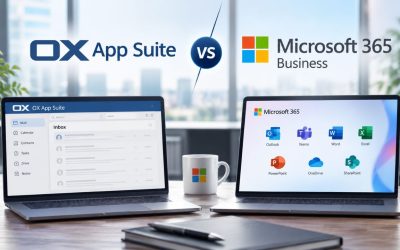
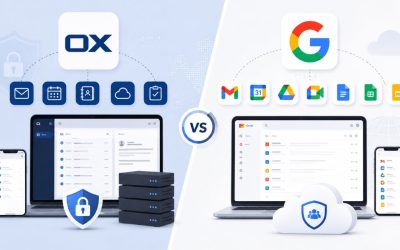
Choosing among OX App Suite, Google Workspace, and Microsoft 365 usually comes down to which ecosystem a business’s existing tools and habits already favor, plus how much collaboration depth the larger platforms actually need day-to-day.
Feature and Ecosystem Comparison
Google Workspace and Microsoft 365 both offer deeper third-party app ecosystems and more mature mobile apps than OX App Suite, reflecting their larger user bases and longer track record of dedicated app development. OX App Suite’s advantage is a more unified interface, mail, calendar, contacts, and documents inside one webmail screen, and typically a lower total cost for businesses that don’t need the extended app ecosystems Google and Microsoft offer beyond core email and office tools.
| Feature | OX App Suite | Google Workspace | Microsoft 365 |
|---|---|---|---|
| Native encryption (built-in, no separate purchase) | Yes, via OX Guard | No (requires third-party add-on) | Partial (Message Encryption on higher tiers only) |
| Calendar/contact sync protocol | CalDAV/CardDAV (open standard) | Proprietary API + limited CalDAV | Exchange ActiveSync / proprietary |
| Document editing bundled in the base mailbox plan | Yes, via OX Documents | Yes, via Docs/Sheets/Slides | Varies by tier; some require an Office apps license |
| Reseller/white-label delivery model | Standard (licensed to partners) | Available but less common at the SMB tier | Available via CSP partners |
| Third-party app marketplace maturity | Limited | Extensive | Extensive |
| Typical mobile app parity with desktop | Good, occasional feature lag | Strong | Strong |
| Admin console complexity for a first-time admin | Moderate | Low to moderate | Moderate to high |
| Offline document access | Limited | Good (with offline mode enabled) | Strong (native Office apps) |
| End-to-end encrypted mail without a paid upgrade | Yes | No | No (Message Encryption is tier-gated) |
| Storage model flexibility (pooled vs fixed) | Commonly pooled across mail/Drive | Pooled across Workspace apps | Often fixed per-user with tier-based caps |
Which Business Profile Fits Each Platform
A business already standardized on Google Docs, Google Drive, and Google Calendar across its team gains little by switching to OX App Suite, since retraining staff on a new document interface costs more in productivity than the platform switch saves in licensing fees. Similarly, a business embedded in the Microsoft ecosystem, using Teams, SharePoint, and Office desktop apps daily, is usually better served by Microsoft 365’s tighter integration across those tools, even if OX App Suite’s per-mailbox price looks lower on paper.
OX App Suite is best suited for businesses without strong existing platform loyalty, particularly those prioritizing built-in encryption without a separate purchase, a simpler unified interface for non-technical staff, or a reseller relationship for hands-on support rather than self-service account management. A ten-person consultancy handling sensitive client documents, for example, benefits directly from OX Guard’s bundled encryption in a way that would cost extra on either competitor platform. Businesses planning to scale beyond 50 employees with complex departmental structures often find Google Workspace or Microsoft 365’s more mature admin tooling and third-party app support worth the added cost at that scale.
Administrative Controls and Permission Models
Managing who can access what, mailboxes, shared calendars, and admin functions becomes more important as a business grows past a handful of employees, and OX App Suite’s permission structure works differently from a simple owner/member split.
Mailbox-Level Permissions and Delegation
OX App Suite uses a mailbox-level permission model where an admin can grant specific users delegate access to another mailbox, full access, send-as rights, or read-only access, without sharing the account password. This matters for security audits, since shared passwords are a common compliance failure point. This granularity extends to shared folders within a mailbox too: an admin can expose a single “Invoices” folder to the accounting team without granting access to the rest of a mailbox’s contents.
| Permission Level | What It Grants | Typical Use Case |
|---|---|---|
| Full mailbox access | Read, send, delete, manage folders | Executive assistant managing an executive’s inbox |
| Send-as delegation | Send mail appearing from another address, no inbox read access | Shared department address (e.g., sales@) |
| Read-only mailbox access | View messages, no send or delete rights | Compliance review, audit access |
| Folder-level sharing | Access to a specific folder only | Sharing an “Invoices” or “Contracts” folder |
| Calendar view-only | See events, no edit rights | Cross-team schedule visibility |
| Calendar edit/delegate | Create and modify events on another’s calendar | Assistant managing a manager’s schedule |
| Contact list read access | View a shared contact group | Sales team viewing a shared client list |
| Admin console access | Provision/remove mailboxes, manage domains | IT admin or reseller-designated account owner |
| Guest/external sharing (Drive) | Share specific files with non-mailbox users | Sending a large file to an external client |
| API/app password access | Third-party app connection without the main password | Connecting a CRM or backup tool |
Setting Up Role-Based Access for a Growing Team
Separating shared calendar permissions from full mailbox access, for instance, giving a whole department view access to a company-wide events calendar while keeping individual inboxes private, prevents the common misstep of over-provisioning access just because it’s simpler to grant broad permissions upfront. A five-person team can often operate informally without strict role definitions, but once a business crosses roughly ten to fifteen employees, defining who genuinely needs delegate access versus who needs shared-folder visibility becomes worth the setup time.
A practical starting point is auditing existing access quarterly rather than only at onboarding: permissions granted for a specific project or a departed employee’s temporary coverage tend to persist long after they’re needed, quietly expanding the number of people who can read sensitive folders. Admin console access should remain limited to one or two people per business, regardless of headcount, since broader admin access multiplies the risk surface if any of those accounts is compromised through phishing or credential theft.
Mobile Access, Native Clients, and Offline Sync
How well email, calendar, and contacts work on a phone matters as much to daily usability as the desktop webmail interface, particularly for staff who spend significant time away from a desk.
Mobile App Behavior Versus Native Desktop Clients
 Mobile App Behavior Versus Native Desktop Clients
OX App Suite’s mobile apps sync mail, calendar, and contacts using the same underlying protocols as the desktop webmail, IMAP for mail, CalDAV/CardDAV for calendar and contacts, meaning a business isn’t locked into OX’s own mobile app. It can instead configure any standard mail client, including the native iOS or Android mail apps, if staff prefer their existing setup. This is a meaningful difference from platforms that push users toward a proprietary mobile app for full feature access; OX App Suite’s standards-based approach means IT doesn’t have to mandate a specific app across a mixed-device workforce.
The trade-off is that OX’s dedicated mobile app, while functional, generally lags slightly behind the desktop webmail in feature parity; some OX Documents editing features and OX Guard encryption controls are more limited or unavailable on mobile than on desktop. A staff member who needs to encrypt a sensitive message with OX Guard should generally plan to do that from a desktop browser rather than assuming full parity on a phone. For most day-to-day mobile use, reading mail, checking a shared calendar, and replying to messages, the gap is minor enough not to affect typical workflows.
Offline Access and Sync Reliability
Offline access in OX App Suite is more limited than in Microsoft 365’s native desktop Outlook client, which caches substantial mail history locally for full offline reading and drafting. OX App Suite’s browser-based interface relies more heavily on an active connection, though desktop sync clients for Drive files support offline access. A field-based team frequently working without reliable connectivity, construction site managers, and traveling sales reps in low-coverage areas should weigh this limitation against a platform with stronger native offline support before committing.
For most office-based or urban-mobile small businesses, connectivity gaps are rare enough that this limitation doesn’t materially affect daily operations, and standard mail clients configured via IMAP will queue outgoing mail locally and send once connectivity returns, covering the most common “no signal for twenty minutes” scenario without data loss. Testing the actual mobile and offline experience during a trial period, rather than assuming it matches expectations from another platform, is worth the small time investment before committing a whole team to the switch.
Frequently Asked Questions
What specifically should I ask a reseller before signing an OX App Suite contract?
Ask for the exact renewal price in writing, not just the introductory rate, since renewal increases vary by reseller and aren’t published on Open-Xchange’s own pricing materials. Also ask for the grace period length after a missed payment before mail service is suspended, whether mailbox additions mid-cycle are prorated or billed in full at the next renewal, and which add-ons (extra storage, OX Guard if not bundled, premium support) are charged separately from the base mailbox price. Finally, ask what the support escalation path looks like for issues beyond the reseller’s direct control, such as a platform-wide filtering problem, and what response time to expect for account-specific issues versus broader outages. Getting these answers in writing before signing avoids the most common sources of billing and support surprises reported by businesses switching providers.
How long does a typical small business migration to OX App Suite take?
For a business with under twenty mailboxes and no unusually large mail archives, a full migration, mailbox provisioning, mail transfer, calendar and contact import, DNS record updates, and a monitoring overlap window typically runs five to ten business days from start to final cutover confirmation. The mail transfer itself for a typical mailbox with a few gigabytes of history usually completes within hours. Still, the DNS propagation and overlap monitoring period adds the bulk of the calendar time, since rushing that step increases the risk of missed messages during cutover. Businesses with large mail archives (tens of gigabytes per mailbox) or dozens of mailboxes should budget more time and coordinate the cutover during a low-traffic period, such as a weekend, to minimize disruption if any troubleshooting is needed.
Does OX App Suite work with Outlook on desktop?
Yes, OX App Suite mailboxes connect to desktop Outlook using standard IMAP and SMTP settings, and calendar/contact sync is available through CalDAV/CardDAV connectors. However, Outlook’s native calendar sync experience is generally smoother with Exchange-based accounts than with CalDAV specifically. Some businesses use a CalDAV synchronization add-in for Outlook to get full two-way calendar sync, since Outlook’s out-of-box CalDAV support is more limited than its Exchange support. If a team relies heavily on Outlook’s calendar features, specifically resource booking and complex recurring meeting management, it’s worth testing the CalDAV sync experience with a single mailbox before migrating the full team to confirm it meets expectations.
Can I keep my existing domain when switching to OX App Suite?
Yes, domain ownership stays with the business regardless of which email host it points to; switching to OX App Suite only requires updating the domain’s MX, SPF, and DKIM DNS records to point mail delivery to the new servers, not transferring domain registration itself. The domain registrar (where the domain was purchased) and the email host are separate services, and changing one doesn’t require changing the other. The one exception worth checking is whether the current email provider is also the domain registrar; in that case, confirm that DNS record changes can still be made independently before assuming a full registrar transfer is needed.
What happens to my data with my old email provider during migration?
The old provider’s mailbox data isn’t automatically deleted during migration; it remains on the old account until that account is actively canceled or its retention period expires. This is why keeping the old account active through the overlap window (as covered under Migration Risk) matters for rollback safety. Some businesses choose to export a full mail archive as a backup file (commonly in mbox or PST format, depending on the old provider) before canceling the old account, particularly if compliance requirements mandate retaining historical correspondence independent of the current active mailbox platform. Confirm directly with the old provider what happens to the data after cancellation and whether an export window is offered, since policies vary significantly between providers.
Is OX App Suite secure enough for handling client financial documents?
OX Guard’s built-in end-to-end encryption, covered under Spam and Security, provides message-level protection appropriate for financial documents when used deliberately for that correspondence. However, the sender needs to confirm the recipient can decrypt PGP-encrypted mail before relying on it as the sole security measure. For businesses subject to specific regulatory frameworks that handle health information or certain financial services data, confirm with the reseller whether the hosting setup meets relevant compliance requirements such as SOC 2 or ISO/IEC 27001, since the compliance posture depends on the underlying infrastructure provider’s certifications, not just the mailbox software. Two-factor authentication on every mailbox login, not just encryption on sensitive messages, closes the more common risk: an attacker doesn’t need to break encryption if they can log in directly using a stolen or guessed password.
How does OX App Suite handle mailbox backups?
Backup responsibility in a reseller-hosted OX App Suite setup typically sits with the infrastructure provider at the platform level. This means server-level backups protect against hardware failure, but this differs from a business-level backup that a business can restore from independently if, for example, someone accidentally deletes several months of email. Ask the reseller specifically what backup retention window exists at the platform level, whether individual mailbox restoration is something support can perform and, if so, on what timeline, versus something the business needs a separate third-party backup tool to cover. Businesses with strict retention obligations often add an independent backup service specifically because platform-level backups are usually designed for disaster recovery, not for granular day-to-day “restore one deleted folder from three weeks ago” requests.
Can I use OX App Suite on multiple devices without extra licensing costs?
Yes, a single OX App Suite mailbox typically supports access from unlimited devices, desktop browser, mobile app, tablet, and additional desktop mail clients, without per-device licensing, since access is tied to the mailbox account rather than a specific device, the way some legacy software licensing models work. This differs from certain Microsoft 365 tiers where installed desktop app licensing is capped at a specific number of devices per user, which is worth checking if a business is comparing platforms specifically on multi-device flexibility. The practical limit isn’t device count but simultaneous session handling in very high-frequency use cases, which rarely affects a typical small-business user checking mail on a laptop and a phone.
What’s the smallest business size where OX App Suite makes sense?
There’s no hard minimum: a solo consultant with one mailbox can use OX App Suite, but the platform’s collaboration features (shared calendars, shared contacts, document co-editing) deliver less relative value to a single user than to a team of three or more people actively coordinating schedules and files. A solo user paying for the full collaboration-bundled plan when they only need reliable mail and calendar for themselves may find a simpler, cheaper mailbox-only email service better suited to actual usage. Once a business adds a second person who needs to see shared availability or collaborate on documents, the bundled approach starts delivering value that a bare mailbox plan doesn’t offer without separate tools.
How does pricing compare for adding mailboxes as my team grows from five to twenty people?
Per-mailbox pricing on reseller plans often decreases at higher mailbox-count tiers, meaning the twentieth mailbox typically costs less per unit than the fifth. However, the exact discount structure varies by reseller and isn’t standardized across the OX App Suite ecosystem, unlike on a self-service platform, where volume pricing is published. Ask the reseller directly whether growing from five to twenty mailboxes triggers a plan-tier change with a different per-mailbox rate, and whether that change happens automatically or requires a manual account review. Businesses anticipating fast growth should ask this question at signing rather than at the twentieth mailbox, since some resellers require advance notice to adjust pooled storage allocations in response to an increase in mailbox count.
Glossary
MX Record: A DNS record specifying which mail servers accept incoming email for a domain.
SPF (Sender Policy Framework): A DNS TXT record listing servers authorized to send mail for a domain, used to reduce spoofing.
DKIM (DomainKeys Identified Mail): A cryptographic signature added to outgoing mail that lets receiving servers verify the message wasn’t altered and came from an authorized source.
DMARC (Domain-based Message Authentication, Reporting and Conformance): A policy layer built on SPF and DKIM that tells receiving servers how to handle messages that fail authentication and generates reporting on domain usage.
IMAP (Internet Message Access Protocol): A protocol for retrieving and syncing email across multiple devices while keeping messages stored on the server.
POP3 (Post Office Protocol 3): An older email retrieval protocol that typically downloads and removes messages from the server, less common for multi-device use than IMAP.
SMTP (Simple Mail Transfer Protocol): The protocol used to send outgoing email between servers.
TLS/STARTTLS: Encryption protocols that protect email content while it moves between mail servers, distinct from end-to-end encryption of stored messages.
CalDAV/CardDAV: Open standards for syncing calendar and contact data across devices and applications, used by OX App Suite instead of a proprietary sync system.
OX Guard: Open-Xchange’s built-in PGP-based encryption module for end-to-end message encryption and digital signatures.
OX Drive / OX Documents: Open-Xchange’s file storage/sync module and browser-based document editing suite, bundled into OX App Suite.
PTR Record (Reverse DNS): A DNS record mapping an IP address back to a domain name, used by receiving mail servers as a deliverability signal.
BIMI (Brand Indicators for Message Identification): A standard displaying a verified brand logo alongside authenticated email, dependent on an enforced DMARC policy.
The Hiya Digital Team is a collective of IT infrastructure specialist engineers, certified systems administrators, and cloud architects driven by a singular mission: building corporate communication systems that just work. As an Authorized Google Partner, the team handles complex global hosting deployments, secure email migrations, and advanced data compliance architectures for businesses across 40+ countries.
With over two decades of technical experience spanning custom premium business email configurations, OX AppSuite deployments, and enterprise-level network security, the Hiya Digital Team writes to demystify domain infrastructure. Their content focuses on actionable technical strategies, anti-phishing security protocols, and seamless cloud collaboration setup, all backed by real-world deployment experience and 24/7 technical support accountability.