Discover Professional Email Powered by OX App Suite →
What Professional Email Requires Beyond a Custom Domain
A domain-based address is the visible part of a professional email address. Still, the mailbox behind it requires proper routing, storage allocation, and a permission structure before it can reliably send and receive email. Buyers who skip straight to “add a mailbox” often discover the gaps only after a delivery failure or a support ticket.
Custom Domains vs Free Webmail Addresses
A free webmail address signals, correctly or not, that a business hasn’t invested in its own infrastructure. Clients and vendors treat messages from a shared consumer domain differently than those from a company’s own domain, and several enterprise procurement teams automatically filter or flag mail from free providers. Beyond perception, a custom domain gives an organization control over retention policy, mailbox provisioning speed, and account offboarding, none of which is available on a free consumer account tied to an individual’s personal login.
The practical difference shows up during staff turnover. In a company domain, an administrator disables or reassigns a departing employee’s mailbox, and the employee’s stored mail remains under company control. On a free webmail account personally registered by an employee, the company has no reliable claim to that account, its contact history, or its archived threads. This single distinction is usually what pushes a growing team from ad hoc free addresses to a managed business mailbox platform, independent of any branding argument.
Baseline Infrastructure Expectations for Business Mailboxes
Before creating the first mailbox, a domain needs mail exchange routing, a spam and virus filtering layer, and a defined storage allocation per user, decisions that are far cheaper to set correctly at provisioning time than to migrate later. Most reputable providers target at least 99.9% uptime for mail delivery infrastructure. However, the specific figure and how it’s measured vary by provider and plan tier, so it’s worth confirming in writing rather than assuming a marketing claim applies across all tiers.
Mailbox-level permission granularity is what sets OX App Suite apart from a flat inbox model. Rather than treating every mailbox as an identical unit, OX assigns folder- and object-level permissions independently, so an administrator can grant a shared team inbox read-only access to some staff and full send-as rights to others, without creating a separate delegated account for each combination. That distinction matters most for support teams, shared sales inboxes, and any mailbox more than one person needs to touch regularly.
Choosing a Domain and Verifying Ownership Before Mailbox Creation
Mailbox creation can’t begin until the domain is verified at the registrar or DNS level, and the verification method chosen at this stage affects how quickly subsequent DNS changes propagate. Rushing past domain verification is the most common reason first mailboxes take days instead of hours to go live.
 Domain Ownership Verification Methods
 Domain Ownership Verification Methods
Providers typically verify domain ownership by placing a TXT record at the DNS zone apex. However, some accept a meta tag on the domain’s existing website or a file upload to the web root as an alternative. The TXT method is generally preferred for mail setups because the administrator is already about to make several other DNS changes in the same session, and it avoids depending on a website that may be hosted separately from the mail service. Verification typically completes within minutes once the record has propagated, though propagation can take 24-48 hours depending on the previous TTL value set for that DNS zone.
Reseller-managed licensing is the detail that most affects timeline expectations at this stage. Because Hiya Digital operates as an authorized reseller and business email solution provider rather than the underlying infrastructure operator, mailbox provisioning and license activation run through a partner account layer; domain verification is typically immediate. Still, full license activation and first-mailbox availability can lag by a business day depending on batch processing on the reseller’s end. Renewal pricing and any grace period after an expired license are also reseller-managed rather than fixed by the underlying platform, so it’s worth getting the specific renewal terms confirmed in writing before signing rather than assuming they match the introductory quote.
Selecting a Domain Structure for Multiple Departments
Organizations with multiple brands or regional divisions face a choice between a single domain with department-based local parts (sales@, support@) or separate subdomains per division ([email protected]). A single domain is simpler to administer and keeps SPF and DKIM configuration in one place, which matters for smaller IT teams managing mail alongside other responsibilities. It does mean every mailbox shares the same root domain reputation, so one division’s spam complaints can affect deliverability for the whole company.
Subdomain separation isolates reputation risk between divisions but multiplies the DNS maintenance workload, since SPF, DKIM, and DMARC records typically need to be configured per subdomain rather than inherited automatically from the parent domain. A consulting firm running a high-volume marketing subdomain alongside a low-volume executive communications subdomain is a common real-world case for this split; it keeps a marketing sending pattern from affecting the deliverability of contract and invoice correspondence. Smaller businesses without a dedicated high-volume sending use case rarely need the added complexity.
DNS Records That Must Be Configured for OX App Suite Mail Delivery
Four DNS record types govern whether mail sent from a new domain actually reaches recipient inboxes rather than spam folders: MX, SPF, DKIM, and DMARC. Misconfiguring any one of them doesn’t necessarily block outbound mail immediately, but it degrades deliverability in ways that are hard to diagnose without checking the records directly.
MX Records and Mail Routing Priorities
 MX Records and Mail Routing Priorities
The MX (Mail Exchange) record tells sending servers which server should receive mail for a domain, and its priority value determines the order servers are tried when more than one MX record exists. Lower-priority numbers are tried first, and a domain typically points to the provider’s primary and backup mail servers with different priority values, so that mail still arrives if the primary server is briefly unreachable. Getting the priority values reversed doesn’t usually cause total mail loss, but it can route mail through a backup path with stricter filtering or slower processing.
A domain migrating from another provider needs its old MX records fully replaced, not appended alongside the new ones; leaving both in place causes intermittent delivery to whichever server is tried first, which is difficult to diagnose because it looks like random, unpredictable mail loss rather than a consistent failure. TTL (Time to Live) on the MX record should typically be lowered to 300-600 seconds a day or two before a planned cutover, then raised back to a longer value, such as 3600 seconds, once the change is confirmed stable, to control how quickly the change propagates in both directions.
SPF, DKIM, and DMARC Configuration Requirements
SPF (Sender Policy Framework) is a DNS TXT record listing which servers are authorized to send mail for a domain. It’s subject to a hard limit of 10 DNS lookups per SPF check as defined in RFC 7208, the technical specification for the SPF protocol. Exceeding that limit causes a permanent SPF failure regardless of how legitimate the sending server actually is, and it’s a common problem on domains that have accumulated “include” statements from several marketing and CRM tools over the years without anyone auditing the total lookup count. Checking the current lookup count before adding OX App Suite’s SPF include is worth doing during setup rather than after a deliverability drop forces the audit later.
DKIM (DomainKeys Identified Mail) works differently: it publishes a public key in DNS that recipient servers use to verify a cryptographic signature attached to outbound mail, proving the message wasn’t altered in transit and that it genuinely originated from an authorized server. OX App Suite provisions DKIM keys on a per-domain basis, meaning each domain added to an account gets its own signing key pair rather than sharing a key across all domains a reseller manages, which prevents one domain’s compromised key from affecting signature validity on another. DMARC (Domain-based Message Authentication, Reporting and Conformance) then builds on both records by publishing a policy telling recipient servers what to do when a message fails SPF or DKIM, quarantine it, reject it, or take no action, and it’s the record most commonly left unconfigured on new domains because, unlike SPF and MX, mail still delivers without it, just with weaker protection against domain spoofing. RFC 7208 defines the SPF specification in detail and is worth reading directly for any administrator managing SPF records across several domains.
| DNS Record | Record Type | Typical TTL Range | Configured Per | Failure Behavior if Missing |
|---|---|---|---|---|
| MX | MX | 3,600–86,400 sec | Domain | Mail bounces or fails to route |
| SPF | TXT | 3,600–14,400 sec | Domain (10-lookup cap) | Fails SPF check; increases spam risk |
| DKIM | TXT | 3,600–86,400 sec | Domain (unique key pair) | Signature check unavailable |
| DMARC | TXT | 3,600–86,400 sec | Domain (policy-based) | No enforcement on spoofed mail |
| PTR (Reverse DNS) | PTR | Provider-managed | IP address, not domain | Some servers reject unresolvable IPs |
| BIMI | TXT | 3,600–86,400 sec | Domain (requires valid DMARC first) | No sender logo is displayed in supporting clients |
| CNAME (autodiscover) | CNAME | 3,600–86,400 sec | Subdomain | Manual client configuration required |
| SRV (autoconfig) | SRV | 3,600–86,400 sec | Domain | Mobile devices may fail auto-setup |
Creating and Provisioning Mailboxes Inside OX App Suite
Once DNS is verified and propagated, mailbox creation is an administrative task in the OX App Suite control panel rather than a DNS-level change, and it’s typically the fastest step in the setup process. The decisions that matter here are storage allocation and naming, not connectivity.
Adding Individual Mailboxes and Setting Quotas
Each new mailbox is created with a username, a display name, and a storage quota drawn from the account’s total allocated pool rather than a fixed per-user amount set independently. An administrator setting up ten mailboxes on a plan with a shared 100GB allocation can give a heavy-usage sales mailbox 20GB while giving a lighter-usage reception mailbox 5GB, adjusting individual quotas as usage patterns become clear rather than guessing correctly on day one. This pooled model is more flexible than a rigid per-seat quota but does require someone to monitor total pool usage as the organization adds mailboxes, since running out of pooled storage affects every mailbox on the account simultaneously rather than just the full one.
Temporary or role-based mailboxes, internships, seasonal hires, and shared project inboxes are usually better served by a smaller starting quota with the option to expand later, rather than matching a full-time employee’s default allocation. Over-provisioning storage for short-lived accounts wastes pool capacity that other mailboxes may need during a busy season, and quota increases inside OX App Suite typically take effect immediately without requiring a mailbox restart or user re-login, so there’s little practical cost to starting conservatively and adjusting.
Setting Display Names, Signatures, and Default Folders
Display name formatting should be decided as a policy before the first mailbox is created, not mailbox by mailbox, because inconsistent formatting (some staff as “First Last,” others as “Last, First” or “First L.”) looks unprofessional in a recipient’s inbox and is tedious to fix retroactively across dozens of accounts. A short written naming convention, covering display name format, department mailbox naming, and alias patterns, saves more administrative time than any other single setup decision, particularly for organizations expecting to add mailboxes regularly rather than as a one-time batch.
Default folder structure and organization-wide signature templates can be pushed centrally from the administrative console rather than configured per mailbox, which matters for compliance-sensitive industries that need a standard disclaimer or confidentiality notice on every outbound message. A financial services firm, for example, typically needs a specific regulatory disclosure appended to every message regardless of which employee sends it, and centrally managed signatures prevent that requirement from depending on individual staff remembering to add it manually to their own signature block.
Setting Up Aliases, Groups, and Distribution Lists
A single mailbox can respond to multiple addresses via aliases, and OX App Suite separately supports group mailboxes and distribution lists for cases where multiple people need to receive, or appear to send from, the same address. These three tools solve different problems and are frequently confused during initial setup.
Aliases for a Single Mailbox
An alias routes mail sent to a secondary address into an existing mailbox without creating a separate account, which is useful for role transitions, common misspellings of a name, or maintaining an old address after a rebrand without standing up a whole new mailbox. A staff member changing their legal name, for instance, can keep receiving mail at their previous address as an alias into the same mailbox that now carries their updated primary address, avoiding a gap where senders using the old address bounce.
Aliases don’t consume additional mailbox licenses in most reseller plans, since they route to an already-licensed mailbox rather than creating a new one. However, the specific alias limits per mailbox vary by plan tier and are worth confirming against the plan actually purchased rather than assuming them from a general product description. A common mistake is creating an alias intending it to function as a shared team inbox. An alias delivers to only one mailbox’s inbox, so if multiple people genuinely need visibility into the same incoming mail stream, a group mailbox with shared folder permissions is the correct tool instead.
Group Mailboxes and Shared Access Permissions
 Group Mailboxes and Shared Access Permissions
A group mailbox is a distinct mailbox to which multiple users are granted access, with permission levels set independently for each member: full access, send-as, read-only, or folder-specific visibility, rather than a single all-or-nothing sharing toggle. This permission separation extends to OX App Suite’s shared calendar model as well, where a team calendar attached to a group mailbox can grant one member edit rights while others see only free/busy status, which is the same underlying object-permission structure applied to a calendar object rather than a mail folder.
Support and sales teams are the most common use cases: several agents need to see and respond from support@, while only a team lead needs the ability to permanently delete messages or change the folder structure. Setting that up correctly at creation time, rather than granting every member identical full access by default, avoids the more disruptive cleanup required to tighten permissions later, after someone has already reorganized folders that the rest of the team relied on to stay consistent.
Work With an Authorized OX App Suite Partner
Getting group mailbox permissions and shared calendar visibility right the first time is exactly the kind of setup decision that’s cheaper to get correct before staff is actively relying on it. Hiya Digital, as an authorized OX App Suite partner and business email solution provider, can walk through mailbox and permission structuring before your team goes live on it.

Securing New Mailboxes with Authentication and Access Controls
Mailbox creation and DNS authentication address deliverability and spoofing, but they don’t cover what happens if a mailbox password is compromised or if a message needs to stay unreadable to anyone but its intended recipient. Access control and message-level encryption are separate layers that need their own configuration.
Two-Factor Authentication and Login Security
Two-factor authentication adds a second verification step, typically a time-based one-time code from an authenticator app, beyond the mailbox password, and it’s the single control most likely to stop an account takeover following a leaked or reused password. Enforcing it account-wide rather than leaving it optional per user closes the gap where the least security-conscious staff member becomes the weakest point in an otherwise well-configured domain, which is consistently where real-world compromises originate rather than through a direct attack on the mail server itself.
Login session policies, how long an authenticated session stays valid, whether a device needs to re-authenticate after a period of inactivity, and whether login is restricted by IP range for administrative accounts are configured separately from two-factor authentication and matter most for shared or public-computer access scenarios. An organization with staff who occasionally check mail from shared front-desk terminals benefits from a shorter default session timeout than one where every mailbox is accessed exclusively from an assigned laptop, so this setting is worth reviewing against actual usage patterns rather than being left at a platform default.
Message Encryption with OX Guard
OX Guard is OX App Suite’s built-in encryption module, providing PGP-based end-to-end encryption and digital signing for individual messages directly from the webmail interface, without requiring a separate encryption client or plugin. Once enabled for a mailbox, a user can encrypt an outbound message so that only a recipient holding the matching private key can read its contents, which matters for anything containing financial data, health information, or legal correspondence where standard TLS-in-transit encryption alone doesn’t satisfy a compliance requirement for content-level protection.
OX Guard’s key management is per-mailbox rather than centralized: each user generates and stores their own key pair, and a lost private key renders previously encrypted mail permanently unreadable. There’s no administrative recovery path for individual PGP keys by design, since that’s what makes the encryption meaningful in the first place. Organizations planning to rely on OX Guard for regulated correspondence should build a documented key backup process into onboarding rather than leaving it to individual staff discretion, since the security benefit of end-to-end encryption is also what makes key loss unrecoverable.
Configuring Client Access: Webmail, IMAP/POP3, and Mobile Sync
A mailbox is accessed differently depending on whether a user works primarily in a browser, a desktop mail client, or a phone, and each access method has separate configuration requirements that don’t automatically carry over from one to another.
IMAP, POP3, and SMTP Settings for Desktop Clients
IMAP (Internet Message Access Protocol) keeps mail synchronized on the server, so a message read, deleted, or filed on one device shows the same state on every other connected device, the standard choice for anyone checking mail from more than one device. POP3 (Post Office Protocol) instead downloads mail to a single device and, in its default configuration, removes it from the server afterward, which was common in the era of single-device access but creates confusing gaps for anyone now expecting the same inbox to be current across a laptop and a phone.
SMTP (Simple Mail Transfer Protocol) handles outbound sending and requires its own authentication settings separate from IMAP or POP3. A client configured to receive mail correctly can still fail to send if the SMTP port, encryption method, or authentication credentials are set incorrectly. TLS or STARTTLS encryption should be enabled on all three protocols rather than left on an unencrypted legacy port, since an unencrypted connection transmits the mailbox password in plain text over the network on every login, a risk that’s entirely avoidable with correct port and encryption settings at initial client setup.
Mobile Device Configuration and App Behavior
 Mobile Device Configuration and App Behavior
OX App Suite mail can be configured on a mobile device either through the native mail app built into iOS or Android using standard IMAP/SMTP settings, or through OX App Suite’s own mobile application. The two behave differently beyond just appearance. The native device mail app treats OX as a generic IMAP account, giving reliable mail access but no integration with OX’s calendar, contacts, or Drive features on the same screen. The dedicated OX App Suite mobile app instead syncs mail, calendar, and contacts into a single interface and supports platform-specific push notifications, at the cost of requiring a separate app install rather than using the device’s built-in mail app.
Organizations with a bring-your-own-device policy tend to favor native app configuration because it doesn’t require installing additional software on a personal phone, while organizations issuing company-managed devices more often standardize on the dedicated OX App Suite app to get calendar and contact sync without additional per-app configuration on each device. Neither approach is universally correct; the decision depends more on device ownership policy than on any technical limitation of either method.
Migrating Existing Mail Into OX App Suite Mailboxes
Migrating from an existing provider involves moving message history, contacts, and calendar data without extended downtime, and the migration path differs depending on whether the source system is another IMAP-based provider, a hosted Exchange environment, or Google Workspace.
Planning a Migration Window and Avoiding Data Loss
Migration risk concentrates around two failure points: mail arriving during the cutover window landing in the old system after DNS has already redirected new mail to the new system, and calendar or contact data silently failing to transfer due to a format mismatch between the source and destination platforms. Running the old and new mailboxes in parallel for a short window, with MX records pointed to the new system only after a completed migration pass and a spot check against the old inbox, is the safer sequence, even though it takes longer than switching everything over in one step.
Renewal reviews commonly surface a stale SPF that nobody remembers adding, and migration is exactly the point where that kind of accumulated DNS debt gets exposed, since the new SPF record needs to be rebuilt from scratch rather than copied wholesale from a record that may already have been close to its lookup limit on the old system. Auditing and rebuilding SPF cleanly during migration, rather than porting old includes forward unexamined, avoids inheriting a deliverability problem the previous setup was already quietly accumulating.
Transferring Calendars and Contacts Alongside Mail
Contact and calendar migration typically runs through CalDAV and CardDAV, open standards for calendar and contact synchronization that OX App Suite supports natively, rather than through a proprietary import format. This makes migration from another CalDAV/CardDAV-compliant platform more predictable than migration from a system using a closed sync protocol. A source platform that also uses CalDAV/CardDAV allows a fairly direct sync-based transfer; a source platform using a proprietary calendar format instead usually requires exporting to a standard file format like iCalendar first, which can lose vendor-specific fields like custom categories or reminders that don’t have a direct equivalent in the standard.
Recurring calendar events are the most common source of migration errors because recurrence rules (weekly on alternating Tuesdays, monthly on the last business day) are encoded differently across platforms and don’t always translate cleanly through an intermediate export format. Spot-checking a handful of recurring meetings after migration, not just confirming the calendar populated, but confirming the recurrence pattern is intact, catches this class of error before it causes someone to miss a meeting that silently stopped recurring correctly after the transfer.
Structuring Naming Conventions and Multi-Domain Setups for Growing Teams
Organizations planning to add mailboxes regularly, rather than as a one-time setup, benefit from deciding on naming and domain structure early, since retrofitting a naming convention across dozens of existing mailboxes is far more disruptive than establishing one before the mailbox count grows beyond a handful.
Naming Convention Policy for Scaling Mailbox Counts
A written naming policy should cover primary display name format, how name collisions are resolved (two employees named Jane Smith, for instance), department- or role-based address formatting, and whether numeric or middle-initial disambiguation is used for collisions rather than leaving it to whoever provisions the account that week. Consistency here matters more for larger organizations, where inconsistent formatting can be genuinely confusing to external contacts trying to guess an address pattern, than for a five-person team, where everyone’s address is easy to remember regardless of format.
Documenting the convention in a shared, accessible location, rather than relying on institutional memory held by whoever set up the first batch of mailboxes, matters more when account creation is delegated to multiple administrators or handled through a reseller’s provisioning process, rather than by a single person doing it consistently by hand. A written policy also gives a new IT hire something concrete to follow, rather than reverse-engineering the pattern from existing mailboxes, some of which may not perfectly follow the informal convention originally intended.
Managing Shared Drive and Document Storage Across Domains
OX Drive provides file storage and document sharing integrated with the mail and calendar environment, and in multi-domain setups, Drive storage is typically allocated and managed per domain rather than pooled globally across every domain on an account, meaning storage planning needs to happen at the domain level rather than assuming a single pool covers everything. A company running separate domains for two acquired subsidiaries, for example, needs to plan Drive storage allocation for each domain independently rather than assuming capacity purchased for one automatically extends to the other.
OX Documents, the collaborative editing layer built on top of Drive, allows multiple users to edit a shared file simultaneously with change tracking, which functions per-domain in the same way Drive storage does. A document shared from one domain’s Drive isn’t automatically visible to users on a separate domain within the same reseller account without an explicit cross-domain sharing link. Teams that collaborate regularly across domain boundaries should plan for that friction during setup, since it’s a structural characteristic of how domains are isolated from each other rather than a setting that can be toggled off.
OX App Suite vs Other Business Email Options for New Domains
Choosing a platform for new business mailboxes usually comes down to comparing OX App Suite against Google Workspace, Microsoft 365, or a lower-cost free/hosting-bundled webmail option, each with different collaboration models and pricing structures.
Feature and Collaboration Model Differences
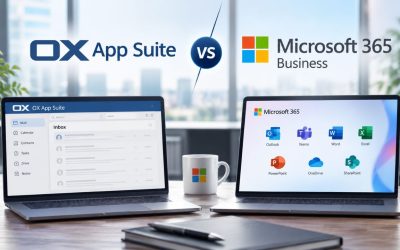
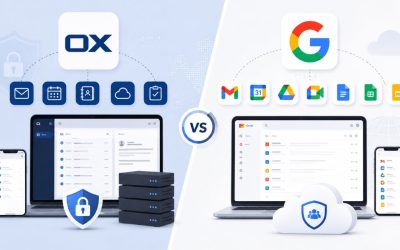
Google Workspace and Microsoft 365 both center collaboration around their respective proprietary document formats and sync layers, while OX App Suite’s collaboration stack, OX Documents for editing and CalDAV/CardDAV for calendar and contact sync, is built on more open, portable standards, which matters most for organizations concerned about long-term data portability if they ever need to switch providers again. That portability advantage is a genuine technical difference, not a marketing distinction, since a CalDAV-based calendar migrates to any other CalDAV-compliant platform more predictably than a proprietary calendar format does.
Free or hosting-bundled webmail, by contrast, typically lacks any collaboration suite entirely, offering mailbox access alone without integrated calendar sharing, document collaboration, or centrally managed signatures and security policy, adequate for a solo operator with minimal cross-team coordination needs, but a limiting choice for any team of more than a couple of people who need to share calendars or coordinate on documents as a basic function of daily work.
Pricing Structure and Total Cost Comparison
Introductory pricing across all three major platforms tends to understate renewal cost, since promotional first-term pricing is common industry-wide and renewal rates typically apply once the introductory term ends, a pattern worth confirming directly with whichever provider or reseller a business is evaluating, rather than assuming the quoted rate holds indefinitely. Add-on costs also vary meaningfully: some platforms bundle anti-spam and archiving into the base mailbox price, while others charge them as separate line items that only become visible once a business tries to add them post-signup.
| Comparison Factor | OX App Suite | Google Workspace | Microsoft 365 | Free/Bundled Webmail |
|---|---|---|---|---|
| Calendar/contact sync standard | CalDAV/CardDAV (open) | Proprietary sync | Proprietary (EAS/MAPI) | Rarely included |
| Document collaboration | OX Documents | Google Docs | Microsoft 365 Apps | Not included |
| Built-in encryption module | OX Guard (PGP) | Add-on/third-party | Add-on/third-party | Rarely included |
| Storage allocation model | Pooled per domain | Per-user fixed tiers | Per-user fixed tiers | Fixed, often limited |
| Admin permission granularity | Folder/object-level | Group-based | Group-based (Exchange) | Minimal or none |
| Typical reseller availability | Yes, common | Limited | Common | N/A |
| Migration protocol support | CalDAV/CardDAV native | API-based import | EAS/PST import tools | Rarely supported |
| Mobile native app option | Yes, dedicated app | Yes | Yes | Rarely |
Frequently Asked Questions
What should I confirm with a reseller before signing an OX App Suite contract?
Beyond the introductory price, ask specifically for the renewal rate in writing; whether there’s a grace period after license expiration and how many days it covers; whether storage pool size increases automatically or requires a plan upgrade; and what the process looks like if you need to migrate away from that reseller later. Reseller-managed licensing terms vary meaningfully between partners, even on the same underlying platform, and verbal quotes during a sales conversation aren’t always reflected in the actual renewal invoice. Getting the grace period and renewal terms in writing, not just the introductory price, is the single most useful question to ask before signing, since it’s the term most likely to surprise a buyer twelve months in, in a way the introductory quote didn’t disclose.
Does OX App Suite support Outlook as a desktop client?
Yes, through standard IMAP/SMTP configuration, though Outlook’s native calendar and contact sync typically relies on Exchange ActiveSync or MAPI protocols that aren’t the same as OX’s CalDAV/CardDAV sync layer, so calendar sharing features between Outlook and OX App Suite’s own webmail interface may not carry over identically. Mail itself synchronizes reliably through IMAP, but an organization standardizing heavily on Outlook for calendar-heavy workflows should test shared calendar visibility specifically before assuming full feature parity with the OX webmail calendar interface, since some object-level sharing permissions configured in OX may not display identically inside Outlook’s calendar view.
Can I keep my old email addresses working during a migration?
Yes, generally by running the old and new systems in parallel and pointing MX records to the new system only once contact and calendar data have been verified as complete, rather than switching all routing over before verification. A common approach is to keep the old provider’s mailbox active in read-only mode for a defined window after cutover, so nothing is lost if a spot check after migration catches anything incomplete. The specific parallel-run window that makes sense depends on mailbox volume; a handful of mailboxes might need only a day or two of overlap. In contrast, dozens of mailboxes with heavy calendar use often warrant a full week of parallel access before the old system is decommissioned.
How does mailbox storage work if my team grows quickly?
Storage in OX App Suite is drawn from a shared pool allocated to the domain rather than a fixed amount assigned permanently to each mailbox, so adding a new hire’s mailbox doesn’t require purchasing a separate storage block for them; it draws from whatever capacity remains in the pool. The practical implication for fast-growing teams is that pool usage should be actively monitored rather than assumed to scale automatically, since a plan sized correctly for ten mailboxes can run tight once the mailbox count doubles without a corresponding plan upgrade, particularly for mailboxes with heavy attachment use.
Is two-factor authentication mandatory or optional on new mailboxes?
It’s configurable at the administrative level, and while OX App Suite doesn’t force it by default on every plan, enforcing it account-wide rather than leaving it as an individual opt-in is worth doing at initial setup rather than after a compromised-password incident forces the policy change reactively. Some plan tiers also support conditional access rules, for instance, requiring two-factor authentication only for logins from unrecognized devices or locations rather than every login, which reduces friction for staff working from a consistent device while still closing the gap for logins from unfamiliar networks that are statistically more likely to represent unauthorized access.
What happens to encrypted OX Guard messages if an employee leaves the company?
Because OX Guard’s PGP key pairs are generated and held per mailbox rather than centrally, an employee’s private key typically leaves with their offboarded account unless a documented key escrow or backup process was established during onboarding specifically for that purpose. Any message encrypted specifically to that departing employee’s public key becomes unreadable by anyone else afterward, including administrators, since recoverability isn’t part of how end-to-end encryption is designed to work. Organizations relying on OX Guard for regulated or legally significant correspondence should build a key backup step into onboarding before the first sensitive message is ever encrypted, not after an offboarding has already made a set of messages permanently inaccessible.
Are OX App Suite mailboxes equally accessible on both iPhone and Android?
Yes, both the native device mail apps and OX App Suite’s dedicated mobile app are available on iOS and Android. However, feature parity between the two operating systems’ native mail apps isn’t always identical, particularly around push notification handling and calendar invite formatting. Testing the specific combination of device type and access method (native app vs. dedicated OX app) that your team actually plans to use, rather than assuming any mobile configuration works interchangeably, helps avoid discovering a formatting quirk after staff is already relying on mobile access day-to-day.
Does OX App Suite support custom domains that I don’t currently host with the same registrar?
Yes, domain hosting and DNS management don’t need to be with the same company that provides the mailbox service; a domain registered elsewhere only needs its DNS records (MX, SPF, DKIM, DMARC) to be pointed correctly, which can be done regardless of which registrar holds the domain. The one practical complication is DNS management access: if a registrar’s control panel is locked down or managed by a third party, getting timely access to add or edit records during setup can slow the process more than any technical limitation of the mail platform itself.
How do backups work for OX App Suite mailboxes?
Backup policy is typically reseller- or plan-dependent rather than a single platform-wide guarantee, so the retention window, backup frequency, and whether backups are included or a paid add-on should be confirmed directly rather than assumed. This is a case where asking specifically “what is my actual recovery point if a mailbox is accidentally deleted tomorrow” gets a more useful answer than asking generally whether backups exist, since most providers do have some backup mechanism, the meaningful variable is how far back it reaches and how quickly a deleted mailbox can actually be restored.
Is OX App Suite suitable for a business that only needs a handful of mailboxes?
Yes, though the collaboration features that most differentiate OX App Suite from simpler webmail, shared calendars, Drive, Documents, group mailbox permissions, deliver less relative value for a two- or three-person operation than for a team where multiple people regularly need to coordinate schedules and share files. A very small operation with minimal collaboration needs may find the core mailbox and security features (SPF/DKIM/DMARC, spam filtering, two-factor authentication) are the primary value, with the collaboration suite functioning as unused capacity rather than a decision-driving feature, which isn’t a reason to avoid the platform, just a reason to weigh the comparison against alternatives differently than a larger team would.
Glossary
MX Record (Mail Exchange): A DNS record specifying which server should receive mail for a domain, including a priority value for failover ordering.
SPF (Sender Policy Framework): A DNS TXT record listing servers authorized to send mail for a domain, subject to a 10 DNS-lookup limit per check.
DKIM (DomainKeys Identified Mail): A cryptographic signature system that verifies outbound mail wasn’t altered in transit and originated from an authorized server.
DMARC (Domain-based Message Authentication, Reporting and Conformance): A policy record telling recipient servers how to handle mail that fails SPF or DKIM checks.
IMAP (Internet Message Access Protocol): A mail protocol that keeps messages synchronized across every connected device.
POP3 (Post Office Protocol): A mail protocol that downloads mail to a single device, historically removing it from the server afterward.
SMTP (Simple Mail Transfer Protocol): The protocol responsible for sending outbound mail, configured separately from IMAP/POP3.
TLS/STARTTLS: Encryption protocols that protect mail credentials and content in transit between client and server.
CalDAV/CardDAV: Open standards for calendar and contact synchronization, used by OX App Suite for cross-platform sync and migration.
OX Guard: OX App Suite’s built-in PGP-based end-to-end encryption and digital signing module.
OX Drive: OX App Suite’s integrated file storage and sharing layer, allocated per domain in multi-domain accounts.
OX Documents: OX App Suite’s collaborative document editing layer built on top of Drive.
TTL (Time to Live): The duration a DNS record is cached before requiring a fresh lookup, affecting how quickly DNS changes propagate.
The Hiya Digital Team is a collective of IT infrastructure specialist engineers, certified systems administrators, and cloud architects driven by a singular mission: building corporate communication systems that just work. As an Authorized Google Partner, the team handles complex global hosting deployments, secure email migrations, and advanced data compliance architectures for businesses across 40+ countries.
With over two decades of technical experience spanning custom premium business email configurations, OX AppSuite deployments, and enterprise-level network security, the Hiya Digital Team writes to demystify domain infrastructure. Their content focuses on actionable technical strategies, anti-phishing security protocols, and seamless cloud collaboration setup, all backed by real-world deployment experience and 24/7 technical support accountability.