Google Workspace brings together communication, collaboration, and file management tools that support every stage of a client meeting. Documents stored in Drive, conversations in Chat, meetings hosted through Meet, and shared notes or follow-up materials can all work together within a connected workflow. Using these applications as an integrated ecosystem helps teams stay organized, improve collaboration, and ensure important information remains accessible before, during, and after every client interaction.
Simplify Business Communication with Google Workspace For Business →
Mapping the Client Meeting Workflow Across Meet, Chat, and Drive
A client meeting isn’t a single event; it’s a sequence of handoffs. The document you prep in Drive needs to reach Chat before the call, the call itself needs to reference that document live, and whatever gets decided needs to land back in Drive before anyone forgets it.
 Where Each App Fits Before, During, and After the Call
 Where Each App Fits Before, During, and After the Call
Drive holds the material, Chat holds the running context, and Meet holds the live conversation; each app owns one stage of a client meeting, and the workflow only holds together when files move between them in a fixed order rather than an improvised one.
Before the call, the agenda and any reference documents are stored in Drive and shared in a Chat space so the client can review them in advance. During the call, Meet becomes the stage, screens get shared straight from Drive rather than exported as static files, and side notes get typed into the in-call Chat panel. After the call, whatever was decided gets written up, filed back into the same Drive folder, and dropped into the Chat space as a message the client can reference without digging through their inbox.
Why Handoffs Break When Apps Are Used in Isolation
Most breakdowns in a client workflow don’t happen inside Meet, Chat, or Drive individually; they happen in the gap between them, when a file is emailed instead of linked, or a decision is spoken aloud but never written anywhere a client can find it later.
A common pattern: a business owner preps a proposal in Drive, then emails a PDF version to the client instead of sharing the live link. Now two versions of the same document exist, and the next edit made in Drive never reaches the client’s inbox. Or a decision gets made verbally on the call, a price adjustment, a scope change, and it lives only in someone’s memory until the next meeting, when the client remembers it differently. These aren’t technology failures; they’re workflow gaps where a handoff should have happened and didn’t.
| Meeting Stage | App Used | Action Taken |
|---|---|---|
| 3–5 days before | Drive | Agenda and reference doc created, sharing permissions set to the client’s email |
| 1 day before | Chat | Dedicated Chat space created, Drive links pinned, agenda posted as a message |
| During the call | Meet | Live Drive doc screen-shared; side notes typed into the in-call Chat panel |
| Within 24 hours after | Drive + Chat | Follow-up notes filed into the same Drive folder; summary posted to the Chat space |
| Ongoing | Drive | Folder permissions updated as the client relationship continues or closes out |
Before the Call: Prepping Documents and Sharing Context in Drive
Everything a client meeting needs- the agenda, the reference materials, the working files- should exist in one Drive location before the invite ever goes out. Hence, the meeting starts with a shared context rather than a scramble to find the right attachment.
Building the Client Folder and Setting Permissions First
The single most common cause of an awkward moment in a client call is a permission that was never set, someone shares a folder link, and the client clicks it to find they don’t have access, thirty seconds after the call has started.
Before scheduling anything, create a dedicated folder for that client within your Drive structure, and set sharing permissions at the folder level rather than on a file-by-file basis. Sharing at the folder level means any document added later, a revised proposal, a new invoice, meeting notes from a follow-up call, automatically inherits the same access, instead of requiring a fresh sharing decision each time a new file gets created. For a small business without a dedicated admin, this single habit removes most of the “can you resend that link” messages that otherwise pile up over a client relationship.
Pre-Reading and Agenda Docs That Set Up a Focused Call
Draft the agenda as a Drive doc, not a bulleted list buried in a calendar invite description. A doc can hold more context and background on why a topic is on the agenda, supporting numbers, and a short recap of the last meeting’s open items without cluttering the invite itself. Share that doc in the Chat space (covered in the next section) at least a day in advance, so the client has time to respond, add comments, or flag a question before the call rather than during it.
This is also where a small business can quietly look more organized than its size would suggest. A client who receives a clear one-page agenda with two or three specific discussion points, sent ahead of time, reads it as a sign that the business runs a tight process, regardless of how many people are actually on the team. The agenda doc doesn’t need to be elaborate. It needs to exist and be shared before the call and match what is actually discussed once the call starts.
Setting Up the Chat Space Before You Ever Hit “Join”
Chat is the connective tissue between the prep work in Drive and the live conversation in Meet. A dedicated space gives a client meeting a home that endures after the call ends, rather than scattering context across separate email threads.
Creating a Dedicated Space Instead of a One-Off DM Thread
Create a named Chat space for the client relationship, not the individual meeting, so that a search for the client’s name surfaces all relevant conversations, file links, and decisions in one place. A space also supports adding more people on either side without having to rebuild the conversation from scratch. If the client brings in a colleague for the second meeting, that person can be added to the existing space and immediately see the full history, rather than starting a parallel thread that misses everything discussed earlier.
For a small business handling several client relationships at once, this naming discipline is what keeps meetings from blurring together. A Chat space named clearly after the client, rather than a generic “Meeting” label, means anyone on the team can open Chat, find the right space in seconds, and see exactly what’s already been discussed without needing to ask a colleague to recap it from memory.
Pinning the Agenda and Linking Drive Files Inside Chat
Post the Drive link directly into the Chat space rather than attaching a separate copy of the file. A linked file stays live; any edit made in Drive after the message is sent is reflected automatically when the client opens it, so there’s never a mismatch between “the version I have” and “the version we’re discussing.” Once the link is posted, pin the message so it stays visible at the top of the space regardless of how much conversation happens underneath it.
Google Chat spaces persist for as long as the space exists, which means the agenda, the notes, and the file links from a meeting six months ago remain searchable the next time that client relationship needs a history check. This is a meaningful advantage over email, where the same information is scattered across separate threads, forwards, and CC chains that are far harder to reconstruct on demand, particularly for a small business without a formal system for archiving client correspondence.
Sending the Right Meet Invite for a Client-Facing Call
A calendar invite is the client’s first impression of how the meeting will run, and small details in that invite, the join link, the agenda, and the expected length set expectations that either prevent confusion or create it before the call even starts.
Calendar Invite Details That Prevent a Late or Confused Start
Title the invite with language the client will recognize immediately when it appears on their calendar, the project or engagement name, not an internal shorthand only your team understands. In the description, restate the agenda in two or three lines even though the full doc is linked in Chat, since not every client opens a separate app before a call; some will only look at the calendar invite itself. Include the Meet link generated directly in Google Calendar rather than pasted from a previous meeting, since a reused link can point to a call that has already ended or belongs to a different client.
If the client works across time zones, Google Calendar automatically displays the invite in each recipient’s local time, which removes one of the more common sources of a client showing up 30 minutes early or late. It’s a detail easy to overlook precisely because it happens automatically. Still, it only works correctly if the invite was created with accurate time zone settings from the start, which matters more for a small business team that might be sending an invite from a different region than the client is joining from.
Matching Meeting Length and Participant Count to Your Plan
 Matching Meeting Length and Participant Count to Your Plan
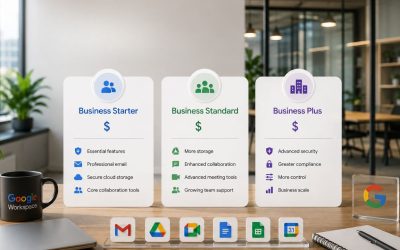
Business Starter supports video meetings with up to 100 participants, Business Standard raises that to 150 participants and adds recording, and Business Plus extends to 500 participants with attendance tracking, figures that come directly from Google’s published plan comparison. For most small-business client calls, involving a handful of people on each side, even the Starter tier’s participant cap is far more than will ever be needed; the more relevant factor is usually recording availability, which is not included in Starter.
Meeting length matters just as much as participant count for a client call that’s meant to run through a full agenda without interruption. A business running frequent client demos, recorded onboarding sessions, or multi-person negotiation calls should confirm which tier its account is on before the habit of longer calls becomes the norm, rather than discovering a length or feature limitation live in front of a client mid-conversation. This is one of the few places in this workflow where checking the plan specifics ahead of time can save you from an awkward moment later.
Running the Meeting: Screen Sharing Straight from Drive
The call itself is where the prep work either pays off or falls apart; sharing the live Drive document directly, rather than a static export, keeps the client looking at the same version everyone on the team has already been editing.
Presenting a Live Doc Instead of a Static Export
Exporting a Drive doc or slide deck to PDF before a call feels safer, but it locks the content in place at the moment of export; any last-minute correction made five minutes before the call won’t appear, and any edit the client requests live has to be made separately afterward rather than in real time.
Share the actual Drive tab during screen share instead. This means edits made in response to a client’s question, adjusting a number, adding a line the client wants included, happen on the same document that gets filed afterward, with no separate step to reconcile a “live version” against an “export version.” It also means the document the client is looking at during the call is identical to the one they can reopen via the Chat link the next morning, without a version mismatch that would raise unnecessary questions.
Keeping the Client’s Attention on the Content, Not the Tool
A client meeting that turns into a screen-sharing tutorial, “can you see my screen,” “wait, which tab”, burns through the limited attention a client brings to a call before the actual agenda has even started.
Open every document that will be shared before the call begins, arranged in browser tabs in the order they’ll be presented, rather than searching for files live while the client watches. This single habit removes the most common source of dead air in a client call: the thirty-to-sixty seconds spent locating a file that should have already been open. For a call with a tight agenda, dead air compounds; three files searched for mid-call can eat up several minutes that were meant for substantive discussion.
Set Up Google Workspace for Better Team Collaboration
Getting a client-facing meeting workflow set up correctly the first time, folder structure, Chat space conventions, and calendar defaults that hold up as the client list grows is exactly the kind of setup work Hiya Digital handles as an Authorized Google Workspace Reseller. Rather than each team member improvising their own version of this process, Hiya Digital configures it once and consistently across the entire account and remains available for ongoing support as the workflow evolves.
Capturing Notes and Decisions Without Losing the Thread
A client meeting produces decisions faster than anyone can reliably remember them, which makes real-time note capture, not a recap written from memory an hour later, the difference between a follow-up that’s accurate and one that isn’t.
Assigning a Notetaker Role Before the Call Starts
Deciding who takes notes should happen before the call, not as an afterthought once the conversation is already underway. A notetaker assigned in advance can focus on capturing decisions rather than scrambling to keep up mid-sentence.
For a small team running a client call together, assign the notetaker role explicitly in the pre-call message posted to the Chat space, so it isn’t left to whoever happens to type fastest once the call starts. The notetaker’s job is narrower than a full transcript: capture decisions, action items, and any number or date the client commits to, not every sentence spoken. Typing notes directly into the in-call Chat panel, rather than a separate document open in another tab, keeps the notetaker’s attention on the conversation instead of split between two windows.
Using Meet Recording and Transcripts as a Backup, Not the Plan
 Using Meet Recording and Transcripts as a Backup, Not the Plan
Recording a client call is a safety net for details that get missed live, not a substitute for someone paying attention to what actually needs to be captured. A recording that’s never reviewed adds no value beyond the storage it occupies in Drive. Meeting recording is included starting on Business Standard and above, saved directly to Drive rather than requiring a separate export step, which means a recorded client call becomes part of the same Drive folder as the rest of that client’s materials, searchable alongside the agenda and follow-up docs rather than sitting in a disconnected recordings library.
Before recording any client call, say so out loud at the start of the meeting. Beyond. Beyond being a matter of professional courtesy, some clients have their own policies about being recorded, and surfacing it up front avoids an awkward conversation after the fact. If recording is available and used, treat it as the source to check when a note is unclear or a detail is disputed later, not as the primary method of capturing what happened. A team that relies entirely on “we’ll just check the recording” tends to skip the timely follow-up that a client is actually waiting for.
Turning Chat Messages into Action Items After the Call
The notes captured live in Chat during the call are raw material, not a finished follow-up; turning them into a clear action list within a day of the meeting is what actually moves the client relationship forward.
Converting In-Call Chat Notes Into a Tracked Follow-Up List
Notes typed in real time during a call are inevitably messy, fragments, shorthand, half-finished thoughts, and sending them to a client in that state undermines the professionalism the rest of the meeting was meant to convey.
Within the same day, ideally within a few hours, rewrite the in-call notes into a short, structured follow-up: what was decided, who owns each next step, and by when. Post this as a new message in the same Chat space rather than a separate email, so the follow-up sits in the same searchable thread as the original agenda and any files discussed. This keeps the full history of a client relationship, agenda, live notes, and follow-up in one continuous place, rather than being split between Chat and an inbox.
Keeping the Client’s Own Questions Visible Instead of Buried
A client’s questions raised mid-call often get answered verbally and then forgotten in the written follow-up, leaving the client with the impression that their input wasn’t fully addressed, even if it actually was.
When rewriting the call notes, deliberately scan for anything the client asked directly and confirm it has a corresponding line in the follow-up message, even if it’s short. This is a habit worth building explicitly because it’s easy for a notetaker focused on capturing decisions to let a client’s specific question slip past without a dedicated line, especially when the answer was given quickly and the conversation moved on.
Filing Follow-Up Documents Back Into Drive the Right Way
The final handoff in a client meeting is filing everything produced by the call, notes, updated proposals, and revised numbers, back into the same Drive location the meeting started from, so the next meeting doesn’t begin with a search.
Naming and Placing Files So the Next Meeting Finds Them
A follow-up document that gets saved to whichever folder is open at the time, rather than the client’s dedicated folder, effectively disappears the moment the person who filed it forgets where they put it.
File every document produced by or after a client call, meeting notes, a revised quote, and an updated timeline into the same client folder set up before the meeting, never into a personal “Downloads” or general working folder meant as a temporary holding spot. Use a consistent filename that includes the date and a short description, rather than a generic label like “notes,” which becomes meaningless once five similar files accumulate in the same folder.
Updating Permissions Once the Client Needs Ongoing Access
A client relationship’s access needs change over time; a folder that was viewer-only during a proposal stage often needs to shift to broader access once a project is underway and the client needs to check progress independently.
Revisit folder-level permissions at natural transition points in the relationship: when a proposal is signed, when a project moves from planning into execution, or when a new person joins the client’s team and needs to be added. Because permissions were set at the folder level from the start, as described earlier, updating access for an entire client relationship requires a single change rather than hunting down every individual file shared over the course of several meetings.
Building a Repeatable Folder and Naming System for Client Meetings
The workflow described so far only stays consistent across dozens of client relationships if the underlying folder and naming structure is decided once, deliberately, rather than improvised fresh for each new client as they come on board.
A Folder Structure That Scales Past Your First Ten Clients
A structure that works fine for three client relationships, tracked individually by whoever happens to remember where each folder lives, breaks down quickly once a business is juggling ten, twenty, or more at the same time. Set up a top-level “Clients” folder in a Shared Drive rather than an individual’s personal Drive, with one subfolder per client beneath it, so the structure survives regardless of which staff member is handling a given account on a given day.
Using a Shared Drive rather than a personal My Drive location matters for continuity: files in a Shared Drive belong to the organization rather than the individual who created them, which prevents a client’s entire meeting history from being tied to one employee’s personal account. Within each client subfolder, a consistent internal pattern, an “Agenda & Notes” area and a “Deliverables” area, for example, means anyone on the team can open a new client’s folder for the first time and immediately understand where to find or place a given file, without needing a walkthrough from whoever set it up originally.
Naming Conventions That Survive Staff Turnover
A file-naming pattern that only makes sense to the person who created it becomes useless the moment that person is unavailable, on leave, or has left the company, which is precisely when a client is most likely to ask for something from an old meeting. A workable pattern for this workflow is: date, client name, document type, for example, a meeting notes file dated and labeled consistently across every client, every time.
The specific format matters less than consistency; what matters is that any team member can predict a file’s name before opening it, based on the pattern alone. This is one of the areas where a small business benefits most from setting the convention up correctly from day one rather than retrofitting it later, since renaming an accumulated backlog of inconsistently named files across dozens of client folders is a far larger task than establishing the habit before the first client folder is even created.
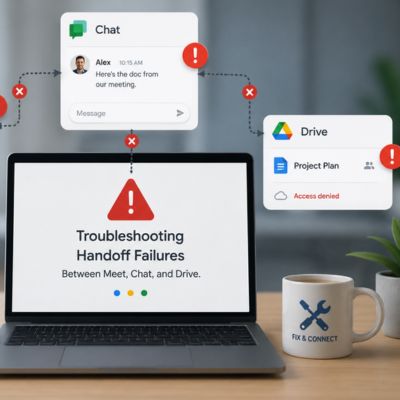
Troubleshooting Common Handoff Failures Between Meet, Chat, and Drive
Even a well-designed workflow breaks down occasionally; knowing the handful of recurring failure points in the handoff between Drive, Chat, and Meet makes them faster to fix live, rather than derailing the call. At the same time, someone tries to diagnose the problem from scratch.
When a Shared File Won’t Open for the Client on the Call
 When a Shared File Won’t Open for the Client on the Call
The most disruptive failure in a client call is a document that won’t load for the client at the exact moment it’s needed, usually traceable to a permissions setting rather than a genuine technical outage. If a client reports they can’t open a shared file mid-call, the fastest fix is almost always to re-check the sharing setting on the folder rather than the individual file, since a file added after the folder’s permissions were last confirmed can occasionally fail to inherit access correctly, particularly if it was moved between folders rather than created directly inside the client’s folder.
Re-sharing at the folder level again resolves this in most cases within moments. A second common cause is the client being signed into the wrong Google account. Many people maintain both a personal and a work account, and can be logged into the personal one when the invite was sent to their work address. Asking the client to confirm which account they’re signed in to, or sending the link a second time with an explicit note about which email to use, resolves this quickly without requiring any changes on the business’s side at all.
When Chat Notes and Drive Files Fall Out of Sync
Chat messages and Drive files are meant to stay linked via the URLs shared between them, but that link breaks the moment a file is moved, renamed, or deleted after the message referencing it has already been sent. If a client clicks a link posted in Chat weeks earlier and encounters an error, check whether the file was moved to a different folder or renamed since the original message was sent; both actions can break an existing shared link, depending on how the move was made.
The fix in the future is procedural rather than technical: treat a file’s name and location as fixed once it’s been shared into a Chat space, and if a genuine rename or reorganization is necessary, post a fresh link in the same Chat space rather than assuming the old one will continue to resolve correctly. The underlying pattern behind most of these failures is the same: a step in the workflow was skipped once, under time pressure, and the gap didn’t surface until weeks later when someone tried to use the shortcut that step was supposed to create.
| Handoff Failure | Likely Cause | Fix |
|---|---|---|
| Client can’t open a shared file mid-call | Folder-level permission is not applied to a newly added file | Re-share at the folder level rather than the individual file |
| Client sees a broken link from an old Chat message | The file was renamed or moved after the link was shared | Post a fresh link in the same Chat space; avoid renaming shared files |
| Client joins the wrong Meet call or misses the invite | Reused link from a previous meeting instead of a fresh Calendar invite | Generate the Meet link from Calendar for every new invite |
| Chat space becomes hard to find among other conversations | Space named generically instead of by client relationship | Rename the space to the client’s name at creation, not after |
| Recording never gets reviewed or filed | No owner assigned for post-call recording review | Assign the notetaker or call owner to check the recording within 24 hours |
Frequently Asked Questions
Can I share a Google Doc during a client Meet call without giving them edit access?
Yes. Share the document as “Viewer” or “Commenter” in Drive before the call, then use Meet’s screen share to present the live browser tab. The client sees exactly what’s on the document in real time without being able to change it unless you’ve deliberately granted commenter or editor access. This is the safer default for anything like a proposal, quote, or contract that shouldn’t be altered mid-conversation, while still letting you make live edits from your own account if the client requests a change during the discussion.
Does Google Chat save messages after a client meeting ends?
Yes, messages in a Google Chat space remain in that space indefinitely as long as the space itself isn’t deleted, which means the agenda, in-call notes, and follow-up messages from a meeting held months ago stay searchable later. This is one of the practical advantages of using a dedicated Chat space per client rather than a temporary thread: the full history of a client relationship, including every file link shared, stays in one place rather than scattered across forwarded emails.
What’s the best way to send a client a recording of our Meet call?
If your account includes meeting recording, the recording saves automatically to a Meet Recordings folder in Drive. Rather than downloading and emailing the video file, share the Drive link directly into the client’s Chat space or the same client folder used for the rest of the meeting’s materials. This keeps the recording alongside the agenda and notes from the same call and avoids sending a large video file as an email attachment, which many inboxes will reject or delay due to size.
Should I create a new Google Chat space for every client meeting?
No, create one Chat space per client relationship, not one per individual meeting. A space scoped to the relationship holds the full history across every meeting: agendas, notes, decisions, and file links, all searchable in one place. Creating a fresh space for each meeting fragments that history and makes it harder to find something discussed two meetings ago. The exception is a genuinely separate engagement with the same client; a new project might reasonably warrant its own space if the two workstreams don’t overlap.
Can a client join a Google Meet call without a Google account?
Yes. A client can join a Meet call via a browser link without signing in to a Google account, though they may be asked to enter their name so the host can identify and admit them. Hosts control who’s admitted to the call via Meet’s waiting room, so an external guest joining without an account doesn’t compromise the meeting’s security. This makes Meet practical for client-facing calls where you can’t require every participant to have their own Google Workspace access.
How long can a client-facing Meet call run before it’s cut off?
Meeting length limits vary by plan and account type, and Google periodically adjusts specifics for free versus paid accounts. For a paid Google Workspace Business account, meetings are not subject to the short duration caps that apply to free personal accounts. Before relying on a long client session, a multi-hour workshop, or a training call, for example, it’s worth confirming the current duration allowances for your specific plan in the Google Workspace Admin Console rather than assuming, since this is one of the details Google updates from time to time.
What happens to shared Drive files if the person who shared them leaves my company?
If a file was shared from an individual employee’s personal My Drive, ownership and access can become unstable when that person’s account is deactivated, which is exactly why this guide recommends storing client materials in a Shared Drive rather than a personal one. Files in a Shared Drive belong to the organization, not the individual, so a client’s access and the file’s availability are unaffected by staff turnover. Setting this up correctly from the start avoids a disruptive scramble to relocate files after an employee’s departure.
Can I turn on live captions or transcripts for a client meeting?
Yes, Google Meet supports live captions during a call, which can help a client following along in a noisy environment or a non-native English speaker catch details they might otherwise miss. Automatic transcripts, saved as a Drive document after the call, are available on qualifying paid plans and can serve as a useful backup alongside the manually captured notes described earlier in this guide. However, they shouldn’t replace a notetaker actively identifying which parts of the conversation were actual decisions versus general discussion.
How do I stop a client meeting Chat space from getting buried among other chats?
Pin the client’s Chat space within your own Chat sidebar so it stays near the top regardless of how many other conversations are active. Naming the space clearly and consistently by client name, rather than with a generic label, also makes it faster to locate via search, even if it isn’t pinned. For a business managing many client relationships, a short internal habit, checking pinned client spaces at the start of each day, keeps active accounts visible without relying on memory alone.
Is it safe to share sensitive client documents through a Chat space?
Google Chat and Drive run on the same underlying security and access controls as the rest of Google Workspace, including encryption in transit and at rest, so sharing a document link through Chat is not inherently less secure than any other method within the platform. The bigger practical risk is permissions drift: a file shared broadly early on that never gets tightened later. This is a process issue rather than a platform limitation and is addressed by the folder-level permission habits described earlier in this guide.
Glossary
Shared Drive: A Drive location owned by an organization rather than an individual user, so files remain accessible regardless of staff turnover.
Pooled Storage: A storage allowance shared across an organization’s users rather than allocated as a fixed, non-transferable amount per person.
Meet Recording: A saved video of a Google Meet call, stored automatically to a Drive folder, available starting on Business Standard and above.
Chat Space: A persistent, named Google Chat conversation that can include multiple people and stays searchable indefinitely unless deleted.
Attendance Tracking: A Business Plus-and-above feature that logs who joined a Meet call and for how long.
Live Captions: Real-time on-screen text of spoken audio during a Google Meet call.
Folder-Level Permissions: Access settings applied to an entire Drive folder so that files added later automatically inherit the same sharing rules.
The Hiya Digital Team is a collective of IT infrastructure specialist engineers, certified systems administrators, and cloud architects driven by a singular mission: building corporate communication systems that just work. As an Authorized Google Partner, the team handles complex global hosting deployments, secure email migrations, and advanced data compliance architectures for businesses across 40+ countries.
With over two decades of technical experience spanning custom premium business email configurations, OX AppSuite deployments, and enterprise-level network security, the Hiya Digital Team writes to demystify domain infrastructure. Their content focuses on actionable technical strategies, anti-phishing security protocols, and seamless cloud collaboration setup, all backed by real-world deployment experience and 24/7 technical support accountability.