Migrating a small business to Google Workspace involves more than transferring email and files. Decisions regarding planning, data migration, user accounts, domain configuration, and deployment can all affect how smoothly the transition proceeds. While many organizations can complete the migration independently, others benefit from expert assistance to minimize downtime and avoid configuration issues. Understanding the migration process and the factors involved helps business owners choose the approach that best fits their technical experience and operational needs.
Why This Decision Isn’t Just “Can I Use the Wizard”
Google’s setup wizard is genuinely easy to click through, which is exactly why business owners underestimate this project. The wizard covers signup and domain verification well. It does not tell you whether your current mail setup has quirks that will bite you mid-move, which is the actual decision you’re making here.
 What Actually Has to Move (and What Breaks If It Doesn’t)
 What Actually Has to Move (and What Breaks If It Doesn’t)
A typical small business migration touches four things: inbound mail routing, existing mailbox contents, calendar and contacts, and any mail rules or forwarding addresses built up over years. Each one fails differently if handled wrong. Mail routing errors cause dropped messages that nobody notices until a client complains. Mailbox migration errors cause missing history that surfaces weeks later when someone searches for an old thread. Neither is catastrophic on its own, but both are the kind of quiet failure that a non-technical owner has no way to detect in real time without knowing what to check for.
Contacts and calendar data tend to be the most forgiving part of the move, since most small teams don’t rely on complex shared calendar permissions or nested contact groups. Mail rules are the opposite; a client-specific auto-forward or an out-of-office rule tied to a legacy system is easy to forget exists until it stops working. Before deciding who runs this project, it’s worth spending twenty minutes listing every rule, forward, and shared mailbox currently in use. That list is the real scope of the migration, more so than the number of employees involved.
The Real Skill Gap: DNS, Not the Google Interface
The part of this project that actually requires technical judgment is DNS, the settings at your domain registrar that tell the internet where your mail lives. Google’s own console is built for non-technical admins and rarely confuses. Your domain registrar’s control panel, by contrast, varies wildly in clarity, and a mistyped record there can take your entire business offline for email, not just delay the migration.
This is also where most self-inflicted downtime originates, not from Google’s tools. Google Workspace guarantees 99.9% uptime for business email once it’s correctly configured; the risk lies entirely in the configuration step, which is a registrar problem, not a Google problem. If you’ve never logged into your domain registrar account before, that single unfamiliarity is a more reliable predictor of how this project will go than your team size or technical comfort in general.
Signs You Can Reasonably Do This Yourself
Plenty of small businesses migrate themselves successfully every week, and there’s no reason to assume you need outside help by default. The honest question is whether your setup is simple enough that mistakes are cheap to notice and cheap to fix.
Team Size and Data Simplicity Signals
A single-digit team using a single email provider, with no shared mailboxes and no legacy mail rules, is close to the best-case scenario for a self-managed move. With few accounts to check, an owner can realistically verify every mailbox by hand within a day or two, which removes most of the risk of things going unnoticed. Simplicity, not size alone, is the deciding factor. A five-person team with three legacy forwarding rules and a shared support inbox is a harder migration than a fifteen-person team where everyone has a single clean mailbox.
If your current provider is a mainstream one, a standard IMAP host, an existing Gmail-based setup, or a common webmail platform, Google’s own tools are built with that exact scenario in mind, and the documentation is extensive. The further your current setup drifts from “one provider, one mailbox per person, no custom routing,” the less this signal applies, regardless of how comfortable you personally feel with technology.
Comfort Level With Your Domain Registrar
Since DNS is where risk concentrates, your own history with your domain registrar matters more than general tech-savviness. If you’ve renewed the domain yourself, added a subdomain, or changed a record before, you already have the specific skill this project needs most. If someone else has always handled that account and you don’t currently have the login, that’s worth resolving before you commit to doing the rest yourself, not a dealbreaker, but a gap to close first.
It also helps to know, honestly, how you respond under a short window of pressure. A domain cutover typically involves a period when both the old and new mail systems need to work correctly, and a calm, methodical approach during that window matters more than raw technical skill. If troubleshooting under a deadline is something you find stressful rather than manageable, that’s a legitimate reason to bring in help even if the technical steps themselves aren’t beyond you.
Signs You Should Bring In Help Instead
The flip side matters just as much: certain situations turn a straightforward move into one where a mistake has real consequences, and those are worth recognizing before you start, not mid-project.
Compliance, Legal Hold, or Client Data Sensitivity
If your business handles data under a specific compliance obligation, retains records for legal or regulatory reasons, or manages client data where a gap in continuity would create liability, the margin for error on this migration shrinks considerably. Retention and legal-hold configuration isn’t something the setup wizard prompts you to think about, and getting it wrong isn’t a visible failure the way a bounced email is; it’s a silent gap you might not discover until it matters.
This doesn’t necessarily mean you need Google’s higher-tier plans, though eDiscovery and retention tooling do become available at that level. It means the migration itself needs someone to think about data-handling requirements, not just mailbox continuity, while the move happens. That’s a different skill set from clicking through a setup wizard, and it’s the clearest case for bringing in a partner, regardless of how small the team is.
Anything Involving Active Directory, Custom Mail Rules, or Multiple Domains
A business syncing user accounts from an on-premises directory, running several domains or subdomains into a single mail system, or relying on a web of conditional forwarding rules has outgrown the scenario that Google’s self-serve tools are optimized for. None of this is unusual for a growing small business; it typically accumulates from years of ad hoc IT decisions rather than any single deliberate choice. It’s just no longer a project a non-technical owner should be untangling for the first time during a live cutover.
The practical test is whether you could confidently draw your current mail setup on a whiteboard, every domain, every rule, every forward, without needing to check anything first. If you can’t, that complexity is exactly what a migration partner is for: mapping what exists before touching it, not after something breaks.
DIY vs. Partner-Assisted Migration: Match Your Scenario
| Scenario | Complexity Signal | DIY Feasibility | Recommended Path |
|---|---|---|---|
| Team of 1–8, one mail provider, no shared mailboxes | Low | High | Self-managed with a staged rollout |
| Team of 9–25, a few forwarding rules, no compliance requirement | Moderate | Medium | Self-managed with an inventory step first, or light partner review |
| Any team size with legal/compliance retention requirements | High | Low | Partner-assisted, retention configured before cutover |
| Multiple domains or subdomains routing mail into one system | High | Low | Partner-assisted, mail routing mapped before migration |
| Active Directory-synced accounts or on-prem directory in place | High | Low | Partner-assisted, directory sync planned separately |
| Migrating from Microsoft 365 with Teams/SharePoint data | Moderate–High | Medium | Partner review recommended for Teams/SharePoint scope specifically |
What a Non-Technical Owner Needs to Understand Before Starting
Whether you migrate yourself or hire it out, having a working understanding of the process changes how the project goes, and it’s the difference between directing a partner effectively and just handing them a blank check.
The Three Things That Can Go Wrong (and Why They’re Preventable)
Nearly every migration problem traces back to one of three causes: mail routed to the wrong place during the transition, data left behind because a mailbox wasn’t fully included in the migration scope, or an account locked out due to a password or verification step that nobody planned for. All three are preventable with basic checklist discipline; none require deep technical expertise to avoid, only the discipline to verify rather than assume.
Knowing this in advance reframes the whole project: it’s not really about mastering Google Workspace; it’s about not skipping verification steps under time pressure. A rushed migration on a Friday afternoon fails for the same reasons a careful one on a Tuesday morning succeeds or fails; the tooling doesn’t change, the diligence does. This is also the strongest argument for giving the project more calendar time than feels necessary, since most failures are attention failures, not technical ones.
Reading Your Current Mail Setup Before You Touch Anything
Before any migration step begins, get a plain list of: every active mailbox; every domain and subdomain sending or receiving mail; every forwarding rule; and every third-party tool with access to your current email (CRM sync, marketing tools, accounting software). This isn’t a technical audit; it’s an inventory, and most owners can compile it themselves by checking their current admin panel and asking a handful of “does anyone else use this” questions across the team.
This inventory is the single most valuable thing you can hand to a migration partner if you do bring one in, and it’s equally valuable if you don’t; it becomes your own checklist for confirming nothing was missed once the move is done. Skipping this step is the most common reason migrations that looked simple on paper turn up surprises two weeks later, when someone asks why their CRM stopped syncing.
Building a Realistic Timeline for a Small Team
Owners consistently underestimate how long this takes, mostly because the visible part, clicking through setup, genuinely is fast, while the invisible part, verification and cleanup, is where the real time goes.
How Long Each Phase Actually Takes
 How Long Each Phase Actually Takes
Domain verification and initial account setup are usually same-day tasks once you have registrar access sorted out. The actual data move, mail, calendar, contacts, runs in the background and its duration depends mostly on mailbox size and message volume rather than team size, since Google’s data migration service can’t migrate from multiple source accounts into a single target account at the same time, which means the total time scales with how much needs to move, not just how many people are involved. For a small team with modest mailbox sizes, expect the background transfer itself to take anywhere from a few hours to a couple of days per batch.
The part owners consistently forget to budget for is verification afterward, spot-checking that mail, calendar events, and contacts actually landed correctly for each person, and confirming nobody lost access to a shared resource. For a small team, this typically takes as long as the technical setup itself, sometimes longer, because it’s manual and can’t be rushed without risking a missed problem. Planning for verification time up front, rather than treating it as an afterthought, is what separates a calm migration from a chaotic one.
Picking a Low-Risk Migration Window
The ideal cutover window is a period with low email volume and no time-sensitive client work in flight; for most small businesses, that’s a slow weekday rather than a weekend, since weekend cutovers mean nobody’s available to catch a problem until Monday, by which point a full business day of email may have been affected. Avoid the days immediately before a known busy period: month-end billing, a product launch, or a known high-volume client deadline.
It’s also worth telling your team the window in advance, even for a small business, so people know to expect a short period where sending from their phone might behave oddly or a calendar invite might not sync instantly. This costs nothing and prevents the most common source of panic during a migration, a team member assuming something is broken when it’s simply mid-transition. A five-minute heads-up email the day before does more to keep a migration calm than almost any technical precaution.
Realistic Migration Timeline by Team Size
| Team Size | Domain Setup & Verification | Background Data Transfer | Verification & Spot-Checks | Total Elapsed Time |
|---|---|---|---|---|
| 1–5 employees | Same day | A few hours to 1 day | Half a day | 2–3 days |
| 6–15 employees | Same day | 1–2 days | 1 day | 3–5 days |
| 16–30 employees | Same day | 2–3 days | 1–2 days | 5–7 days |
| 30+ employees (approaching partner-recommended territory) | Same day | 3+ days, often staged in batches | 2+ days | 1–2 weeks |
Ensure a Smooth Google Workspace Migration
Getting the cutover window and verification checklist right is exactly where most small businesses lose confidence midway through, not because the steps are hard, but because nobody’s watching for the quiet failures while everyone’s back to running the business. As an Authorized Reseller and Implementation & Migration Partner for Google Workspace, Hiya Digital handles the verification layer directly, so a missed forwarding rule or an unmigrated shared mailbox is caught before it becomes a client-facing problem, rather than after.

The DIY Path: What You’ll Actually Be Doing Yourself
If your setup fits the “reasonably DIY” profile, it helps to know concretely what the self-managed path looks like, rather than treating it as one undifferentiated task.
Domain Verification and the Setup Wizard
Google’s onboarding wizard walks you through creating your account, adding users, and verifying that you control your domain, typically by adding a specific record with your domain registrar to prove ownership. You can sign up with a business email address or a verified domain to add up to 300 users, covering essentially every small-business scenario without needing to contact sales. This part of the process is genuinely well-designed for a first-time, non-technical admin, and it’s rarely where problems originate.
Once verification is complete, adding individual user accounts is mostly a matter of entering names and choosing usernames; Google auto-generates temporary passwords, and you can bulk-create accounts from a spreadsheet if your team is larger than a handful of people. This step is worth doing carefully rather than quickly, since usernames are harder to change later than almost anything else in the setup, and getting them consistent (first initial plus last name, or full first name, but not a mix) avoids confusion for years afterward.
Where the Native Migration Tool’s Limits Show Up First
Google’s built-in data migration service is capable but has specific boundaries worth knowing before you rely on it. The service works best when migrating 100 users or fewer at a time. While some tools support up to 1,000, larger batches can reduce performance; for a small business, this ceiling is rarely a practical concern. More relevant day-to-day: migrating from Gmail or another Google account through the native tool copies email, labels, and read status only; it does not move Drive files, calendar events, or contacts, so if your team currently stores files in a personal Drive or uses shared calendars heavily, those need a separate, deliberate step, not an assumption that “the migration” covers everything.
It’s also worth noting that the migration service won’t run two source accounts into the same target mailbox simultaneously; starting a second migration into an account that’s already migrating cancels the first rather than adding to it. For a small team, this mostly means: don’t get impatient and re-run a migration you think is stuck, since restarting it can undo partial progress rather than speed anything up. Waiting for a stalled migration to time out or complete is almost always the safer move.
Choosing Between Self-Serve Checkout and a Reseller Partner
Every small business eventually asks the same question: why not just sign up directly on Google’s website? It’s a fair question, and the honest answer is that self-serve checkout and partner-managed setup solve different problems.
What Google’s Self-Serve Signup Does and Doesn’t Cover
 What Google’s Self-Serve Signup Does and Doesn’t Cover
Signing up directly gets you a working Google Workspace account, full access to every tool in your chosen tier, and Google’s own support channels for technical issues. What it doesn’t include is anyone reviewing your specific setup before you commit, no one checking whether your current mail rules will survive the move, no one confirming your DNS changes are correct before you flip the switch, and no ongoing account oversight once you’re live. Self-serve checkout treats the purchase and the migration as two separate, unrelated events, when for a small business without IT staff, they’re really one connected project.
This isn’t a criticism of the self-serve path; it’s built for buyers who already know exactly what they’re doing, or whose setup is simple enough that the risk of an unreviewed cutover is genuinely low. For anyone still working through Sections 2 and 3 above, that gap between “signing up” and “migrating correctly” is precisely where problems tend to surface after the fact rather than during setup.
What Changes When a Partner Manages the Account
Working with an Authorized Reseller adds a layer of ongoing account management that self-serve checkout doesn’t include: a point of contact for licensing changes as your team grows, help interpreting admin console settings that aren’t self-explanatory, and, critically for this specific decision, someone reviewing your mail setup before the cutover rather than after something breaks. For a business with no dedicated IT person, this ongoing relationship often matters more after the migration than during it, since questions about adding a new hire’s account or adjusting a security setting don’t stop once the initial move is done.
Hiya Digital operates specifically in this Authorized Reseller and Certified Sales Partner capacity, helping small businesses get a setup that’s correct on day one rather than one that technically works but accumulates small configuration gaps a non-technical team wouldn’t know to look for. That’s a meaningfully different relationship than a one-time self-serve purchase, even though both end with the same Google Workspace product running underneath.
Cost Trade-Offs of DIY vs. Hiring Help
The cost comparison here isn’t Google’s subscription price, that’s identical either way; it’s what the owner’s own time is worth against what a partner charges for the same outcome.
The Hidden Cost of Owner Time
A small business owner running their own migration is, realistically, trading a few days of their own working hours, spread across setup, verification, and troubleshooting whatever comes up, against whatever revenue-generating or operational work those hours would otherwise go to. That trade is entirely reasonable for a simple setup. Still, it’s worth being honest about it as a real cost rather than treating DIY as automatically “free” just because there’s no invoice attached.
The less visible cost shows up if something goes wrong: a missed mail rule discovered a month later, a client email that silently bounces during the cutover, or a support call to Google that takes longer to resolve without someone experienced to navigate the admin console alongside you. None of these are likely in a simple, well-planned migration, but they’re the reason “how much is my time worth if this takes twice as long as expected” is the more useful question than “how many hours will this take” on its own.
What Migration Help Typically Includes
When a partner handles the migration, the scope typically covers the setup and verification work described throughout this post: reviewing your current mail configuration before starting, managing the DNS and cutover steps directly, confirming that every mailbox and rule has migrated correctly, and remaining available if anything needs adjusting in the days immediately after go-live. That last point, post-migration support, is often the most valuable part for a non-technical team, since it’s precisely the window where a quiet problem is most likely to surface.
Because pricing for implementation and migration services varies by team size, data complexity, and current mail provider, it’s worth treating this as a quote-based conversation rather than assuming a fixed cost. The honest comparison is against the realistic value of the owner’s own time saved and the risk of a costly mistake avoided, not against a published price list.
Common Mistakes Small Businesses Make Migrating Without IT
A lack of technical skill doesn’t cause most migration problems; they’re caused by a handful of specific, repeatable mistakes that are easy to avoid once you know to watch for them.
Cutting Over Before Testing With a Small Group
The single most common mistake is moving every user at once, on the theory that it’s simpler than staging the rollout. A safer approach, even for a five-person team, is to migrate one or two people first, have them use the new system for real work for a day, and confirm nothing unexpected happened before moving everyone else. This costs almost nothing in extra time but catches setup problems before they affect only one or two people, rather than the whole company.
Skipping this step is understandable; it feels like an unnecessary delay when the whole team is eager to finish the project. Still, it’s exactly the step that turns a hidden configuration issue into a company-wide problem instead of a quiet, quickly fixed one. Treating the first migrated user as a test case, even informally, is one of the cheapest risk-reduction steps available in this entire process.
Losing Track of Devices and Third-Party App Access
 Losing Track of Devices and Third-Party App Access
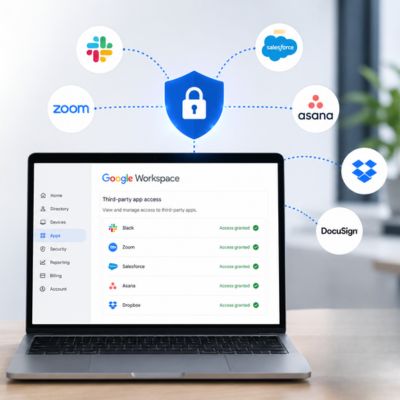
Once mail moves to a new system, every phone, laptop, and third-party tool that was connected to the old account needs to be reconnected to the new one, and it’s easy to forget how many things that actually includes: a phone’s mail app, a CRM’s email sync, an accounting tool’s receipt-forwarding address, a marketing platform’s sender authentication. Each of these fails silently, without an obvious error message, which is exactly why they surface weeks later rather than on migration day itself.
The fix is straightforward but easy to skip under time pressure: before the migration, list every device and third-party integration touching the current email account, and treat reconnecting each one as a required step in the migration itself, not an afterthought to handle “whenever.” Building that list alongside the mail-setup inventory from Section 4 means you’re not discovering these connections one broken integration at a time after the fact.
After the Move: What “Done” Actually Looks Like
A migration that technically completed isn’t the same as one that’s actually finished; there’s a verification layer between the two that’s easy to skip once the visible parts are working.
Confirming Nothing Silently Failed
“Done” means every mailbox has been spot-checked for message count and recent history, every forwarding rule from the original inventory has been confirmed working or deliberately retired, and every third-party integration has been reconnected and tested with a real message or sync, not just re-authorized. This checking process doesn’t need to be exhaustive for every single email; a handful of spot checks per mailbox, focused on anything flagged as unusual during the move, catch the overwhelming majority of real problems.
It’s also worth explicitly asking each team member a few days after cutover whether anything feels off: a missing calendar invite, an old email that seems to be gone, or a contact that didn’t carry over. Team members often notice small gaps before any technical check would, simply because they’re the ones actually using the data day-to-day, and a short check-in costs far less than discovering the same gap through a client complaint weeks later.
Building the One-Page Runbook You’ll Wish You Had
Once the migration is confirmed complete, write down on a single page how new employees are added, who has admin access, where the domain registrar login is, and who to contact if something breaks. This single document is the difference between a smooth process the next time someone joins the team and starting the entire learning curve over from scratch. It takes less than an hour to put together while the details are still fresh.
This runbook is also the most useful thing to hand to a migration partner later if your needs outgrow what you can manage alone, whether that’s adding a compliance requirement, expanding past a size where manual account management makes sense, or simply wanting ongoing support instead of doing every admin task solo. Treating it as a living document from day one, rather than something to create only once a problem forces the issue, is the cheapest insurance this entire project offers.
Frequently Asked Questions
Can I migrate emails to Google Workspace?
Yes, for most small businesses with a straightforward setup (one email provider, no complex mail rules, a team you can count on one or two hands), migrating emails yourself using Google’s built-in tools is entirely realistic. The bigger question isn’t technical capability so much as complexity: if your business has multiple domains, legal or compliance retention requirements, or a web of forwarding rules built up over years, those factors matter more than team size in deciding whether to do it alone. A useful gut check is whether you could list every mailbox, forward, and connected third-party tool from memory; if not, that gap is worth closing or handing to a partner before you start.
How long does it take to migrate a small business to Google Workspace without an IT person?
For a small team with a simple setup, expect domain verification and account creation to take a single day, background data transfer to run anywhere from a few hours to a couple of days depending on mailbox size, and verification afterward to take roughly as long as the technical setup itself. Most non-technical owners underestimate the verification phase specifically, since it’s manual, unglamorous work, spot-checking mailboxes and confirming rules survived the move, rather than a visible technical task. Budgeting a full week from start to confident completion, rather than a single weekend, avoids the rushed decisions that cause most of the preventable problems.
Do I need a developer to move my business email to Google Workspace?
No. Google’s setup wizard and admin console are built for non-technical administrators, and most of the process, account creation, adding users, and running the built-in migration tool, requires no coding or development skills at all. The one place technical unfamiliarity actually matters is your domain registrar’s DNS settings, since a misconfigured record there can cause mail outages. That’s a specific, learnable skill rather than a developer-level requirement, and it’s also the single most common reason small businesses choose to bring in a migration partner, not the reason to hire a full-time developer.
What happens to my old email address during the switch?
Your email address itself doesn’t change during a Google Workspace migration; you keep sending and receiving mail at the same address, since the move is about where your mailbox is hosted, not what the address is. During the transition window, both your old and new systems may need to handle mail correctly for a short time, which is why choosing a low-volume cutover window matters. Once DNS records are updated to point to Google and verified as working, all new mail arrives in your Google Workspace inbox. At the same time, your historical messages are copied over separately through the migration tool.
Can I migrate from Microsoft 365 to Google Workspace myself?
Yes, and Google specifically builds migration tooling for this path since it’s one of the most common transitions small businesses make. Google’s migration tools support moving email, calendar events, and contacts from Microsoft 365 and Exchange, and separately support copying files from OneDrive and SharePoint Online into Google Drive and Shared Drives. The added complexity compared to a simple IMAP-to-Gmail move is that Microsoft 365 setups more often include Teams messaging history, SharePoint file structures, or Active Directory-managed accounts, each of which needs its own deliberate step rather than being covered by a single “migrate everything” click, which is worth planning for before you start rather than discovering mid-move.
How many employees are too many to migrate without help?
There’s no hard employee-count cutoff; complexity matters more than headcount. Google’s own migration service is designed to work best with 100 users or fewer per batch, which covers the overwhelming majority of small businesses, whether they migrate alone or with help. A twenty-person team with one clean mailbox setup per person is often an easier DIY project than a six-person team juggling shared mailboxes, multiple domains, and legacy forwarding rules. Use the complexity signals in this post, not team size alone, to make the call.
Will my team lose emails during the migration?
Data isn’t deleted from your source account during a standard migration. Google’s migration tools copy data rather than move or delete it, so your original mailbox remains intact and accessible throughout the process. The realistic risk isn’t permanent data loss but incomplete transfer, a mailbox that wasn’t fully included in the migration scope, or a rule that stopped working during the cutover window. That’s exactly why the verification step after migration (checking message counts and recent history per mailbox) matters more than the transfer itself, and why keeping the old account accessible for a short buffer period after cutover is good practice regardless of migration path.
Do I need to buy Google Workspace before I start migrating?
Yes, you need an active Google Workspace account with your domain verified before running any data migration, since the migration tools move data into an existing target account rather than creating one. Domain verification and initial account setup typically happen on the same day, so this isn’t a long waiting period. Still, it does mean the sequence matters: sign up and verify your domain first, confirm your admin console is accessible, and only then begin the actual data transfer step.
What if I only have a handful of employees? Is it worth hiring a partner?
For a genuinely simple setup, a handful of people, one mail provider, no legacy rules or compliance requirements, many small teams migrate successfully on their own, and paying for a partner isn’t strictly necessary. Where it becomes worth considering, even at a small scale, is if your own time is better spent elsewhere in the business, if you’re not confident navigating your domain registrar, or if the cost of a mistake (a client-facing email outage, for instance) would be disproportionately painful for a business your size. The decision scales with risk tolerance and complexity more than with raw employee count.
Can I undo the migration if something goes wrong?
Because Google’s migration tools copy rather than delete source data, your original account typically remains available as a fallback during and shortly after the move, providing a practical safety net rather than a true “undo” button. If DNS has already been switched to point at Google, reverting mail flow to your old provider is possible but adds its own complexity, which is why testing with a small group before a full cutover (covered in Section 9) is the more reliable way to catch problems before they require any rollback at all.
Glossary
DNS (Domain Name System): The internet’s directory system that translates your domain name into the technical addresses that route your email and web traffic. The settings changed at your registrar during a mail migration.
MX Record: A specific DNS entry that tells the internet which mail servers should receive email for your domain; updating this is what actually redirects incoming mail to Google Workspace.
Domain Verification: The step where you prove to Google that you control your domain, usually by adding a specific DNS record, before Google Workspace will activate for that domain.
Data Migration Service: Google’s built-in, admin-console-based tool for copying email, calendar, and contact data from a source account into a Google Workspace account.
Super Administrator: The highest level of admin access in Google Workspace, required to authorize and run a migration and manage core account settings.
Shared Drive: A Google Drive space owned by the organization rather than an individual user, so files remain accessible after an employee leaves, unlike files kept only in personal Drive folders.
IMAP: A standard email protocol many non-Google mail providers use, which Google’s migration tools can connect to directly when migrating from a source that isn’t Gmail or Microsoft 365.
Cutover: The point in a migration when mail flow officially switches from the old system to the new one, typically marked by the DNS/MX record change taking effect.
The Hiya Digital Team is a collective of IT infrastructure specialist engineers, certified systems administrators, and cloud architects driven by a singular mission: building corporate communication systems that just work. As an Authorized Google Partner, the team handles complex global hosting deployments, secure email migrations, and advanced data compliance architectures for businesses across 40+ countries.
With over two decades of technical experience spanning custom premium business email configurations, OX AppSuite deployments, and enterprise-level network security, the Hiya Digital Team writes to demystify domain infrastructure. Their content focuses on actionable technical strategies, anti-phishing security protocols, and seamless cloud collaboration setup, all backed by real-world deployment experience and 24/7 technical support accountability.