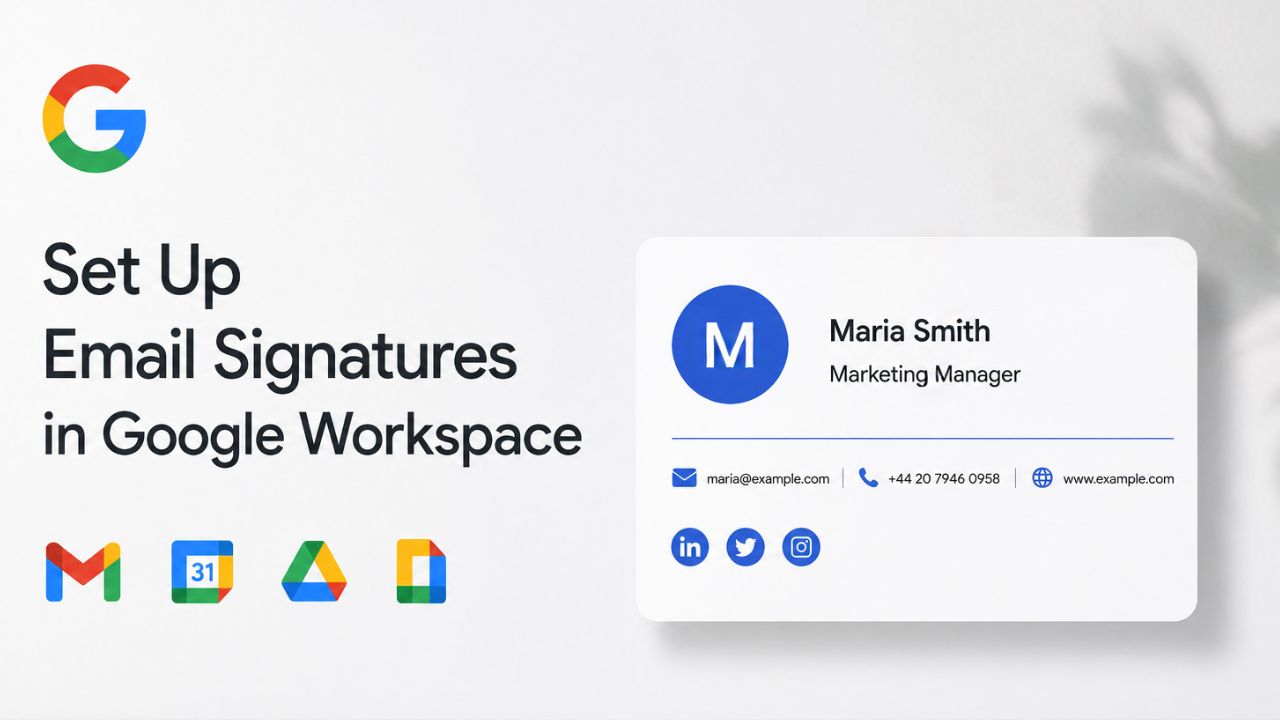
A professional email signature helps reinforce your brand, provides important contact information, and creates a consistent experience across every business communication. Google Workspace supports both individual user signatures in Gmail and organization-wide signature management through administrator controls, allowing businesses to maintain a unified and professional appearance. Understanding the available setup options helps ensure every outgoing email reflects your company’s identity and communication standards.
Enable Secure Business Email with Google Workspace For Business →
Why a Consistent Email Signature Protects a Small Business’s Reputation
A signature is easy to dismiss as a formality. Still, for a business without a marketing department, it’s often the only piece of branded design a prospect sees before a call or a contract. Getting it right costs nothing beyond a bit of setup time, and getting it wrong quietly chips away at credibility with every message sent.
 The Signature Is Often the First Real Proof of Legitimacy
 The Signature Is Often the First Real Proof of Legitimacy
A new client rarely visits your office before deciding whether to trust you, so the small signals in your correspondence carry more weight than they would at a larger, more visibly established company. A signature with a matching logo, a real job title, and a working phone number tells a recipient that a person answered, not a placeholder account. Without it, even a perfectly written email can read as if it came from a hobbyist operation rather than a business that intends to be around next year. This matters most in the first few exchanges with a new lead, before any other proof of legitimacy has had a chance to accumulate.
Small businesses competing against larger, more established vendors often can’t match their marketing budgets, but a signature costs nothing to standardize and immediately closes part of that credibility gap. Recipients form an impression in seconds, and a signature that looks like it was copied from three different templates undoes some of the trust a well-written email just built. Treating the signature as part of the pitch, not an afterthought bolted on at the end, changes how the rest of the message gets read.
Inconsistent Signatures Quietly Undercut Marketing Spend
A business that invests in a logo redesign, a new color palette, or a rebrand often overlooks the fact that every outgoing email is still running the old version, or three slightly different versions, depending on who typed it. That mismatch is invisible to the business owner, who rarely reads their own team’s outgoing mail, but it’s visible to every external recipient who compares one employee’s email to another’s. The inconsistency reads as disorganization, even when the underlying business is well-run, because signatures are among the few brand touchpoints a customer sees repeatedly over time.
Fixing this doesn’t require a redesign budget; it requires choosing a single template and ensuring it’s the one that actually goes out. A five-person team where each person built their own signature from memory, in a different font, with an old phone number in two of them, is a common and entirely avoidable state. The fix described in the next two sections takes less time than most businesses spend arguing over which shade of blue to use in the logo.
Two Signature Paths in Google Workspace: Personal Setup vs Admin Enforcement
Google Workspace offers two distinct ways to add a signature to outgoing mail, and confusing the two is the single most common setup mistake small teams make. One lives inside each employee’s own Gmail settings; the other lives in the Admin Console and applies regardless of what an employee has configured.
Personal Signatures Live in Each Employee’s Gmail Settings
The signature that every individual Gmail user sets up is stored in their account settings and applies only to mail they personally send. It supports rich formatting, bold text, colors, inline images, and hyperlinks entered through a visual editor, and Google caps the total signature content at 10,000 characters, which is far more room than any practical signature needs. This is the setting most people think of when they hear “email signature,” and it’s genuinely useful for solo operators or very small teams, where one person can manually keep their own signature up to date without it being a burden.
The catch for a business owner is that nothing stops an employee from skipping this step entirely, editing it without telling anyone, or leaving an old job title in place for a year after a promotion. Personal signatures are opt-in by design; Google built them for individual users, not for centralized brand control, so relying on every employee to set one up correctly is a policy decision, not a technical guarantee. For a two-person business, this might be an acceptable risk; for a growing team, it usually isn’t.
Admin-Enforced Footers Live in the Admin Console, Not Gmail
The alternative is configured entirely outside Gmail, inside the Google Admin Console’s Gmail compliance settings, using a feature Google calls the Append Footer setting. A Super Admin or a user with the Gmail Settings administrator privilege builds an HTML footer once and applies it to one or more organizational units; from that point forward, it’s attached to outgoing mail at the server level, after the message leaves the sender’s device, and the employee sending the mail cannot remove or edit it. This is the mechanism a business owner reaches for when consistency matters more than individual customization.
The trade-off is between control and flexibility: what the Admin Console gains in guaranteed consistency, it gives up in per-person customization, since the same footer template applies to everyone within a given organizational unit. Section 5 covers exactly where those limits sit, because understanding them before choosing this path saves a rebuild later.
Build a Personal Signature in Gmail Settings
For a solo business owner, a very small team, or anyone who wants a signature attached to a personal or secondary send-as address, the built-in Gmail signature editor is the fastest way to go from nothing to a working, formatted signature.
Step-by-Step: Creating and Saving a Signature
Open the signature editor.
Sign in to Gmail in a desktop browser, click the gear icon in the top-right, and choose “See all settings.” The Signature section sits under the General tab, and it’s the first place most users look because it’s also where Google surfaces help links if something isn’t rendering correctly.
Build and format the content.
Click “Create new,” name the signature something identifiable if more than one will exist, and use the toolbar to add bold text, a hyperlink to the company website, and an inline logo either uploaded directly or inserted from a public image URL. Keep in mind that images inserted here count toward the same 10,000-character allowance as the text, so a very large embedded image can eat into that budget faster than expected. However, in practice, almost no signature comes close to the limit.
Save and verify
Click “Save Changes” at the bottom of the page, then send a test email to a second address to confirm the logo loads, the link works, and the formatting survives once it lands in an inbox rather than the compose window, since some formatting renders differently in the two views.
Setting Defaults for New Emails vs Replies and Forwards
Gmail applies a signature differently depending on whether someone is starting a new thread or replying in an existing one, controlled by two separate dropdowns directly below the signature editor: “For new emails use” and “On reply/forward use.” Many small business owners default to a full signature, logo, title, phone number, and disclaimer for new outbound emails, and a shorter, text-only version for replies, since a long signature repeated at the bottom of every message in a back-and-forth thread adds visual clutter without adding information the recipient doesn’t already have. Setting these independently takes one extra click but noticeably cleans up longer conversation threads.
It’s also possible to store multiple full signatures and switch between them manually while composing, using the small pen icon at the bottom of the compose window. This is useful for someone who sends both formal client correspondence and quick internal notes from the same account. None of this configuration transfers automatically to the Gmail mobile app, which maintains its own separate “Mobile Signature” setting under the app’s account settings menu, a detail covered further in Section 6, since it’s the single most common source of “my signature isn’t showing up” complaints from small business staff.
Enforce a Company-Wide Signature From the Admin Console
Once a business has more than a couple of employees, the personal signature approach in Section 3 starts to rely on everyone remembering to do it correctly and keep it up to date, which is exactly the gap the Admin Console’s Append Footer setting is built to close.
Step-by-Step: Configuring the Append Footer Setting
Navigate to the compliance setting.
A Super Admin signs in at admin.google.com, goes to Menu, then Apps, then Google Workspace, then Gmail, then Compliance, where the Append Footer option appears among the other content-compliance controls. Reaching this setting requires either full Super Admin access or the specific Gmail Settings administrator privilege, so a business owner without that role assigned will need it granted first.
Build the HTML footer content.
The Append Footer editor accepts basic HTML, which supports the company name, address, a logo image (hosted at a public URL, since local file uploads aren’t supported here as they are in the personal signature editor), and a small number of dynamic variables, such as the sending user’s name. Formatting options are more limited than the personal Gmail editor’s visual toolbar, so businesses with more elaborate branding requirements often draft the HTML in a separate editor first and paste the finished markup in.
Applying the Footer to Specific Organizational Units
The Append Footer setting is scoped per organizational unit, meaning a business that has already split its Google Workspace directory into units, sales, support, and leadership can assign a different footer to each one, rather than forcing a single template across the entire company. This is useful when, for example, a support team’s signature needs a link to a help center and a sales team’s needs a booking link, and neither belongs in the other’s version. Setting this up requires the organizational structure to already exist in the Admin Console’s Directory before the footer step, since the Append Footer tool assigns templates to existing units rather than creating new ones.
For businesses that haven’t organized users into units yet, the default behavior applies one footer to the top-level organization, which covers everyone under it unless a more specific unit overrides it. This is the simplest starting point for a small team and is often sufficient until the business grows large enough that different roles genuinely need different footer content, at which point creating a handful of units becomes worth the extra setup time.
Know the Native Append Footer Tool’s Real Limits
The Append Footer setting solves the consistency problem. Still, it was built as a compliance and routing feature first and a branding tool second, which shows up in a handful of specific limitations worth knowing before a business commits its whole signature strategy to it.
One Template Per Organizational Unit, No Directory Sync
 One Template Per Organizational Unit, No Directory Sync
The tool applies exactly one footer template per organizational unit, so it cannot automatically generate a personalized signature with each employee’s name, title, or direct phone number pulled from their directory profile, as a dedicated signature-management tool can. In practice, this means a business either accepts a generic footer that doesn’t name the individual sender or manually creates a near-duplicate footer and organizational unit for every employee who needs personalized contact details. This approach becomes unmanageable beyond a handful of people. This is the single biggest reason growing teams look for something beyond the native tool.
There’s also no built-in integration with the Directory API, so a change to someone’s job title or phone number in the company directory does not automatically propagate to their signature; every update has to be made manually in the Admin Console footer editor. For a business with low staff turnover and simple, mostly generic signature content, this is a minor inconvenience. For a business that hires frequently or wants every signature to be individualized, it’s a meaningful, ongoing workload.
When a Small Business Should Consider Marketplace Add-Ons
A range of third-party signature-management applications is listed in the Google Workspace Marketplace specifically to close these gaps, typically by syncing employee data from the Directory into per-person signature templates and deploying updates automatically as staff join, change roles, or leave. These tools generally install via a standard Marketplace connection, request the necessary Gmail settings permissions, and handle the ongoing maintenance that the native Append Footer setting leaves to an admin. They’re worth evaluating once a business spends more than a few minutes a month manually updating footer content, since that’s usually the point at which the time saved outweighs the add-on’s cost.
The right choice depends entirely on team size and how often signature content changes. A five-person business with a stable roster and one simple template rarely needs more than the native tool described above. A twenty-person business hiring regularly, with departments each wanting their own contact links, usually reaches the point where a Marketplace add-on or a professional setup that gets the organizational unit structure and footer templates configured correctly from day one pays for itself quickly. Getting this decision right the first time, rather than rebuilding the structure after outgrowing a generic footer, is exactly where Hiya Digital’s implementation work for small business Workspace accounts adds value beyond a self-serve signup.
Choose the organizational unit and save
Select which organizational unit the footer should apply to. This could be the entire domain or a specific department, depending on whether the account structure already separates them. Then save and send a domain test email to confirm the footer appears correctly before rolling it out further. Because the footer is applied server-side after the message is sent, it won’t appear in the sender’s compose window, which may surprise first-time admins expecting a live preview.

Design a Signature That Renders Cleanly on Every Screen
A signature that looks polished in the desktop compose window can still arrive broken, oversized, or missing entirely on a recipient’s phone, so design choices need to account for how Gmail’s various clients render the same HTML differently.
Layout Choices That Hold Up on Mobile
A signature built as a wide, multi-column table with a large logo often looks proportionate on a desktop monitor and cramped or sideways-scrolling on a phone screen, because mobile Gmail clients aggressively strip and resize CSS in ways the desktop web client doesn’t. The safer approach for a small business is a simple, mostly single-column layout: name and title on one line, contact details on the next, and a modestly sized logo that degrades gracefully rather than relying on precise column widths that hold up across every device. Four to six lines of content is a reasonable ceiling; every additional line pushes the actual email body further down the screen on a phone, which is a minor but real annoyance recipients notice.
Testing a design decision by actually sending it, rather than only reviewing it in the compose window, catches most of these problems before a client ever sees them. A signature that appears correctly aligned while being drafted can still shift once it’s received and rendered by a different mail client on the other end, particularly if it relies on font choices or spacing that aren’t universally supported.
Logos, Images, and the Broken-Image Problem
 Logos, Images, and the Broken-Image Problem
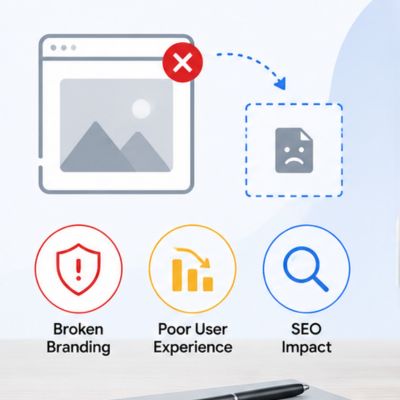
Images inserted into a signature need to be hosted at a stable, publicly accessible HTTPS URL rather than embedded as Base64 data, because several mobile mail clients strip Base64-encoded images entirely, leaving a blank space or a broken-image icon where the logo should be. A logo hosted on the company’s own website or a dedicated image-hosting service avoids this problem. Also, it means updating the logo file once updates are made everywhere the signature is already deployed, without needing to touch each person’s saved signature. Recipients using email clients that block external images by default until a user clicks “load images” will still see nothing until they take that extra step, which is a limitation no signature design can fully avoid.
Descriptive alt text for every embedded image ensures that recipients who don’t load images or use a screen reader still receive meaningful information rather than a blank placeholder or a generic “image” label. This is a small detail that costs nothing to add during setup and meaningfully improves accessibility for a portion of any business’s audience.
Keep Ten, Fifty, or a Hundred Signatures on Brand
The signature strategy that works for three people rarely survives unchanged once a team reaches double digits, because informal habits copy the last person’s signature, tweak it slightly, and compound into visible inconsistency at scale.
Write a One-Page Signature Style Guide
A short internal document specifying the approved font, logo file, color values, and exactly which fields belong in a signature (name, title, phone, one link, nothing more) gives every new hire and every manual edit a single source of truth to check against, rather than relying on memory or whichever version happened to be forwarded around the office last. This doesn’t need to be an elaborate brand manual; a single page covering the template and a short list of what not to add is usually enough for a small business to maintain consistency without ongoing enforcement effort.
Distributing this guide alongside the actual signature file, rather than just a description of what it should look like, reduces the version drift that happens when each employee interprets written instructions slightly differently. Pairing the guide with advance notice before any company-wide signature change goes live, including a preview of what the new version will look like, also reduces confused support requests in the days after a rollout.
Assign One Owner for Signature Requests
Naming a single person, often the office manager or the same person who administers the Google Workspace account, as the point of contact for signature updates prevents the drift that happens when three different employees each make their own small edits over time. This person doesn’t need great technical skill; they need to know where the approved template lives, how to update it in either the personal Gmail settings or the Admin Console footer, depending on which path the business uses, and who to ask when something breaks.
For businesses using the Admin Console Append Footer approach, this owner should also hold the Gmail Settings administrator privilege, since centralizing that access prevents multiple people from independently editing the same organization-wide template and unintentionally overwriting each other’s changes.
Fix the Signature Problems Small Teams Hit Most
Most signature complaints a small business receives internally trace back to one of a small number of recurring causes, and recognizing the pattern quickly saves time compared to troubleshooting each complaint from scratch.
Signature Missing, Duplicated, or Showing the Wrong Version
When a signature doesn’t appear in new emails, the first place to check is the “For new emails use” dropdown in Gmail’s General settings, since it’s easy for this to get accidentally reset to “No signature” during an unrelated settings change. A signature appearing twice, once from a personal Gmail signature and once from an Admin Console footer, both firing on the same message, usually means the business adopted the Admin Console approach without removing individually configured personal signatures first, since the two systems are independent and both will apply if both are active. Auditing whether personal signatures are still individually configured is worth doing once a company-wide footer goes live, to avoid this exact duplication.
An outdated signature reappearing after being replaced is often a caching or sync delay rather than a configuration error. Admin Console changes, and even personal signature saves, can take a few minutes to propagate to every device, so retesting after a short wait resolves most cases that initially look broken.
Signature Looks Fine on Desktop, Breaks on Mobile
The most common single complaint in any small business using Google Workspace is a signature that renders correctly on a desktop browser but looks jumbled, oversized, or entirely different on a phone. The root cause is almost always that mobile and desktop Gmail maintain separate signature settings. A signature configured only in the desktop Gmail settings does not automatically apply to messages sent from the Gmail mobile app unless the app’s own “Mobile Signature” field is left blank, in which case newer versions of the app will reuse the desktop signature; if a mobile-specific signature was ever set previously, that one takes precedence instead. Checking both settings, desktop General settings and the mobile app’s own account settings, resolves the majority of “it looked right until I sent it from my phone” reports.
Employees using a Samsung or third-party email app rather than the Gmail app introduce an additional variable, since those apps maintain their own signature settings entirely separate from both Gmail platforms, and admin-enforced Append Footer content applies only to mail routed through Google’s servers, regardless of which client sent it.
| Symptom | Most Likely Cause | Fix |
|---|---|---|
| Signature missing on new emails | “For new emails use” dropdown reset to “No signature” | Reopen Gmail Settings > General > Signature and reselect the correct default |
| The signature appears twice | Personal signature and Admin Console footer are both active | Remove the individually configured personal signature once a company-wide footer is enforced |
| Signature fine on desktop, blank on mobile | The mobile app has its own separate “Mobile Signature” field | Leave the mobile field blank to inherit desktop, or manually re-enter it in the app |
| The logo shows as a broken icon | Image embedded as Base64 rather than hosted at a stable URL | Re-upload the logo to a public HTTPS-hosted image link |
| Old job title still appearing after a promotion | The signature was set individually and never updated | Move ownership to a single admin using the Append Footer or a directory-synced tool |
Add Legal and Compliance Lines Without Overcomplicating the Footer
Many small businesses need at least a short line of legal or regulatory text in outgoing correspondence, and getting the placement and content right matters more than making it visually prominent.
What Small Businesses Typically Need to Disclose
Depending on the industry and jurisdiction, common signature-adjacent disclosures include a confidentiality notice asking an unintended recipient to delete the message, a registered business name and address when formal correspondence is required, or a brief regulatory line required by a specific licensing body. None of this is universal; what a small accounting firm needs to disclose differs from what a retail business needs to disclose, so the right approach is to confirm actual requirements with legal counsel rather than copying a generic disclaimer template found online, since an inaccurate or unnecessary disclaimer can create more confusion than it resolves.
Where a disclosure is genuinely required, keeping it short and visually separated from the branded portion of the signature, using a smaller font and a lighter color, and placing it last maintains the professional design while still satisfying the requirement. A disclaimer that dominates the visual weight of the signature undercuts the branding work the rest of the template is doing.
Where Does the Disclaimer Text Belong in the Signature Hierarchy
The clearest structure places identity information first (name, title), contact information second (phone, one link), and any required legal text last, in a visually de-emphasized style, so a recipient scanning the signature encounters the useful, human information before the boilerplate. This ordering also makes the disclaimer easier to update independently, since it’s a discrete block rather than interwoven with the contact details, which matters if a business needs to change disclosure wording without touching the rest of the template.
For businesses using the Admin Console Append Footer approach, disclaimer text can be included directly in the same HTML block applied domain-wide, ensuring it appears consistently without depending on each employee to have added it themselves, one of the stronger arguments for the enforced approach over individually configured personal signatures when compliance text is actually required.
Update Signatures as People Join, Move, and Leave
A signature strategy that works on day one degrades if there’s no defined process for what happens when the team itself changes, which is a near-certainty for any growing small business.
Onboarding a New Hire’s Signature on Day One
 Onboarding a New Hire’s Signature on Day One
Building signature setup into the standard new-hire checklist, alongside creating the Workspace account and provisioning email, prevents the common situation in which a new employee sends client-facing emails for their first few weeks with no signature at all or a hastily typed placeholder. If the business uses the Admin Console Append Footer approach and the new hire’s organizational unit already has a template assigned, this step requires no action beyond correctly placing the account in the correct unit during account creation.
If the business relies on personal Gmail signatures instead, someone needs to walk the new hire through Section 3’s setup steps as part of onboarding, using the approved style guide from Section 7 rather than letting them build one from scratch. Getting this right on day one avoids the more awkward alternative: correcting an inconsistent signature weeks later, after a new hire has already sent it to a dozen external contacts who now have the wrong version saved in their own address book.
Retiring a Departed Employee’s Signature and Aliases
When someone leaves, their signature setup should be addressed at the same time their account access is suspended or removed, since a departed employee’s send-as aliases and any shared-mailbox access they held can otherwise keep an outdated signature circulating even after they’re no longer with the company. If the departing employee’s organizational unit uses an Admin Console footer, no changes are needed to the footer itself.
However, the business should confirm whether any personal signature was configured separately and might reference details, such as a personal photo or a direct line, that should be removed rather than reassigned to a replacement hire by mistake. A short offboarding checklist item, “confirm signature and send-as aliases are deactivated alongside account access”, takes a minute to complete and closes a gap that otherwise only surfaces months later, when someone notices an old signature still attached to a shared mailbox nobody had reviewed since the departure.
Frequently Asked Questions
Can every employee set their own Gmail signature, or does it have to be set by the admin?
Both options exist and can even be used simultaneously, though that combination often results in duplicate signatures. Any individual Gmail user can create their own signature under Settings > General > Signature, and it applies only to mail they personally send. Separately, a Super Admin can configure an Admin Console Append Footer that applies to an entire organizational unit regardless of what any individual has set. Small teams without dedicated IT support often let each person manage their own, while growing teams typically move to admin enforcement once maintaining consistency across a dozen or more personal signatures becomes impractical to police manually.
How many characters can a Gmail signature contain?
Google’s personal signature editor allows up to 10,000 characters, including both text and any embedded image data, though virtually no practical business signature approaches limit it. A typical signature with a name, title, contact details, and a modestly sized logo uses a small fraction of that allowance. The Admin Console’s Append Footer setting doesn’t enforce a fixed character count. Still, the same guidance applies: keep the content to four to six lines, since longer footers create clutter rather than added professionalism, particularly on mobile screens.
Why doesn’t my admin-enforced signature show up in the mobile app?
An Admin Console Append Footer is applied server-side after a message is sent, so it appears in the final delivered email regardless of which device or app sent it, including the Gmail mobile app, Outlook, or a browser. If it’s genuinely missing from mobile-sent mail specifically, the more likely cause is a separate issue: an employee has also set a personal “Mobile Signature” in the Gmail app itself. That setting doesn’t remove the Append Footer, but users sometimes confuse a missing personal mobile signature with a missing company footer. Checking the final delivered version of a test email, rather than the compose window, confirms whether the footer is actually being applied.
Can I add a company logo to a Google Workspace signature without it breaking?
Yes, provided the logo is hosted at a stable, publicly accessible HTTPS image URL rather than embedded as Base64 data, since several mobile mail clients strip Base64 images, leaving a blank space or a broken-image icon in their place. Both the personal Gmail signature editor and the Admin Console Append Footer support inserting a hosted image this way. Keeping the file size modest and the dimensions reasonable also helps it render consistently across devices with very different screen widths, and hosting it externally means a future logo update can be swapped in one place rather than re-uploaded to every individual signature.
Do I need a Google Workspace Business Standard plan or higher to enforce signatures?
The Append Footer setting is part of the Gmail compliance controls available to Admin Console administrators across Google Workspace’s business plans, and personal Gmail signatures are available to any individual account regardless of plan tier. Exact feature availability by specific plan tier can shift, so a business choosing between plan tiers for other reasons- storage, security controls, support level- shouldn’t assume signature enforcement alone dictates which tier is needed, since it’s broadly available rather than gated behind a specific upgrade.
Can different departments have different signatures in Google Workspace?
Yes, but only if the business has already organized its Google Workspace Directory into separate organizational units for those departments, since the Append Footer setting assigns a single template per unit rather than per role or group. A business with sales and support as two separate organizational units can assign each its own footer content, a booking link for sales, and a help center link for support, entirely independently. Businesses that haven’t split their directory into units yet will need to complete that structural work before department-specific footers become available.
Will an admin-enforced signature let employees add their own personal sign-off?
No, by design, an Append Footer applied through the Admin Console cannot be edited or removed by the employee it applies to, since it’s added at the server level after the message leaves their device. Some businesses see this as a limitation, and others see it as the entire point, since it guarantees no employee can accidentally or deliberately alter approved legal or branding content. A business that wants employees to retain some personal customization alongside a guaranteed baseline typically needs a third-party signature-management tool, since the native Append Footer setting doesn’t support a hybrid of enforced and editable content.
What happens to an employee’s Gmail signature when they leave the company?
Nothing happens automatically. If the employee had a personally configured Gmail signature, it stops being used once their account is suspended or deleted, since no mail is being sent from that account. The more important consideration is any send-as alias or shared mailbox access they held, since a signature attached to a shared address they had access to can keep circulating if it isn’t reviewed during offboarding. Building a signature and alias check into the standard offboarding checklist, alongside revoking account access, closes this gap.
Can I preview an Admin Console signature before it goes live to the whole team?
The Admin Console’s Append Footer editor doesn’t include a live visual preview, unlike the personal Gmail signature editor, because the footer is applied after a message is sent rather than shown in the compose window. The reliable way to check it before a full rollout is to apply it first to a small test organizational unit or a single test account, send a message from that account, and review the actual delivered email rather than any in-editor preview. This catches formatting or image-loading issues before the footer applies domain-wide.
Is a marketing banner or a CTA button appropriate in a small-business signature?
It can work well for outward-facing roles like sales or business development, where a signature banner promoting a current offer, a booking link, or a case study gains genuine visibility in every client email. It’s a less natural fit for support or internal-facing roles, where recipients are typically existing customers dealing with an issue rather than prospects being marketed to, and a promotional banner in that context can feel tone-deaf. Where a business does add one, keeping it as a small, clearly secondary element beneath the core identity and contact information, rather than the visual focal point of the signature, keeps the professional tone intact.
Glossary
Append Footer: The Google Workspace Admin Console setting under Gmail Compliance that attaches a fixed HTML footer to outgoing mail at the server level, applied per organizational unit and not editable by the end user.
Organizational Unit (OU): A grouping structure within the Google Workspace Directory used to apply different settings, including Append Footer templates, to different segments of a company’s users.
Send-As Alias: A secondary email address from which an account is permitted to send mail, separate from its primary address, which may require its own signature configuration.
Super Admin: The highest level of Google Workspace administrative access, capable of configuring domain-wide settings, including the Append Footer feature.
Gmail Settings Administrator Privilege: A more limited administrative role that permits configuring Gmail-specific settings, including the Append Footer, without full Super Admin access.
Mobile Signature: A signature setting maintained separately within the Gmail mobile app, distinct from the desktop Gmail signature, which does not sync automatically in all cases.
Directory Sync: The automatic pulling of employee data (name, title, phone, department) from the Google Workspace Directory into an external tool, a capability the native Append Footer setting does not include.
The Hiya Digital Team is a collective of IT infrastructure specialist engineers, certified systems administrators, and cloud architects driven by a singular mission: building corporate communication systems that just work. As an Authorized Google Partner, the team handles complex global hosting deployments, secure email migrations, and advanced data compliance architectures for businesses across 40+ countries.
With over two decades of technical experience spanning custom premium business email configurations, OX AppSuite deployments, and enterprise-level network security, the Hiya Digital Team writes to demystify domain infrastructure. Their content focuses on actionable technical strategies, anti-phishing security protocols, and seamless cloud collaboration setup, all backed by real-world deployment experience and 24/7 technical support accountability.