Moving a small business to Google Workspace is much easier when each setup task is completed in the right order. From selecting the appropriate plan and connecting your domain to creating user accounts, configuring administrator settings, and preparing for launch, every step contributes to a smooth deployment. Following a structured implementation process helps avoid common setup mistakes, minimizes disruptions, and ensures your team can begin working with confidence from day one.
Improve Team Productivity with Google Workspace For Business →
Start With a Launch Sequence, Not a Signup Button
Most small businesses treat Google Workspace like any other app download: click subscribe, invite a few people, hope it works. That approach creates rework. A fixed sequence, plan, domain, users, admin, migration, and go-live prevent the most common launch mistakes before they happen.
 Why Small Businesses Skip Steps and Pay for It Later
 Why Small Businesses Skip Steps and Pay for It Later
The signup flow makes Google Workspace look like a five-minute task, and technically it can be. The problem shows up two weeks later, when an owner realizes the admin role went to whoever happened to click “accept” first, and that half the team is still emailing from personal Gmail accounts. Nobody actually moved the old inbox over. None of these are hard problems on their own. They become expensive because they were never sequenced; each one was solved reactively, after it had already caused a small fire.
A launch checklist exists to front-load those decisions. Choosing who holds admin rights, deciding which employees need a licensed seat on day one, and confirming the domain is locked in are all cheap to get right before launch and annoying to unwind afterward. Businesses that treat the order as optional tend to spend their first month firefighting instead of working. Businesses that follow a sequence spend that same month using the tools they just paid for.
The Five-Stage Sequence: This Checklist Follows
This checklist breaks the launch into five stages, each covered in depth further down: choosing a plan sized to the team, confirming the domain and proving ownership, creating the first batch of user accounts, assigning an admin with clear guardrails, and moving existing mail and files before the old system is switched off. Each stage builds on the one before it, which is why skipping ahead usually backfires.
The technical mechanics behind domain verification, the actual DNS records involved, sit outside the scope of a business-process checklist like this one. A dedicated technical setup guide covers that layer step by step for anyone who wants it. What matters here is knowing where that step sits in the sequence and what a non-technical owner needs to hand off or confirm, not how to edit a DNS zone file by hand.
| Launch Stage | Primarily Owned By | Typical Time Investment |
|---|---|---|
| Plan selection | Owner | 1–2 hours of comparison |
| Domain verification | Owner + registrar access (or setup partner) | Minutes to 48 hours to confirm |
| First-round account creation | Owner or delegated admin | Half a day for a phased pilot group |
| Admin role assignment | Owner | One-time decision, under an hour |
| Mail and file migration | Admin (or migration partner) | Same-day for email; longer for large file libraries |
| Pilot week | Small test group (3–5 employees) | 3–5 business days of real use |
| Full team rollout | Admin, supported by pilot feedback | One business day plus a 48-hour monitoring window |
Match Your Plan to Team Size and Storage Needs, Not Guesswork
Plan selection is where most small businesses either overpay for features they’ll never touch or under-provision storage they’ll need within a year. Matching tier to actual team size and file habits, not marketing copy, is the first real decision in the launch sequence.
Counting Real Users, Not Just Current Headcount
The number that should drive plan selection isn’t today’s employee count; it’s the number of people who will need a licensed inbox over the next 6 to 12 months. Google’s Business Starter, Standard, and tiers all support up to 300 licensed users, so hitting a hard user ceiling is rarely the concern for a small business. The real question is whether every one of those users needs a full license, or whether some need a shared alias like info@ or support@.
Shared aliases don’t require separate licenses, and setting them up before the first invoice cycle keeps the monthly seat count accurate from day one. A common miscount happens when an owner licenses a seasonal contractor or a part-time bookkeeper the same way as a full-time employee, inflating the bill for months before anyone notices. Counting real, ongoing users, not every name on the payroll, keeps the starting plan sized correctly.
Weighing Storage Against Where Your Business Is Headed
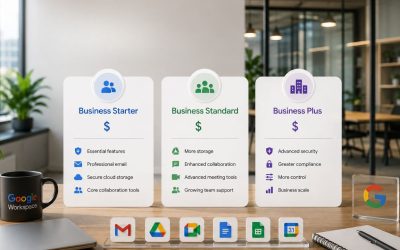
Storage is pooled across the whole organization rather than locked to each individual, and the gap between tiers is large enough to matter. Business Starter includes 30 GB of pooled storage per user, Business Standard includes 2 TB per user, and Business Plus includes 5 TB per user, according to Google’s own pricing page.
A five-person team on Starter shares a combined 150 GB, workable for email-heavy, file-light businesses, but tight the moment anyone starts storing recorded client calls, design files, or large presentation decks. The practical test isn’t “how much do we store today,” it’s “what does our heaviest file user store in a typical month, multiplied across the team.” Businesses that expect to record meetings, share large media files, or archive client work long-term are usually better served starting on Standard rather than migrating up mid-year once Starter’s pool runs tight.
Business Plan Tiers by Storage and Meeting Capacity
| Plan Tier | Pooled Storage per User | Meet Participant Cap | Licensed User Cap |
|---|---|---|---|
| Business Starter | 30 GB | 100 participants | 300 users |
| Business Standard | 2 TB | 150 participants | 300 users |
| Business Plus | 5 TB | 500 participants | 300 users |
| Enterprise | Custom / no fixed pool | 1,000 participants | No user cap |
Lock In the Right Business Domain Before You Buy
Google Workspace runs on top of whatever domain the business already owns or is about to register, and getting this choice wrong is far more disruptive after launch than before it. This stage is about the business decision, which domain to commit to, not the technical record-setting that follows it.
Choosing a Domain You Can Commit To Long-Term
The domain a business connects to Google Workspace becomes every employee’s email address, so it deserves more scrutiny than a quick availability check. Owners who already run a website usually reuse the same domain, which keeps branding consistent across email and web. Businesses starting fresh should register the domain first, confirm it matches the legal or trading name they intend to use publicly, and avoid short-term placeholder domains that seem convenient now but awkward to explain to customers a year later.
Switching domains after a Workspace launch is possible but genuinely painful; every business card, signature, and customer contact list must be updated, and old email threads can fragment across two email addresses during the transition. Spending an extra day comparing domain options before signup is cheap insurance against that scenario.
What to Check Before You Register or Reuse a Domain
Before committing a domain to Google Workspace, confirm three things: the domain registrar account is accessible (not locked to a departed employee or an old web developer), the domain isn’t already tied to another email or hosting service that would conflict, and the spelling matches exactly what will appear on marketing material. A mismatched domain, a hyphen, a plural, and a different top-level extension create confusion that’s hard to walk back once customers start emailing the wrong address.
If the domain is already registered elsewhere, it doesn’t need to be moved to a different provider to work with Google Workspace; ownership and hosting can stay where they are. What changes is a small set of records pointed at Google, which is the next stage in this checklist. Businesses reusing an existing domain should also check whether it’s already receiving mail through another provider, since that mail requires a plan for where it goes once Workspace takes over.
Prove Domain Ownership Without Opening a DNS Panel
Google requires proof that a business genuinely controls the domain it wants to use before activating email on it. For a non-technical owner, this step is less about personally editing technical records and more about understanding what’s happening and who’s doing it.
What Verification Actually Confirms
 What Verification Actually Confirms
Domain verification exists to stop anyone from claiming a domain they don’t own and intercepting a business’s email. Google asks for a small piece of evidence, typically a code added to the domain’s settings, that only someone with access to the domain’s registrar or hosting account could add. Once that evidence is in place, Google confirms the match and unlocks the rest of the setup.
This is genuinely the one stage in the launch sequence where a non-technical owner benefits most from outside help, because the evidence has to be placed inside a system, the domain registrar’s control panel, that most business owners have never opened before and don’t need to learn. The business-process takeaway is simple: verification must occur before user accounts go fully live, and it typically takes anywhere from a few minutes to 48 hours to confirm, depending on how quickly the change propagates.
Where This Step Fits in a Non-Technical Timeline
In the five-stage sequence, verification sits right after domain selection and right before the first user accounts are finalized. Attempting to skip ahead and create accounts before verification completes means those accounts sit inactive until the domain check clears; no real time is saved by reordering it. A dedicated technical guide covers exactly which record type gets added and how, since that mechanic belongs to a different kind of resource than this checklist.
For most small businesses, the realistic path is either handing the registrar login to whoever is setting up Workspace for a few minutes or having a setup partner complete this one step directly. Either way, the owner’s job at this stage is to confirm that access exists and that verification has actually been completed, and to check the admin console for a green confirmation before assuming the domain is ready.
Build Your First Round of User Accounts
Once the domain is verified, the next decision is who gets an account, in what order, and under what naming pattern. Getting this right the first time avoids the need to rename addresses later, which breaks existing email threads and confuses contacts.
Deciding Who Gets a License First
The first accounts created should be the people who need to start using email and shared files immediately, not necessarily the entire staff roster. A phased rollout, owner and managers first, then department leads, then the rest of the team, gives the first few users a chance to flag naming issues or missing aliases before eighty accounts are locked in with the same mistake baked into every address.
Seasonal or part-time staff are worth a separate decision entirely. If someone only needs to send occasional emails, a shared departmental alias may cover that need without the cost of a full license. Reserving full licenses for people who genuinely need a personal inbox, calendar, and Drive account keeps the monthly bill aligned with actual usage rather than with headcount on paper.
Naming Conventions and Aliases That Save Headaches
A consistent naming pattern, first name dot last name, or first initial plus last name, should be decided once and applied to every account from the start, rather than improvised account by account. Inconsistent formats across a ten-person team (some with dots, some without, some using nicknames) create confusion for customers trying to guess an address and make it harder to spot typos when setting up new hires later.
Department aliases like sales@, billing@, or support@ are worth creating alongside individual accounts, since they let a business present a professional front-facing address without tying it to one specific employee who might eventually leave. These aliases can forward to one person or several, and changing that routing later takes minutes rather than requiring a domain-wide change.
The Case for Getting Launch Done Through a Partner, Not Alone
Everything covered through account creation is doable solo. Still, the cumulative time cost of comparing plans, verifying a domain, and phasing in dozens of accounts correctly adds up fast for an owner who is also running the actual business. Hiya Digital, as an Authorized Reseller and Google Workspace Partner, handles this full sequence as a managed setup rather than a one-time self-serve signup, so accounts, aliases, and domain verification are configured correctly the first time, with ongoing account support afterward rather than a checkout confirmation email and silence.

Hand the Admin Role to the Right Person
Every Google Workspace account needs at least one super admin, and that decision carries more long-term weight than most owners expect going in. This stage is about deliberately choosing that person and setting boundaries on what they can do.
Picking an Admin Who Isn’t Necessarily “The Tech Person”
 Picking an Admin Who Isn’t Necessarily “The Tech Person”
The admin role controls who can add or remove users, reset passwords, manage security settings, and view organization-wide file activity, making it as much a trust decision as a technical one. Owners often default to whichever employee seems most comfortable with computers. Still, the better question is who will actually stick around, who won’t misuse visibility into other people’s inboxes, and who can be reached quickly if a password needs to be reset at 7 a.m.
In a genuinely small business, the owner often personally holds the primary admin role and delegates narrower permissions to a second person for day-to-day tasks like adding new hires. That split avoids a single point of failure; if the one person with admin access leaves the company, the business isn’t locked out of its own email system.
Setting Guardrails Before Handing Over Full Access
Google Workspace supports limited admin roles that grant specific permissions, user management, billing, and security settings without handing over full super admin control. For a small business with more than one trusted person involved in operations, assigning a limited role rather than full access reduces the damage a single mistake or compromised password can cause.
Before finalizing who holds which role, it’s worth writing down, even informally, what each admin is allowed to touch. A simple note that only the owner can change billing or remove the primary admin account prevents a well-meaning employee from making a change that could lock out the business or trigger an unexpected charge.
Move Existing Mail and Files Before Anyone Notices
Most small businesses aren’t starting from zero; there’s an existing inbox, and often years of files scattered across personal Drive accounts, desktops, or a previous email provider. This stage is about deciding what actually needs to move and getting it moved before the old system goes dark.
Deciding What Actually Needs to Move
Not every old email needs to survive the switch. A practical starting point is migrating the last twelve to twenty-four months of email and any files actively referenced in ongoing work, while archiving older material separately rather than importing everything by default. Importing years of unsorted inbox clutter relocates the mess into a new system instead of solving it.
Files are usually messier than email at this stage, since small businesses often have documents spread across personal computers, USB drives, and whatever cloud tool an individual employee prefers. Migrating files into shared drives, rather than each employee’s personal Drive, matters here specifically because shared drive files belong to the organization, not the individual. Hence, nothing disappears if that employee leaves later.
Timing the Migration Around Business Hours
Email migration can usually run in the background without shutting down the old inbox during the transfer. However, it’s still worth scheduling for a quiet period, an evening, or a weekend, rather than the middle of a busy sales week. Customers and vendors emailing during a migration window should still reach someone, so the old inbox typically remains active in parallel until the new one is confirmed to work end-to-end.
A short overlap period, where both the old and new email addresses are checked, catches anything the migration tool missed and gives the team time to update contacts and signatures gradually rather than all at once. Cutting the old inbox off the same day the new one goes live removes that safety margin and turns any migration gap into a missed customer email instead of a minor inconvenience.
Set the Defaults Your Team Will Live With Daily
Before the whole team logs in for the first time, a handful of organization-wide defaults are worth setting deliberately rather than leaving on whatever Google ships out of the box. These are quick to change now and disruptive to change later, once habits form around them.
Calendar, Sharing, and Meeting Defaults Worth Reviewing
Default calendar sharing settings determine whether coworkers can see each other’s meeting availability, which matters for a small team trying to schedule around each other without endless back-and-forth. Similarly, Drive’s default file-sharing setting, whether new files are private by default or automatically visible to the whole organization, shapes how casually sensitive documents get shared in the first few weeks.
Google Meet defaults, including whether meetings require a knock-to-enter approval for external guests, are worth reviewing before the first client call happens on the platform. A small adjustment here prevents an uninvited participant from joining a call simply because they had the link, which is a more common issue for small businesses than most owners expect until it happens once.
Security Basics No Small Business Should Skip
 Security Basics No Small Business Should Skip
Two-step verification, which requires a second confirmation beyond just a password, is worth enabling organization-wide before go-live rather than leaving it optional. Small businesses are frequent targets for password-guessing attacks precisely because attackers assume smaller teams have weaker security habits than larger companies with dedicated IT staff.
Beyond two-step verification, setting a basic password strength requirement and reviewing which third-party apps employees can connect to their Workspace account closes off two of the most common ways small business accounts get compromised. None of these settings require deep technical knowledge to enable; they’re toggles in the admin console. But they do require someone to actually go in and turn them on before launch day, not after an incident.
Run a Dry-Run Week Before Full Rollout
Rolling every employee onto a new system on the same morning is where avoidable chaos tends to concentrate. A short pilot period with a handful of users first catches problems while they’re still small and easy to fix.
What a Pilot Group Should Actually Test
A pilot group of three to five people, ideally spanning different roles, not just the most tech-comfortable employees, should actually use the new system for real work for several days: sending and receiving email, sharing a file, scheduling a meeting. The goal isn’t a formal test script; it’s to surface the specific friction points unique to this business, such as a commonly used file template that doesn’t convert cleanly or a client who always CCs an old email address.
Pilot users should also test the exact tasks that matter most day-to-day, not just the obvious ones. A bookkeeper testing whether invoices attach correctly, or a salesperson testing whether their existing contact list imports cleanly, will find issues that a generic checklist never would, because those issues are specific to how this particular business actually works.
Turning Pilot Feedback Into a Short Training Session
Whatever confusion the pilot group runs into becomes the actual training material for everyone else, which is a far more useful starting point than a generic tutorial. If two out of four pilot users struggled to find shared drives, that becomes the first five minutes of training for the rest of the team, rather than a topic buried in a manual nobody reads.
A short, live session, even fifteen minutes, covering exactly what the pilot revealed tends to prevent more support requests in the first week than a lengthy written guide circulated by email. Employees remember what they saw demonstrated far better than what they skimmed, and a short session also gives the team a chance to ask questions before go-live rather than emailing the admin individually once problems start.
Flip the Switch: Launch Day and the 48 Hours After
Everything up to this point has been preparation. Launch day itself should feel anticlimactic if the previous stages were done properly; the actual switch is a formality, not the risky part.
The Go-Live Checklist for Launch Morning
Before announcing the switch to the full team, confirm four things are actually true, not just assumed: domain verification shows complete in the admin console, every planned user account exists and can log in, the email migration has finished, and both old and new inboxes show matching recent messages, and the admin has tested sending and receiving mail from at least one account personally. Skipping this final confirmation is how businesses discover a missed account or an incomplete migration only after a customer complains.
Once those checks pass, a short internal announcement, what’s changing, where to log in, who to contact with problems, should go out before employees are redirected without warning. Pairing that announcement with the short training session from the pilot stage means most employees start their first day on the new system already knowing where things are, rather than discovering the interface cold.
What to Watch in the First 48 Hours
The first two days after go-live are when small, fixable issues surface: a missed alias, a signature that didn’t carry over, a contact who’s still emailing the old address. Checking in actively during this window, rather than assuming silence means everything is fine, catches these early, while they’re still a five-minute fix rather than a recurring complaint weeks later.
It’s also worth keeping the old email system accessible in a read-only capacity for a short overlap period, rather than deleting it immediately, in case something was missed during migration or a client needs a historical email located. Most small businesses can safely retire the old system within a week or two once the new one has proven stable through at least one full business cycle, a full week of normal operations, including any recurring weekly tasks like invoicing or reporting.
Frequently Asked Questions
Can I use my own domain with Google Workspace?
Yes. Whether the domain is already registered and hosting a website or newly purchased for the business, it can be connected to Google Workspace so every employee gets an email address on that domain instead of a generic provider address. The business-process step where this happens sits early in the launch sequence. After choosing a plan and before creating user accounts, the domain gets verified to confirm the business genuinely controls it. The domain doesn’t need to change registrars or hosting providers to work with Workspace; it stays exactly where it is, with a small set of records pointed at Google. Businesses that don’t yet own a domain can typically register one during the Workspace signup flow, which bundles domain purchase and email setup into a single step rather than two separate steps.
How long does it take to get a small business live on Google Workspace?
For a straightforward launch with an already-owned domain, the core technical steps, signup, domain verification, and initial account creation, can be completed within a single business day, sometimes within a few hours. The realistic total timeline is longer once migration and a pilot period are factored in: most small businesses take anywhere from three days to two weeks from first signup to full team rollout, depending on how much existing email and file history needs to move over and whether a dry-run pilot week is used before the full team switches. Rushing straight from signup to full rollout in a single afternoon is possible but skips the pilot testing that catches business-specific issues early.
Do I need an IT person to launch Google Workspace?
Not for most small businesses. The launch sequence, choosing a plan, creating accounts, and setting basic security defaults, is designed to be completed through the admin console without programming or server knowledge. The one step that benefits most from outside help is domain verification, since it involves a domain registrar’s control panel that most owners have never used. Many small businesses handle the rest solo, either completing that one step themselves with a short guide or having a setup partner complete just that piece. Larger migrations involving hundreds of old files or a complex existing email system are where outside help becomes more valuable than optional.
What order should I complete Google Workspace setup steps in?
The sequence that avoids the most rework is: select a plan sized to actual team size and storage needs, secure and verify the business domain, create user accounts starting with a small phased group, assign the admin role with clear guardrails, migrate existing email and files, set organization-wide defaults for sharing and security, run a short pilot with a handful of users, then roll out to the full team. Completing these out of order, creating dozens of accounts before the domain is verified, for example, usually means waiting for an earlier step to catch up rather than saving genuine time.
Can I add users after going live, or does everyone need to be set up on day one?
Users can be added at any point after launch; there’s no requirement to have the entire team on board on day one. In fact, a phased approach where a small pilot group launches first, followed by the rest of the team once naming conventions and any issues are ironed out, tends to produce a smoother rollout than adding everyone simultaneously. New hires joining after launch follow the same account creation process as the original team, so the system scales naturally as the business grows rather than requiring a second full setup project.
What happens to my old business email during the switch?
The old email system doesn’t need to be shut down the moment the new one goes live. Most small businesses run both in parallel for a short overlap period, often a week or two, while email migration finishes and any contacts still using the old address get updated. This overlap protects against missed messages during the transition and gives the team a safety net if something didn’t migrate as expected. Once the new system has run through at least one full business cycle without issues, the old inbox can typically be closed or downgraded. However, many businesses choose to keep it accessible in a read-only state for a few extra weeks just in case a historical email needs to be located.
Who should be the Google Workspace admin in a small business?
The admin role should go to someone who will realistically stay with the business long-term and can be trusted with visibility into company-wide account activity, not necessarily to the employee most comfortable with technology. In many small businesses, the owner retains the primary super admin role and delegates a narrower admin role to one trusted employee for day-to-day tasks such as adding new hires or resetting a forgotten password. Avoiding a setup where only one non-owner employee holds all admin access protects the business from being locked out of its own systems if that person leaves unexpectedly.
Can I test Google Workspace before rolling it out to my whole team?
Yes, and doing so is one of the more effective ways to avoid a rough full-team launch. A small pilot group of three to five employees, drawn from different roles rather than just the most tech-comfortable staff, can use the system for real work over several days before the rest of the team gets accounts. Whatever confusion or business-specific issues the pilot group runs into becomes the basis for a short training session before full rollout, which tends to prevent far more support requests in the first week than skipping straight to a company-wide launch would.
What’s the biggest mistake small businesses make when launching Google Workspace?
Skipping the sequencing entirely and treating it as a single signup action rather than a series of deliberate decisions. The most common specific version of this mistake is creating full-priced licenses for every name on the payroll instead of separating true users from tasks that only need a shared alias, which inflates the monthly bill from the very first invoice. A close second is assigning the admin role to whoever happened to complete the signup form, without a deliberate decision about who should hold that level of access long-term.
Do employees need training before go-live day?
A short training session, even fifteen to twenty minutes, meaningfully reduces confusion and support requests in the first week, particularly when that session is built around the specific issues a pilot group actually encountered rather than a generic overview. Employees who’ve never used Gmail’s business interface, shared drives, or Google Meet’s scheduling tools benefit from seeing those workflows demonstrated once before being expected to use them for real client or vendor communication. Skipping training entirely doesn’t prevent launch, but it usually shifts that same learning curve into individual support requests scattered across the first week instead.
Glossary
Pooled storage: A shared storage allocation split across every licensed user in an organization, rather than a fixed personal quota, so heavier and lighter users draw from the same combined pool.
Domain verification: The process Google uses to confirm a business genuinely controls the domain it wants to connect to Workspace before activating email on that domain.
Admin console: The web-based control panel where a Google Workspace admin manages user accounts, security settings, billing, and organization-wide defaults.
Super admin: The highest level of administrative access in Google Workspace, with the ability to manage every setting, user, and permission in the account.
Limited admin role: A restricted set of admin permissions (such as user management or billing only) assigned to someone without granting full super admin access.
Alias: An additional email address, such as info@ or support@, that routes to one or more existing accounts without requiring a separate license.
Shared drive: A Google Drive space owned by the organization rather than an individual employee, so files remain accessible even after that employee leaves.
Migration: The process of transferring existing email and files from a previous provider or personal accounts into Google Workspace.
The Hiya Digital Team is a collective of IT infrastructure specialist engineers, certified systems administrators, and cloud architects driven by a singular mission: building corporate communication systems that just work. As an Authorized Google Partner, the team handles complex global hosting deployments, secure email migrations, and advanced data compliance architectures for businesses across 40+ countries.
With over two decades of technical experience spanning custom premium business email configurations, OX AppSuite deployments, and enterprise-level network security, the Hiya Digital Team writes to demystify domain infrastructure. Their content focuses on actionable technical strategies, anti-phishing security protocols, and seamless cloud collaboration setup, all backed by real-world deployment experience and 24/7 technical support accountability.