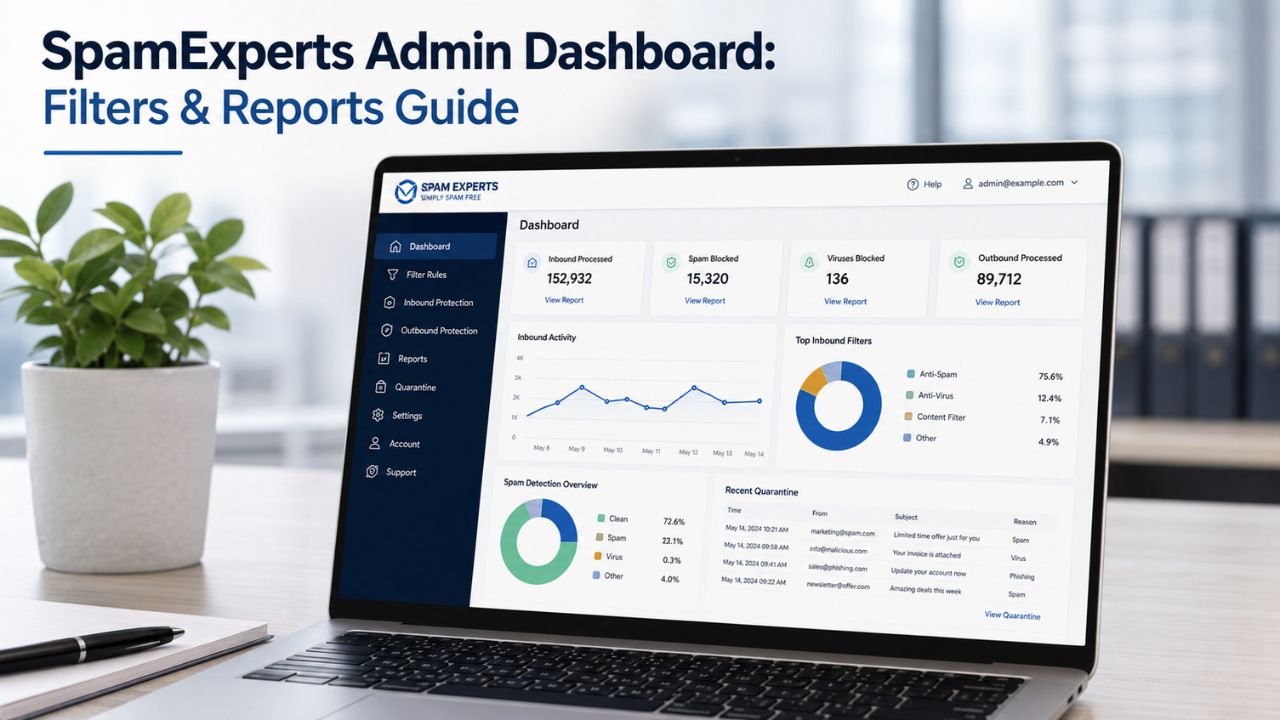
After SpamExperts is deployed, ongoing administration is essential for maintaining effective email security and ensuring that legitimate messages continue to flow without interruption. The administrative dashboard provides centralized tools for managing filtering policies, reviewing quarantined messages, monitoring email activity, and analyzing security reports. Understanding how to use these features helps administrators fine-tune protection, reduce false positives, and maintain consistent email performance as organizational requirements evolve.
Secure Your Email with SpamExperts →
Logging Into the SpamExperts Control Panel After Setup
Day-to-day administration happens in one of three login contexts, and picking the right one determines exactly how much of the system you can see and change.
 Choosing Between Admin, Domain, and Email-User Access
 Choosing Between Admin, Domain, and Email-User Access
SpamExperts recognizes three distinct access levels once an account is live, and they are not interchangeable. Admin-level login gives visibility across every domain a reseller or organization manages, including global filter defaults and cross-domain reporting. Domain-level login narrows the scope to a single domain and all mailboxes under it, the level most in-house IT admins use for daily work. Email-user login is scoped to a single mailbox, allowing an individual employee to see and release their own quarantined mail without affecting anyone else’s settings.
Mixing these up causes two common problems. An admin who logs in expecting domain-level detail may miss mailbox-specific quarantine entries buried under aggregate numbers. Conversely, an email user given domain-level credentials by mistake can accidentally change filter settings for colleagues who never asked for the change. Matching the login level to the actual task, reviewing one employee’s spam versus tuning company-wide thresholds, keeps changes contained to where they’re intended and avoids the kind of accidental scope creep that turns a five-minute quarantine check into a support ticket.
Session Timeouts, Browser Support, and Password Resets
Every control panel session runs on a configurable timeout, and the default is short enough that admins performing multi-step work, like reviewing a long log search, then adjusting a filter, then checking a report, sometimes get logged out mid-task. Extending the timeout for admin accounts (while leaving shorter timeouts on shared or lower-trust accounts) reduces this friction without weakening security elsewhere. This setting lives alongside the other account-level preferences. It is worth reviewing once during the first week of ongoing use, rather than leaving it on whatever default was applied during initial provisioning.
Password resets and browser compatibility rarely cause problems. Still, they’re worth confirming early: the control panel is built for evergreen browsers, and outdated or heavily locked-down corporate browser builds occasionally render dashboard widgets incorrectly. If a report chart looks broken or a filter toggle won’t respond, a browser or cache issue is the first thing to rule out before assuming the underlying filter engine is misbehaving. This is a five-minute check that saves a support call.
Reading the Dashboard Home Screen at a Glance
The home screen is designed to answer one question fast: Is mail flowing normally right now, before an admin drills into any specific tool?
Widgets That Show Mail Flow in Real Time
The default dashboard surfaces a small set of widgets covering accepted mail, quarantined mail, rejected mail, and outgoing mail volume, updated close to real time. These numbers matter less in isolation and more as a baseline: a domain that normally quarantines a few dozen messages a day and suddenly shows several hundred is signaling either a spam campaign targeting that domain specifically or a filter setting that just got looser than intended. Watching this daily, even briefly, turns anomaly detection into pattern recognition rather than guesswork after the fact.
A pattern worth knowing: businesses that only check the dashboard when someone complains about a missing email tend to discover filtering problems weeks after they started, once quarantine has quietly accumulated hundreds of messages. Domains where an admin glances at the home screen a few times a week catch threshold drift or a sudden spam surge within a day or two, while it’s still a small, easy fix rather than a backlog to sort through.
Customizing Dashboard Layout for Your Team
Widget layout on the dashboard is not fixed; items can be added, removed, or rearranged, and these customizations persist per user rather than resetting on every login. An admin managing several domains might prioritize a cross-domain summary widget, while a domain-level admin managing one company’s mail flow might prefer a detailed incoming/outgoing split with less summary clutter. Persisted widget preferences mean each admin sees only what’s relevant to their job, rather than a one-size-fits-all view built for someone else’s workflow.
This matters more once multiple admins share responsibility for the same account. Without customization, everyone works from an identical, often overcrowded screen; with it, a person responsible for compliance reporting can pin log-search shortcuts front and center, while a person responsible for end-user support can pin the quarantine queue instead. Small as it may sound, this reduces the number of clicks between “something looks off” and “here’s the actual data,” which adds up over a week of daily checks.
Building and Adjusting Filter Policies
Filter policy is where most of the ongoing tuning work actually happens, and it comes down to two adjustable thresholds plus the rules layered on top of them.
Quarantine Threshold vs Tag Threshold
SpamExperts filtering runs on two separate slider-style thresholds rather than one blunt spam/not-spam switch. The Quarantine Threshold controls the aggressiveness with which items are pulled from the inbox and held for review. Raise it, and only messages the system is more confident about get quarantined, which reduces false positives but lets a few more borderline messages through to the inbox. The Tag Threshold applies to messages the system considers “unsure”: rather than quarantining them, it prepends a configurable string to the subject line so that end users or downstream mail-server rules can sort them without full quarantine. This slider represents the aggression level of SpamExperts’ filtering, with the Tag Threshold applying to mail treated as unsure rather than outright quarantined.
Getting these two right is a balance exercise, not a one-time setting. A domain that handles sensitive client communication, where a missed email is costly, might run a higher Quarantine Threshold paired with a lower Tag Threshold, accepting more tagged-but-delivered mail in exchange for fewer quarantined messages that an end user has to check. A domain fielding heavy cold-outreach spam might prefer the reverse. Neither setting is “correct” in isolation; it depends on which type of mistake costs the business more: a legitimate email missed or a piece of spam.
Creating Domain-Level Rules That Override Defaults
Beyond the two thresholds, filter policy supports domain-level rules that override the account-wide defaults for a specific domain or even a specific mailbox. This matters for organizations managing multiple domains with different risk profiles. A marketing domain that regularly receives newsletter-style bulk mail from third-party platforms needs a different rule set than a finance domain that should never see an unfamiliar sender land straight in the inbox. Building these as explicit overrides, rather than constantly nudging the global default up and down, keeps each domain’s policy intentional and documented rather than the product of ad hoc adjustments nobody remembers making.
A practical habit here is reviewing domain-level overrides on a schedule; quarterly is reasonable for most SMB accounts, rather than only when something breaks. Overrides created to solve a one-time problem (a specific sender getting blocked during an urgent project, for example) have a way of outliving their original purpose and quietly narrowing or loosening filtering long after the reason for the override is gone. A short review catches these before they become an unexplained gap in protection.
Whitelisting and Blacklisting Senders and Domains
Whitelist and blacklist entries are the most direct lever an admin has over filtering, and also the easiest to misuse if applied too broadly.
When to Whitelist a Sender vs an Entire Domain
Whitelisting can be scoped to a single sender address or to an entire domain, and the two carry very different levels of risk. Whitelisting one address, a known vendor’s billing contact, for instance, only bypasses filtering for mail from that exact address, which is low risk and easy to justify. Whitelisting an entire domain bypasses filtering for every address under it, including any address a spammer could later spoof or compromise, as well as future employees at that company who were never vetted. The convenience of a domain-wide whitelist comes with a correspondingly wider attack surface.
The safer default is sender-level whitelisting unless there’s a specific, ongoing operational reason to trust an entire domain, a long-term outsourced partner sending from a dozen rotating addresses, for example. Even then, a domain whitelist is worth revisiting periodically rather than being treated as permanent, since the trust relationship that justified it (an active vendor contract, an ongoing integration) can lapse long after the whitelist entry itself is forgotten.
The Risk of Over-Broad Blacklist Entries
 The Risk of Over-Broad Blacklist Entries
Blacklisting works the same way in reverse, and the same scoping caution applies. Blacklisting a single sender address that repeatedly sends unwanted mail is precise and low-risk. Blacklisting an entire domain to stop one persistent nuisance sender can also block legitimate colleagues at that same domain, a real problem for large organizations or shared hosting environments where many unrelated senders share one domain suffix.
A recurring pattern worth flagging: businesses that blacklist reactively, in the moment of frustration with one bad sender, tend to accumulate blacklist entries faster than whitelist entries, and rarely audit them afterward. Over months, this can silently block partners or returning customers who happen to share infrastructure with whoever triggered the original block. Treating blacklist entries with the same periodic-review discipline as whitelist entries, checking that each one is still doing the job it was created for, keeps the list a precision tool rather than a growing liability.
Managing the Quarantine Queue Day to Day
Quarantine is where filtered mail actually lives, and knowing exactly what each available action does prevents both accidental data loss and accidental spam delivery.
The Five Actions Available on a Quarantined Message
From the Control Panel, a quarantined message supports five distinct actions, each performing a different function beyond just “letting the email through.” The available actions are Release, Release & Train, Blacklist & Remove, Release and Whitelist, or Remove messages blocked as spam. Release delivers the message without changing any filtering behavior going forward, which is useful for a one-off false positive when you don’t want to affect future filtering for that sender. Release & Train delivers the message and also teaches the filtering engine that similar mail should be treated as legitimate, which is the right choice for a sender you expect to hear from again.
Blacklist & Remove deletes the message and adds the sender to the blacklist in one step, appropriate for confirmed spam you never want to see quarantined again; it goes straight to rejection instead. Release and Whitelist deliver the message and add the sender to the whitelist, bypassing quarantine for that sender entirely in the future. Remove deletes the message without changing any filtering rules. Choosing the wrong one of these five is rarely catastrophic. Still, it does mean redoing the work later; releasing a message without training it, for example, means the next similar email lands right back in quarantine.
What Happens When the 14-Day Window Closes
Quarantined mail isn’t held indefinitely. Quarantined messages are stored for 14 days by default, and once that window closes, unreleased messages are permanently removed and cannot be recovered through the Control Panel. This makes a regular quarantine review, at minimum weekly, ideally a quick daily check for domains handling time-sensitive mail, a genuine operational necessity rather than a nice-to-have, since a legitimate email sitting unreviewed in quarantine for more than two weeks is gone for good.
It’s also worth knowing what never appears in quarantine in the first place: messages temporarily rejected at the SMTP level before the DATA phase of transmission are not listed in quarantine, though they still show up in log search with a rejected status. This distinction matters when troubleshooting a “missing email” complaint; the message might never have reached quarantine at all, and a log search, not the quarantine queue, is where to look first.
Quarantine Actions and What They Actually Do
| Action | What It Does to the Message | What It Changes Going Forward |
|---|---|---|
| Release | Delivers the message to the inbox | No change to filtering rules |
| Release & Train | Delivers the message | Teaches the engine that similar mail is legitimate |
| Release and Whitelist | Delivers the message | Adds sender to whitelist; bypasses quarantine going forward |
| Blacklist & Remove | Permanently deletes the message | Adds sender to blacklist; future mail rejected outright |
| Remove | Permanently deletes the message | No change to filtering rules |
Get Your Quarantine Rules Right the First Time
Getting quarantine actions and the 14-day retention window right takes a few cycles of trial and error for most in-house teams, cycles that sometimes cost a legitimate email. As a Certified Sales Partner for SpamExperts, Hiya Digital sets up quarantine handling and digest schedules correctly from day one, so nothing important expires unreviewed.

Setting Up Quarantine Digest Emails for End Users
Digest emails shift quarantine review from an admin’s job to each end user’s own inbox, which scales far better across a growing team.
Choosing Digest Frequency Without Causing Alert Fatigue
Rather than an admin manually checking every mailbox’s quarantine, SpamExperts can send each end user a periodic summary of what’s been held for them, with options to schedule the report hourly, daily, weekly, or monthly. Frequency choice matters more than it looks: an hourly digest for a low-spam-volume mailbox trains users to ignore notifications entirely. In contrast, a monthly digest for a high-volume mailbox risks messages aging past the 14-day retention window before anyone reviews them. Matching frequency to actual quarantine volume per mailbox, not applying one company-wide default, keeps digests useful rather than becoming another ignored notification.
A daily digest is the reasonable default for most business mailboxes, since it aligns naturally with the 14-day retention window, giving users several digest cycles to catch a misfiled message before it’s permanently gone. Mailboxes that rarely receive quarantined mail can safely move to weekly without meaningful risk, while shared or high-traffic mailboxes, such as a sales inbox, often benefit from staying on a daily cadence even if it means slightly more email traffic.
Letting Email Users Release Their Own Messages
 Letting Email Users Release Their Own Messages
Digest emails typically include direct release links or a link toto the Email-Level Control Panel, allowing the recipient to release a misfiled message themselves without filing a ticket or waiting on an admin. This single change removes the single biggest bottleneck in quarantine management for growing teams, instead of one admin reviewing quarantine for fifty mailboxes, fifty people each review their own small queue in the time it takes to skim a subject line.
The trade-off is that end users can only take the safe actions available to their access level; they don’t have the same domain-wide whitelist or blacklist authority an admin does, which is intentional. This maintains the convenience of self-service without allowing an individual employee’s release decision to quietly change filtering behavior for the rest of the company. Setting expectations early that a released message won’t automatically stop similar mail from being quarantined again unless it’s released with training avoids repeated tickets from users who assume one release should fix the pattern permanently.
Tuning Sensitivity Levels Without Blocking Legitimate Mail
Threshold tuning is an ongoing discipline, not a set-once configuration, and the log search is the tool that makes it evidence-based rather than guesswork.
Reading False-Positive Patterns in the Log Search
Before touching a threshold, the log search is where to confirm there’s actually a pattern worth fixing, rather than reacting to a single complaint. Incoming and outgoing log search supports filtering by sender, recipient, subject, message ID, sender host, and sender IP, allowing an admin to isolate exactly which senders are being caught and how often. A single missed email from an unfamiliar sender is rarely worth a threshold change; a cluster of missed emails from the same trusted vendor domain over several days usually is.
This distinction, one-off versus pattern, is the difference between fixing the actual problem and overcorrecting. Loosening the global Quarantine Threshold in response to a single complaint often lets in more spam without addressing the underlying issue, whereas a targeted sender-level whitelist entry would have fixed it precisely. Log search data turns “the filter is too aggressive” from a vague impression into a specific, fixable list of senders.
Adjusting Thresholds Gradually, Not All at Once
Once a genuine pattern is confirmed, threshold changes work best when applied gradually and measured against the following day’s quarantine volume, rather than moved dramatically in one step. A large jump in either direction, sharply loosening to stop false positives, or sharply tightening after a phishing scare, tends to overcorrect the other way, trading one problem for its opposite. Small, monitored adjustments, checked against log search data over the following few days, let an admin find the actual right setting for that domain’s mail patterns rather than guessing.
A pattern worth noting from managing multiple accounts: domains that adjust thresholds reactively, in response to whichever complaint came in most recently, tend to drift toward either extreme over time, either quarantining almost nothing or quarantining aggressively, without anyone deciding to end up there. Reviewing threshold settings against actual log data on a fixed schedule, rather than only when someone complains, keeps the settings anchored to real mail patterns rather than the loudest recent objection.
Using the Reporting Dashboard to Track Threats
Reports turn the raw log data into something reviewable at a glance, and different report types serve different review needs.
Protection Reports vs Log Search: What Each Is For
Protection Reports provide an aggregate view of filtering activity and the volumes of accepted, quarantined, and rejected mail over a chosen period, designed to spot trends rather than investigate a specific message. Log search does the opposite: it’s built for drilling into individual messages by sender, recipient, or message ID when a specific question needs answering. Using Protection Reports to notice that quarantine volume has doubled this month, then switching to log search to identify exactly which senders account for the increase, is the typical workflow. The aggregate view flags that something changed, and the detailed view explains what.
Outgoing-specific reporting works the same way for mail leaving the domain. Outgoing Reports lets an admin view senders or identities in a grouped format from the Admin or Domain Level Control Panel, which is particularly useful for spotting a compromised mailbox sending spam before it damages the domain’s sending reputation. This pattern shows up as a sudden spike in one sender’s outgoing-rejected volume well before an external blocklist notices it.
Scheduling Automated Email Scout Reports
Rather than logging in to check reports manually, log search results can be configured as an Email Scout Report and scheduled to be sent hourly, daily, weekly, or monthly directly to an admin’s inbox. This is the practical way most admins sustain reporting: a scheduled weekly summary of quarantine volume by domain requires no ongoing effort to maintain once it’s set up, compared to remembering to log in and check manually.
Scheduled reports are also the most reliable way to catch slow-building problems, since a single day’s numbers rarely look alarming on their own, but a week-over-week trend line does. An admin managing several domains benefits most from setting these up per domain rather than using a single combined report, since a spike specific to one domain gets diluted and is easy to miss in an aggregate account-wide number.
Reporting Tools and When to Use Each
| Tool | What It Shows | Recommended Review Frequency |
|---|---|---|
| Dashboard home widgets | Real-time accepted/quarantined/rejected volume | Several times a week |
| Protection Reports | Aggregate filtering trends over a chosen period | Weekly, per domain |
| Incoming/Outgoing Log Search | Individual message detail by sender, recipient, message ID | As needed, for investigation |
| Outgoing Reports | Grouped sender/identity view for outbound mail | Weekly, to catch compromised senders |
| Scheduled Email Scout Reports | Automated log search results delivered by email | Set once, reviewed on delivery |
Delegating Access with User Roles and Permissions
As a team grows, spreading dashboard access across multiple people requires deciding not just who gets in, but exactly what each person can see or change.
Domain-Level vs Email-Level Permission Scopes
Access can be delegated at the domain level, giving a sub-admin control over filtering and quarantine for every mailbox under that domain, or scoped down to the email-user level, giving one person access only to their own mailbox’s settings and quarantine. Choosing correctly here is a security decision as much as a convenience one: a receptionist who occasionally needs to check whether an expected email landed in quarantine needs email-user access, not domain-level control over the company’s filtering policy.
The reasonable default for most organizations is to limit domain-level access to IT staff or a designated admin, and to grant email-user access to everyone else who wants self-service quarantine visibility. This mirrors the principle of least privilege without adding meaningful friction; most employees only ever need to see their own quarantined mail, and giving them exactly that (and nothing more) avoids both accidental company-wide changes and unnecessary support overhead for the IT team.
Setting Granular GET/POST/PUT/DELETE Permissions for Sub-Admins
For organizations that need finer control than the two broad access levels provide, permissions can be set per resource using standard HTTP-style methods. GET is used for viewing data, POST for creating new entries, PUT for modifying existing entries, and DELETE for removing entries; these can be assigned individually to each sub-admin. This lets an organization, for example, grant a junior IT staffer permission to view (GET) quarantine and log search data without granting them the ability to delete (DELETE) entries or create (POST) new blacklist rules, which is useful during onboarding or for temporary support access.
This level of granularity is most valuable for MSPs and hosting providers managing dashboard access across multiple client organizations, where different staff members legitimately need different capabilities depending on their role. Reviewing these permission assignments whenever staff roles change, not just when they’re first set up, closes a common gap where a former employee’s account retains write access long after their responsibilities have moved elsewhere.
Auditing Logs and Exporting Data for Compliance
Beyond day-to-day tuning, the same log and archive tools support the kind of historical review a compliance audit or legal request actually requires.
Searching Historical Logs by Sender, Recipient, or Message ID
 Searching Historical Logs by Sender, Recipient, or Message ID
The log search tool retains a searchable history of mail activity that goes well beyond the 14-day quarantine window, since log entries and archived message content are handled separately from the quarantine queue itself. Rejected, temporarily rejected, and quarantined messages are all queryable, and log search supports filtering by sender host, sender IP, subject, and message ID in addition to sender and recipient, enough specificity to reconstruct exactly what happened to a specific piece of mail weeks or months after the fact.
This granularity matters most when an internal dispute or external audit asks a very specific question: did a particular email arrive, when it did, and what happened to it, rather than a general “was the domain being spammed” question. Being able to answer with an exact timestamp and classification, rather than an approximate recollection, is often the difference between a five-minute audit response and a drawn-out investigation.
Exporting Archived Messages for Legal or Regulatory Review
Archived messages matching a log search query can be exported directly from the Control Panel, which is the mechanism most organizations use to satisfy a legal hold, an eDiscovery request, or an internal compliance review without needing separate archiving software. Because export follows the same query rules as any other log search, an admin can scope an export precisely, every message to or from a specific address over a specific date range, for instance, rather than handing over an entire mailbox’s history when only a narrow slice was actually requested.
Building a habit of running and saving export queries whenever a compliance-relevant event occurs, such as a departing employee, a contract dispute, or a regulatory inquiry, rather than only exporting reactively under deadline pressure, keeps this process fast when it’s actually needed. Organizations that only learn how the export tool works during an active audit tend to lose time relearning the query syntax under pressure that a five-minute dry run earlier would have avoided.
Frequently Asked Questions
How do I configure SpamExperts after the initial setup is complete?
Ongoing configuration is separate from initial MX or gateway connection and centers on three areas: filter policy (adjusting the Quarantine and Tag Thresholds and any domain-level overrides), quarantine handling (setting digest frequency and reviewing the queue before the 14-day retention window closes), and access delegation (assigning domain-level or email-user permissions as your team grows). Most admins log in at the domain level for this work rather than at the admin or email-user level, since domain-level access covers filter settings and quarantine for every mailbox on that domain in one place. Configuration at this stage is iterative; thresholds and overrides typically need small adjustments over the first few weeks as real mail patterns reveal which senders need whitelisting or which threshold setting causes too many false positives.
How do I release a message from the SpamExperts quarantine?
From the Control Panel’s quarantine or log search view, select the message and choose one of five actions: Release, Release & Train, Release and Whitelist, Blacklist & Remove, or Remove. For a one-off legitimate email you don’t expect again, Release alone is sufficient. For a sender you expect recurring mail from, Release & Train or Release and Whitelist prevents the same sender’s future mail from being quarantined again. End users with Email-Level Control Panel access can typically do this themselves for their own mailbox without needing an admin, especially when quarantine digest emails include direct release links.
How long does SpamExperts keep quarantined spam before deleting it?
By default, quarantined messages are stored for 14 days, after which unreleased messages are permanently deleted and cannot be recovered through the Control Panel. This is a hard cutoff, which makes a regular quarantine review schedule, at least weekly, more often for time-sensitive mailboxes, a practical necessity rather than optional housekeeping. Note that messages temporarily rejected at the SMTP level before the message content is transmitted never appear in quarantine at all; they only appear in log search with a rejected status, since the sending server is expected to retry automatically.
Can I let individual employees manage their own spam quarantine?
Yes, Email-Level Control Panel access scopes a login to a single mailbox’s settings and quarantine only, with no visibility into or control over other mailboxes or domain-wide filtering. When combined with scheduled quarantine digest emails (hourly, daily, weekly, or monthly) that include direct release links, employees can review and release their own held mail without filing a ticket. This scales far better than admin-only quarantine review once a team grows beyond a handful of mailboxes, since each person reviews only their own small queue rather than a single admin reviewing everyone’s.
What’s the difference between whitelisting a sender and whitelisting a domain?
Sender-level whitelisting bypasses filtering only for a single, exact email address, which is precise, low-risk, and appropriate for a specific known contact, such as a vendor’s billing address. Domain-level whitelisting bypasses filtering for every address in that domain, including addresses that don’t yet exist or could later be spoofed or compromised, which poses a meaningfully higher risk. The safer default is sender-level whitelisting unless there’s a specific, ongoing reason to trust an entire domain, such as ongoing mail from many rotating addresses at a long-term outsourced partner.
Why do legitimate emails keep landing in quarantine after I raise the threshold?
A single threshold change affects overall aggressiveness but doesn’t guarantee that any one sender stops being quarantined, especially if that sender’s mail consistently triggers other spam-detection signals unrelated to the threshold slider. Before adjusting thresholds further, check the log search for that specific sender to confirm whether it’s a recurring pattern worth a targeted sender-level whitelist entry, rather than continuing to loosen the global threshold, which lets in more unrelated spam without necessarily fixing the original sender’s issue. Gradual, log-search-verified adjustments outperform large one-time threshold changes.
How do I add a new sub-admin to the SpamExperts dashboard?
Sub-admin accounts are created and scoped at either the domain level (full control over one domain’s filtering and quarantine) or with granular per-resource permissions, assigning GET (view), POST (create), PUT (modify), and DELETE (remove) access individually. This lets an organization grant, for example, view-only access to quarantine and log data without the ability to delete entries or change blacklist rules, which is useful for onboarding staff or granting temporary access without full administrative control. Permission assignments should be reviewed whenever a staff member’s role changes, not only when the account is first created.
Can I schedule automatic spam reports to be emailed to me?
Yes, any log search query, whether for incoming or outgoing mail, can be saved as an Email Scout Report and scheduled to be delivered automatically on an hourly, daily, weekly, or monthly basis. This removes the need to log in manually to check for trends and is the most sustainable way for most admins to maintain ongoing visibility into filtering activity without dedicating recurring time to it. Setting up separate scheduled reports per domain, rather than one combined report across all domains, makes it easier to spot a spike specific to a single domain that would otherwise be diluted in an aggregate view.
How do I export SpamExperts logs for a compliance audit?
Archived messages matching a log search query, filtered by sender, recipient, date range, message ID, or other criteria, can be exported directly from the Control Panel, thereby satisfying most legal hold, eDiscovery, or internal compliance requests without the need for separate archiving software. Because export follows the same query rules as any other log search, an admin can scope the export precisely to only the messages actually requested, rather than exporting an entire mailbox’s history. Running a practice export before an actual audit is needed helps avoid losing time relearning the query syntax under deadline pressure.
What’s the difference between a global filter rule and a domain-level rule?
A global (account-wide) filter rule applies its Quarantine and Tag Threshold settings, along with whitelist and blacklist entries, across every domain under that account unless specifically overridden. A domain-level rule overrides those defaults for one specific domain or mailbox, allowing different risk profiles to coexist, a finance domain running tighter thresholds than a marketing domain that regularly receives bulk newsletter mail, for example. Reviewing domain-level overrides periodically is worth doing, since overrides created to solve a temporary problem sometimes outlive the problem they were created to solve.
Glossary
Quarantine: A holding area for messages the filtering system flags as likely spam, stored temporarily (14 days by default) before permanent deletion unless released.
Quarantine Threshold: The sensitivity setting controlling how aggressively messages are pulled into quarantine versus delivered to the inbox.
Tag Threshold: A separate sensitivity setting for messages considered “unsure,” which are delivered with a marked subject line rather than quarantined.
Log Search: The tool used to query historical mail activity by sender, recipient, subject, message ID, sender host, or IP address.
Whitelist: A list of trusted senders or domains whose mail bypasses spam filtering entirely.
Blacklist: A list of senders or domains whose mail is rejected outright rather than quarantined.
Email Scout Report: A scheduled, automated export of log search results delivered to an admin’s inbox on a set interval.
Domain-Level Access: Control panel access scoped to one domain and all mailboxes under it.
Email-User Level Access: Control panel access scoped to a single mailbox, used for self-service quarantine management.
Sub-Admin Permissions: Granular, per-resource access rights (view, create, modify, delete) assignable to delegated administrators.
The Hiya Digital Team is a collective of IT infrastructure specialist engineers, certified systems administrators, and cloud architects driven by a singular mission: building corporate communication systems that just work. As an Authorized Google Partner, the team handles complex global hosting deployments, secure email migrations, and advanced data compliance architectures for businesses across 40+ countries.
With over two decades of technical experience spanning custom premium business email configurations, OX AppSuite deployments, and enterprise-level network security, the Hiya Digital Team writes to demystify domain infrastructure. Their content focuses on actionable technical strategies, anti-phishing security protocols, and seamless cloud collaboration setup, all backed by real-world deployment experience and 24/7 technical support accountability.