A mailbox migration fails quietly, not loudly; mail stops arriving for one department, a shared calendar loses three months of bookings, and nobody notices until a client complains. The tooling, sequencing, and DNS mechanics that keep a Microsoft 365, Exchange, or IMAP migration running without a service gap.
Discover the Benefits of Google Workspace →
Match the Migration Tool to Your Source Platform and Team Size
Google offers three native migration paths, GWMMO, GWMME, and Google Workspace Migrate, and picking the wrong one is the single most common reason migrations run long or leave data behind. The right choice depends on where your mail lives today, how many mailboxes need to move, and whether Drive or SharePoint content is part of the job.
 GWMMO, GWMME, and Google Workspace Migrate: What Each One Actually Moves
 GWMMO, GWMME, and Google Workspace Migrate: What Each One Actually Moves
Google Workspace Migration for Microsoft Outlook (GWMMO) installs on a Windows machine and pulls mail, calendar events, and contacts from a configured Outlook profile or a PST file into a single Google Workspace account. It supports OAuth 2.0 so credentials aren’t stored locally, and it works well for a handful of users who are comfortable running an installer and clicking through a wizard themselves. Its ceiling is real: it moves one account at a time, runs only on Windows, and stops the moment the import finishes; anything created in the old mailbox afterward has to be migrated manually again.
Google Workspace Migration for Microsoft Exchange (GWMME) removes the per-user install requirement. An administrator runs it centrally against an Exchange server, on-premises or Microsoft 365, or against any standard IMAP source, migrating mail, calendar, and contact data for many accounts in one operation. For organizations moving from Exchange or Microsoft 365 with tens to a few hundred mailboxes, GWMME is usually the right default: it’s free, Google-supported, and doesn’t ask end users to do anything.
When IMAP Migration or a Third-Party Tool Makes More Sense
Not every source system is Exchange. Migrating from a generic IMAP host, a legacy G Suite-era domain, or a provider without an Exchange-compatible connector usually means using Google’s built-in Data Migration Service in the Admin console, which connects over IMAP and pulls mail directly, no local install, no PST export step. It handles mail well but doesn’t touch calendar or contact data, so those need a separate pass, typically through CSV export/import for contacts and iCalendar (.ics) files for calendars.
Third-party migration tools earn their cost when the source system falls outside what Google’s native tools support cleanly, cross-provider moves between two different cloud platforms, migrations that need calendar sync to continue running for weeks after cutover, or projects where the admin team wants centralized error tracking and retry logic instead of parsing trace logs by hand. These tools are typically priced per mailbox and range from modest per-seat fees to more substantial project costs depending on mailbox size and whether file data is included. Hence, the calculation is really about administrator hours saved versus license spend.
| Tool | What It Migrates | Best For | Runs Per-User or Centrally |
|---|---|---|---|
| GWMMO | Mail, calendar, contacts from Outlook/PST | 1–20 self-service users on Windows | Per-user, manual install required |
| GWMME | Mail, calendar, and contacts from Exchange or IMAP | Small to mid-size, admin-managed migrations | Centrally, admin-run in bulk |
| Google Workspace Migrate | Mail, calendar, contacts, Drive, SharePoint, OneDrive | Enterprise migrations (roughly 1,000+ mailboxes) with file data | Centrally, with permission mapping |
| Data Migration Service (IMAP) | Mail only, via IMAP connection | Non-Exchange sources without a native connector | Centrally, via the Admin console wizard |
Build a Timeline That Keeps Staff Working Through the Cutover
A migration timeline succeeds or fails on sequencing, not speed. Rushing the cutover before test batches have validated cleanly is the single most common cause of a Monday-morning mailbox outage, and the fix is a staged plan that separates discovery, testing, bulk migration, and go-live into distinct, checkpointed phases.
Sequencing Discovery, Testing, and Go-Live Without Guesswork
Discovery comes first: inventory every mailbox, shared mailbox, distribution list, and calendar resource in the source system, along with rough size per mailbox, since that number determines how long the bulk migration window needs to be. Google’s own guidance flags daily API operation thresholds as the real limiting factor on migration speed; most individual accounts finish in a few hours to a few days. Still, a handful of oversized mailboxes can stretch a project’s timeline well past what a simple per-user average would suggest.
A test batch of five to ten representative mailboxes, mixing large and small, technical and non-technical users, should run through the full migration and get manually checked against the source before the bulk batch starts. This step catches folder-mapping issues, permission problems on shared mailboxes, or calendar sync gaps while the blast radius is still small enough to fix without anyone outside IT noticing. Skipping the test batch to save two or three days is the most expensive shortcut in this entire process, because the same errors then show up at full scale.
Setting Freeze Windows Around Busy Periods and Time Zones
A change freeze, a window where no new mailboxes, distribution lists, or calendar resources are created in the old system, has to start before the bulk migration begins, not after. Without one, accounts created mid-migration get missed entirely, and the team ends up manually reconciling a handful of stragglers days after the project was supposed to be finished. Communicating the freeze date to HR and IT provisioning teams specifically, not just to end users, closes the gap that usually causes this.
Timing the cutover around business rhythms matters more than picking a technically convenient date. Month-end for finance teams, enrollment periods for schools, and any week with a board meeting or major client deliverable are all poor choices for a DNS cutover, since any unexpected delay in propagation lands at the worst possible moment. A Friday evening or a low-traffic weekend generally gives the widest buffer for troubleshooting before Monday’s inbox volume arrives.
Configure Dual Delivery So Mail Never Stops Arriving
Dual delivery is the mechanism that lets mail continue flowing to the old system. At the same time, messages are simultaneously copied to Google Workspace, and it’s the single feature most responsible for a migration with zero visible downtime. Getting the routing order wrong is also the fastest way to end up with duplicate mail or silent gaps.
How Dual Delivery Actually Routes a Message During Cutover
During dual delivery, incoming mail continues to hit the legacy mail server first, MX records haven’t changed yet, and a routing rule on that legacy server forwards a copy of each message to the corresponding Google Workspace mailbox. This means users can keep working from their existing Outlook or webmail client throughout the migration window while their new Gmail inbox fills in parallel, with both mailboxes staying in sync until the team is ready to flip the switch.
The order matters: dual delivery must be fully configured and verified to work before any bulk migration of historical mail begins, not after. If historical data is migrated first and dual delivery is enabled later, there’s a real risk of a gap between the “last migrated message” and the “first dual-delivered message,” where mail never arrives in either mailbox. Testing dual delivery with a handful of throwaway messages before committing to the full migration catches this before it becomes a support ticket.
Common Dual Delivery Mistakes That Cause Bounced or Duplicate Mail
The most frequent mistake is enabling dual delivery for some mailboxes but not others in the same domain, usually because a batch of shared mailboxes or aliases got missed during inventory. Mail to those addresses either bounces or silently fails to appear in Google Workspace, and because it’s intermittent rather than total, it can go unnoticed for days. A full mailbox and alias inventory, cross-checked against the dual delivery configuration before go-live, is the direct fix.
Duplicate mail shows up when dual delivery remains active after the DNS cutover has already redirected primary mail flow to Google Workspace. At that point, the legacy server may still be forwarding copies of the mail it receives as a secondary relay, creating two copies of every incoming message. Setting a firm date to disable dual delivery, tied to the verification checkpoint rather than left open-ended, prevents this from lingering into week three of a project that was supposed to wrap in five days.
Move Mailbox Data Without Breaking Folder Structure or Threading
Folder structure and message threading are what make a migrated mailbox feel usable rather than dumped. Getting this step wrong doesn’t lose data outright, but it buries it; years of organized folders becoming one flat, unsearchable list of labels is a common complaint after a rushed migration.
Mapping Outlook Folders and Exchange Categories to Gmail Labels
Gmail doesn’t have folders in the Outlook sense; it uses labels, which behave more like tags than containers, and a single message can carry multiple labels at once. During migration, Outlook folders typically map one-to-one to Gmail labels, and nested folders migrate as nested labels using a parent/child naming convention. Hence, a folder structure like “Clients/Acme/Contracts” becomes a label hierarchy that displays in the same way in Gmail’s sidebar. This mapping happens automatically in GWMMO, GWMME, and Google Workspace Migrate. Still, it’s worth spot-checking a few deeply nested folders in the test batch, since edge cases involving special characters in folder names occasionally break the hierarchy.
Outlook categories, the color-coded tags many users apply independently of folder structure, don’t migrate as cleanly, and this is worth flagging to users before migration rather than after. Categories typically convert to Gmail labels as well. Still, the color coding and any category-based Outlook rules (auto-filing, auto-flagging) don’t carry over automatically, since Gmail’s filter system works on different logic than Outlook rules. Teams that rely heavily on category-based organization should budget time to rebuild the equivalent Gmail filters post-migration rather than assuming the behavior transfers.
Preserving Message Threading, Read Status, and Attachments
Gmail groups messages into conversation threads based on the subject line and reference headers, which is a different threading model than Outlook’s, and messages migrated out of order can occasionally split into separate threads instead of a single continuous conversation. This is more likely with long-running email chains that have had subject lines edited partway through, since Gmail’s threading logic is stricter about exact subject matches than Outlook’s. Running the migration tool with the default sort order (usually oldest-first) rather than a custom order avoids most of these breaks.
Read and unread status generally carries over intact through GWMMO, GWMME, and Google Workspace Migrate, since all three preserve the message flag data alongside the message body during transfer. Flagged or starred messages in Outlook typically convert to starred messages in Gmail. However, the correspondence isn’t always exact; Outlook’s multiple flag colors collapse into Gmail’s single star, so any workflow built around color-coded flags needs a replacement system post-migration rather than a like-for-like carryover.
Carry Contacts and Distribution Lists Across Without Losing Structure
Contacts and distribution lists are easy to treat as an afterthought next to mail and calendar. Still, a broken distribution list on day one is often the most visible failure to end users, since it shows up the first time someone tries to email “all-sales@” and nothing happens.
Migrating Personal Contacts vs. Shared Directory Contacts
 Migrating Personal Contacts vs. Shared Directory Contacts
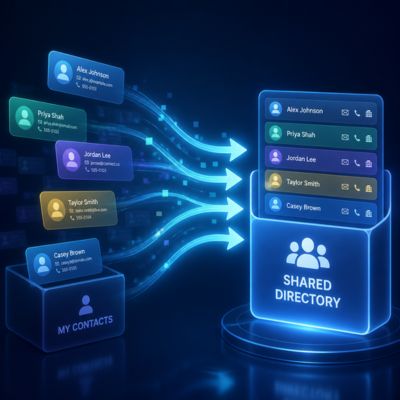
Personal contacts, the ones stored in an individual’s own Outlook or Exchange contact folder, migrate cleanly through GWMMO or GWMME as part of the standard per-user or bulk migration process, arriving in the user’s personal Google Contacts. The main risk here isn’t data loss but duplication. If a user’s contacts get imported more than once, through both an automated migration and a manual CSV import, duplicate entries pile up quickly and have to be cleaned out either individually or by clearing personal contacts and re-running the import once.
Shared directory contacts, the organization-wide address book most Exchange environments maintain through the Global Address List (GAL), don’t migrate the same way, since Google Workspace’s equivalent is the Directory, which populates automatically from user accounts rather than being imported as contact records. Getting the Directory populated correctly means making sure every user account exists in Google Workspace with accurate name, title, and department fields before the migration’s contact phase runs, since the Directory reflects account data directly rather than pulling from the old GAL.
Rebuilding Distribution Lists as Google Groups
Exchange distribution lists don’t have a direct one-to-one migration path into Google Workspace; they need to be recreated as Google Groups, which function similarly but aren’t automatically generated by standard mail migration tools. This is a deliberate, separate task: export the membership list of each distribution list from Exchange (most environments can do this through PowerShell or the Exchange admin center), then create matching Groups in the Google Admin console and add members before the DNS cutover, so the group email address is live and routing correctly from day one.
Nested distribution lists, a group that itself contains other groups as members, common in larger organizations with department-level and company-wide lists, need to be rebuilt in the same nested order, since Google Groups supports groups-within-groups but won’t infer the hierarchy automatically from a flat membership export. Rebuilding from the top-level list downward, verifying each nested group resolves correctly before adding it to its parent, avoids a broken chain where messages to the top-level address silently fail to reach members of a nested sub-group.
Skip the Manual Cleanup, Get a Migration Built for Zero Data Loss
Getting contacts, groups, and permissions rebuilt the first time correctly is exactly where a self-serve migration tends to go sideways, and it’s the piece {{COMPANY_NAME}} handles as a Google Workspace Implementation & Migration Partner, rather than leaving it to trial and error. As an Authorized Reseller, {{COMPANY_NAME}} plans the dual-delivery window, maps every distribution list and shared mailbox before the cutover, and validates the migrated data against the source system so nothing is discovered missing after the old platform is gone.

Migrate Calendars, Recurring Events, and Room Bookings Intact
Calendar data behaves differently from mail during migration, mainly because recurring events and external invitees introduce dependencies that a flat message-by-message transfer doesn’t have to deal with. A calendar that looks complete right after migration can still develop gaps once a recurring series reaches its next occurrence.
What Happens to Recurring Meetings and Third-Party Invitees
Recurring events generally migrate as a single recurring series rather than as individual instances, which is the correct behavior. GWMMO, GWMME, and Google Workspace Migrate all preserve the recurrence pattern (daily, weekly, custom) along with any exceptions already applied to individual occurrences, such as a meeting that was moved or canceled for a specific week. The risk shows up when a recurring series has been heavily modified over time; a series with dozens of one-off exceptions is more likely to migrate with a handful of those exceptions reverting to the original pattern, so spot-checking a few long-running recurring meetings in the pilot batch is worth the ten minutes it takes.
External meeting invitees, people outside the organization’s domain, don’t automatically get notified that a meeting has moved to a new calendar system, and this is one of the more common post-migration surprises. If an external client has a recurring monthly call booked, migrating the event doesn’t update their calendar unless the meeting organizer manually resends the invite from the new Google Calendar. For any meeting series with external attendees, it’s worth planning a manual “resend invite” pass after migration rather than assuming the calendar system handles that notification automatically.
Migrating Room and Resource Calendars Without Double-Booking
Room and equipment resource calendars, the shared calendars organizations use to book conference rooms or shared equipment, need to be created as calendar resources in the Google Admin console before migration, not migrated as if they were personal calendars, since Google Workspace treats resources as a distinct object type with its own booking and conflict-detection logic. Creating the resource shell first, then migrating the existing bookings into it, avoids the double-booking problem that arises when reconciling two independent booking systems for the same physical room during a transition period.
The riskiest window for room resources is the overlap where some staff are still booking rooms in the old system. In contrast, others have already switched to Google Calendar because neither system can see the other’s bookings, and a room can end up double-booked without either calendar showing a conflict. Locking room booking to a single system, ideally the new one, announced with enough lead time, for the final week before go-live removes this risk almost entirely, at the cost of asking staff to check availability manually for a short window.
Sequence the DNS Cutover: MX, SPF, DKIM, and DMARC
The DNS cutover is the step that actually redirects live mail flow to Google Workspace, and it’s the point in the whole project where sequencing errors cause the most visible downtime. Getting the record order and timing right is a mechanical process, but it only works if it’s followed in the right sequence.
Why Record Order and TTL Timing Determine Downtime Risk
Lowering the Time to Live (TTL) on the domain’s existing MX records, ideally 24 to 48 hours before the planned cutover, is the step most migrations skip and later regret. A high TTL, commonly 24 hours or more, on records that haven’t been touched in years means that even after the new MX records are published, mail servers across the internet keep using cached, outdated routing information for that entire window, extending any cutover problem far longer than it needs to last. Dropping the TTL to a short interval, like 300 seconds, ahead of time means a mistake discovered during cutover can be corrected and propagated again within minutes rather than hours.
SPF, DKIM, and DMARC records need to be published and verified before the MX cutover, not after, because mail servers use these records to determine whether inbound mail is legitimate. Publishing them late means messages sent from Google Workspace during the gap can be flagged as spam or outright rejected by strict recipient systems. Google’s Admin console setup wizard generates the exact SPF and DKIM values a domain needs; the practical sequence is to add the new SPF record (replacing or merging with the legacy provider’s SPF entry, since a domain can only have one authoritative SPF record), enable and verify DKIM signing in the Admin console, and only then update DMARC policy to reflect the new sending source.
Verifying Propagation Before You Retire the Old Mail Server
 Verifying Propagation Before You Retire the Old Mail Server
DNS propagation isn’t instantaneous even with a low TTL, since some resolvers and mail servers cache records more aggressively than their published TTL suggests, so verifying the change from multiple external vantage points, not just the internal network, is a necessary step rather than an optional one. Public DNS lookup tools that query resolvers in different regions provide a much more reliable picture of real-world propagation than checking from a single office network, which may use a resolver that updates faster or slower than the internet average.
A test message sent from an external mail account (a personal Gmail or a separate test domain) after the cutover is the most direct way to confirm the new routing is actually working end-to-end, rather than relying on DNS lookup tools alone, a correctly published MX record doesn’t guarantee mail is actually landing in the right inbox, since DKIM misconfiguration or a mail flow rule left over from dual delivery can still cause silent delivery failures even with perfect-looking DNS.
Validate Data Integrity Before Decommissioning the Old System
Shutting down the legacy platform is the one migration step that can’t be undone, which makes validation the single highest-leverage checkpoint in the entire project. A missing folder is an inconvenience; a missing folder discovered three weeks after the old server is gone is a much harder problem.
Reconciling Message Counts, Storage Totals, and Missing Items
Comparing raw message counts between the source system and the migrated Google Workspace mailboxes, mailbox by mailbox, is the fastest sanity check available, and most migration tools log a per-account item count that can be checked directly against the source platform’s own mailbox statistics. A discrepancy of a handful of messages per mailbox is usually explainable (system notifications or read-receipt messages that some tools intentionally skip). Still, a gap of hundreds of messages on any single account is a signal that the account needs a manual re-check before the legacy system gets touched.
Storage totals are a useful second check, since a mailbox that migrated with the correct message count. Still, a noticeably smaller total data size may indicate that large attachments were lost during transfer, even if the message shells themselves came through. Cross-referencing this against the destination plan’s storage allocation matters too. Business Standard provides 2 TB of pooled storage per user, and Business Plus provides 5 TB, both shared across the organization rather than hard-capped per account, so a validation check should confirm the organization’s total migrated data comfortably sits within the pooled allowance for its tier, not just that any one mailbox fits.
Setting a Safe Decommission Date for the Legacy Platform
A formal sign-off step, someone from IT explicitly confirming, in writing, that the reconciliation checks above have passed for every migrated account, should exist before a decommission date gets scheduled, rather than treating “the migration finished running” as the same thing as “the migration is verified.” These are different milestones, and conflating them is how organizations end up needing to undecommission a legacy mail server under pressure.
The decommission date itself is best set as a fixed point roughly one to two weeks after the DNS cutover, providing enough buffer for slow-propagating mail and for any user-reported issues to surface and be resolved, with the source system still available as a fallback. Communicating this exact date to the team, rather than leaving it as “sometime after things look stable,” creates the deadline pressure needed to finish validation, rather than letting it drift indefinitely.
Handle Shared Mailboxes, Aliases, and Delegated Access Mid-Migration
Shared mailboxes and delegated access are where individual-account migration logic breaks down, because these objects are defined by who else can access them. That permission structure is exactly the part standard migration tools handle least automatically.
Migrating Shared and Resource Mailboxes Without Losing Permissions
A shared mailbox, used for something like a support@ or info@ address that multiple people access, needs to be created as either a Google Group with a collaborative inbox or a licensed user account configured for delegated access, since Google Workspace doesn’t have a native “shared mailbox” object identical to Exchange’s. The choice between these two depends on usage patterns: a Group with a collaborative inbox suits an address that multiple people monitor casually, while a dedicated account with delegated access suits one where full send-as and calendar-sharing parity with a real mailbox matters more.
Migrating the mail content of a shared mailbox follows the same tooling as a regular account, GWMME can point at the shared mailbox as a source just like it would a personal one, but the access list, meaning exactly who currently has permission to read or send from that mailbox, has to be documented and manually recreated in Google Workspace’s permission settings, since none of the standard migration tools carry that access-control metadata across automatically.
Keeping Delegated Access and Send-As Aliases Working After Cutover
Delegated access, where one person can open and act within another person’s mailbox, common for executive assistants managing a manager’s inbox, doesn’t migrate automatically through any of Google’s native mail migration tools, since delegation is an access-control relationship rather than mail content. This has to be manually reconfigured in Google Workspace after both accounts are migrated, using Gmail’s delegation settings. It’s worth testing that the delegated account actually works by sending a message as the delegator and checking calendar visibility before considering the pairing complete.
Send-as aliases, where a user can send mail that appears to come from a different address (common for someone managing both a personal and a role-based address), similarly need manual recreation in Gmail’s “Send mail as” settings, since this is a per-account configuration rather than something that transfers with the mailbox content. Documenting every send-as relationship in the organization before migration, not just the obvious ones, prevents the awkward discovery, sometimes weeks later, that a specific person can no longer send as a shared address they’ve used for years.
Fix the Migration Failures That Show Up Most Often
Even a well-planned migration runs into a predictable handful of failure modes, and recognizing the pattern quickly is what separates a five-minute fix from a support ticket that drags on for a week.
Diagnosing Stalled Syncs, API Throttling, and Timeout Errors
 Diagnosing Stalled Syncs, API Throttling, and Timeout Errors
A migration that appears to stall partway through, with no new items importing for an extended period, is most often due to hitting a Gmail API operation limit rather than a genuine error. Google’s own documentation notes that this can happen when a single migration job runs simultaneously from multiple source accounts into a single destination account. The fix is straightforward: run migrations sequentially from a single source to a given destination rather than in parallel, which keeps the operation rate within the platform’s limits.
Timeout errors on large messages or attachments, showing up as a Windows-side error code during a GWMMO run, typically point to a connection timeout that’s too short for the file size and network speed involved. The default connection timeout is 120 seconds, and extending it through the two Windows registry keys Google documents for this purpose, one for resolve timeout, one for connect timeout, resolves the majority of large-attachment failures without needing to fall back to a slower connection or split the mailbox into smaller batches.
Recovering From Duplicate Contacts and Missing Calendar Invites
Duplicate contacts are the single most common post-migration cleanup task, and they almost always trace back to a contact set being imported more than once, often because a manual CSV import ran alongside an automated tool migration that covered the same data. The direct fix is either deleting all personal contacts and re-running a single clean import, or manually removing the duplicate entries if the contact list is small enough to review by hand; there isn’t a built-in bulk deduplication tool, so prevention (running exactly one import method per account) is more efficient than cleanup after the fact.
Missing calendar invites, particularly for meetings organized by someone outside the migrated domain, usually aren’t a migration error at all but a structural limitation covered earlier in Section 6. The response and invite data lives on the external organizer’s calendar system, which no migration tool running on the receiving end can pull from directly. The practical fix is a manual resend from the organizer’s side rather than further troubleshooting the migration tool, since there’s genuinely nothing to fix on the migration side of that particular gap.
| Symptom | Likely Cause | Fix |
|---|---|---|
| Migration appears stalled with no new items | Gmail API operation limit hit by parallel jobs to one destination | Run migrations sequentially from a single source, not in parallel |
| Large attachment fails with a timeout error | The default 120-second connection timeout is too short for file/network | Extend timeout via the two documented Windows registry keys |
| Duplicate contacts after migration | Contacts imported through more than one method or run twice | Clear personal contacts and re-run a single clean import |
| Distribution list mail bounces or disappears | Google Group recreated with incomplete membership or wrong post permission | Cross-check Group membership and posting permission against source documentation |
| External meeting invites are missing responses | Response data lives on the external organizer’s own calendar system | Have the organizer manually resend the invite post-migration |
Frequently Asked Questions
How do I migrate emails to Google Workspace?
The core steps are: pick the right native tool (GWMME for a centrally managed Exchange or IMAP migration, GWMMO for a handful of self-service users, or Google Workspace Migrate if Drive/SharePoint content is moving too), set up dual delivery so mail keeps flowing to the old system during the process, run a small test batch before the bulk migration, then migrate the remaining mailboxes. Once the bulk migration is verified against the source, lower the DNS TTL, publish SPF/DKIM/DMARC records, and cut over the MX records in a single decisive change during a low-traffic window. Validate message counts and storage totals against the source system before decommissioning the old platform, and keep it online but inactive for about a week as a safety buffer.
How long does a Google Workspace migration take for a typical office?
Most individual mailboxes migrate within a few hours to a few days, since the main limiting factor is daily API operation thresholds rather than raw data volume. For an office of 50 to 200 mailboxes, the full project, including discovery, a test batch, bulk migration, DNS cutover, and a validation buffer, typically spans two to four weeks from kickoff to legacy decommission. However, organizations with a handful of unusually large mailboxes should budget extra time for those specific accounts rather than assuming a flat per-user average applies evenly across the whole team.
Can I migrate from Microsoft 365 without downtime?
Yes, and dual delivery is the specific mechanism that makes it possible. Mail continues to route through the existing Microsoft 365 environment. At the same time, a copy simultaneously lands in the new Google Workspace mailbox, so end users can keep working from Outlook throughout the migration window. Downtime typically only becomes a risk if the DNS cutover itself is poorly sequenced, for example, switching MX records before bulk migration and dual delivery have both been verified as complete and accurate against the source system.
What happens to email during the DNS cutover window?
With dual delivery already running and verified, the DNS cutover itself should produce no visible gap: mail continues to arrive in Google Workspace through dual delivery right up until MX records finish propagating. At this point, Google Workspace becomes the primary receiver. The main risk during this window isn’t lost mail. However, a temporary mixed-routing state occurs if propagation is slow and some external mail servers are still using cached, outdated MX information. This is why lowering the TTL to 24 to 48 hours ahead of the cutover is a standard step, since it shortens how long that cached information can persist.
Do I need a third-party tool, or can I use Google’s native migration tools?
Google’s free native tools, GWMMO, GWMME, and Google Workspace Migrate, cover the vast majority of migrations from Exchange, Microsoft 365, or standard IMAP sources, including mail, calendar, and contacts. Google Workspace Migrate also covers Drive and SharePoint content for enterprise-scale projects. A third-party tool is worth its cost mainly for cross-provider migrations that fall outside these connectors, for projects needing extended parallel syncs running for weeks after cutover, or for teams that want centralized error tracking and retry automation instead of manually reviewing per-account trace logs.
Will my Outlook folder structure carry over to Gmail labels?
Yes, in most cases. Outlook folders map to Gmail labels during migration, and nested folder structures convert into nested label hierarchies using a parent/child naming pattern. Hence, the folder tree looks the same in Gmail’s sidebar as it did in Outlook. Outlook categories generally convert to labels as well. However, color coding and any category-based Outlook rules for auto-filing don’t carry over automatically. Since Gmail’s filter logic works differently, those need to be manually rebuilt as Gmail filters after migration if the workflow depended on them.
Can shared mailboxes and distribution lists be migrated automatically?
Not entirely. The mail content of a shared mailbox migrates using the same tools as a regular account. Still, the actual list of who has access to it doesn’t transfer automatically and must be manually documented and recreated in Google Workspace’s permission settings. Distribution lists don’t have a direct migration path; they need to be manually recreated as Google Groups, with membership, nesting, and posting permissions rebuilt to match the original list, since no standard migration tool can generate Google Groups from an Exchange distribution list export.
What should I check before decommissioning the old email system?
Reconcile per-account message counts and storage totals between the source system and the migrated Google Workspace mailboxes, spot-check calendar and contact data separately since these don’t share the same validation path as mail, and get an explicit written sign-off that this reconciliation passed before setting a decommission date. Keep the legacy platform online but inactive for roughly one to two weeks after the DNS cutover as a buffer for slow-propagating mail or late-surfacing issues, and take a final raw export of every mailbox before the system is powered down permanently.
How do I migrate calendar events without losing meeting invites?
Recurring events generally migrate as a full recurring series with existing exceptions preserved. Still, heavily modified series with many one-off changes are worth spot-checking in a pilot batch, since some exceptions can occasionally revert to the base pattern. External invitees, people outside your domain, won’t automatically get notified that their meeting moved systems, so any recurring meeting with outside attendees needs a manual resend of the invite from the new Google Calendar after migration, since that notification step isn’t something any migration tool handles for you.
What’s the safest TTL setting for MX records during a migration?
Lowering the existing MX record TTL to a short interval, commonly around 300 seconds, roughly 24 to 48 hours before the planned cutover, is the standard practice, since it limits how long mail servers elsewhere on the internet keep using cached, outdated routing data after the actual DNS change happens. Leaving a high TTL, 24 hours or more, common on records that haven’t been edited in years, in place during cutover means any mistake discovered mid-migration takes proportionally longer to correct across the wider internet, extending a fixable problem into a longer visible outage than it needs to be.
Glossary
Dual delivery: A temporary mail-routing setup where incoming messages are delivered to both the old mail system and the new Google Workspace mailbox at the same time, keeping mail flowing during migration without a service gap.
MX record: The DNS record that tells the internet which mail server is responsible for receiving email for a domain; changing it is what actually redirects live mail flow during a cutover.
TTL (Time to Live): A value on a DNS record that tells other servers how long to cache that record before checking for updates; lowering it before a migration shortens how long outdated routing information can persist after a change.
SPF (Sender Policy Framework): A DNS record listing which mail servers are authorized to send email on behalf of a domain, used by receiving servers to help detect spoofed mail.
DKIM (DomainKeys Identified Mail): A signing standard that attaches a verifiable digital signature to outgoing mail, letting receiving servers confirm a message wasn’t altered in transit and genuinely came from the claimed domain.
DMARC: A policy record that tells receiving mail servers what to do with messages that fail SPF or DKIM checks, building on both to reduce spoofing and phishing.
GWMMO: Google Workspace Migration for Microsoft Outlook; a Windows-based, per-user tool for migrating mail, calendar, and contacts from Outlook or a PST file.
GWMME: Google Workspace Migration for Microsoft Exchange; an admin-run tool for migrating mail, calendar, and contacts in bulk from Exchange or IMAP sources.
PST file: A local Outlook data file storing a copy of a mailbox’s contents, sometimes used as a migration source when a live Exchange connection isn’t available.
Delta sync: Ongoing synchronization that continues copying new or changed data after an initial migration completes, rather than migrating once and stopping.
The Hiya Digital Team is a collective of IT infrastructure specialist engineers, certified systems administrators, and cloud architects driven by a singular mission: building corporate communication systems that just work. As an Authorized Google Partner, the team handles complex global hosting deployments, secure email migrations, and advanced data compliance architectures for businesses across 40+ countries.
With over two decades of technical experience spanning custom premium business email configurations, OX AppSuite deployments, and enterprise-level network security, the Hiya Digital Team writes to demystify domain infrastructure. Their content focuses on actionable technical strategies, anti-phishing security protocols, and seamless cloud collaboration setup, all backed by real-world deployment experience and 24/7 technical support accountability.