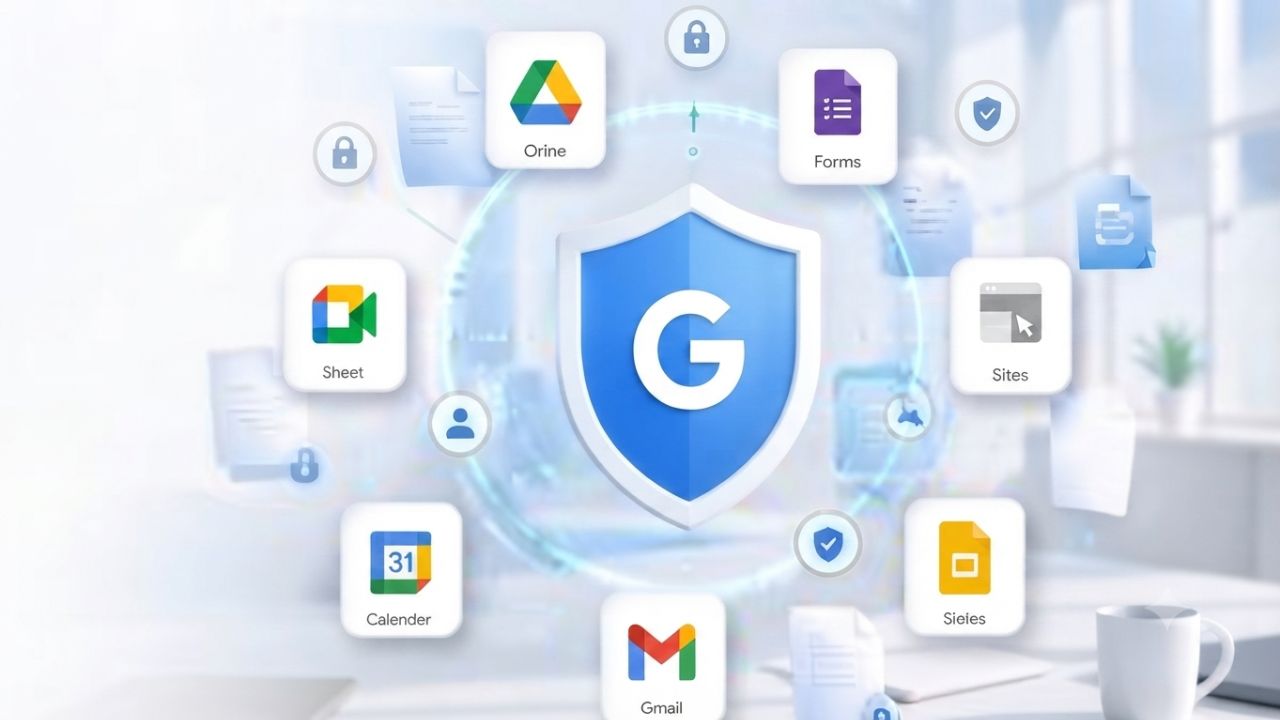
Google Workspace ships with strong defaults, but real protection depends on how an admin configures it. Multi-factor enforcement, phishing defense, data loss prevention, Vault retention, context-aware access, encryption, and the compliance frameworks IT teams are asked to prove.
Try Google Workspace Today →
Why Google Workspace Security Depends on Configuration, Not Just Infrastructure
Google secures the data centers and network layer; your admin console determines whether that infrastructure protection actually reaches your users. The gap between “Google is secure” and “our organization is secure” is entirely a configuration question, and it’s where most incidents originate.
The Shared Responsibility Model in Google Workspace
Google Workspace security operates on a shared-responsibility model: Google secures the physical infrastructure, network, and underlying platform, while the customer’s admin team is responsible for identity policy, sharing settings, device rules, and the movement of sensitive data through Gmail, Drive, and Chat. A breach involving a Workspace account is rarely a failure of Google’s data centers; it’s a misconfigured sharing default, an unenforced login policy, or a third-party app granted broad Drive access.
This distinction matters because vendor security certifications, however strong, don’t automatically translate into organizational safety. A company can point to Google’s infrastructure guarantees while still leaving external Drive sharing wide open, running without enforced two-step verification, or allowing any OAuth app to request full mailbox access. Auditors and attackers both understand this, which is why security reviews increasingly focus on admin console settings rather than platform-level assurances. Treating Workspace security as “handled by Google” is the single most common blind spot IT teams carry into an audit or an incident.
Common Gaps Between Default Settings and Real Protection
Google’s out-of-the-box defaults favor ease of adoption over maximum restriction, which makes sense for a self-serve signup flow but leaves gaps for organizations handling sensitive data. New Drive files, for example, default to sharing settings that are more permissive than most compliance frameworks allow, and two-step verification is optional rather than enforced unless an admin turns it on domain-wide. Left untouched, these defaults accumulate risk quietly over months.
The organizations that get burned are rarely the ones ignoring security entirely; they’re the ones who set up a handful of policies at onboarding and never revisited them as the team grew, new integrations were added, or new employees joined without security training. A quarterly configuration review, covering sign-in policy, sharing defaults, third-party app access, and DLP rule coverage, closes most of the gap between what Google Workspace is capable of and what an organization is actually protected by on a day-to-day basis.
 Enforcing Multi-Factor Authentication Across Every Account
 Enforcing Multi-Factor Authentication Across Every Account
Weak or absent multi-factor authentication remains the single biggest cause of Workspace account compromise. This section covers the available authentication methods, how they differ in strength, and how to roll out enforcement without disrupting access for legitimate users mid-rollout.
Choosing Between Security Keys, App-Based 2SV, and SMS
Two-Step Verification (2SV) in Google Workspace is not a single setting; admins choose between security keys (physical FIDO2/U2F devices), the Google Authenticator or Google Prompt app-based methods, and SMS or voice codes, each offering a materially different level of protection. Security keys are the strongest option because they resist phishing at the protocol level: even if a user is tricked into entering credentials on a fake login page, a physical key won’t authenticate against the wrong domain. App-based prompts are close behind and far easier to deploy at scale than hardware keys.
SMS and voice codes should be treated as a fallback rather than a primary method, since SIM-swapping and interception attacks have made phone-based verification the weakest link in most MFA stacks. Google’s own security teams have documented cases of zero account takeovers across organizations that moved administrators and high-risk users to security keys, a result that’s difficult to replicate with SMS-only enforcement. For most mid-sized organizations, the practical path is security keys for admins and finance roles, app-based prompts for the general workforce, and SMS disabled entirely once adoption is stable.
Rolling Out Enforcement Without Locking Out Your Team
Enforcing 2SV domain-wide without a transition plan is the fastest way to generate a flood of locked-out users and helpdesk tickets. The Admin Console lets admins set enforcement by organizational unit, enabling a phased rollout starting with IT and finance, then expanding to management. The general workforce is both possible and advisable. Each phase should include an enrollment grace period during which users are prompted but not yet blocked, giving people time to register a method before enforcement becomes mandatory.
Backup codes and a documented recovery process matter just as much as the enforcement policy itself, since lost phones and replaced devices are inevitable at scale. Admins should also audit super-admin accounts separately from the general enforcement policy. These accounts carry the highest blast radius if compromised. They should require security keys specifically, not just any 2SV method, and limit the headcount of those who hold super-admin rights in the first place. Reviewing the admin role list each quarter, alongside the 2SV enforcement report in the Admin Console, keeps this from drifting silently.
Multi-Factor Authentication Method Comparison
| MFA Method | Phishing Resistance | User Friction | Best Suited For |
|---|---|---|---|
| Security key (FIDO2/U2F) | Highest | Low once issued; requires a physical device | Admins, finance, executives, Advanced Protection Program enrollees |
| App-based prompt / Authenticator | High | Low | General workforce rollout at scale |
| SMS/voice code | Lowest | Low | Temporary fallback only, not a primary method |
| Backup codes | N/A (recovery only) | Requires secure storage by the user | Device loss or replacement scenarios |
Stopping Phishing and Malware Before They Reach Inboxes
Phishing remains the entry point for the vast majority of account compromises, making Gmail’s layered detection and the optional Security Sandbox two of the highest-leverage protections an admin can enable. This section covers how the default filtering works and where to add reinforcement for high-risk users.
How Gmail’s Layered Threat Detection Works
Gmail’s spam and phishing filtering runs multiple detection layers simultaneously: reputation-based filtering that scores sending domains and IP addresses, content analysis that flags known phishing patterns and spoofed sender names, and machine-learning models trained on billions of messages that catch novel attack patterns before signature-based tools would. This combination is why most obvious phishing attempts never reach an inbox at all, and why the messages that do get through tend to be more sophisticated, targeted attempts rather than mass spam campaigns.
Admins add meaningful reinforcement on top of these defaults by enabling enhanced pre-delivery message scanning, turning on warnings for external senders and unauthenticated domains, and enforcing SPF, DKIM, and DMARC on the organization’s own sending domain so attackers can’t easily spoof internal addresses. None of these settings are exotic; they’re available across paid plans, but they require deliberate configuration rather than arriving pre-enabled, and DMARC enforcement in particular is frequently left at a monitoring-only policy long after it should have moved to active rejection.
Security Sandbox and Advanced Phishing Protections for High-Risk Users
 Security Sandbox and Advanced Phishing Protections for High-Risk Users
Security Sandbox automatically detonates suspicious attachments in an isolated environment before delivery, catching malware that static scanning would miss because the malicious behavior only triggers on execution. This is particularly valuable against document-based malware and macro-driven attacks, which remain a common vector precisely because they evade simple signature matching. Enabling Sandbox adds a small delay to message delivery for flagged attachments, which is a reasonable trade-off for the risk reduction for any account handling financial or client data.
For users identified as high-risk, executives, finance staff, and anyone with wire-transfer authority, Google’s Advanced Protection Program adds a further layer: mandatory security-key-based sign-in, stricter file scanning for downloads, and blocked access from unverified third-party apps. This is a narrower, higher-friction protection tier than standard 2SV and is intentionally designed for the small subset of accounts where a successful phishing attempt would cause outsized damage. Explicitly identifying that subset, rather than assuming general 2SV enforcement adequately covers them, is a step many mid-sized organizations skip until after an incident.
Data Loss Prevention Rules That Actually Stop Leaks
Native DLP in Google Workspace lets admins detect and block sensitive data, credit card numbers, national ID formats, and custom-defined patterns before it leaves the organization through Gmail or Drive. This section covers how to build effective rules and where native detection’s limits sit.
Building DLP Rules for Gmail and Drive
DLP rules are built from predefined detectors (credit card numbers, social security numbers, and similar regulated data types) or custom regular-expression patterns tailored to an organization’s own sensitive formats, such as internal project codenames or specific document identifiers. Rules can be scoped to Gmail outbound mail, Drive sharing actions, or both, and each rule specifies both a detection condition and an enforcement action: warn the user, block the action outright, or quarantine the message for admin review.
The most effective deployments start narrow and specific rather than broad and generic: a rule targeting outbound emails containing payment-card patterns to external domains catches a real, common risk without generating so many false positives that users start ignoring warnings. Google recommends piloting new DLP rules against a single department, typically finance or HR, before rolling them out organization-wide, since overly aggressive pattern matching on a first attempt is a common cause of DLP programs losing internal credibility before they’ve had a chance to prove their value.
Where Native DLP Stops and Manual Review Still Matters
Native Drive and Gmail DLP are genuinely useful but bounded: real-time blocking of file-sharing actions and the most granular enforcement controls are available on Enterprise-tier plans, and native detection only covers activity happening inside Gmail and Drive; it has no visibility into data pasted into third-party SaaS tools, browser-based AI assistants, or personal cloud storage accessed from a managed device. Organizations handling regulated data across many external tools typically layer a dedicated DSPM or CASB product on top of native DLP rather than treating Workspace’s own rules as a complete data-loss program.
Context-aware access conditions can be attached directly to DLP rules, meaning a rule can require both a data-pattern match and a device or location condition before it fires, for example, blocking a file download only when the request comes from an unmanaged device or an unrecognized IP range. This combination gets meaningfully closer to real risk-based enforcement than pattern matching alone. However, it’s worth noting that DLP and context-aware access both depend on background services that can be briefly interrupted, during which enforcement pauses and the interruption is logged rather than silently allowing access.
Google Vault for Retention, Legal Hold, and eDiscovery
Vault handles the retention, search, and legal-hold aspects of Workspace data governance, distinct from backup and disaster recovery, which are covered by data-recovery tooling elsewhere in this hub. This section covers setting a retention policy and running a hold without disrupting daily operations.
Setting Retention Rules by Organizational Unit
Vault retention rules are set at the domain or organizational-unit level and apply across Gmail, Drive, Chat, Calendar, and Meet recordings, allowing admins to enforce different retention periods for different teams based on regulatory requirements. A finance or legal team might require records to be retained for seven to ten years, while general staff communications follow a much shorter default period. Rules can specify a minimum retention period, a maximum retention period, or both, and Vault applies them automatically going forward without requiring manual intervention from end users.
Vault access is governed separately from general Workspace permissions: only assigned Vault administrators can search, export, or place holds on data, and every search and export action is logged for accountability, which is directly relevant to chain-of-custody requirements in legal and compliance contexts. Vault is included starting at the Business Plus tier and in Enterprise editions; it is not available on Business Starter or Business Standard. This is the single most common plan-selection mistake organizations with compliance obligations make: choosing a lower tier based solely on price.
Running a Legal Hold Without Disrupting Daily Work
A legal hold in Vault preserves a custodian’s data, including items they would otherwise delete, without notifying the user or changing how their account behaves day-to-day, which is exactly the point: holds are meant to be invisible to the person under hold, so normal work continues while the data is preserved. Admins apply holds by organizational unit, specific accounts, or a defined date range and content match, and holds persist independently of the account’s own retention policy or even account suspension.
Well-run Vault programs pair holds with a clear internal process for who can request one, who approves it, and how long it remains active, since holds left in place indefinitely quietly inflate storage and complicate future eDiscovery searches by preserving irrelevant data. Offboarding is the other place Vault discipline matters: transferring Drive ownership or applying an archived-user license before deleting an account prevents critical data from disappearing outright, since account deletion, unlike suspension, is permanent and Vault cannot recover data that was never preserved in the first place.
Get Google Workspace Security Configured Right the First Time
Vault retention rules, legal holds, and organizational-unit policies only protect your organization if they’re scoped correctly from day one. A misconfigured hold or a Vault license applied to the wrong tier can leave real compliance gaps that surface only during an audit or a legal request. Hiya Digital, as an Authorized Reseller and Implementation & Migration Partner for Google Workspace, configures retention policy, Vault licensing, and legal-hold workflows against your organization’s actual regulatory obligations rather than a generic template, and provides ongoing account management so settings don’t drift as your team and compliance requirements change.
Context-Aware Access and Zero Trust Sign-In Policies
Context-Aware Access lets admins restrict which apps and data a user can reach based on device status, location, and IP address rather than identity alone, forming the core of a zero-trust approach inside Workspace. This section covers defining access levels and combining them with DLP for document-level control.
Defining Access Levels by Device, Location, and IP
An access level in Context-Aware Access is a defined set of conditions, device encryption status, whether the device is company-managed, geographic location, or IP address range, that must be satisfied before a user can reach a specific app or data set. A common configuration restricts access to Drive and Gmail from managed, encrypted devices only, meaning a stolen or unmanaged personal laptop can’t authenticate even with correct credentials, closing a gap that password and even 2SV policy alone can’t address.
Access levels can be layered: a baseline level might require any recognized corporate IP range for general app access. In contrast, a stricter level requires both a managed device and a specific geographic region for access to finance or HR systems. This granularity is what separates context-aware access from a simple VPN requirement: the policy adapts to what’s actually being accessed rather than applying a single blanket rule to the entire domain. Chrome Incognito sign-ins can also be blocked outright through Context-Aware Access enforcement at the point of authentication, closing a specific evasion path some users rely on unintentionally.
Combining Context-Aware Access with DLP for Document-Level Control
Context-Aware Access conditions can be attached directly to individual DLP rules, meaning enforcement isn’t limited to blocking entire app access; it can govern specific actions, such as downloading, printing, or copying a Drive file, based on the requesting device’s context. A rule can, for instance, allow viewing a sensitive document from any device but block downloading or printing unless the request comes from a managed, encrypted machine on a recognized network.
This document-level enforcement represents a meaningful step up from application-level restriction, since most real data-loss scenarios involve an authorized user taking an unauthorized action, a legitimate employee downloading a client list to a personal device, rather than an unauthorized user gaining access outright. It’s worth noting for planning purposes that combining DLP with Context-Aware Access rules for Chrome-level enforcement requires Chrome Enterprise Premium alongside the Workspace license, which is a separate licensing consideration organizations should budget for if document-level policy is a priority rather than an afterthought.
Encryption in Transit and at Rest, Explained
 Encryption in Transit and at Rest, Explained
Encryption is one of the areas of Workspace security that’s largely automatic. Still, the distinction between what’s covered by default and what requires an add-on or a separate purchase decision is a frequent source of confusion for IT teams building a compliance case.
What’s Encrypted by Default and What Requires Setup
All customer data in Google Workspace is encrypted at rest by default across Google’s storage systems, and data moving between Google’s data centers, as well as between users and Google’s servers, is encrypted in transit using TLS, with no separate configuration required to enable either protection; it applies uniformly regardless of plan tier. This baseline is one of the genuine advantages of a hyperscale cloud provider: encryption key management, rotation, and the underlying cryptographic implementation are handled at a level of rigor that would be difficult and costly for most individual organizations to replicate on their own infrastructure.
Where configuration does matter is in how encryption interacts with third-party integrations and email sent to external domains: TLS in transit protects mail as it moves between mail servers, but if a receiving organization’s mail server doesn’t support TLS, that leg of the journey can fall back to an unencrypted connection. Admins can enforce a policy requiring TLS for outbound mail to specific domains, which will bounce or flag messages rather than silently sending them unencrypted, a setting worth reviewing for any organization exchanging regulated data with external partners regularly.
When Client-Side Encryption and S/MIME Are Worth the Overhead
Client-side encryption and S/MIME address a narrower, higher-assurance use case: organizations that need to hold their own encryption keys independent of Google, or that operate under regulatory regimes requiring end-to-end message encryption with sender verification. S/MIME, available on the Enterprise tier and also usable on lower tiers, adds digital signatures and encryption to email that persist even if the message is forwarded outside the organization, which native Gmail encryption doesn’t guarantee on its own.
Both features add real operational overhead, including certificate management for S/MIME and key-access workflows for client-side encryption, which can complicate search, Vault eDiscovery, and even basic troubleshooting if not carefully planned. The organizations that get genuine value from these features are typically in government, defense, financial services, or healthcare, where the added assurance offsets the administrative cost; for most other organizations, the default in-transit and at-rest encryption combined with enforced TLS policy on outbound mail covers the realistic threat model without the added complexity.
ISO 27001, SOC 2, and the Compliance Frameworks That Matter
Google Workspace carries a substantial set of third-party certifications, but understanding what each one actually attests to and what it doesn’t is essential before citing them in a customer contract or an internal audit response.
What Google’s Certifications Actually Cover
Google has achieved ISO/IEC 27001 certification, covering the systems, applications, and processes underlying Google Workspace and Google Cloud, along with related certifications including ISO/IEC 27017 for cloud-specific security controls and ISO/IEC 27018 for protection of personally identifiable information in public cloud services. Google Workspace also has SOC 2 and SOC 3 reports issued by independent third-party auditors, attesting to controls across the AICPA-defined Trust Services Criteria for Security, Availability, Confidentiality, and Privacy. SOC 2 Type 2 reports assess control effectiveness over an audit period rather than at a single point in time.
These certifications are genuinely meaningful; they represent independent, recurring audits of Google’s own infrastructure, access controls, and operational practices, and organizations can request the underlying reports through Google’s Compliance Reports Manager for their own due diligence files. What they don’t cover is the customer’s own configuration: an auditor evaluating an organization’s SOC 2 or ISO 27001 posture will point to Google’s certifications for the infrastructure layer, then separately test the organization’s own Admin Console settings, since that’s the layer Google’s certification doesn’t and can’t attest to.
Google Workspace Security Feature Comparison by Plan
| Security Feature | Business Starter | Business Standard | Business Plus | Enterprise |
|---|---|---|---|---|
| 2-Step Verification enforcement | Included | Included | Included | Included |
| Google Vault (retention, eDiscovery, legal hold) | Not included | Not included | Included | Included |
| Data Loss Prevention (Drive/Gmail) | Not included | Not included | Basic rules | Full rules with real-time blocking |
| Context-Aware Access | Not included | Not included | Not included | Included |
| Advanced endpoint management | Not included | Not included | Included | Included |
| S/MIME encryption | Not included | Not included | Not included | Included |
| Security Investigation Tool | Not included | Not included | Not included | Enterprise Plus only |
Why Your Admin Console Settings Are What Auditors Test
An organization pursuing its own SOC 2 or ISO 27001 certification will find that Google’s Workspace-level attestations satisfy the infrastructure and vendor-risk portion of the audit, but the actual control testing an auditor performs focuses on the customer’s Admin Console configuration: whether 2SV is enforced, whether super-admin accounts are minimized and reviewed, whether risky third-party OAuth apps with broad Gmail or Drive scopes have been restricted, and whether DLP rules are configured and verified actually to fire rather than sit dormant.
This is where a documented, repeatable review process pays off directly; an auditor wants to see evidence that these settings are checked on a defined cadence, not just that they were configured once at initial setup. Maintaining a simple internal record of quarterly Admin Console reviews, 2SV enforcement reports, and OAuth app audits turns what would otherwise be a scramble before an audit into a routine evidence-gathering exercise, and it’s the single highest-leverage habit an IT team can build around Workspace’s compliance posture. Backup and disaster-recovery evidence, by contrast, falls under a separate data-recovery review process.
Endpoint and Device Management for a Distributed Workforce
Device management determines whether Context-Aware Access, DLP, and encryption policies can be consistently enforced, since most of those controls depend on knowing a device’s security status in the first place.
Mobile Device Management Tiers and What Each Unlocks
Basic mobile device management, available across Workspace plans, covers fundamentals like requiring a screen lock, enforcing device encryption, and remotely wiping a lost or stolen device’s corporate data. Advanced endpoint management, included starting at Business Plus and expanded further in Enterprise editions, adds granular application management, more detailed compliance reporting, and the ability to enforce security policies differently based on whether a device is company-owned or personally owned, which matters directly for any organization running a mixed-device environment.
The practical gap between basic and advanced management shows up most clearly during incident response: basic management can wipe a device, but advanced management can identify exactly which corporate apps and data were present on that device before the wipe, supporting a much more precise breach assessment. Organizations in regulated industries that handle client or patient data on mobile devices typically find the jump from basic to advanced management worth the tier upgrade, specifically for this level of reporting depth, regardless of any other Business Plus features.
Handling BYOD Without Losing Control of Company Data
Bring-your-own-device policies create a genuine tension between employee privacy expectations and organizational security requirements, and Workspace addresses this by separating a managed work profile from the rest of a personal device rather than managing the entire device outright. On Android and iOS, this containerization means that corporate data, apps, and security policies apply only within the work profile. In contrast, personal photos, apps, and messages remain entirely outside admin visibility and control.
This separation is what makes BYOD policy defensible to employees and legally sound for the organization: a remote wipe triggered by an offboarding or a lost device clears only the work profile, leaving personal data untouched, and DLP or Context-Aware Access rules can still apply to the managed profile without the organization needing visibility into the rest of the device. The remaining admin responsibility is to ensure that BYOD enrollment is mandatory before a personal device can access Gmail or Drive. An unenrolled personal phone with mail app access configured outside the managed profile bypasses these controls entirely, which is a gap worth checking directly rather than assuming enrollment policy alone prevents it.
Building a Security Review Cadence That Doesn’t Slip
Every control covered in this post degrades in effectiveness without a routine review process, settings drift, new employees onboard outside established patterns, and third-party app permissions accumulate quietly over time.
A Quarterly Checklist for Admins
 A Quarterly Checklist for Admins
A workable quarterly review covers a defined, short list rather than attempting to re-audit every setting each time: 2SV enforcement status and any accounts still unenrolled, the current super-admin roster checked against who actually needs that access level, a scan of third-party OAuth apps with broad Gmail or Drive scopes for anything that shouldn’t have that level of access anymore, and a spot-check that active DLP rules are still firing correctly rather than silently failing due to a scope change elsewhere in the organization.
Sharing settings deserve their own line item, since Drive’s external-sharing defaults are among the most common sources of unintentional exposure. A quarterly check of “anyone with the link” file counts and external domain-sharing activity catches accumulation that individual users rarely notice. Documenting each quarter’s findings, even briefly, is what turns this from a best-practice suggestion into usable audit evidence the next time a compliance review or customer security questionnaire arrives.
Reading Security Health Recommendations Without Alert Fatigue
Google Workspace’s built-in Security Health recommendations surface specific, actionable gaps directly in the Admin Console, including accounts without 2SV, risky sharing patterns, and low DLP rule coverage. However, the volume of recommendations across a growing organization can quickly become noise if every item is treated with equal urgency. The more effective approach prioritizes recommendations by actual risk exposure: an unenforced 2SV gap on a finance account outranks a minor sharing-setting suggestion on a low-sensitivity internal folder, even though the console may surface both with similar visual weight.
Assigning specific recommendations to the quarterly review checklist, rather than reacting to each one individually as it appears, keeps the security team focused on meaningful risk reduction instead of chasing every flagged item to zero. Admin Console navigation itself, where these recommendations live and how to drill into them, is covered in more general setup terms elsewhere in this hub; the point here is treating the recommendations as structured input to a recurring review rather than a one-time cleanup task.
Frequently Asked Questions
Is Google Workspace secure?
Google Workspace is secure at the infrastructure level, backed by ISO 27001, ISO 27017, ISO 27018, and SOC 2/SOC 3 certifications covering data centers, network security, and encryption in transit and at rest. However, the security of a specific organization’s Workspace deployment depends heavily on admin configuration, whether 2-Step Verification is enforced, whether Drive sharing defaults are tightened, whether DLP rules are active, and whether third-party app access is restricted. Google provides the secure foundation; the organization is responsible for the settings layered on top of it. Most security incidents involving Workspace accounts trace back to configuration gaps rather than any failure in Google’s underlying platform, which is why a documented, recurring admin review matters as much as the platform’s own certifications.
What is the difference between 2-Step Verification and the Advanced Protection Program?
2-Step Verification is the general authentication requirement available to every Workspace user, supporting security keys, app-based prompts, or SMS codes. The Advanced Protection Program is a stricter, opt-in tier designed for high-risk accounts, executives, finance staff, and anyone with wire authority that mandates security-key-based sign-in, specifically blocks access from unverified third-party apps, and adds stricter file scanning on downloads. Standard 2SV enforcement is appropriate domain-wide; Advanced Protection is meant for a narrower set of accounts where a successful compromise would cause disproportionate damage, and enrollment must be configured deliberately rather than assumed to be covered by general 2SV policy.
Does Google Workspace support single sign-on (SSO)?
Yes, Google Workspace supports SSO both as an identity provider for third-party applications and as a service provider accepting SSO from an external identity provider like Okta or Azure AD. This lets organizations centralize authentication policy, including MFA enforcement, password requirements, and session controls, in one place rather than managing separate login policies per application. SSO is particularly valuable for organizations with dozens of connected SaaS tools, since it removes the need for separate passwords for each service and gives IT a single point to disable access during offboarding, closing a common gap in which an ex-employee retains access to a connected app after their core Workspace account is suspended.
Can Google Workspace DLP rules block file sharing outside my company domain?
Yes. DLP rules can be configured to detect sensitive data patterns, payment card numbers, national ID formats, or custom-defined patterns, and block or quarantine a Drive sharing action or Gmail send when the recipient is outside the organization’s domain. Rules can combine data-pattern detection with sharing-scope conditions, allowing internal sharing of the same content while blocking external sharing outright. Real-time blocking enforcement is strongest on Enterprise-tier plans; lower tiers with DLP access may support detection and warning but with less granular blocking control, which is worth confirming against your specific plan before assuming full enforcement is active.
How long does Google Vault retain deleted emails by default?
Without a Vault retention rule in place, Google Workspace’s standard Gmail retention applies, which is considerably shorter than what most compliance frameworks require for regulated data. Vault retention rules override this default at the organizational-unit level, letting admins set custom minimum and maximum retention periods, commonly five to ten years for finance or legal teams under regulatory obligation, and shorter periods for general staff. Retention rules apply automatically once configured; they do not retroactively recover data deleted before the rule was created. This is why setting a retention policy early, rather than after an incident arises, is the safer approach.
What happens to Context-Aware Access if a background service is interrupted?
Context-Aware Access and DLP rules both depend on background enforcement services. If one of these services is briefly interrupted, enforcement does not silently fail open; the interruption itself is logged as an event in the Rules log and Chrome log, giving admins visibility into any gap in coverage. For device-based access conditions, the strictest applicable outcome is enforced during ambiguity; for non-device attributes like IP address or region, there’s no behavioral change during an interruption. This logging behavior specifically allows admins to confirm continuous enforcement for audit purposes, rather than simply assuming the policy was in effect throughout the period in question.
Is S/MIME encryption available on all Google Workspace plans?
No. Full S/MIME encryption with hosted key management is included on the Enterprise tier. However, hosted S/MIME is also available as a purchasable option on some lower tiers, depending on the current plan structure. S/MIME adds digital signatures and encryption that travel with a message even when forwarded outside the organization, which provides a stronger guarantee than Gmail’s default in-transit encryption alone. Organizations considering S/MIME should weigh the certificate-management overhead against the actual regulatory or contractual requirement driving the request; for most businesses without a specific mandate, enforced TLS on outbound mail and default at-rest encryption cover the realistic risk without the added operational complexity S/MIME introduces.
Does Google Workspace protect against zero-day phishing attacks?
Gmail’s layered detection, reputation scoring, content analysis, and machine-learning models trained on billions of messages catch a meaningful share of novel phishing patterns before they’re formally classified as known threats, which is a genuine advantage of scale that smaller, signature-based filters can’t match. Security Sandbox adds further protection by detonating suspicious attachments in an isolated environment to catch malware whose malicious behavior only appears on execution, which static scanning would miss entirely. No email security system eliminates zero-day risk, which is why enforced MFA, specifically security keys for high-risk accounts, remains the more reliable backstop against a phishing attempt that does get through.
What security certifications does Google Workspace hold?
Google Workspace holds ISO/IEC 27001 for information security management, ISO/IEC 27017 for cloud-specific security controls, ISO/IEC 27018 for protection of personally identifiable information in public cloud services, and ISO/IEC 27701 for privacy information management. It also maintains SOC 2 and SOC 3 reports audited against the AICPA’s Trust Services Criteria for security, availability, confidentiality, and privacy, along with SOC 1 Type 2 reports available to customers under NDA. These certifications cover Google’s infrastructure and operational controls; organizations pursuing their own certification under these same frameworks will still need to demonstrate their own Admin Console configuration separately, since Google’s certification doesn’t extend to customer-side settings.
Can small businesses on Business Starter meet basic security compliance requirements?
Business Starter includes core protections, enforced 2-Step Verification, Gmail’s layered phishing and malware detection, and default encryption in transit and at rest, which covers a meaningful baseline for small organizations without heavy regulatory obligations. What Business Starter lacks is Google Vault, Data Loss Prevention, and Context-Aware Access, all of which are available in Business Plus or Enterprise. A small business handling routine, non-regulated data can often operate reasonably securely on Starter with disciplined 2SV enforcement and sharing-setting hygiene. Still, any organization with a legal hold requirement, an industry compliance mandate, or a sensitive client data obligation should plan for at least Business Plus, rather than assuming Starter’s baseline protections are sufficient.
Glossary
2-Step Verification (2SV) / MFA: An authentication method requiring a second factor beyond a password, such as a security key, app-based prompt, or SMS code, before granting account access.
Data Loss Prevention (DLP): Rules that detect sensitive data patterns in Gmail and Drive and take an action, warn, block, or quarantine, before that data leaves the organization.
Google Vault: Google Workspace’s retention, legal hold, and eDiscovery tool, covering Gmail, Drive, Chat, Calendar, and Meet recordings, available starting at Business Plus.
Context-Aware Access: A policy framework that restricts app and data access based on device security status, location, and IP address rather than identity alone.
S/MIME: An email encryption and digital-signature standard that protects message content even when forwarded outside the sending organization.
ISO/IEC 27001: An international standard for information security management systems, certifying the processes and controls an organization uses to manage security risk.
SOC 2: An AICPA audit framework evaluating a service organization’s controls against Trust Services Criteria, including security, availability, confidentiality, and privacy.
Zero Trust: A security model that verifies every access request based on context and device status rather than assuming trust based on network location alone.
eDiscovery: The process of searching, collecting, and producing electronic data, typically for legal proceedings or regulatory investigations.
Security Sandbox: A Gmail feature that detonates suspicious email attachments in an isolated environment to detect malware before delivery.
Endpoint management: Admin controls governing device security requirements, remote wipe capability, and app-level policy on devices accessing Workspace data.
TLS (Transport Layer Security): The encryption protocol securing data in transit between mail servers and between users and Google’s servers.
The Hiya Digital Team is a collective of IT infrastructure specialist engineers, certified systems administrators, and cloud architects driven by a singular mission: building corporate communication systems that just work. As an Authorized Google Partner, the team handles complex global hosting deployments, secure email migrations, and advanced data compliance architectures for businesses across 40+ countries.
With over two decades of technical experience spanning custom premium business email configurations, OX AppSuite deployments, and enterprise-level network security, the Hiya Digital Team writes to demystify domain infrastructure. Their content focuses on actionable technical strategies, anti-phishing security protocols, and seamless cloud collaboration setup, all backed by real-world deployment experience and 24/7 technical support accountability.