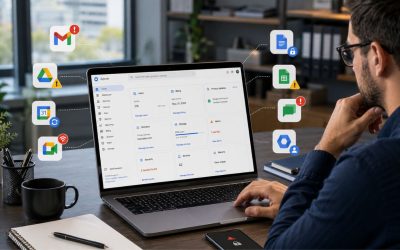
The Google Workspace Admin Console brings together the tools for managing users, permissions, applications, devices, and security in a single location. Understanding how Organizational Units, Groups, admin roles, Directory, Apps, and Security work individually and how they interact helps create a well-structured environment that is easier to manage, secure, and scale as an organization grows.
Elevate Your Brand with Google Workspace →
The Admin Console’s Core Structure: Dashboard, Menu, and Data Hierarchy
The Admin Console is where every Google Workspace setting, user record, and license lives, organized into a left-hand menu that separates people, apps, devices, and security into distinct areas. Before touching any individual setting, it helps to understand how these areas relate to each other and where changes actually take effect.
 Home Dashboard Surfaces Alerts Before You Go Looking
 Home Dashboard Surfaces Alerts Before You Go Looking
The Home dashboard is the first screen a Super Admin sees after signing in, and it’s built to surface what needs attention rather than list every available setting. It typically shows a security health score, recent alerts, storage consumption trends, and a summary of app usage across the organization. The intent is triage: an admin managing dozens of settings shouldn’t have to click through 9 menu sections to notice a spike in suspicious sign-in attempts or a sudden jump in shared-drive storage usage.
Widgets on this dashboard are configurable, so two admins at the same company can see different priority views depending on their role. A Super Admin might keep security alerts and billing status pinned front and center, while a Groups Admin’s dashboard leans toward membership changes and pending group requests. This isn’t cosmetic; it reflects the console’s underlying philosophy that different admin roles need different first impressions of the same account, a distinction covered in more depth further down this page.
The Left-Hand Menu Maps to Nine Functional Areas
Google groups the console’s functionality into roughly nine persistent sections: Directory, Devices, Apps, Security, Reports, Billing, Account, Rules, and Support. Each maps to a distinct category of control rather than overlapping freely, which is intentional; it’s what lets Google assign granular admin roles later without those roles bleeding into each other’s territory. A Help Desk Admin, for instance, can be scoped to only the Directory and parts of Devices without ever seeing Billing.
This structure also determines where a given change physically lives. Turning off a Google service for one department happens in Apps; restricting where that department’s devices can sync happens in Devices; and deciding who is even allowed to make either change happens in Account under admin roles. New admins often hunt for a setting in the wrong section simply because the console is split by object type (user, device, app, policy) rather than by task, which feels less intuitive at first but scales better as an organization grows beyond a handful of employees.
| Console Section | Primary Object It Controls | Typically Managed By |
|---|---|---|
| Directory | Users, enrolled devices, bookable resources | User Management Admin, Help Desk Admin |
| Apps | Core services, additional services, third-party app approval | Services Admin |
| Security | Authentication, DLP, Vault, context-aware access, Investigation Tool | Super Admin, dedicated Security Admin |
| Devices | Mobile enrollment, ChromeOS, browser policy | Endpoint/IT Admin |
| Reports | Aggregate usage and security trend data | Any role with Reports view access |
| Rules | Automated triggers and actions across console events | Super Admin, Security Admin |
| Billing | Subscriptions, license counts, and payment methods | Super Admin, Billing-scoped custom role |
Organizational Units Define Who Gets Which Settings
Organizational Units, or OUs, are the console’s primary mechanism for applying different rules to different parts of the company without configuring each user individually. Understanding how they inherit settings is the single most important concept for using the rest of the console correctly.
OUs Inherit Settings Top-Down Through a Tree
An Organizational Unit is a container that groups users and sometimes devices so that a policy applied at one level cascades down to every child unit beneath it, unless that child has its own override. The top-level OU represents the entire domain; every other OU is a branch or sub-branch underneath it. When an admin sets a policy, say, disabling a specific Chat feature, at the root, every OU inherits that setting automatically until someone explicitly overrides it at a lower branch.
This inheritance model is what makes OUs powerful for segmenting policy by department, region, or employment type, but it’s also where misconfiguration tends to happen. A common failure pattern: an admin sets a restrictive policy on a sub-OU expecting it to apply only to that team, without realizing a policy already set higher up the tree is silently overriding it because the sub-OU’s setting was left at “inherit” rather than explicitly changed. The console does flag inherited versus overridden values visually, but it’s easy to miss on a quick pass.
Common OU Structures for Different Company Sizes
Small organizations with roughly 50 people or fewer often get by with a flat structure, one OU for the whole company, maybe a second for contractors who need lighter access than full-time staff. There’s little practical benefit to deeper nesting at this scale, and the maintenance overhead of a complex tree outweighs any policy precision it buys. The main reason a small company would add a second-level OU at all is to isolate a specific group, such as a finance team handling sensitive documents, from the default policy set applied to everyone else.
Mid-sized organizations, roughly 50 to a few hundred users, tend to move toward department- or function-based OUs, Sales, Engineering, Finance, Support, because different departments genuinely need different app access and security postures. Engineering might need broader access to APIs and developer tools; Finance might need tighter data-loss prevention and mandatory two-factor authentication enforcement. This is also the point where many organizations create a dedicated OU for service accounts and shared mailboxes, since those don’t behave like ordinary human users and shouldn’t inherit human-facing policies by default.
Groups Handle Collaboration, Not Policy Inheritance
Groups are frequently confused with Organizational Units because both involve grouping users, but they serve fundamentally different purposes in the console and shouldn’t be used interchangeably.
Groups Distribute Email and Access, Not Settings
A Google Group is fundamentally a mailing list and access-sharing mechanism, a single address that forwards to its members, and a single entity that can be granted access to a Drive folder, a Calendar, or a piece of software without adding every individual member one by one. Groups can be nested inside other groups, members can belong to multiple groups simultaneously, and a user’s group membership has no bearing whatsoever on which admin-configured policies apply to their account.
This is the core distinction admins need to internalize: OUs answer “what settings and policies does this user’s account operate under.” In contrast, Groups answer “what shared resources and communications does this user have access to.” A marketing employee could belong to five different Groups, one for the whole marketing team, one for a specific campaign, one for an internal newsletter, one shared with an external agency, while sitting in exactly one Organizational Unit the entire time. None of those group memberships change their Meet recording permissions, password policy, or app access; only their OU placement does.
Google Groups for Business vs. Security Groups
Within the Groups interface, Google distinguishes between groups created for everyday collaboration, team distribution lists, discussion forums, shared calendars, and groups created specifically to serve as an access-control mechanism for third-party apps, APIs, or Google Cloud resources. Functionally, they’re the same underlying object, but the intended use shifts how they should be named, governed, and audited.
Collaboration-oriented groups tend to be self-service: many organizations allow any employee to create a group for a project or committee without admin approval, since the downside of an unused group is minimal. Access-control groups, by contrast, deserve tighter governance because membership in one might grant access to a production system, a shared drive containing sensitive contracts, or an admin-adjacent tool. Treating both categories identically, letting anyone create and populate any group freely, is a common source of access sprawl that later surfaces during a security review as “why does this contractor’s group have access to the finance drive?”
Admin Roles Assign Precise Control Without Full Access
Every meaningful action inside the console requires an admin role that grants permission for it, and understanding the built-in roles, plus when to build a custom one, is what keeps day-to-day administration from concentrating entirely in one person’s hands.
Super Admin Holds Every Privilege and Every Risk
The Super Admin role has unrestricted access to every setting in the console, every user’s account, and every piece of billing information, with no scoping possible. This is by design the account’s highest-trust role, and Google’s own guidance and most independent implementation practice converge on the same recommendation: assign it to as few people as operationally necessary, typically two to three, so there’s redundancy without the account depending on a single person while also avoiding the audit complexity of a dozen people holding god-mode access.
Because Super Admin can do anything literally, including removing other admins’ access, changing security policies, or exporting user data, it’s also the role most targeted in account-takeover attempts, and most compliance frameworks specifically ask an organization to demonstrate how many Super Admins exist and why. A common finding in security reviews is a company that assigned Super Admin to five or six people over the years, mostly out of convenience during onboarding, and never revisited the list once those people changed roles or left specific projects.
| Built-In Role | Scope of Access | Best-Fit Assignee |
|---|---|---|
| Super Admin | Unrestricted, every setting, user, and billing record | Founder, IT Director (2–3 people max) |
| Groups Admin | Create, edit, and delete Groups only | Team leads, internal comms |
| User Management Admin | Add, suspend, edit users; no security or billing access | HR-adjacent IT staff |
| Help Desk Admin | Password resets, basic account recovery | Support/ticketing team |
| Services Admin | Turn Apps on/off, configure app-level settings | IT operations |
| Custom Role | Defined per organization, any combination of the above | Any role needing a non-standard mix |
Custom Roles Split Responsibility Across Teams
Beyond Super Admin, Google Workspace ships with several pre-built roles, Groups Admin, User Management Admin, Help Desk Admin, and Services Admin among them, each scoped to a specific slice of console functionality. A Help Desk Admin, for example, can reset user passwords and manage basic account recovery without access to billing, security policy, or app configuration, making it a natural fit for a support team handling day-to-day tickets.
Custom roles exist for the gap between these pre-built options and an organization’s actual structure. An admin can build a role that grants, say, read-only access to Reports plus full control over one specific app’s settings, without bundling in anything else, useful for a team lead who needs visibility into their department’s activity but has no business touching another department’s configuration. Custom roles are assigned per Organizational Unit and per user, which means the same custom role can behave differently depending on which OU it’s scoped to.
The Directory Holds Every User, Device, and Shared Resource
The Directory is the console’s master record of every entity that belongs to the organization, and it’s the section where admins spend the most time in routine operations, since user lifecycle changes occur constantly.
User Records Hold More Than Just Login Details
Each user entry in the Directory contains far more than a name and password: organizational unit placement, group memberships, assigned licenses, recovery information, admin role assignments (if any), and a history of account changes are all attached to the same record. This is also where an admin suspends, deletes, or transfers ownership of a departing employee’s files, which is one of the more consequential actions available in the entire console since it directly affects data continuity.
The Directory also supports bulk operations through CSV upload, which matters once an organization grows beyond the point where adding users one at a time is practical; a new-hire cohort of 20 people can be provisioned in a single batch rather than 20 separate manual entries. Custom user fields can be added here too, allowing an organization to track attributes the console doesn’t natively support, such as an internal employee ID or a cost center code, which then become filterable and exportable.
Devices and Resources Live in the Directory Too
Beyond people, the Directory tracks two other categories that are easy to overlook: devices enrolled in mobile or endpoint management, and shared resources like conference rooms, projectors, or company vehicles that get booked through Calendar. Device records show enrollment status, compliance state, and last sync time, giving an admin visibility into whether a phone or laptop still meets the organization’s policy without opening a separate system entirely.
Resources are configured here so that booking a conference room behaves like inviting a person to a meeting, the room “accepts” or “declines” based on availability, and can be restricted to specific buildings, floors, or capacity requirements. Larger organizations with multiple offices typically organize resources into named buildings within the Directory, so employees searching for a room see only relevant options rather than every meeting space across all locations.
Ready to Configure Your Admin Console the Right Way?
Getting Organizational Units, Groups, and admin roles structured correctly the first time avoids months of cleanup later, and it’s the kind of configuration work where a second set of experienced eyes catches gaps a busy internal admin might miss. As an Authorized Reseller and Implementation & Migration Partner, Hiya Digital sets up your Admin Console structure alongside your Google Workspace license, not as a bolt-on afterthought, so your OU tree, roles, and app policies are right before your team starts relying on them daily.

The Apps Panel Turns Google Services On, Off, and Configurable
The Apps section is where an admin decides which Google services and which third-party integrations are actually available to which parts of the organization, separate from whether a user is licensed to use Workspace at all.
Core Services Can Be Toggled at the OU Level
 Core Services Can Be Toggled at the OU Level
Every core Workspace app- Gmail, Drive, Calendar, Meet, Chat, Docs, Sheets, Slides- has an on/off toggle in the Apps panel that can be applied at the root OU or scoped down to a specific branch. Turning a service off for one OU doesn’t remove the underlying license; it simply hides that service from users in that unit, which matters for organizations with legal or compliance reasons to restrict certain tools to certain teams, such as disabling Chat’s external messaging for a regulated business unit while leaving it available elsewhere.
Within each app, there’s usually a second, deeper layer of configuration beyond the simple toggle; Gmail’s panel alone covers routing rules, compliance footers, spam and phishing thresholds, and delegation permissions, each of which can again be scoped by OU. This nested structure is why the Apps section tends to feel large the first time an admin opens it: it isn’t one setting per app, it’s a small settings hierarchy per app, echoing the same inheritance logic that governs OUs generally.
Additional Google Services and Marketplace Apps Need Separate Approval
Beyond the core suite, Google offers dozens of “additional services”, things like Google Keep, Google Sites, or early-access features, that ship with their own default-on or default-off state and their own toggle in the same panel. Many organizations never review this list after initial setup, which means a service nobody consciously enabled may still be technically available to every employee simply because Google shipped it turned on by default.
Third-party and Marketplace apps sit in a related but distinct part of the Apps section, governed by an API access and app-approval workflow rather than a simple toggle. An admin can restrict the domain to only pre-approved apps, require explicit whitelisting for any request to access company Drive or Gmail data, or leave it open so any employee can connect any third-party tool with a Google sign-in. That decision carries real security weight, since an approved-but-unreviewed app with broad Drive scope is a common vector for data exposure unrelated to Google’s own security posture.
The Security Panel Maps Every Protection Layer in One Place
The Security section is the console’s most consequential area. Still, its role here is to explain what lives inside it and why each piece matters; the step-by-step mechanics of configuring any one control are covered in dedicated security guidance elsewhere.
The Security Panel Is a Map, Not a Configuration Wizard
Opening the Security section reveals a set of distinct sub-areas rather than one continuous settings list: authentication (including two-factor enforcement), API controls, data protection (including Google Vault and data loss prevention rules), device and context-aware access policies, and a Security Center dashboard that aggregates alerts from all of the above. Each sub-area is genuinely independent, enabling stronger authentication without touching DLP configuration, and setting up Vault retention doesn’t affect context-aware access rules, which is part of why the Security section can feel dense on first look even though no individual sub-area is especially complicated on its own.
Google Vault, specifically, exists here as an information-governance tool for retaining, holding, and searching an organization’s Gmail, Drive, and Chat data for legal or compliance purposes. It’s available starting at the Business Plus tier rather than the entry-level plan. Data loss prevention rules, which scan outgoing content for sensitive patterns like credit card numbers or client identifiers, live in this same panel but as a fully separate configuration surface with its own rule-builder interface.
Investigation Tool Ties Security Findings to Specific Users
 Investigation Tool Ties Security Findings to Specific Users
The Security Investigation Tool is arguably the most powerful single feature in this section; it lets an admin query across Gmail, Drive, device, and login activity simultaneously, filtering by user, date range, IP address, or event type, and then take direct remediation action, such as suspending an account or removing file access, straight from the search results. This collapses what would otherwise be a multi-system investigation into a single interface.
A typical use case looks like this: an alert fires for unusual login activity from an unfamiliar location, and rather than checking Gmail logs, Drive activity, and device status in three separate places, an admin runs one investigation query scoped to that user and that time window, sees every relevant event in one result set, and can immediately force a password reset or session logout if the activity looks unauthorized. This tool sits functionally between the Security panel’s configuration settings and the Reports section covered next; it’s investigative rather than preventive, and its outputs often justify a policy change made elsewhere in Security.
Device Management Extends Control Beyond the Browser
Device management is where the console’s authority extends beyond the browser and into the physical hardware employees use to access company data, including phones, tablets, and managed computers.
Mobile Management Covers Phones Admins Never Touch Physically
Mobile device management in the console lets an admin enforce screen-lock requirements, remotely wipe a lost or stolen device, and control whether corporate data can be accessed from an employee’s personal phone versus a company-issued one, all without the device physically passing through IT’s hands. Enrollment may be required to access Workspace apps at all, which prevents an unmanaged personal device from syncing company email indefinitely without oversight.
Google offers tiers of mobile management, from a basic policy layer that enforces a passcode and allows remote wipe, up to advanced management that can push apps, enforce work-profile separation on Android, and apply more granular compliance rules. Which tier is available depends on the Workspace plan and the specific mobile operating system, since Android and iOS expose different management APIs to any MDM platform, including Google’s.
Chrome Browser and ChromeOS Policies Extend the Same Logic
Chrome browser management applies the same inheritance logic used elsewhere in the console, policies scoped by OU, to browser-level behavior on both managed Chromebooks and Chrome installed on Windows or Mac machines enrolled for browser management specifically. This covers topics such as which extensions are allowed, whether users can save passwords locally, and what happens when a company laptop connects to an unrecognized network.
ChromeOS device management goes further for organizations that actually issue Chromebooks, since Google can manage the entire device lifecycle, including enrollment, app whitelisting, forced updates, and remote deprovisioning when a device is retired or lost. This is a meaningfully different management surface from mobile device management, even though both live under the same Devices menu item, because ChromeOS devices are Google’s own platform end-to-end rather than a third-party OS that Google manages through an API layer.
Reports and Audit Logs Turn Activity Into Evidence
Reports and Audit Logs answer two related but distinct questions: Reports show patterns and trends across the organization over time, while the Audit Log reconstructs a precise, chronological record of individual actions.
The Reports Dashboard Turns Raw Logs Into Trends
The Reports section aggregates activity into charts and summaries, app usage adoption over weeks or months, storage growth by department, security posture scores, and login trend anomalies across the whole domain. This is the right tool when the question is directional: is Meet adoption climbing after a rollout, is one department’s storage growing faster than expected, or has the overall security score dropped since last quarter?
Reports data can typically be scoped to a specific OU or date range and exported for use outside the console, which matters for admins who need to present usage trends to leadership or justify a plan upgrade with concrete adoption numbers rather than anecdotal impressions. Because Reports work at an aggregate level, they’re generally not the right place to answer “did this specific person do this specific thing on this specific day”; that’s the Audit Log’s job, covered next.
Audit Logs Reconstruct Exactly Who Changed What
The Audit Log records individual administrative actions, who changed a security setting, who added or removed a user from an admin role, who modified an OU’s policy, each entry timestamped and attributed to a specific admin account. This is the section that answers accountability questions directly: when a setting changes unexpectedly, the Audit Log is where an admin can confirm whether it was intentional, accidental, or requires immediate escalation.
Because every admin action is logged here, regardless of role, the Audit Log serves as a natural check on the custom-role structure discussed earlier. If entries consistently show one person making changes across areas their role shouldn’t cover, that’s a sign the role definition itself needs tightening, not just a one-off correction. Audit Log entries are filterable by admin, event category, and date range, making it considerably faster to reconstruct a specific incident’s timeline than by manually cross-referencing across separate systems.
Rules and Alerts Automate What the Console Would Otherwise Require Manually
Rules and the Alert Center exist so an admin doesn’t have to monitor dashboards for every condition worth knowing about manually; instead, the console watches on their behalf and acts or notifies automatically.
Alert Center Surfaces Anomalies Without Manual Log Review
 Alert Center Surfaces Anomalies Without Manual Log Review
The Alert Center collects notable events the console determines are worth an admin’s attention, suspicious login attempts, a spike in outbound email flagged as potential spam, a Super Admin role being granted, or a device falling out of compliance, and presents them in one prioritized feed rather than requiring an admin to notice each condition independently across separate reports. Alerts can typically be routed to specific admin roles rather than to everyone, keeping the feed relevant and not overwhelming for admins whose roles don’t cover that alert category.
Each alert generally includes enough context to triage quickly, the affected user, the event type, and a suggested next action, and can link directly into the Investigation Tool for deeper follow-up without re-entering search parameters from scratch. This tight integration between Alert Center and Investigation Tool turns a passive notification into an actionable workflow rather than another unread item in an admin’s queue.
Rules Turn Detection Into Automatic Action
Beyond alerting, the Rules section lets an admin define conditions that trigger an automatic response without human intervention, such as quarantining an email that matches certain criteria, suspending an account after a defined number of failed login attempts, or automatically notifying a specific admin group when a particular content pattern is detected in Drive. This is meaningfully different from Security’s DLP configuration, which scans content; Rules is the broader automation layer that can act on conditions across multiple areas of the console, not just data-loss scenarios.
Rules generally follow an if-this-then-that structure: a defined trigger condition, an optional set of exceptions, and one or more automated actions. Building rules too broadly is a common early mistake; a rule intended to catch one narrow scenario ends up matching far more activity than intended, generating either alert fatigue or, worse, disrupting legitimate work when an automatic action like account suspension fires on a false positive.
Frequently Asked Questions
What does the Organizational Units section do in the Google Workspace Admin Console?
Organizational Units, or OUs, are containers that group users and sometimes devices so that policies applied at one level cascade down to every unit beneath it in a tree structure. They control which settings, app access, and security policies a given user’s account operates under, not who they communicate or share files with, which is what Groups handle instead. A policy set at the root OU applies to every branch unless a specific sub-OU has its own override configured. Most organizations start with a shallow structure, often just two or three levels, since deeply nested OU trees make it harder to predict which policy applies to a given user without manually tracing the branch. OUs can scope nearly every setting the console exposes, from app availability to two-factor enforcement, making them the single most consequential structural decision in a new Workspace deployment.
What’s the difference between an Organizational Unit and a Google Group in the Admin Console?
An Organizational Unit determines the policies and settings a user’s account operates under, password requirements, app access, and security posture, which are inherited down a tree structure. A Google Group is a mailing list and shared-access mechanism that has no bearing on account-level policy at all; it simply lets a set of people receive the same email or access the same shared resource, like a Drive folder or Calendar. A user belongs to exactly one Organizational Unit but can belong to any number of Groups simultaneously, with no conflict. Confusing the two is a common early mistake: adding someone to a Group will never change their security settings, and moving someone’s Organizational Unit will never affect which mailing lists or shared folders they belong to. The two systems operate independently by design.
What can a Super Admin do that other admin roles can’t?
Super Admin is the only role with completely unrestricted access to every setting, every user account, and all billing information in the console, with no scoping possible. Other pre-built roles, Groups Admin, Help Desk Admin, User Management Admin, and Services Admin, are each limited to a specific functional area and cannot touch settings outside that scope, regardless of how the role is configured. Super Admin is also the only role capable of granting or revoking other admins’ access entirely, including the ability to remove another Super Admin. Because of this unrestricted scope, most security guidance recommends keeping the number of Super Admins as small as operationally safe, typically two or three people, rather than assigning it broadly for convenience during onboarding or team changes.
What does the Directory section of the Admin Console show?
The Directory is the master record for every user, enrolled device, and bookable shared resource in the organization. Each user entry includes their Organizational Unit placement, Group memberships, assigned licenses, admin role, if any, and recovery information, all in one record. Beyond people, the Directory also tracks devices enrolled in mobile or endpoint management, showing compliance status and last sync time, as well as shared resources like conference rooms or equipment that are booked the same way a person would be invited to a meeting. Bulk operations, such as uploading a CSV to provision an entire cohort of new hires at once, also happen from this section, making it the section most admins interact with for day-to-day account lifecycle changes rather than one-time configuration.
Can I turn off specific Google apps for just one department?
Yes. Every core Workspace app has an on/off toggle in the Apps section of the console, and that toggle can be scoped to a specific Organizational Unit rather than applied domain-wide. Turning a service off for one OU hides it from users in that unit without removing the underlying license or affecting any other part of the organization. This is commonly used to restrict a specific tool, such as Chat’s external messaging capability, to teams or departments with a legitimate need for it, while leaving it fully available elsewhere in the company. Many apps also have a second layer of configuration beneath the simple toggle; Gmail alone includes routing rules and compliance settings that can be scoped by OU independently of whether Gmail itself is enabled.
What does the Security section of the Admin Console actually control?
The Security section is organized into several independent sub-areas: authentication and two-factor enforcement, API access controls, data protection tools including Google Vault and data loss prevention rules, device and context-aware access policies, and a Security Center dashboard aggregating alerts across all of them. Each sub-area functions independently; for example, changes to authentication requirements do not affect DLP rule configuration. Google Vault, available starting at the Business Plus plan tier, handles retention, legal hold, and search across Gmail, Drive, and Chat data for compliance purposes. The Security Investigation Tool, also housed here, lets an admin query activity across multiple Google services simultaneously and take direct remediation action, such as suspending an account, from the search results themselves.
Where do I see what changes another admin made in the console?
The Audit Log records every administrative action taken in the console, including who made the change, exactly what was modified, when it happened, and the specific admin account. It’s filterable by admin, event category, and date range, which makes it considerably faster to reconstruct a specific incident’s full timeline than manually checking separate systems. This is distinct from the Reports dashboard, which shows aggregate trends rather than individual actions, and from the Security Investigation Tool, which focuses on user-level activity, such as email or file access, rather than administrative configuration changes. If a setting changes unexpectedly and you need to know who changed it and when, the Audit Log is the first place to look.
What’s the difference between the Reports dashboard and the Audit Log?
Reports aggregate activity into trends and summaries over time, app adoption rates, storage growth by department, or a domain-wide security score, making them useful for answering directional questions like whether usage of a specific tool is climbing. The Audit Log, by contrast, is a precise chronological record of individual administrative actions, each attributed to a specific admin and timestamped. Reports answer “what’s the pattern,” while the Audit Log answers “who did this specific thing and when.” Some Reports data is retained only for a limited rolling window, not indefinitely, so organizations that need longer historical trend data should export and archive it periodically rather than relying on the console to store it permanently.
Do I need a paid Google Workspace plan to access the Admin Console?
Yes, the Admin Console is available only to organizations on a paid Google Workspace plan or an equivalent verified-domain edition; it is not available on a free consumer Google account. Which specific console sections and features are visible depends on the plan tier; Business Plus and Enterprise accounts see additional entries under Security and Apps, most notably around Google Vault and advanced endpoint management, that don’t appear at all on lower tiers. If a setting referenced in the documentation doesn’t appear in your console, check whether the feature requires a higher plan tier before assuming it’s a configuration issue on your end.
Can non-admin employees see or access the Admin Console?
No. Access to the Admin Console requires an explicit admin role assignment, Super Admin, a pre-built role like Help Desk Admin, or a custom role, and employees without one of these assignments have no visibility into the console at all, regardless of their seniority or department. An employee’s Organizational Unit or Group memberships have no bearing on Admin Console access; those are separate systems entirely, covered earlier in this piece. Admin roles can be assigned narrowly enough that a team lead sees only the small slice of console functionality relevant to their responsibilities, without any broader visibility into billing, security configuration, or other departments’ settings.
Glossary
Organizational Unit (OU): A container that groups users and sometimes devices so that console policies applied at one level are inherited down to every unit beneath it in a tree structure.
Super Admin: The admin role with unrestricted access to every console setting, user account, and billing detail, with no scoping possible.
Custom Role: An admin role built to grant a specific, narrower combination of permissions than the pre-built roles offer, assignable per user or per Organizational Unit.
Directory: The console section holding master records for every user, enrolled device, and bookable shared resource in the organization.
Google Vault: An information-governance tool, available from Business Plus upward, for retaining, holding, and searching Gmail, Drive, and Chat data for legal or compliance purposes.
Security Investigation Tool: A console feature that lets an admin query login, Gmail, Drive, and device activity simultaneously and take direct remediation action from the results.
Audit Log: A chronological, attributed record of individual administrative actions taken across the console.
Alert Center: A prioritized feed of notable security and account events the console flags for admin attention automatically.
Context-Aware Access: A security control that grants or restricts access to Workspace apps based on conditions like device type, location, or IP address rather than login credentials alone.
Endpoint Management: The set of console tools governing enrolled mobile devices, Chromebooks, and managed browsers, including compliance enforcement and remote wipe capability.
The Hiya Digital Team is a collective of IT infrastructure specialist engineers, certified systems administrators, and cloud architects driven by a singular mission: building corporate communication systems that just work. As an Authorized Google Partner, the team handles complex global hosting deployments, secure email migrations, and advanced data compliance architectures for businesses across 40+ countries.
With over two decades of technical experience spanning custom premium business email configurations, OX AppSuite deployments, and enterprise-level network security, the Hiya Digital Team writes to demystify domain infrastructure. Their content focuses on actionable technical strategies, anti-phishing security protocols, and seamless cloud collaboration setup, all backed by real-world deployment experience and 24/7 technical support accountability.