Experience Fast, Secure Google Workspace →
Gmail: Business Email at the Center of Workspace
Gmail is the app most teams touch first, and it’s the one that carries your domain identity into every other tool. A Workspace Gmail inbox uses your own domain instead of a generic address, which immediately changes how the rest of the suite behaves; your Calendar invites, Meet links, and shared Docs all arrive from that same identity.
Gmail as the Identity Layer for Everything Else
Gmail in Workspace is not the consumer Gmail app with a company name swapped in. It runs on the same infrastructure, but the account itself is the identity that every other app checks before granting access. When someone shares a Doc, invites you to a Meet call, or assigns a task in Chat, the system is simply extending permissions to your Gmail account. That’s why setting up Gmail correctly, the right domain, the right authentication records, is the first real technical step in a Workspace rollout, not a side task.
This identity role also explains why Gmail’s inbox includes features that look unrelated to email on the surface. Smart Compose and Smart Reply pull context from your Calendar and Drive activity. The side panel inside Gmail lets you open Calendar, Keep, Tasks, and Contacts without leaving the inbox, because Google built Gmail to act as a control center rather than an isolated mail client. For a business, this means the inbox is often where employees spend the most time in Workspace, so its configuration, filters, delegation, and groups have an outsized effect on how smoothly the rest of the suite is used.
 How Gmail Storage and Deliverability Actually Work
 How Gmail Storage and Deliverability Actually Work
Gmail storage in Workspace is not siloed to the inbox; it draws from the same pooled storage allocation shared across Gmail, Drive, and Photos for that user, and that pool itself is shared organization-wide rather than fixed per person. This is a frequent point of confusion: a user isn’t capped at a fixed personal number, but the organization as a whole can run short if storage-heavy users aren’t managed. Attachments, especially large ones sent repeatedly, are usually the first thing to eat into that pool, which is why teams on lighter plans sometimes hit limits faster over email than over Drive itself.
Deliverability is the other half of Gmail’s business role, and it’s where a self-serve setup most often goes wrong. Custom domain email depends on DNS records, SPF, DKIM, and DMARC being configured correctly at the registrar level, not just inside the Workspace admin console. Get these wrong and messages don’t bounce obviously; they quietly land in spam at the receiving end, which is far harder to diagnose than an outright failure. A correctly authenticated domain also improves sender reputation over time, which matters disproportionately for businesses sending client-facing email at volume, such as invoices, proposals, or onboarding sequences.
App-to-App Comparison Table
| App | Core Job | Primary Format Stored In | Directly Connects To |
|---|---|---|---|
| Gmail | Business email & identity | Pooled storage (with Drive) | Calendar, Chat, Drive, Meet |
| Drive | File storage & sharing | Native + pooled storage | Docs, Sheets, Slides, Forms, Meet recordings |
| Docs | Word processing | Drive file | Sheets (linked data), Meet (presenting) |
| Sheets | Spreadsheets & data | Drive file | Forms (responses), Docs/Slides (linked charts) |
| Slides | Presentations | Drive file | Sheets (linked charts), Meet (in-call presenting) |
| Meet | Video meetings | Recordings saved to Drive | Calendar (scheduling), Chat (escalation) |
| Chat | Messaging & Spaces | Message history (Vault-retainable) | Gmail (panel), Meet (escalation), Drive (file refs) |
| Calendar | Scheduling & resources | Event data | Gmail (invites), Meet (auto-linked calls), Tasks |
| Forms | Data collection | Responses to Sheets | Sheets (auto-populated) |
| Vault | Retention & eDiscovery | Indexes Gmail, Chat, Drive, Meet | Applies across the whole suite |
Google Drive: Where Files Live and Sync
Drive is the storage layer underneath nearly every other app in the suite; Docs, Sheets, and Slides files are Drive files by default, not separate documents that happen to sync there. Understanding Drive means understanding My Drive versus Shared Drives, because the two behave very differently once a team grows past a handful of people.
My Drive Versus Shared Drives
My Drive is tied to an individual user: files created or uploaded there are owned by that person, and if they leave the organization, ownership must be manually transferred before their account is suspended, or the files risk becoming orphaned. This works fine for a solo operator or a very small team. Still, it creates a real operational risk for anything larger: a departing employee’s client files, contracts, or project history can become inaccessible at exactly the moment someone needs them.
Shared Drives solve this by making the team, not the individual, the owner of the files. Anyone added to a Shared Drive sees the same folder structure with permissions set at the drive or folder level, and files stay put when a member is removed. Shared Drives are available starting on the Business Standard tier and above, not on Business Starter, which is one of the more consequential differences between those two tiers for any team that collaborates on shared project folders rather than emailing files back and forth. Migrating a business from ad hoc My Drive folders to a proper Shared Drive structure is a one-time setup task, but it’s much easier to get right on day one than to untangle later.
Sync, Offline Access, and File Version History
Drive’s desktop client (Drive for desktop) streams files from the cloud by default rather than downloading everything locally, which keeps local disk usage low even for accounts with large storage pools. Individual files or folders can be marked for offline availability, which caches them locally for access without a connection, useful for anyone who works from a laptop on unreliable networks, such as field staff or frequent travelers. This streaming model is different from a straightforward Dropbox-style full sync, and it’s a common point of confusion for teams migrating from another storage provider.
Version history is one of Drive’s quieter but more valuable features: every edit to a Doc, Sheet, or Slide is automatically saved, and previous versions can be restored without any manual “save as” discipline from the user. For non-Google file types, PDFs, images, and uploaded Word documents, Drive keeps prior uploaded versions too, though it doesn’t track incremental edits the way it does for native Google files. This matters most in disputes over what was said in a document at a given time, or when someone accidentally overwrites a file others were relying on; the ability to roll back removes what would otherwise be a genuine business risk.
Google Docs: Real-Time Word Processing for Teams
Docs is where Workspace’s real-time collaboration model is most visible. Multiple people can type into the same document simultaneously, see each other’s cursors move, and leave comments tied to specific text, a fundamentally different workflow from emailing a Word file back and forth with tracked changes.
Real-Time Editing, Comments, and Suggestion Mode
The core mechanic in Docs is that there’s only ever one file, not a chain of copies with version numbers in the filename. Everyone with edit access is working on the same live document, and changes appear for other viewers within a second or two. This eliminates the specific failure mode common with emailed Word files, in which two people edit different copies and someone has to manually merge the changes afterward. For teams producing proposals, contracts, or reports collaboratively, this alone changes how a document gets written; sections can be split among contributors and assembled live rather than sequentially.
Comments and Suggestions mode adds a layer of control on top of that live editing. Suggestion mode behaves like tracked changes: edits appear as proposed insertions and deletions that the document owner can accept or reject, rather than being applied immediately. Comments can be assigned to a specific person, which turns the document into a lightweight task list during review cycles, a common pattern in legal, marketing, and client-facing work where a document passes through several rounds of feedback before it’s final. Both features are visible in the document’s own activity and version history, so it’s possible to see exactly who suggested what and when.
Smart Canvas, Templates, and Structured Content
Smart Canvas is Google’s term for the interactive building blocks in Docs, including a live chip that shows a person’s contact card and status, an inline dropdown for status tracking, or an embedded Sheet that updates when the source data changes. These aren’t static pastes; a linked chart or table pulled in from Sheets updates automatically when the underlying spreadsheet changes, which removes the manual re-copy step that used to be standard practice when a report referenced live numbers.
Templates and Docs’ structure tools (headings, table of contents, page breaks) matter more for business use than they might seem, because a consistent structure is what lets a document be reused as a client-facing asset rather than a one-off. A well-built proposal or SOW template turns document creation from a from-scratch writing task into a fill-in-the-blanks task, which is a meaningful time save for any business that produces similar documents repeatedly, quotes, contracts, onboarding guides, for different clients or situations.
Google Sheets: Spreadsheets Built for Collaboration
Sheets covers the same functional territory as any spreadsheet tool, including formulas, pivot tables, and charts. Still, its default behavior is shared and live rather than single-user and file-based, which changes how teams actually use it for shared tracking and reporting.
Formulas, Functions, and Live Multi-User Editing
Sheets supports the standard spreadsheet formula set, lookups, conditional logic, array formulas, and pivot tables at a level that covers the large majority of business use cases without needing a desktop-only tool. Where it diverges from a traditional spreadsheet is in what happens when more than one person opens the file: edits from every active user appear in real time, with each person’s cursor and selected cell visible to the others, and there’s no file-lock that forces one person to wait for another to close it first.
This matters most for the kind of shared tracker that used to live as an emailed spreadsheet attachment, a sales pipeline, an inventory count, or a project status board. With Sheets, that tracker becomes a single live source of truth instead of a file that goes stale the moment it’s emailed out, because everyone is always looking at and editing the same underlying data rather than their own downloaded copy.
Connected Sheets, Data Validation, and App Integration
 Connected Sheets, Data Validation, and App Integration
Sheets can pull data directly from external sources through Connected Sheets and third-party add-ons, rather than requiring a manual export-and-import cycle from another system. Data validation rules restrict what can be entered in a cell, a dropdown of approved values, a date range, or a number within bounds, which reduces the kind of manual data-entry error that tends to compound across a spreadsheet used by multiple people over time.
Sheets also functions as a data layer for other apps: Google Forms responses land directly in a connected Sheet automatically, AppSheet can build a lightweight app on top of a Sheet’s data without custom development, and Apps Script can automate repetitive spreadsheet tasks like formatting or sending alerts when a value changes. None of this requires specialized technical staff to set up at a basic level, which is part of why Sheets ends up handling far more operational work, inventory, scheduling, and budget tracking within small and mid-size businesses than its “spreadsheet” label suggests.
Google Slides: Presentations Without the File-Version Chaos
Slides applies the same real-time, single-file model as Docs and Sheets to presentations, removing the problem of five people emailing different versions of the same deck the night before a client meeting.
Collaborative Slide Building and Presenter Tools
Like Docs, Slides allows multiple contributors to build different sections of the same deck simultaneously, with comments attached to individual slides for review. Presenter view separates speaker notes and a timer from what the audience sees, and Slides can be presented directly in a Google Meet call without switching applications or sharing a separate screen-share window, which keeps a remote presentation running more smoothly than juggling two disconnected tools.
Q&A mode lets an audience submit questions during a live presentation that the presenter can address in real time or field afterward, which is a genuinely useful feature for larger internal presentations or webinars where a raised-hand format doesn’t scale. None of these presenter tools require a paid add-on; they’re built into the base Slides experience across every Workspace tier.
Design Consistency and Linked Content
Slides supports master slides and themes that enforce a consistent look across a deck, fonts, colors, and logo placement, which matters for any business that wants client-facing decks to look consistently branded rather than assembled from mismatched templates by different employees. Like Docs, Slides can embed a chart or table from Sheets as a linked object that updates automatically when the source data changes, so a recurring monthly or quarterly deck doesn’t need its charts manually rebuilt each cycle.
Google Vids, included from Business Starter upward, sits alongside Slides as a lighter, video-specific tool for turning a script and some media into a short video rather than a static deck, useful for training clips or announcement videos without needing separate video-editing software.
Get Your Core Apps Set Up Right the First Time
Gmail, Drive, Docs, Sheets, and Slides are the five apps most businesses depend on daily, and getting their setup wrong at the start, a misconfigured Shared Drive structure, missing DNS authentication, and no template standards, creates cleanup work that costs more later than doing it correctly upfront. As an Authorized Google Partner and Certified Google Workspace Sales Partner, Hiya Digital configures these core apps correctly the first time, so your team starts collaborating on day one instead of troubleshooting file permissions in week three.

Google Meet: Video Meetings Built Into the Suite
Meet is the video-conferencing app inside Workspace, and its defining trait is that it’s reachable from anywhere a meeting link would naturally appear: a Calendar invite, a Gmail thread, a Chat space, rather than living as a standalone destination app.
Starting, Joining, and Running a Meet Call
A Meet call can be started instantly or scheduled in advance through Calendar, which automatically generates a join link and a dial-in number for the event. Anyone with the link can request to join, and the meeting host controls who’s admitted, which matters for calls involving external participants such as clients or vendors who aren’t part of the organization’s domain. In-call controls include screen sharing, live captions in multiple languages, hand-raising, and breakout rooms for splitting a larger call into smaller discussion groups.
Meeting participant caps scale by plan tier rather than being fixed across the board. Business Starter supports video meetings with up to 100 participants; Business Standard raises that limit to 150 participants and adds meeting recording; Business Plus goes to 500 participants with recording and attendance tracking; and Enterprise supports up to 1,000 participants with additional controls such as in-domain live streaming. A business running large all-hands meetings or public webinars needs to plan around this cap specifically; it’s a hard technical limit, not a soft recommendation.
Recording, Transcripts, and Meeting Follow-Up
Meeting recording, available from Business Standard and up, saves a call directly to Drive, where it can be shared, captioned, and searched like any other file, with no separate recording software or manual upload step required. Automatic transcription generates a written record of the call alongside the recording, which is useful for anyone who missed the meeting or wants to find a specific point discussed without rewatching the whole thing.
Noise cancellation, also introduced from Business Standard upward, filters out background noise, typing, traffic, and other conversations using on-device processing before the audio reaches other participants, which matters more than it sounds for remote teams working from shared spaces or home offices. Meet’s integration with Calendar also means a meeting’s recording and any attached notes land automatically back on the original Calendar event, keeping the whole record, invite, attendees, recording, transcript, attached to one place rather than scattered across email and a separate video tool.
Storage and Meeting Capacity by Plan
| Plan | Pooled Storage per User | Meet Participant Cap | Meeting Recording | Vault Included |
|---|---|---|---|---|
| Business Starter | 30 GB | 100 | No | No |
| Business Standard | 2 TB | 150 | Yes | No |
| Business Plus | 5 TB | 500 | Yes, with attendance tracking | Yes |
| Enterprise | Unlimited | 1,000 | Yes, with live streaming | Yes |
Google Chat: Messaging That Replaces Email Threads
Chat is Workspace’s messaging app, built on the idea that much internal communication doesn’t need the formality or inbox clutter of email. It runs as both a standalone app and a panel inside Gmail, so switching between mail and messaging doesn’t require leaving the browser tab.
Direct Messages, Spaces, and Threaded Conversations
Chat supports one-on-one direct messages and group Spaces, which function like topic-based channels where a team or project group can hold an ongoing conversation. Within a Space, conversations can be threaded: a reply to a specific message stays visually grouped under that message rather than mixing into a single continuous scroll, which keeps a busy Space readable even when the group is discussing several topics at once.
Spaces can include files, tasks, and even embedded apps directly in the conversation, turning a Chat Space into more of a lightweight project hub than a pure messaging thread. A Space tied to a specific project can hold its own file references, a shared task list, and the discussion history for that project in one searchable location, a meaningfully different pattern from a Gmail thread, where related files and decisions tend to scatter across multiple separate email chains over time.
Chat’s Role Alongside Gmail and Meet
Chat doesn’t replace Gmail so much as take over the category of communication that email was never well suited for: quick questions, status checks, and informal coordination, while leaving formal, external, or documentation-heavy communication to Gmail. A message in Chat can escalate directly to a Meet call with one click when a conversation needs to move to voice or video, removing the steps of switching apps, finding a meeting link, and sending it separately.
Chat messages, like Gmail and Drive content, are searchable from Workspace’s unified search, and messages within a Space stay attached to that Space’s history rather than disappearing into an individual’s message history the way a private DM would. For a business evaluating whether to bring in a separate tool like Slack, this built-in overlap with Meet, Drive file sharing, and Gmail is often the deciding factor. Chat covers a meaningful share of what a dedicated messaging app does, without adding another subscription or another login.
Google Calendar: Scheduling That Talks to Everything Else
Calendar’s job in Workspace goes beyond personal scheduling; it’s the coordination layer that Meet, Gmail, and even Drive lean on to know when something is happening and who’s involved.
Shared Calendars and Scheduling Across a Team
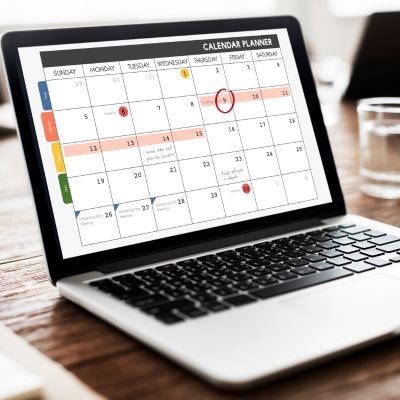 Shared Calendars and Scheduling Across a Team
Calendars within an organization can be shared at different visibility levels: full detail, free/busy only, or fully private, allowing a team to see when colleagues are available without exposing the contents of every meeting. Resource booking extends this to shared physical or logical resources, such as a conference room or a shared piece of equipment, which get their own bookable calendar that shows as busy once reserved.
Appointment scheduling pages, available from Business Standard upward, let an external contact pick an open slot within a defined availability window without back-and-forth email, which is useful for any business that regularly takes client bookings, consultations, or sales calls. This feature alone replaces what many small businesses previously paid for as a separate standalone scheduling tool.
How Calendar Connects to Meet, Gmail, and Tasks
Every Calendar event with a video call attached automatically generates and attaches a Meet link. That link is the one that appears in the Gmail invite sent to attendees. The three apps are functioning as one workflow rather than three separately configured tools. Declining, accepting, or proposing a new time on an invite updates the event for every attendee simultaneously, and any attached documents (an agenda Doc, a Sheet with data to review) stay linked to the event for as long as it exists.
Tasks, Google’s lightweight to-do app, integrates directly into Calendar’s side panel, letting a due-dated task appear alongside scheduled meetings on the same day view. This isn’t a full project-management replacement, but for a business that needs personal or small-team task tracking without adopting a separate tool, having it sit inside the same interface as the calendar removes one more app from the daily rotation.
Google Forms, Sites & Keep: The Supporting Cast
Forms, Sites, and Keep don’t get the attention Gmail or Meet do, but each solves a specific, recurring business need without requiring a separate paid tool.
Google Forms for Data Collection
Forms builds surveys, intake forms, and quizzes with a range of question types, multiple choice, short answer, file upload, linear scale, and every response lands automatically in a connected Sheet, ready for filtering or charting without a manual export step. Response validation may require a specific answer format, and conditional logic can route a respondent to different follow-up questions based on an earlier answer, allowing a single form to handle branching scenarios, such as an intake process that differs by client type.
Forms are commonly used for client intake, event RSVPs, internal feedback surveys, and simple order or booking requests, anywhere a business needs structured data from people outside its own team without building a custom web form. Because responses populate a Sheet directly, the same automation and formula tools available in Sheets can process incoming Form submissions without extra setup.
Google Sites and Keep
Sites is a no-code website builder aimed at internal or lightweight external pages, a team wiki, a project hub, or a simple landing page, rather than a full marketing website with e-commerce or heavy custom design. Pages are built by dragging in preset content blocks, and a Site can embed a Doc, Sheet, Form, or Calendar directly into a page, making it well-suited for an internal knowledge base that needs to stay current without manual copy-paste updates.
Keep is Google’s note and reminder app, syncing across devices and integrating directly into Gmail and Docs as a side panel. Hence, a note or checklist jotted down while reading an email can be dragged straight into a document being drafted at the same time. It’s intentionally lightweight, closer to sticky notes than a full task manager, and its main business value is removing the friction of jumping to a separate notes app for something that will be referenced again within the same Workspace session.
Google Vault: Retention and eDiscovery for the Whole Suite
Vault sits behind the scenes of every other app covered here, applying retention rules and enabling search across an organization’s Gmail, Chat, Drive, and Meet recordings for legal, compliance, or audit purposes.
What Vault Actually Retains and Searches
Vault lets an administrator set retention policies that keep email, chat messages, and files for a defined period, or place a legal hold that prevents deletion entirely, overriding a user’s own attempt to delete something, regardless of what an individual employee does with their own copy. This is distinct from ordinary storage: Vault-held content is preserved for compliance and search purposes even after a user empties their trash, which is the specific gap it’s designed to close.
Search within Vault can be scoped by user, date range, keyword, or organizational unit, and exported results are formatted for legal review or handoff to outside counsel. This is the tool a business reaches for during a legal dispute, a regulatory audit, or an internal investigation where “what did this person say, and when” needs a defensible, searchable answer rather than someone manually scrolling through an inbox.
Vault, Security, and Where It Fits by Plan
 Vault, Security, and Where It Fits by Plan
Vault is included starting on the Business Plus tier and above; it isn’t available on Business Starter or Business Standard, which is a meaningful gap for any business in a regulated industry evaluating which plan actually meets its obligations. Vault sits alongside Workspace’s broader security certifications. Google Workspace holds ISO/IEC 27001, 27017, 27018, and 27701 certifications, along with SOC 1, 2, and 3 reports, covering information security, cloud security, cloud privacy, and general privacy management, respectively.
Those certifications apply to the underlying platform across all tiers; the security infrastructure protecting your data doesn’t change based on plan, but the administrative controls built on top of it, like Vault’s retention and legal hold, do scale by tier. A business handling healthcare, legal, or financial client data typically needs Business Plus or Enterprise specifically because of Vault and its related admin controls, not because the base platform is materially less secure on a lower tier.
Frequently Asked Questions
What’s the difference between Google Docs and Google Sheets?
Docs is a word processor built for text-based documents, proposals, reports, and contracts, while Sheets is a spreadsheet built for numerical data, formulas, and tables. Both share the same real-time, multi-user editing model, and both save automatically to Drive, but they’re structured for different content types. A common workflow links them: a chart or table built in Sheets can be embedded into a Doc or Slides deck as a linked object, so it updates automatically whenever the source data in Sheets changes, without needing to rebuild or re-paste it manually. Choosing between them usually comes down to whether the content is primarily written prose (Docs) or primarily structured, calculable data (Sheets). Many business documents, such as a proposal with an embedded pricing table, end up using both.
Can multiple people edit a Google Doc at the same time?
Yes, this is Docs’ core design, not an optional feature. Every person with edit access works on the same live file simultaneously, with each collaborator’s cursor and current edits visible to others in real time, typically within a second or two of being made. There’s no need to check a file out, lock it, or merge separate copies afterward, which is the main functional difference from emailing a Word document back and forth. Comments and Suggestion mode add review controls on top of this: Suggestion mode holds proposed edits for the document owner to accept or reject, rather than applying them immediately, which is useful when a document is being reviewed by someone other than its primary author.
How many people can join a Google Meet call?
The participant cap depends on the Workspace plan attached to the meeting host’s account. Business Starter supports up to 100 participants; Business Standard, up to 150; Business Plus, up to 500; and Enterprise, up to 1,000. This is a hard limit set by the host’s plan tier, not something that can be adjusted per meeting. For businesses that occasionally need to host a larger all-hands, webinar, or public event beyond their standard plan’s cap, upgrading the host account’s plan tier, even temporarily, is typically the only way to raise the limit, since attendees joining from lower-tier accounts don’t affect the cap set by the host.
Is Google Chat the same as Gmail?
No, they’re separate apps designed for different kinds of communication, though they’re tightly integrated. Gmail is built for formal, external, or documentation-heavy communication that benefits from a permanent, searchable thread structure. Chat is built for faster, more informal coordination, quick questions, status updates, and project discussions inside a Space, and it appears as both a standalone app and a panel in Gmail itself, so switching between the two doesn’t require changing browser tabs. Many businesses use Gmail for anything involving clients, vendors, or formal records, and Chat for internal day-to-day coordination, letting each app handle the type of communication it’s actually built for rather than forcing everything through one channel.
Does Google Drive storage count against my Gmail storage?
Yes, Gmail, Drive, and Google Photos in a Workspace account draw from the same pooled storage allocation rather than having separate, siloed limits. That pool is set by the plan tier (for example, 30 GB per user on Business Starter or 2 TB per user on Business Standard) and, notably, is pooled across the entire organization, not strictly fixed per individual. This means a few storage-heavy users, large attachments, and big video files in Drive can affect how much space is available organization-wide, which is worth monitoring for any business approaching its plan’s storage ceiling rather than assuming each user has an isolated, untouchable allowance.
What is Google Vault used for?
Vault is Workspace’s retention and eDiscovery tool, used to preserve and search Gmail, Chat messages, Drive files, and Meet recordings for legal, compliance, or audit purposes. An administrator can set retention policies that keep data for a defined period or apply a legal hold that prevents deletion even if an individual user tries to delete their own copy. It’s the tool a business turns to during a legal dispute, regulatory audit, or internal investigation, where a defensible, searchable record is needed rather than a manual search through individual inboxes. Vault is included starting on the Business Plus plan and above; it is not available on Business Starter or Business Standard.
Can I use Google Forms without a Workspace account?
Forms are available with a free personal Google account and in Workspace, so a Workspace subscription isn’t strictly required to build and send a form. What changes with a Workspace account is where the data lands and who owns it: Workspace-created Forms and their response Sheets stay within the organization’s domain and are subject to admin controls, retention policies, and (on eligible plans) Vault holds, whereas a personal-account form’s data lives entirely outside any organizational oversight. For business use involving client or company data, using Forms inside the Workspace account, rather than a personal one, keeps that data properly owned and governed by the organization.
What’s the difference between Google Sites and a regular website builder?
Sites is a no-code page builder aimed at internal or lightweight external pages, a team wiki, an internal knowledge base, a simple project or event page, rather than a full marketing website. It lacks the e-commerce, advanced custom design, and SEO-focused features of a dedicated website builder or CMS. Still, it makes up for that by embedding other Workspace content directly: a Doc, Sheet, Form, or Calendar can be placed on a Sites page and will stay automatically live-updated. For a public-facing business website with marketing or sales goals, a dedicated website platform is generally the better fit; for an internal team resource that needs to stay current with minimal maintenance, Sites is often faster to set up and keep up to date.
Does Google Keep sync across devices in Workspace?
Yes, keep notes, lists, and reminders synced in real time across all devices signed in to the same Workspace account, including the Keep mobile app, the standalone web app, and the Keep side panel in Gmail and Docs. A note started on a phone during a commute is immediately available on a desktop when the user opens Gmail later, with no manual save or sync step required. Keep is intentionally lightweight compared to a dedicated task-management app; it’s closer to a digital sticky note system, and its main business value is the ability to drag a note or checklist item directly into a Doc or email being composed in the same session, rather than switching to a separate notes application.
Can Google Calendar be shared across an entire team?
Yes, calendars can be shared at different visibility levels, from full event detail down to free/busy status only, letting a team see when colleagues are available without exposing what every meeting is actually about. Beyond individual calendars, Workspace supports shared resource calendars for things like conference rooms or shared equipment, which show as booked once reserved by anyone on the team. Appointment scheduling pages, available from Business Standard upward, extend this further by letting external contacts book an open slot directly from a defined availability window, without any back-and-forth email, a feature commonly used for client consultations, sales calls, or service bookings.
Glossary
Pooled storage: A shared storage allocation split across an organization’s users rather than a fixed, siloed amount per individual account; Gmail, Drive, and Photos all draw from the same pool.
Shared Drive: A Drive folder structure owned by a team rather than an individual, so files remain accessible even after a member leaves the organization; available from Business Standard upward.
Smart Canvas: Google’s term for interactive, live-updating building blocks inside Docs, such as embedded charts, status chips, and linked tables that refresh automatically.
Spaces: Topic- or project-based group conversations within Google Chat, similar in concept to a channel, that can include files, tasks, and threaded replies.
Legal hold: A Vault-administered restriction that prevents deletion of specific content, even if the individual user attempts to delete it, typically applied during litigation or an investigation.
eDiscovery: The process of searching, collecting, and exporting electronic records (email, chat, files) for legal or regulatory review; handled in Workspace through Vault.
Connected Sheets: A Sheets feature that links a spreadsheet directly to an external or large dataset, allowing analysis without manually exporting and re-importing the data.
The Hiya Digital Team is a collective of IT infrastructure specialist engineers, certified systems administrators, and cloud architects driven by a singular mission: building corporate communication systems that just work. As an Authorized Google Partner, the team handles complex global hosting deployments, secure email migrations, and advanced data compliance architectures for businesses across 40+ countries.
With over two decades of technical experience spanning custom premium business email configurations, OX AppSuite deployments, and enterprise-level network security, the Hiya Digital Team writes to demystify domain infrastructure. Their content focuses on actionable technical strategies, anti-phishing security protocols, and seamless cloud collaboration setup, all backed by real-world deployment experience and 24/7 technical support accountability.