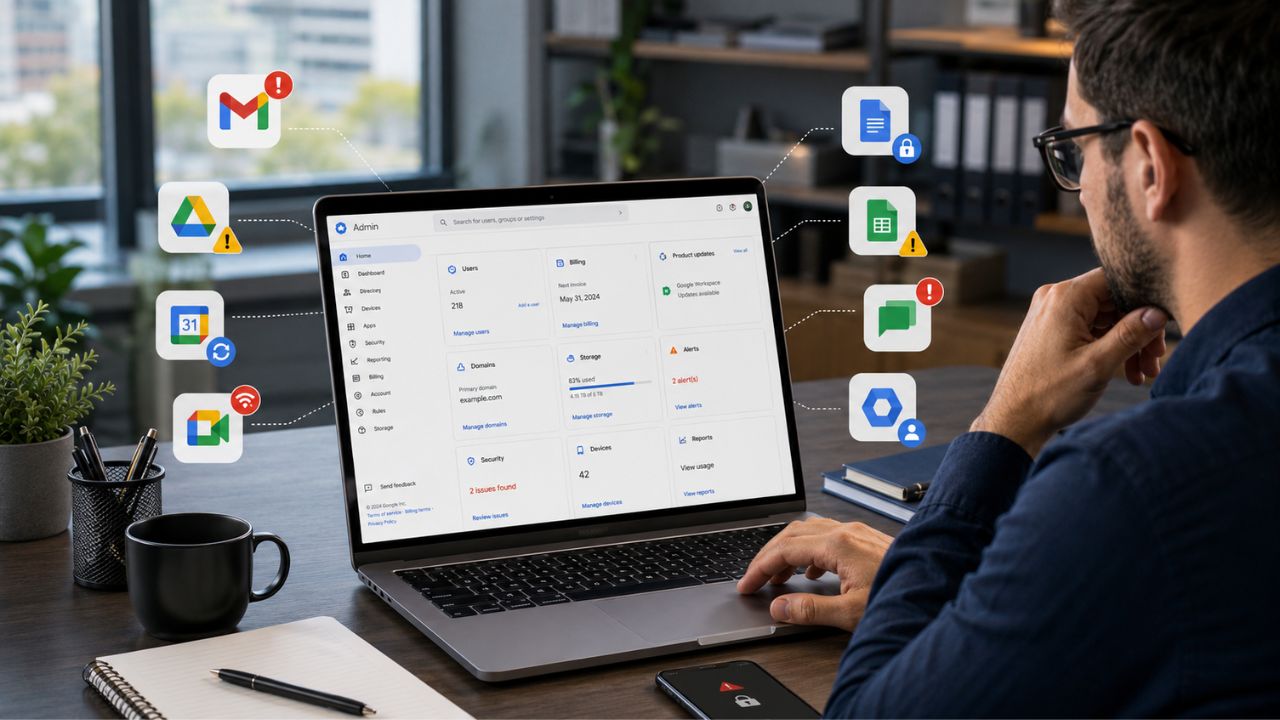
Login loops, stalled Drive syncs, storage warnings, missing emails, and billing charges that don’t add up rarely mean something is broken beyond repair. Most Google Workspace hiccups trace back to a handful of recurring causes, the fastest path to a fix for each one, no ticket queue required.
Discover the Power of Google Workspace →
Login and Sign-In Failures Across Devices
Sign-in failures usually come from one of two places: a browser holding onto stale credentials, or a domain-level policy blocking the attempt entirely. Telling the two apart in the first thirty seconds saves a lot of wasted troubleshooting.
Wrong Account Loop and Cached Credential Conflicts
If a user is bounced back to the sign-in screen repeatedly or lands in the wrong Google account after entering the correct password, the browser is almost always retaining a cached session from a personal or previous work account. Clearing that session, not resetting the password, solves it in most cases within a minute.
The fastest fix is to sign out of every Google account in that browser profile, clear cookies scoped to google.com and accounts.google.com specifically (a full cache wipe is unnecessary and slower), then sign back in with only the work account active. On shared or kiosk-style machines, this loop tends to recur weekly; switching that machine to a dedicated Chrome profile per user, rather than a shared profile everyone logs in and out of, removes the underlying cause rather than just treating the symptom each time it appears.
 “Account Not Found” or Blocked Sign-In After Domain Changes
 “Account Not Found” or Blocked Sign-In After Domain Changes
When sign-in fails with an “account not found” or “this account has been suspended” message and the password is confirmed correct, the cause sits at the domain level rather than the individual account, most often a recent organizational unit move, a licensing change, or an admin-side suspension that hasn’t been communicated to the user yet.
The fix path depends on who has access to the Admin Console. If the person troubleshooting is a super admin, checking the user’s status under Directory > Users immediately shows whether the account is active, suspended, or pending deletion, and whether it currently holds a valid license. An unlicensed user can technically exist in the directory but be entirely blocked from signing in. If the person troubleshooting is not an admin, the correct next step is contacting whoever holds admin rights rather than repeatedly retrying the password, since repeated failed attempts on a genuinely blocked account can trigger additional security holds that take longer to clear.
Gmail Sync Delays and Missing Messages
Emails that seem to vanish are rarely deleted. They’re either sitting unsynced on one device, or they’ve been intercepted by a filter, rule, or auto-archive setting the user forgot they created.
Offline Mode and IMAP Sync Lag
A 40–60-word standalone answer: Gmail messages that appear on the web but not on a phone or a third-party mail client are usually due to sync lag, not a deleted-message issue. The fix is to force a manual sync, confirm the device has a stable connection, and check that Gmail’s offline mode setting hasn’t quietly capped how much mail the device stores locally.
Offline mode in Gmail’s web settings stores a limited window of recent mail for access without a connection, and that window can fall out of step with the live inbox if the device hasn’t been opened in several days. Reopening Gmail while connected automatically forces a resync in nearly all cases, and there’s rarely a need to touch any deeper settings beyond confirming that the sync toggle under Settings > Offline is still enabled as originally configured.
Messages Filtered, Archived, or Auto-Deleted by Rules
The single most common cause of “missing” email that isn’t actually a sync problem is a filter someone created months earlier and forgot about, one that auto-archives, auto-labels, or auto-forwards messages matching a sender or keyword before they ever hit the inbox view.
Checking Settings > Filters and Blocked Addresses surfaces every active rule on the account, and it’s worth scanning the full list rather than assuming the newest filter is the culprit, since older filters tend to be the ones nobody remembers creating. A message caught by an archive filter isn’t gone; it’s sitting in All Mail, searchable but invisible from the default inbox view, which is functionally indistinguishable from deletion to a user who only checks the inbox tab.
Drive Files Stuck “Offline” or Not Syncing
Drive sync problems tend to split cleanly into two categories: the desktop sync client getting stuck on its own, and permission conflicts on shared content that block updates from propagating even when sync itself is working fine.
Drive for Desktop Stuck Indexing or Paused
Files showing a perpetual spinning sync icon, or a Drive for Desktop app that says “indexing” for longer than a few minutes on a normal connection, are almost always due to the local sync engine getting stuck rather than a server-side outage. Genuine Workspace-wide outages are rare and would affect far more than one machine.
The reliable fix is to pause and resume sync directly from the Drive for Desktop menu bar icon, which restarts the local indexing process without requiring a full reinstall. If that doesn’t clear it within a few minutes, checking available local disk space matters more than most users expect. Drive for Desktop needs working room on the local disk to stage files during sync, and a nearly full hard drive causes exactly this kind of silent stall with no error message to explain it.
Shared Drive Permission Conflicts Blocking Updates
 Shared Drive Permission Conflicts Blocking Updates
When a file syncs for its owner but a collaborator sees an outdated version, or gets an “access denied” message on a file they could previously edit, the cause is almost always a permission change at either the file or Shared Drive level, rather than a sync failure.
Shared Drives inherit permissions differently from personal My Drive folders. A user can have edit access to a specific file while lacking access to the Shared Drive folder it now lives in after a move, which blocks visibility even though the underlying file permissions look correct. Checking access at the folder level, not just the file level, catches this in most cases.
Storage-Full Errors and Blocked Uploads
Storage warnings tend to arrive with little warning because Workspace storage is pooled across Gmail, Drive, and Photos simultaneously, and the item quietly consuming the most space is often not the one a user would guess.
Identifying What’s Actually Consuming Pooled Storage
Storage is pooled per user across an organization’s plan. Business Starter includes 30 GB of pooled storage per user, Business Standard includes 2 TB, and Business Plus includes 5 TB, according to Google’s official Workspace pricing page. A user hitting the ceiling on Starter has far less headroom than the numbers suggest once large attachments and video files are taken into account.
Google’s storage management view at drive.google.com/settings/storage breaks usage down by Gmail, Drive, and Photos in one place, and it’s the fastest way to identify the actual source rather than guessing. Large email attachments are the most commonly overlooked contributor; a handful of video attachments or large PDFs sitting in old threads can consume more space than years of ordinary Drive documents, and they don’t show up when someone only checks their Drive folder for large files.
Freeing Space Without Deleting Anything Important
Emptying Gmail’s Trash and Spam folders reclaims space immediately, since messages sitting there still count against quota until they’re permanently purged, a step people frequently forget because they assume deleting a message removes it from storage right away.
Google Photos set to original quality, rather than storage saver quality, is a frequent silent consumer on accounts where photo backup was enabled by default and never revisited. Switching the setting in the future doesn’t retroactively shrink already-uploaded files, but, combined with removing genuinely unneeded large attachments and old video files from Drive, it prevents the ceiling from reappearing a few months later.
Stop Losing Hours to Storage and Delivery Fixes You Shouldn’t Have to Chase Down
Every fix above is something any admin can do on their own, but repeated storage-full alerts and delivery failures across a growing team usually mean the plan or configuration needs a second look, not another round of manual cleanup. As an Authorized Google Workspace Reseller and Certified Sales Partner, Hiya Digital reviews your actual usage patterns, right-sizes your plan tier, and corrects the underlying configuration so these issues no longer recur, providing support that goes well beyond what Google’s self-serve checkout and generic help articles provide.

Email Delivery Failures and Bounce-Back Messages
A bounced email isn’t a single problem; it’s a symptom with several distinct causes, and the bounce message itself almost always names which one, if it’s read carefully before troubleshooting begins.
Reading the Bounce Code Before Troubleshooting Blind
The fastest way to fix a bounced email is to read the delivery status notification Gmail generates, since it includes both a numeric code and a plain-language reason that points directly at the cause rather than requiring guesswork.
A 550 error generally means the recipient’s server rejected the message outright, often because the address doesn’t exist or because the recipient’s spam filter blocked it. At the same time, a 421 or other 4xx-series code indicates a temporary failure, meaning the receiving server was unavailable or rate-limiting, and a retry will likely succeed without any changes on the sending side. Treating a temporary 4xx bounce the same way as a permanent 550 rejection wastes time chasing a configuration problem that doesn’t exist.
SPF, DKIM, and DMARC Drift Causing Silent Rejections
Unlike a bounce with an explicit error message, silent delivery failures, where a message shows as “sent” but the recipient never sees it, with no bounce notification at all, usually trace back to email authentication records drifting out of alignment, often after an unrelated change to a marketing tool or a new sending service was added.
SPF, DKIM, and DMARC records live in DNS and tell receiving mail servers whether a message claiming to come from a domain is actually authorized to do so. Getting these configured the first time correctly is a deeper setup task handled separately, but a quick health check here catches drift after the fact. A free authentication checker, Google’s own Admin Toolbox Check MX, is a reliable option that flags a broken or missing record in under a minute without requiring DNS expertise to interpret manually.
Bounce and Error Codes Explained
| Code / Message | What It Means | Where to Look |
|---|---|---|
| 550 | Permanent rejection, recipient address invalid, or message blocked outright | Confirm the recipient address; check spam-filtering reputation for repeat cases |
| 421 / other 4xx | Temporary failure, receiving server unavailable or rate-limiting | No action needed in most cases; Gmail retries automatically |
| No bounce, message never delivered | Silent rejection from authentication record misalignment | Run an SPF/DKIM/DMARC checker against the current DNS |
| “Account not found” at sign-in | Domain-level suspension, licensing change, or org unit move | Admin Console > Directory > Users, check account status |
| Storage-full error blocking send | Pooled storage limit reached across Gmail, Drive, and Photos | drive.google.com/settings/storage for a breakdown by source |
Calendar Invites Not Arriving or Falling Out of Sync
Calendar problems generally fall into two buckets: invites that never reach the recipient, and events that duplicate or become desynced after being edited. Both are frustrating in scheduling-heavy teams and fixable without deep technical intervention.
RSVP and Invite Delivery Failures
A calendar invite that never arrives is usually a delivery filtering issue rather than a Calendar bug. The invite email itself is subject to the same spam filtering, forwarding rules, and delivery routing as any other Gmail message, so the troubleshooting steps from the email delivery section above apply directly here as well.
A narrower Calendar-specific cause is the recipient having “Automatically add invitations” disabled in their Calendar settings, which means the event exists but remains pending and doesn’t appear as a normal calendar block until the recipient manually responds. Checking Settings > Event Settings under “Add invitations to my calendar” resolves this for the affected user in the future, and it’s a setting worth confirming during onboarding rather than after a missed meeting.
Duplicate or Ghost Calendar Events
 Duplicate or Ghost Calendar Events
Duplicate events after an edit typically occur when an event is edited from a synced third-party calendar app rather than directly in Google Calendar, creating a second event instead of updating the original because the two platforms don’t reconcile the change as the same object.
The fix is to delete the duplicate on whichever platform created it, then make future edits directly in Google Calendar or consistently through the same connected app, rather than switching between them for the same event. “Ghost” events, appearing on one device but not another, or showing after being deleted, usually clear after a forced calendar refresh, which on mobile means closing and reopening the Calendar app rather than just pulling to refresh the current view.
Meet Audio, Video, and Connection Glitches
Video call issues are almost always local, a browser permission, a network condition, or a device conflict, rather than a platform-wide Meet outage, which is worth remembering before assuming the worst mid-call.
Camera and Microphone Permission and Browser Conflicts
The most common cause of a Meet call starting with no camera or microphone access is a browser-level permission that was denied once, possibly months earlier, and never revisited. Chrome and other browsers remember that denial indefinitely until manually changed.
Checking the camera icon in the browser’s address bar shows the current permission status for that site. It allows re-enabling access with two clicks, resolving the vast majority of “my camera isn’t working” reports without touching any system-level settings. A second frequent cause is another application, a separate video call tool left open in the background, holding exclusive access to the camera or microphone hardware, which blocks Meet from accessing it even though Meet itself is functioning correctly.
Choppy Connections and Dropped Participants
Video and audio quality that degrades mid-call, or participants dropping and reconnecting repeatedly, points toward available bandwidth rather than a Meet-side issue in the overwhelming majority of cases, particularly on calls with several participants sharing the same office network. Meet automatically adjusts video resolution based on available bandwidth, so a genuinely unstable connection often appears as blurry video before it drops to a dropped call.
Switching off video while keeping audio active, or asking non-speaking participants to do the same, frees enough bandwidth to stabilize the call without ending it. Google Workspace’s Business Starter plan supports meetings of up to 100 participants, Business Standard raises that to 150, and Business Plus supports up to 500, per Google’s Workspace pricing page. A call approaching the participant ceiling for its plan tier will show degraded performance that appears to be a network problem but is actually a capacity limit.
Notification Delays Across Gmail, Chat, and Calendar
Delayed or missing notifications are among the most disorienting problems to troubleshoot because the underlying cause often lies in device-level settings unrelated to the Google account itself.
Push Notification Settings on Mobile vs. Desktop
Mobile push notifications for Gmail, Chat, and Calendar depend on the phone’s own battery optimization and background app refresh settings, not just the in-app notification toggle. A phone set to aggressively limit background activity to save battery will delay or suppress push notifications from any app, Google’s included, regardless of how the app itself is configured.
On Android specifically, checking that battery optimization is disabled for the Gmail, Chat, and Calendar apps individually, rather than assuming a single system-wide setting covers all three, resolves the majority of delayed mobile notification reports. On iOS, confirming that Background App Refresh is enabled for each app under Settings serves the same purpose. Desktop notification delays are a separate issue entirely, usually tied to the browser tab being backgrounded for an extended period, which some browsers deprioritize to save system resources.
Chat and Gmail Notification Overlap Causing Missed Alerts
Users running both Gmail and Chat notifications simultaneously sometimes report missing alerts that were actually delivered but were consolidated or deprioritized because the two apps’ notification settings weren’t aligned, creating the impression of a missed message when it was actually a suppressed duplicate notification.
Reviewing notification settings separately in each app, rather than assuming a single master setting governs both, catches this quickly. Gmail’s notification level (all new mail, important mail only, or none) and Chat’s notification settings are configured independently, even though both surface through the same operating system notification center. A user who set Gmail to “important only” months ago and forgot about it will experience unreliable notifications rather than recognizing that the setting is working exactly as configured.
Billing Charges That Don’t Match Your Plan
Billing discrepancies are rarely errors in Google’s system; they’re almost always a predictable side effect of how prorated charges and licensing changes are calculated, once the mechanism is understood.
Prorated Charges After Adding or Removing Users
A charge that doesn’t match the expected per-user rate in either direction is most commonly a proration adjustment due to adding or removing a license partway through a billing cycle, rather than a billing error. Google charges (or credits) the remaining days in the current cycle at the daily equivalent rate rather than waiting until the next full cycle.
This shows up most visibly on annual commitment plans, where removing a user mid-term doesn’t reduce the committed license count until renewal; the committed seats remain billed even if unoccupied, which is a deliberate feature of the annual/fixed-term billing model rather than a mistake, and it’s worth understanding before assuming a support ticket is needed. Checking the Billing > Subscriptions section of the Admin Console shows the exact license count currently committed versus currently assigned, which usually explains the discrepancy immediately.
Duplicate Billing Profiles or Failed Payment Retries
A second, less common but more disruptive pattern is a duplicate billing profile, usually created when a domain is set up through two different channels at different times, such as a direct Google signup followed later by a reseller transition, leaving two active subscriptions that bill the same organization independently.
The Admin Console’s Billing section lists every active subscription tied to the account, and spotting two separate subscription entries for what should be a single Workspace plan is the clearest sign that this has happened. Resolving it requires canceling the redundant subscription rather than the active one, a distinction worth getting right the first time, since canceling the wrong subscription can interrupt active user licenses.
Admin Lockouts and Account Access Recovery
Losing admin access is one of the more stressful Workspace problems because it can feel like there’s no way back in. Still, Google provides several recovery paths depending on exactly how the lockout happened.
Super Admin Locked Out With No Recovery Email
 Super Admin Locked Out With No Recovery Email
A super admin locked out of their own account, with no working recovery phone or email on file, still has a path back in through Google’s account recovery process, which verifies identity with a series of security questions about the account’s history rather than requiring the recovery contact to be already accessible.
The recovery process is noticeably faster when a second super admin exists on the domain and can restore access directly through the Admin Console, which is the strongest argument for maintaining at least two super admin accounts in any organization with more than a handful of users. A single point of failure on admin access turns a routine password reset into a multi-day identity verification process. Setting up a second super admin with its own recovery phone and email takes a few minutes and eliminates this risk in the future.
Suspended or Frozen User Accounts After Policy Flags
An individual user account showing as suspended, separate from an admin lockout, is almost always the result of an automated policy flag rather than manual admin action, unusual sign-in activity, a security policy violation, or, in rarer cases, a billing-related suspension cascading down from the organization level.
Checking the specific suspension reason listed in the Admin Console against that user’s entry, rather than assuming the cause, determines the fix path, since a security-flagged suspension and a billing-triggered suspension are resolved completely differently. Security-related suspensions typically require the admin to review the flagged activity and manually reinstate the account once it’s confirmed as legitimate; that deeper security review process is covered in more depth elsewhere and only referenced here.
Symptom, Cause, and Fix at a Glance
| Symptom | Likely Cause | Quick Fix |
|---|---|---|
| Repeated sign-in loop on a shared device | Cached session from a different Google account | Clear cookies scoped to google.com, sign out of all accounts, use a dedicated browser profile |
| Emails are visible on the web but not on the phone | Offline mode sync window or IMAP sync interval lag | Force manual sync; check Gmail offline storage setting |
| The Drive file shows an outdated version to a collaborator | Permission inherited incorrectly after a Shared Drive move | Check folder-level access, not just file-level access |
| Storage-full warning despite recent cleanup | Large email attachments or Photos set to original quality | Check the Drive storage breakdown by Gmail, Drive, and Photos separately |
| Email shows “sent” but never delivered, no bounce | SPF/DKIM/DMARC record drift from an unused sending tool | Run a free authentication checker against current DNS records |
| Calendar invite never appears for a recipient | “Automatically add invitations” is disabled in their settings | Recipient enables it under Calendar Event Settings |
| Duplicate calendar events after an edit | Edit made from a third-party synced calendar app | Delete the duplicate; make future edits in one platform consistently |
| Invoice total doesn’t match expected per-user rate | Mid-cycle proration from adding or removing licenses | Compare committed vs. assigned license count in Billing > Subscriptions |
Frequently Asked Questions
Why does my Gmail keep signing me out on my phone but not on my desktop?
This almost always comes down to how the mobile operating system manages background app activity rather than anything wrong with the Gmail account itself. Aggressive battery optimization settings on Android or Background App Refresh being disabled on iOS can cause the Gmail app to lose its active session more frequently than a desktop browser, which typically stays open and connected. Checking the app-specific battery settings on the phone, rather than reinstalling the app or resetting the password, resolves this in most cases. If sign-outs occur at a predictable interval, such as once a day, it’s also worth checking whether an admin-pushed mobile device management policy enforces a shorter session length on managed devices, which is a deliberate security setting rather than a bug.
Why did my Drive storage suddenly show as full when I haven’t uploaded much recently?
Pooled storage in Google Workspace includes Gmail attachments and Google Photos uploads, as well as Drive files. Both are easy to overlook because neither appears when checking Drive folder sizes directly. A handful of large video attachments received via email, or Photos set to back up at original quality rather than storage saver quality, commonly account for most unexpected storage use. The storage breakdown tool at drive.google.com/settings/storage shows exactly which of the three, Gmail, Drive, or Photos, is responsible, which is the fastest way to identify the real source before assuming a plan upgrade is the only option.
My email shows as sent, but the recipient says they never got it. What’s wrong?
A message that shows “sent” with no bounce notification at all, yet never reaches the recipient, is typically being silently rejected by the recipient’s mail server due to an authentication mismatch, most often an SPF record that no longer accurately lists every service authorized to send on the domain’s behalf. This tends to happen after a marketing tool, or CRM, is disconnected without also being removed from the SPF record. Running a free DNS authentication checker takes under a minute and will flag the specific misalignment, which is far faster than guessing at spam filter settings on the recipient’s end.
Why do I see two calendar events for the same meeting after editing it?
Duplicate calendar events after an edit almost always happen when the change was made in a third-party calendar app connected to Google Calendar, rather than in Google Calendar directly, because the two platforms occasionally create a new event instead of recognizing the edit as an update to the existing one. The fix is to delete the duplicate and, in the future, make edits consistently through a single platform rather than switching between a synced app and Google Calendar for the same recurring meeting.
Why was my Workspace invoice higher than the number of active users on my team?
This is almost always due to proration or a billing model mismatch rather than an error. For annual commitment plans, removing a user mid-cycle doesn’t reduce the committed license count until the plan renews. Hence, the invoice reflects the seats still under commitment rather than those currently occupied. Checking Billing > Subscriptions in the Admin Console shows the committed license count next to the currently assigned licenses, which usually explains the gap immediately. If the numbers still don’t reconcile after that check, a duplicate billing profile from an earlier sign-up channel is the next thing to rule out.
How do I recover access if I’m the only super admin and I’m locked out?
Google’s account recovery flow, built specifically for this situation, verifies identity through account history rather than requiring an already-accessible recovery phone or email. It takes longer than a routine password reset because of the additional identity verification steps involved, which is exactly why setting up a second super admin account with independent recovery details, before a lockout happens, is worth doing even for very small teams, since it turns a multi-day recovery process into a two-minute fix through the Admin Console instead.
Why did a user’s account get suspended without any warning?
Individual account suspensions are usually triggered automatically by a security policy flag or an unusual sign-in location or pattern, rather than by manual admin action, which is why they can feel sudden. Checking the specific suspension reason listed against that user’s entry in the Admin Console determines the correct next step, since a security-triggered suspension is resolved differently than one caused by an organization-level billing issue. If several accounts are suspended at the same time rather than just one, the cause is almost always organizational, not at the individual account level.
Why do my Meet calls keep dropping in quality when other calls on the same network are fine?
Meet automatically reduces video resolution when it detects limited available bandwidth, which is why quality degradation on one call. At the same time, another app runs smoothly, often suggesting that the specific call is approaching a bandwidth or participant-count limit rather than a network-wide problem. Asking non-speaking participants to temporarily switch off their video quickly frees up bandwidth. If the call is also near its plan’s participant ceiling, that capacity limit, not the network, is the more likely underlying cause.
Can a reseller like Hiya Digital fix billing and storage issues faster than Google’s own support?
For issues that require account-level configuration changes, plan tier adjustments, license reallocation, or the resolution of a duplicate billing profile, an Authorized Reseller can typically move faster because the request goes through a dedicated point of contact rather than a general support queue shared across millions of Workspace accounts. Technical fixes that live entirely within a user’s settings, such as clearing a cached sign-in session, don’t require reseller involvement and can usually be resolved directly by the user.
Is it normal for notification delays to differ between my phone and my laptop for the same account?
Yes, mobile and desktop notifications are governed by different underlying systems even though both connect to the same Google account. Mobile notifications depend heavily on the phone’s own battery optimization and background refresh settings, which vary by device and operating system, while desktop notification delays are more often tied to how long a browser tab has been left in the background. Because these are two separate mechanisms, notifications can arrive instantly on one device and lag noticeably on the other without either device being misconfigured in an obvious way.
Glossary
Pooled storage: Google Workspace storage is allocated per user but shared across the organization’s total pool, spanning Gmail, Drive, and Google Photos.
Bounce code: A numeric status returned by a receiving mail server explaining why a message was rejected or delayed, such as 550 (permanent rejection) or 421 (temporary failure).
SPF, DKIM, and DMARC: DNS-based email authentication records that tell receiving mail servers whether a message is genuinely authorized to be sent from a given domain, reducing the chance of legitimate mail being rejected or misclassified as spam.
Proration: A billing adjustment that charges or credits only the remaining portion of a billing cycle when a license is added or removed partway through it.
Super admin: The highest-level Google Workspace administrator role, with full access to every setting in the Admin Console, including user, billing, and security controls.
Shared Drive: A Google Drive space owned by an organization rather than an individual user, where files remain accessible to the team even if the person who added them leaves.
Push notification: A real-time alert delivered to a device by an app, dependent on both the app’s own settings and the device’s operating-system-level background activity permissions.
The Hiya Digital Team is a collective of IT infrastructure specialist engineers, certified systems administrators, and cloud architects driven by a singular mission: building corporate communication systems that just work. As an Authorized Google Partner, the team handles complex global hosting deployments, secure email migrations, and advanced data compliance architectures for businesses across 40+ countries.
With over two decades of technical experience spanning custom premium business email configurations, OX AppSuite deployments, and enterprise-level network security, the Hiya Digital Team writes to demystify domain infrastructure. Their content focuses on actionable technical strategies, anti-phishing security protocols, and seamless cloud collaboration setup, all backed by real-world deployment experience and 24/7 technical support accountability.