Secure Your Business Communications with Google Workspace →
What Google Workspace Actually Is
Google Workspace is a subscription bundle that pairs professional email on your own domain ([email protected]) with a set of cloud apps for documents, storage, video calls, and scheduling, all managed from a single admin console. It replaced the earlier “G Suite” branding in 2020. Before that, “Google Apps for Work,” but the underlying idea has stayed consistent since Google first sold a paid tier of these tools in 2007: take the free consumer apps people already know and wrap them in business-grade identity, storage, and administrative control.
 The Business Version of Tools You Already Know
 The Business Version of Tools You Already Know
Most people have used Gmail, Google Docs, or Google Drive in a personal capacity long before they ever touch a company account. Google Workspace takes that same underlying software and re-issues it under a business identity layer, a domain-verified email address, a shared organizational directory, and an admin who can add or remove users, enforce password policies, and see which devices are accessing company data. The apps look and feel largely the same; what changes is ownership, control, and accountability.
This distinction matters more than it first appears. A freelancer signing up for a free Gmail account owns that account personally, and if they lose access or leave the business, anything stored in that inbox or Drive folder can be lost with them. A Google Workspace account is provisioned and owned by the organization. When an employee departs, the admin retains the account, its email history, and its files; nothing walks out the door because a person did. That single structural difference is often the first real reason a small business moves off free tools.
Why It’s Sold as a Suite, Not Separate Apps
Google could, in theory, sell business email on its own. It doesn’t, because the value proposition depends on the apps working as one connected system rather than a bundle of unrelated tools. A calendar invite in Google Calendar automatically generates a Google Meet link; a file attached in Gmail opens directly in Docs or Sheets without a separate download step; a document shared in Drive inherits the same permission model an admin sets for the whole organization. Selling these pieces separately would mean losing the connective tissue that makes the suite faster to use than a patchwork of unrelated vendors.
That bundling logic also explains the pricing structure businesses encounter later: rather than paying per app, organizations pay per user, per month, and every user gets the full set of connected tools rather than a menu of add-ons. It keeps procurement simple: one line item, one admin console, and one place to manage licenses, which is part of why IT-light small businesses gravitate toward it rather than assembling email, storage, and video conferencing from three different vendors.
The Core App Suite at a Glance
Every Google Workspace plan includes the same core set of apps; what changes across tiers is storage, meeting size, and administrative depth, not which apps you get access to. Understanding what’s actually bundled in helps clarify what you’re paying for before comparing plans.
The Apps Included in Every Plan
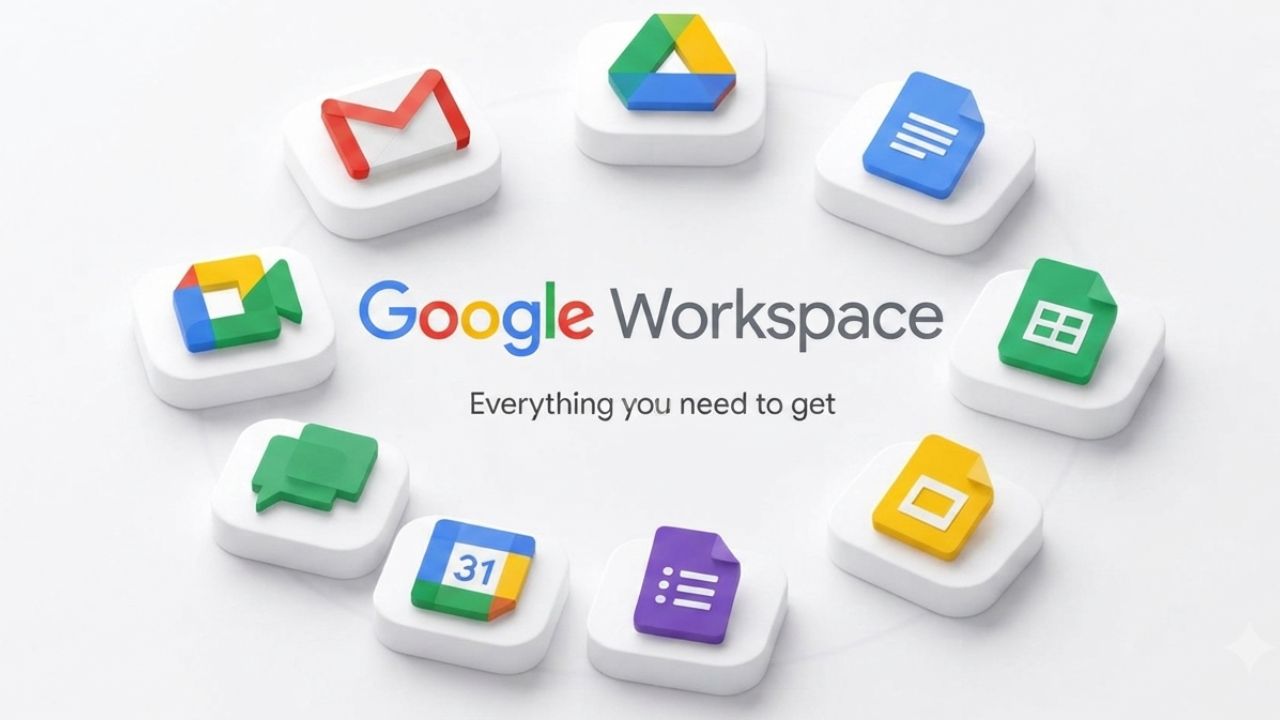
At the center of the suite sits Gmail, running on your own domain instead of gmail.com, alongside Google Calendar for scheduling and Google Meet for video calls. Around that core sit the productivity apps most people associate with “Google Docs” generally: Docs, Sheets, and Slides for word processing, spreadsheets, and presentations, all with real-time multi-person editing built in rather than bolted on. Google Drive underpins nearly everything else, serving as the storage layer where documents, spreadsheets, and shared files live by default.
A second layer of apps rounds out the suite without getting the same top billing: Google Chat for team messaging, Google Forms for surveys and intake forms, Google Sites for building simple internal or public web pages without a developer, and Google Keep for lightweight note-taking. Higher tiers add Google Vault for email and file retention/eDiscovery. None of these require a separate purchase or login; they sit under the same account and admin console as the email itself, which is a meaningful difference from stitching together a mail host, a file-storage vendor, and a video-conferencing tool separately.
How the Apps Connect
The individual apps matter less than how tightly they interlock. Scheduling a meeting in Calendar automatically creates a Meet link; attaching a Sheet to that meeting invite lets attendees open and edit it without leaving their inbox; a document created in Docs saves to Drive by default and inherits the organization’s sharing permissions, rather than requiring a separate upload step. For a small team, this interconnection removes a category of friction that shows up constantly with disconnected tools, re-uploading files, re-sending calendar links, and managing separate logins for storage versus email.
That connectivity is also where Gemini AI now sits across the suite (covered in full later in this post), surfacing inside Gmail, Docs, and Meet rather than as a standalone product a user has to open separately. The practical upshot for a business evaluating the suite is that the apps aren’t really 10 separate products bundled at a discount; they’re one system where email, storage, scheduling, and documents share a single identity and a single permission structure.
Core App Reference Table
| App | Primary Use | Included From |
|---|---|---|
| Gmail | Business email on your own domain | Business Starter and up |
| Google Drive | Pooled cloud file storage | Business Starter and up |
| Docs, Sheets, Slides | Real-time collaborative documents, spreadsheets, presentations | Business Starter and up |
| Google Meet | Video calls: recording added at higher tiers | Recording from Business Standard and up |
| Google Calendar | Scheduling with automatic Meet link generation | Business Starter and up |
| Google Chat | Team messaging | Business Starter and up |
| Google Vault | Email/file retention and eDiscovery | Business Plus and up |
| Gemini AI | AI assistance in Gmail expands to Docs, Sheets, Slides, and Meet | Full-app access from Business Standard and up |
Who Google Workspace Is Built For
Google Workspace scales from a single freelancer to organizations with thousands of seats, but the shape of the value proposition changes by segment. What a five-person agency needs from the suite is different from what a 200-person company with a compliance team needs, even though both are technically buying “Google Workspace.”
Small Businesses and Freelancers
For a freelancer, consultant, or very small team, the core draw is rarely the collaboration features; it’s the professional email address and the credibility that comes with it. An email from [email protected] reads differently to a client than one from a free Gmail or Outlook.com address, and that alone is often the deciding factor for a solo operator weighing whether the subscription is worth it. Entry-level plans are built with this segment in mind: enough storage and app access to run a small operation, without the compliance tooling a larger company would need and otherwise pay for but not use.
The practical ceiling for this segment tends to show up around storage and meeting size rather than around missing apps. A freelancer editing large design files or a small agency storing client video assets will hit entry-tier storage limits well before they encounter a feature they can’t access. That’s a planning question worth working through before signing up, not a reason to avoid the suite altogether. Most small businesses need to choose the right starting tier rather than defaulting to the cheapest.
Startups, Growing Teams, and Enterprises
As a team grows past a handful of people, the priorities shift toward shared drives, centralized file ownership, and admin controls that don’t depend on any one employee’s personal account. A 20-person startup benefits more from the individual apps than from the fact that when someone leaves, their files, email history, and calendar don’t leave with them; everything stays under the organization’s control in the admin console. This is also where meeting recording, larger video call capacity, and more granular sharing permissions start to matter in a way they didn’t for a five-person team.
At the enterprise end, the conversation moves toward security and compliance: data loss prevention, retention policies, eDiscovery for legal holds, and integration with existing identity systems. Larger organizations rarely choose Google Workspace purely on app features at that point; they’re evaluating it as infrastructure, alongside questions about uptime commitments, admin API access, and how it fits into an existing security stack. The suite is built to span this entire range without changing which apps are available, which is part of why it’s positioned as a single product rather than as distinct small-business and enterprise offerings.
Segment vs. Starting-Point Reference Table
| Business Type | Typical Pressure Point | Reasonable Starting Tier |
|---|---|---|
| Freelancer / solo operator | Credibility of a custom domain address | Business Starter |
| Small team (2–10 people), light file use | Shared drives, no admin control on free tools | Business Starter or Standard |
| Small team with recordings, design, or video assets | The storage ceiling reached quickly | Business Standard |
| Growing team (10–50 people) | Meeting size, recording, shared drives | Business Standard |
| Regulated industry (legal, healthcare, finance) | Retention, eDiscovery, and DLP requirements | Business Plus |
| 300+ users or custom security needs | User cap, negotiated terms | Enterprise |
Business Editions and What Separates Them
Google Workspace is sold across several business tiers, Business Starter, Business Standard, Business Plus, and Enterprise, and the differences between them come down to storage, meeting capacity, and administrative depth rather than which core apps are included. A deeper breakdown of exact plan-by-plan pricing lives elsewhere; this section covers what actually changes as you move up a tier.
What Changes as You Move Up a Tier
Every Business-tier plan includes the same core apps, Gmail, Calendar, Meet, Drive, Docs, Sheets, and Slides, so upgrading isn’t about unlocking a new app you didn’t have before. It’s about capacity and control. Storage increases from a modest per-user pooled allowance on the entry tier to several terabytes per user on higher tiers, and Google Meet’s participant cap rises alongside it, with meeting recording added, which isn’t available on the entry tier at all. Business Plus adds Google Vault for retention and eDiscovery, along with more advanced endpoint management and security controls not available in entry tiers.
Enterprise sits apart from the three Business tiers rather than simply being “the next one up.” Business Starter and Standard are capped at a maximum organization size and are purchased through a fairly standardized checkout flow. At the same time, Enterprise removes that user cap entirely and is sold through custom, negotiated pricing rather than a published rate card. Businesses that outgrow the 300-user ceiling on Business Plus move to Enterprise not because they need a specific feature, but because the licensing structure itself requires it past that size.
Choosing Between Tiers Without Overpaying
The most common mistake in tier selection isn’t picking too low a tier; it’s defaulting to a higher one “to be safe” without checking what’s actually driving the need. A team that never records meetings and stores mostly text documents may never touch the limits of an entry-tier plan. In contrast, a team that regularly shares large design files or video assets will outgrow the same tier within months regardless of headcount. The right approach is matching the tier to actual storage and meeting-size patterns, not to company size alone.
It’s also worth knowing that compliance requirements are frequently misattributed to the wrong tier. Certain regulatory accommodations, like signing a Business Associate Agreement for HIPAA-adjacent work, are generally available on paid plans rather than locked to the top tier. What’s actually tier-gated is Google Vault specifically, which is a distinct requirement from the compliance agreement itself. Getting this distinction right before purchasing helps avoid paying for a higher tier than is required by actual compliance needs.
Storage, Meetings, and the Practical Limits You’ll Hit
Storage allocation and video meeting capacity are the two limits businesses run into most often, and both are published, fixed figures rather than something that varies by negotiation. Knowing the actual numbers before choosing a plan prevents the most common tier-selection mistake covered in the previous section.
Storage Allocations by Tier
 Storage Allocations by Tier
Storage in Google Workspace is pooled across the organization rather than assigned strictly per person, meaning a heavy user on one account can draw from storage that another lightly used account isn’t consuming. As of Google’s current published plan structure, Business Starter includes 30 GB of pooled storage per user, Business Standard includes 2 TB per user, and Business Plus includes 5 TB per user, with Enterprise offering effectively unlimited pooled storage depending on domain size and negotiated terms. Business Starter includes 30 GB of pooled storage per user; Business Standard includes 2 TB; and Business Plus and Enterprise Plus include 5 TB. The jump from Starter to Standard is the single largest capacity increase in the entire tier structure, sixty-plus times more storage for a comparatively small monthly increase per user, which is why storage-heavy teams tend to skip Starter entirely rather than starting there and upgrading later.
What actually consumes storage matters more than the headline figure. Large video files, high-resolution design assets, and meeting recordings (available from Business Standard upward) fill pooled storage far faster than plain documents or spreadsheets, which are comparatively lightweight. A team of five that mostly writes text-based reports may never approach even the entry-tier allowance, while a two-person creative studio storing raw video footage can exhaust a much larger allowance within a single project. Estimating storage need from file type and volume, not from headcount alone, is the more reliable planning method.
Meeting Size and Video Call Limits
Google Meet’s participant cap scales with the plan tier the same way storage does. Business Starter supports video meetings of up to 100 participants; Business Standard raises that ceiling to 150 participants and adds meeting recording; and Business Plus supports larger meeting sizes with recording and attendance tracking. Business Starter provides 30 GB storage and no meeting recordings, Business Standard adds 2 TB storage and recording capabilities, and Business Plus adds eDiscovery and attendance tracking. For most internal team meetings, even the entry-tier cap is more than sufficient; the ceiling tends to matter for company-wide all-hands calls, webinars, or client-facing presentations with a large invite list.
Recording capability is the feature most often underestimated when comparing tiers on meeting size alone. A business that never exceeds 100 attendees but regularly needs to record client calls, training sessions, or internal presentations for later reference will still need to move up from the entry tier, because recording isn’t available there regardless of meeting size. This is a common blind spot: teams evaluate tiers purely on “how many people join our calls” and miss that the recording gate sits at the same tier boundary as the storage jump, not as a separate consideration.
Choosing the Right Storage and Meeting Tier Before You Sign Up Saves the Cost
Hiya Digital, as an Authorized Google Workspace Partner, reviews your team’s actual file and meeting patterns before recommending a starting tier, so you’re not paying for headroom you don’t need or discovering a storage ceiling three months in.

Security and Compliance Foundations
Security is one of the more frequently asked-about aspects of Google Workspace, and it’s also one of the areas where published, verifiable facts coexist with genuinely evolving feature sets, which are worth separating clearly rather than treating as a single, uniform claim.
What’s Built In by Default
Google Workspace runs on infrastructure that carries independently audited certifications, including ISO/IEC 27001 for information security management and SOC 2 Type II attestation, both of which are standard, published credentials rather than marketing claims specific to any one plan. Business Plus adds eDiscovery and attendance tracking. Enterprise adds unlimited storage, DLP, and enterprise security controls. Two-factor authentication is available across every tier at no additional cost. Administrators can enforce it organization-wide rather than leaving it to individual users to opt in, a control that matters more than it sounds, since most account compromises trace back to weak or reused passwords rather than a platform-level vulnerability.
Encryption is applied to data both in transit and at rest by default, without requiring separate configuration. The admin console provides organization owners with visibility into sign-in activity, device access, and unusual login patterns without the need for a third-party monitoring tool layered on top. For most small and mid-size businesses, this baseline meaningfully exceeds what a self-managed email server or a free consumer account provides, simply because the security work is centralized and maintained by Google rather than distributed across whatever an individual IT contractor sets up.
Where Compliance Tools Are Tier-Gated
 Where Compliance Tools Are Tier-Gated
Not every security capability is available on every plan, and this is one area where hedging is appropriate because tier inclusions shift periodically as Google adjusts its packaging. What’s consistent is the general pattern: baseline security (encryption, 2FA, admin visibility) is available everywhere, while advanced compliance tooling, Google Vault for retention and legal holds, data loss prevention rules, and more granular endpoint management are reserved for Business Plus and Enterprise tiers. Organizations in regulated industries (legal, healthcare, financial services) are the ones most likely to need these higher-tier tools, rather than as a baseline requirement for all businesses.
This is also where a reseller or implementation partner adds practical value beyond the checkout screen itself: configuring data loss prevention rules, retention policies, and endpoint management correctly the first time avoids the more expensive problem of having to reconfigure them after a compliance gap has already been flagged internally or by an auditor. Security hardening beyond Google’s defaults is rarely a one-click setting; it’s a configuration exercise that benefits from someone who’s done it before.
Gemini AI Across the Suite
Gemini, Google’s AI assistant, is now built into Google Workspace rather than sold as a separate product, and its presence across the suite has expanded meaningfully over the past year, making this one of the few areas of the suite genuinely worth a current-year note, since the AI feature set is still actively evolving.
Where Gemini Shows Up Today
Gemini’s most basic form is available in Gmail on every paid tier, helping draft, summarize, and reply to emails without leaving the inbox. On Business Standard and above, Gemini extends into Docs, Sheets, Slides, and Meet, drafting document content, summarizing spreadsheet data in plain language, generating presentation drafts from a prompt, and providing live meeting notes and translated captions during Google Meet calls. This is a meaningful expansion from where the suite stood even a year or two ago, when AI features were largely confined to Gmail.
The practical effect for most businesses is fewer separate AI subscriptions. Where a team might previously have paid for a standalone AI writing tool alongside their email and document software, Gemini’s presence inside the same apps reduces the case for that second subscription. However, it’s worth noting that Gemini’s capabilities in Workspace and in a dedicated standalone AI product aren’t identical in every respect. Teams with heavy AI usage may still find value in supplementary tools depending on their specific workflow.
What to Expect as the Feature Set Evolves
Because Gemini’s rollout across Workspace has moved quickly and continues to change which capabilities sit at which tier, this is one of the few claims in this post worth treating as current-as-of-writing rather than fixed. What’s stable is the direction.
Gemini is being built deeper into the core apps rather than positioned as an optional add-on, and that trend has held consistently since its introduction to the suite. Businesses evaluating Workspace primarily for its AI capability should confirm the current tier-by-tier feature breakdown directly before purchasing, since this is genuinely one of the faster-moving parts of an otherwise fairly stable product.
Google Workspace vs. Free Gmail and Consumer Tools
The question of whether a paid suite is worth it over free Gmail and consumer Google apps comes up constantly for very small businesses and solo operators, and the honest answer depends less on features and more on ownership, control, and how the business plans to grow.
What Free Tools Don’t Give You
A free Gmail account is owned by the individual who created it, not by a business, which means there’s no admin console, no way to enforce a security policy across multiple users, and no mechanism to retain an account’s email and files if the creator leaves. For a true solo operator with no employees, this may never matter in practice. The moment a second person joins, a co-founder, an assistant, a contractor with access to shared files, the absence of centralized control becomes a real operational risk rather than a theoretical one.
Storage is also structured differently on free accounts: it’s shared across a single Google account’s personal use rather than pooled and managed at an organizational level, and it carries Google’s standard consumer branding rather than a business’s own domain. None of this makes free tools unusable for genuinely small-scale personal use; it simply means they’re built for individuals, not organizations, and the gap becomes apparent exactly when a business needs to manage more than one person’s access.
When the Paid Suite Becomes the Right Call
The tipping point tends to arrive earlier than business owners expect, often with the first hire rather than at a larger growth milestone. Once there’s a second person who needs access to shared files, a company calendar, or a client-facing email address, the administrative and ownership gap in free tools starts costing more in workaround time than the subscription itself would cost. Businesses that delay the move often end up doing so anyway once file-sharing chaos or an employee departure forces the issue, at which point migrating existing email and files becomes a bigger project than it would have been starting fresh.
The other case for moving early is credibility rather than function: a business email address on a custom domain signals legitimacy to clients and partners in a way a free consumer address doesn’t, regardless of team size. For businesses actively pursuing new clients or partnerships, that perception difference alone often justifies making the move well before headcount or storage pressure would otherwise force the decision.
Getting Started: What Onboarding Actually Involves
Signing up for Google Workspace is a self-serve process on paper, but what actually determines whether onboarding goes smoothly has less to do with the checkout flow and more to do with domain setup and data migration, both of which are easy to get wrong on a first attempt.
The Basic Setup Sequence
Setting up Google Workspace starts with selecting a plan and either registering a new domain or verifying an existing one, followed by adding users and configuring the DNS records, specifically MX records, that route your domain’s email to Google’s servers rather than a previous host. From there, admins typically configure a basic security policy (2FA enforcement, password rules), set up any needed groups or shared mailboxes, and begin adding users individually or in bulk via a CSV import for larger teams.
This sequence sounds straightforward and, for a brand-new domain with no existing email history, largely is. It gets more complicated the moment there’s existing email, calendar data, or files that need to move over from a previous provider. At this point, “setup” becomes “migration,” a meaningfully different and more error-prone process than a fresh signup.
Where First-Time Setups Commonly Go Wrong
The most common first-time mistake is DNS misconfiguration, incorrect or incomplete MX records, missing SPF and DKIM entries, or DMARC policy left unset, which doesn’t necessarily block email outright but often causes it to land in recipients’ spam folders silently, sometimes for weeks before anyone notices. Because these records are edited outside Google’s interface, by whatever registrar or DNS host controls the domain, they’re easy to get wrong on a first pass, particularly for a business owner without a technical background handling them directly.
The second common gap is treating user provisioning as the finish line rather than the midpoint. Adding users and configuring DNS correctly get accounts working, but don’t address migrating historical email, transferring file ownership from a previous system, or training non-technical staff on the parts of the suite that differ from what they used before. Businesses that treat account creation as “done” often find themselves fielding support questions for weeks afterward that a more complete onboarding pass would have prevented upfront, which is exactly the gap a domain and DNS setup done the first time correctly, alongside structured onboarding, is meant to close.
Common Mistakes Businesses Make When Choosing a Suite
Most of the friction businesses experience with Google Workspace traces back to a handful of avoidable decisions made before or during signup, rather than to the product itself. Covering them together here rounds out the picture this post set out to give.
Underestimating Future Storage and Meeting Needs
 Underestimating Future Storage and Meeting Needs
The single most common mistake is selecting the cheapest available tier based on current team size without accounting for how quickly storage and meeting needs grow. A five-person team signing up today is rarely the same five-person team’s usage pattern a year later, and the entry tier’s storage allowance in particular tends to feel generous at signup and tight within a few months once recordings, design files, or shared drives with several active contributors are in regular use. Right-sizing for six-to twelve-month growth, rather than day-one headcount, avoids a mid-contract upgrade that’s more disruptive than getting it right at the outset.
Assuming All Plans Can Be Mixed Freely
A second, less obvious mistake is assuming that different users within the same domain can be on different plan tiers via the standard self-serve checkout. In practice, mixing tiers for different users within a single domain generally isn’t available through normal signup. It typically requires a multi-subscription arrangement set up through a reseller or directly with Google’s sales team. Businesses that assume they can put a few power users on a higher tier and everyone else on the entry tier through self-serve checkout often discover this limitation only after they’ve already tried to configure it, at which point involving a partner becomes the fix rather than the starting point.
Frequently Asked Questions
What is Google Workspace?
Google Workspace is Google’s paid, business-oriented version of its productivity apps, Gmail, Drive, Docs, Sheets, Slides, Meet, and Calendar, sold as a single subscription tied to a custom business domain rather than a free @gmail.com address. It includes centralized admin controls, pooled organizational storage, and business-grade security features not available on free consumer Google accounts. Plans range from a lightweight starter tier for small teams up to enterprise tiers with unlimited storage and advanced compliance tooling. The suite is sold per user, per month, with every user on a given plan receiving the same set of connected apps rather than a menu of individually priced add-ons.
What is included in Google Workspace?
Every plan includes the same core apps: Gmail on a custom domain, Google Drive for storage, Docs, Sheets, and Slides for document creation, Google Meet for video calls, and Google Calendar for scheduling. Supporting apps like Google Chat, Forms, Sites, and Keep are included as well, all under the same login and admin console. What differs by plan tier is capacity and control, storage allocation, video meeting participant limits, meeting recording availability, and compliance tools like Google Vault, not which apps are technically included. Gemini AI is also built into the suite across Gmail and, on higher tiers, into Docs, Sheets, Slides, and Meet.
Can small businesses use Google Workspace?
Yes, Google Workspace’s entry-level Business Starter tier is designed for small teams, freelancers, and solo operators who primarily need a professional email address and light document collaboration. It includes custom domain email, meeting capacity suited to small internal calls, and the full core app set, without the higher-tier compliance tooling a larger regulated business would need and would otherwise be paying for unused. The main practical limit small businesses hit on the entry tier is storage capacity, which is worth checking against actual file usage, particularly video, design, or recording-heavy workflows, before committing to the cheapest available plan.
How is Google Workspace different from just using free Gmail?
The core difference lies in ownership and control rather than in the apps themselves. A free Gmail account is owned by the individual who created it, with no admin oversight, no centralized security policy, and no mechanism to retain access if that person leaves. Google Workspace accounts are provisioned and owned by the organization, meaning admins retain email, files, and calendar data regardless of staff turnover and can enforce security policies such as two-factor authentication across all accounts. Workspace also runs on a custom business domain rather than @gmail.com, which affects how professional the business appears to clients and partners.
Does Google Workspace include enough storage for a growing team?
It depends entirely on which tier is selected and what kind of files the team stores regularly. Storage is pooled across the organization and scales significantly by tier, with the jump from the entry tier to the next tier up representing the largest single capacity increase in the plan structure. Text-heavy teams, documents, spreadsheets, and email rarely approach even entry-tier storage limits. In contrast, teams handling video, design files, or regular meeting recordings can quickly exhaust a much larger allowance. The right approach is to estimate storage by file type and volume specific to the team’s actual work, not from headcount alone.
Is Google Workspace secure enough for a business handling sensitive data?
Google Workspace’s infrastructure carries independently audited security certifications and baseline protections, including encryption in transit and at rest, organization-wide two-factor authentication enforcement, and admin visibility into account activity, which are included on every paid tier at no extra cost. Businesses in regulated industries handling especially sensitive data typically need higher-tier tools specifically, such as Google Vault for retention and legal holds or advanced data loss prevention, which are reserved for higher plan tiers rather than included as a baseline. For most small and mid-size businesses, the default security posture meaningfully exceeds what a self-managed email server would provide without additional configuration work.
Do all Google Workspace plans include Gemini AI?
Every paid plan includes Gemini’s presence in Gmail for drafting and summarizing emails at a minimum. Broader Gemini access, inside Docs, Sheets, Slides, and Meet for live notes, translated captions, and content generation, is available starting from the mid-range Business Standard tier and above, rather than on the entry tier alone. Because Gemini’s rollout across the suite has moved quickly and continues to evolve, businesses evaluating Workspace specifically for its AI capabilities should confirm the current tier-by-tier breakdown at the time of signup rather than relying on older feature comparisons.
What happens to a Google Workspace account when an employee leaves?
Because Workspace accounts are owned by the organization rather than the individual user, an admin retains full access to that account’s email history, files, and calendar after an employee departs; nothing is automatically deleted or lost with the person who used it. Admins can suspend the account immediately to prevent further access, transfer ownership of the departing employee’s files to another team member or a shared drive, and later delete or archive the account depending on internal data retention needs. This is one of the most concrete practical differences between a business-owned Workspace account and a personally owned free Gmail account.
How long does it take to set up Google Workspace for a business?
For a brand-new domain with no existing email history, the basic setup, plan selection, domain verification, DNS record configuration, and initial user creation can be completed within a day in most cases. Setup takes meaningfully longer, often one to several weeks depending on volume, when there’s existing email, calendar data, or files that need to migrate from a previous provider, since migration involves preserving message history and folder structure rather than simply starting fresh. DNS configuration in particular, MX, SPF, DKIM, and DMARC records, is the step most likely to cause delays or silent delivery issues if it isn’t configured correctly on the first attempt.
Can different users on the same Google Workspace account be on different plans?
Not through the standard self-serve signup flow. A single domain generally sits on one plan tier, applied uniformly to all users added through normal checkout. Running a mix of tiers for different users on the same domain (for example, putting a few power users on a higher tier while the rest of the team stays on the entry tier) typically requires a multi-subscription arrangement, which isn’t something most businesses can configure themselves without going through a reseller or Google’s sales team directly to set it up properly.
Glossary
Admin Console: The centralized dashboard Google Workspace administrators use to manage users, security policy, storage, and app settings across the organization.
DNS / MX Records: Domain Name System settings, specifically Mail Exchange (MX) records, that tell the internet where to route a domain’s email, pointing them to Google’s servers, are a required step in Workspace setup.
Pooled Storage: A storage model where the total allowance across an organization is shared across all users rather than fixed individually, allowing heavier users to draw from lighter users’ unused capacity.
Google Vault: A retention, archiving, and eDiscovery tool available on higher-tier Workspace plans, used for legal holds and compliance-driven data retention.
SPF / DKIM / DMARC: Email authentication protocols configured at the DNS level that help prevent spoofing and improve email deliverability by verifying that mail sent from a domain is legitimate.
Gemini: Google’s AI assistant, built into Gmail and, on higher-tier plans, into Docs, Sheets, Slides, and Meet for drafting, summarizing, and generating content.
SOC 2 / ISO 27001: Independent security audit standards; SOC 2 Type II and ISO/IEC 27001 certification are among the credentials underlying Google Workspace’s infrastructure security claims.
The Hiya Digital Team is a collective of IT infrastructure specialist engineers, certified systems administrators, and cloud architects driven by a singular mission: building corporate communication systems that just work. As an Authorized Google Partner, the team handles complex global hosting deployments, secure email migrations, and advanced data compliance architectures for businesses across 40+ countries.
With over two decades of technical experience spanning custom premium business email configurations, OX AppSuite deployments, and enterprise-level network security, the Hiya Digital Team writes to demystify domain infrastructure. Their content focuses on actionable technical strategies, anti-phishing security protocols, and seamless cloud collaboration setup, all backed by real-world deployment experience and 24/7 technical support accountability.