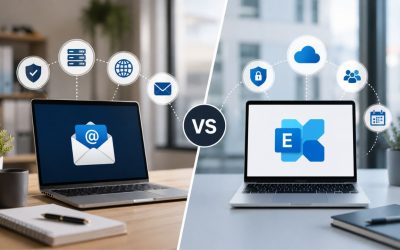
Two mail retrieval protocols decide whether a business inbox behaves like a shared company resource or a single-device download folder. IMAP and POP3 handle sync, storage, and access in fundamentally different ways, and the choice affects everything from mobile access to how a departing employee’s mail gets handled.
Elevate Your Brand with Premium Business Email →
What IMAP and POP3 Actually Do With Incoming Mail
Both protocols move mail from a server to a client, but they disagree on where the authoritative copy of a message lives afterward. That single design decision cascades into storage requirements, multi-device behavior, and the extent of control an administrator retains over company correspondence once it arrives in a mailbox.
 How IMAP Keeps Mail on the Server
 How IMAP Keeps Mail on the Server
IMAP, or Internet Message Access Protocol, treats the server as the permanent home for every message, folder, and flag a mailbox holds. A client connecting via IMAP is really just viewing a synchronized view of that server-side mailbox rather than taking ownership of the data itself. This is the arrangement that makes a message read on a laptop appear already read on a phone moments later, without any manual step from the user in between. Dedicated mailbox infrastructure matters here more than most buyers realize: a provisioning model that isolates each business’s mailbox resources, rather than pooling everyone onto shared disk arrays with no per-tenant ceiling, is what keeps IMAP’s constant server-side activity from degrading performance during peak hours.
Because the server retains the canonical copy, an administrator can also see, search, and, if necessary, export a former employee’s full mail history without needing access to that person’s personal device at all. That single fact changes how legal and HR teams think about email as a business record rather than a personal archive, and it’s a distinction worth understanding before assuming any inbox behaves the same way once someone leaves the company for good. It also means offboarding a departing employee doesn’t require physically retrieving their laptop or phone first, since the mailbox they used was never the actual owner of the data. An administrator can reassign or archive that mailbox from the admin console the same afternoon someone resigns, a meaningfully faster process than chasing down hardware.
How POP3 Downloads and (Usually) Deletes Mail
POP3, or Post Office Protocol version 3, was built for a period when persistent server storage was expensive and a single desktop was the only device anyone used to read mail. Its default behavior pulls messages down to the local client. It removes them from the server, meaning the “real” mailbox effectively becomes whatever sits in that one machine’s local data file. Some clients now offer a “leave a copy on server” setting that softens this. Still, it’s a workaround bolted onto a protocol designed around local ownership, not a native synchronization mechanism built into the standard itself.
This creates a practical asymmetry: a business running POP3 across five employees effectively has five disconnected local archives rather than one company mailbox, and reconstructing a full picture of a conversation thread means checking whichever machine first downloaded that particular message. For a solo operator checking mail on one laptop, this limitation barely registers in day-to-day use. For any business with more than one device or more than one person touching a shared address, it becomes the root cause of most “I thought you already saw that” conversations between coworkers.
| Comparison Point | IMAP | POP3 |
|---|---|---|
| Where the authoritative copy lives | Server, permanently | Local client, after download |
| Default port (encrypted) | 993 | 995 |
| Default port (unencrypted) | 143 | 110 |
| Multi-device read status sync | Yes, in real time | No, per-device only |
| Folder structure synced across devices | Yes | No |
| Server storage consumption over time | Grows continuously | Stays minimal |
| Suitable for shared/team mailboxes | Yes | No |
| Offline access after initial download | Limited without caching | Full, since mail is local |
| Risk if a single device is lost | Low, mail remains on the server | The mail may exist nowhere else |
| Native support in mobile mail apps | Primary supported mode | Secondary, often deprecated |
Multi-Device Access and Message Synchronization
Sync behavior is the most immediately visible difference between the two protocols, and it’s usually the first thing that pushes a growing business to reconsider its setup. The technical explanation of cross-device synchronization; later sections reference it briefly rather than re-explaining the mechanism in full each time.
What Happens When Three Devices Open the Same Inbox
Under IMAP, opening the same account on a phone, a laptop, and a webmail tab produces three windows into one dataset rather than three separate copies. Delete a message on the phone during a commute, and it disappears from the laptop the next time that client polls the server, typically within seconds on a properly configured connection between the two. Storage pooling across the domain is what makes this scale cleanly across a growing team: rather than provisioning fixed local storage per device, mailbox capacity lives centrally and gets allocated per domain, so adding a fourth or fifth device to the same account doesn’t multiply storage consumption the way separate local downloads would across a fleet of machines.
Renewal reviews commonly surface a business that switched from POP3 to IMAP years earlier for exactly this reason, then forgot they’d also left several old desktop clients still configured with local-delete rules from the POP3 era, quietly re-downloading and removing messages the rest of the team could still see moments earlier. That pattern is common enough that it’s worth an explicit device audit step during any protocol change, not just a settings toggle applied to the newest device at the time. A short checklist covering every device ever connected to an address, checked against its current protocol and retention setting, catches this before it causes a support ticket.
Read Status, Folders, and Flags Across Clients
Beyond the message itself, IMAP synchronizes metadata: read and unread flags, custom folders, starred or flagged items, and even draft messages composed but not yet sent from any device. A folder structure built on a desktop client appears identically on a phone without any separate configuration, because the folder itself is a server-side object rather than a local convenience tied to a single machine. This matters far more for businesses that rely on filing systems, sorting client correspondence into named folders by account or project, than for anyone content with a single flat inbox and search-based retrieval.
POP3 has no equivalent concept, since folders in most POP3 clients exist only locally on the machine that created them. A folder structure carefully built on a desktop won’t appear on a phone at all under POP3, because the phone’s client never had access to that server-side organization to begin with, since none genuinely exists to synchronize between the two devices. Teams that discover this gap partway through a POP3 setup usually end up rebuilding the same folder rules separately on every device, which defeats much of the point of having a filing system at all.
Mailbox Storage and Server-Side Retention
Storage behaves almost the opposite under each protocol, and understanding why prevents two common but opposite mistakes: over-provisioning storage a business doesn’t actually need, or under-provisioning it for a setup that will accumulate mail indefinitely without any built-in cleanup process from the start.
Server-Side Quota Behavior Under IMAP
Because IMAP retains every message centrally, mailbox storage consumption grows continuously unless someone actively archives or deletes old mail, and that server-side quota becomes a real operational constraint over a multi-year account lifespan. Redundant data center architecture is the differentiator that matters most here: a mailbox that accumulates years of attachments needs storage backed by geographically distributed, replicated infrastructure rather than a single disk array, since the entire value of keeping mail centrally available collapses the moment that storage layer has a single point of failure somewhere in the chain. Businesses evaluating providers on storage quota alone often miss this distinction entirely.
A mailbox nearing its IMAP quota typically starts by bouncing incoming mail rather than silently discarding it, which is a meaningfully safer failure mode than local storage running out unannounced. That safety only holds, though, if someone is proactively monitoring quota utilization before it becomes an emergency during a busy sales quarter or a critical client engagement, where every incoming message matters. Most premium plans surface a quota warning at a threshold well before the hard limit, giving an administrator time to archive old mail or request additional allocation rather than reacting after mail has already started bouncing.
Why POP3 Mailboxes Rarely Hit Storage Limits
POP3’s default download-and-delete pattern means the server-side quota barely matters in practice, since mail doesn’t accumulate on the server once a client has retrieved it. The tradeoff shifts storage pressure from the server to the local machine doing the downloading, and local disk exhaustion on an aging laptop is a far messier problem to diagnose than a clean server-side quota warning, because it often manifests as a generally slow or unstable device rather than an obvious mail-related error message.
This is part of why POP3 quietly persists in very small operations even after it’s become impractical everywhere else: the storage problem doesn’t disappear, it just becomes invisible until a hard drive fills up or fails outright. At this point, years of accumulated correspondence can vanish, leaving no server-side copy to fall back on for recovery. A business relying on this pattern rarely notices the risk until the exact moment it stops being theoretical, usually during a device replacement or an unexpected hardware failure.
Security, Encryption, and Authentication Differences
Neither protocol is inherently more or less secure in isolation; the meaningful differences lie in how each is typically deployed and in the protections surrounding the connection itself and the sending domain more broadly, rather than in the retrieval standard itself.
Encryption in Transit: Ports, TLS, and Authentication
 Encryption in Transit: Ports, TLS, and Authentication
Both IMAP and POP3 can run in cleartext or be wrapped in TLS, and the distinction that actually matters for a business is whether a provider defaults new mailboxes to the encrypted variant or leaves that configuration for the customer to discover on their own. IMAP over TLS conventionally runs on port 993, while unencrypted IMAP uses port 143; POP3 over TLS runs on port 995, with unencrypted POP3 on port 110 by convention. Two-factor authentication enforcement at the mailbox level is the differentiator worth checking regardless of which protocol a business chooses, since a compromised password is a far more common breach vector than protocol-level interception on a properly encrypted connection between client and server.
Legacy POP3 and IMAP client software from over a decade ago sometimes defaults to unencrypted ports for backward compatibility with older mail servers, which poses a genuine risk regardless of which protocol is in use day-to-day. Confirming the encrypted-port configuration during setup and periodically afterward as devices are reconfigured matters more than the IMAP-versus-POP3 decision itself from a pure security standpoint, since either protocol can be deployed insecurely if left unchecked. A quick client-side check of the connection settings takes minutes and closes this gap for good.
Domain-Level Protections That Sit Above Either Protocol
Per-domain key provisioning for DKIM and DMARC operates independently of whether mailboxes use IMAP or POP3, since these are authentication standards that verify that a message actually originated from the domain it claims to be from, protecting against spoofing rather than protecting mailbox access itself. DKIM, defined in RFC 6376, allows a sending domain to cryptographically sign outgoing mail, while DMARC builds on DKIM and SPF to tell receiving servers what to do with mail that fails those checks. A business migrating between protocols should treat this domain-level configuration as a separate checklist item entirely, not something the protocol switch handles automatically as a side effect.
Layered anti-spam and anti-virus filtering sits at this same domain level, screening inbound mail before it ever reaches either an IMAP or POP3 mailbox downstream. Multi-layer filtering that combines reputation-based blocking with content inspection catches meaningfully more than a single-layer spam filter typically does, and this protection applies equally regardless of which retrieval protocol employees ultimately use to read their mail. None of this filtering depends on protocol choice, which is why it’s worth evaluating separately from the IMAP-versus-POP3 decision entirely.
Migration Paths From POP3 to IMAP
Most protocol conversations arise because a business already running POP3 realizes it has outgrown it, which makes the migration process itself worth understanding before committing to any particular timeline or vendor, since a rushed switch tends to create more mail-history gaps than it solves.
What a POP3-to-IMAP Migration Actually Involves
A migration typically starts with an audit of every device currently configured for POP3 access, since each one may hold locally downloaded mail that exists nowhere else across the business. Migration concierge support, meaning a provider that assigns hands-on assistance for consolidating these scattered local archives into the new server-side IMAP mailbox rather than leaving each employee to export and re-import their own history alone, is the differentiator that separates a clean multi-day migration from a chaotic one spanning weeks of employees discovering gaps in their own mail history. Without that consolidation step, a business effectively starts its new IMAP mailbox with a blank slate.
The technical steps themselves, creating the new mailbox, updating DNS mail records, and reconfiguring each client’s connection settings, are usually the fast part of the whole process. The slow part is coordinating access to old devices, particularly those belonging to employees who’ve since left the company, which is exactly why an accurate device audit at the start saves far more time than it costs later, when gaps surface unexpectedly. A migration plan that budgets time for this coordination step upfront rarely runs into the same delays as one that treats it as an afterthought.
Timing a Migration Around Business Cycles
Renewal reviews and fiscal year-end planning are the two periods when businesses most commonly revisit their email setup, since both naturally prompt a broader look at recurring costs and operational gaps across the organization. A protocol migration scheduled during a genuinely quiet stretch, rather than squeezed in under time pressure at a renewal deadline, gives IT staff room to properly audit old devices, rather than rushing the consolidation step described above. Businesses planning a fiscal year-end transition often bundle the protocol switch with a broader review of mailbox allocations for new hires from the preceding year, since both changes affect the same underlying DNS and provisioning configuration.
Evergreen technical accuracy matters more than calendar timing for the migration mechanics themselves, but choosing a genuinely low-disruption window still meaningfully reduces the operational risk of the switch, independent of the underlying technology involved or the size of the mailbox being moved. A business with a predictable slow season, whether that falls in early summer or right after year-end reporting closes, generally finds that window far more forgiving than trying to migrate mid-quarter. At the same time, sales and support teams depend on uninterrupted access to their inboxes every day.
Talk to Hiya Digital About Your Migration Timeline
A migration that consolidates scattered local mail into one synchronized mailbox, as covered above, works best with hands-on guidance rather than a bare checklist. As an Authorized Partner and Reseller for premium business email platforms, Hiya Digital can walk your team through device audits and DNS updates directly.

Shared Mailboxes and Team Collaboration
Team-facing addresses like support@ or sales@ expose the sharpest practical difference between the two protocols, since collaboration is where POP3’s single-owner design breaks down the fastest for any growing team relying on a shared inbox rather than individual personal addresses.
Why POP3 Breaks Down for Shared Inboxes
A shared address running POP3 has no reliable way to prevent two team members from each downloading the same incoming message to separate devices, after which either copy might get deleted or replied to without the other person ever knowing. There’s no server-side record of who’s already responded, no shared flag for “someone is handling this,” and no unified view of the inbox’s actual current state. Teams sometimes work around this with manual conventions, forwarding rules, or spreadsheet trackers. Still, these are patches over a genuine protocol limitation rather than actual fixes to the underlying problem itself.
Priority support tiers become relevant here in an indirect way: when a shared-inbox setup breaks down under POP3, the businesses that catch it fastest tend to be the ones with responsive support access to walk through a reconfiguration quickly, rather than businesses left troubleshooting a duplicate-response problem alone for days while customer replies pile up unanswered in the meantime. A support team that can diagnose and correct the underlying protocol mismatch in a single call prevents days of accumulated customer frustration from ever building up in the first place.
What IMAP Enables for Team Mailboxes
IMAP’s server-side model naturally extends to shared and delegated mailboxes, where multiple authenticated users connect to the same server-side folder structure and see identical, real-time state: the same read flags, the same replied-to markers, and the same folder organization across every connected device. A support ticket marked as handled by one team member appears to be handled by everyone else immediately, because there’s genuinely one mailbox rather than several local copies pretending to represent a shared inbox. This removes the need for verbal check-ins or shared spreadsheets to confirm who has already responded to a given customer.
This same mechanism supports delegated access, where an executive assistant might need visibility into a manager’s inbox without holding the primary password, or where a small sales team shares one inbound address. At the same time, each member also keeps a separate personal mailbox. None of this delegation model is meaningfully possible under POP3’s local-download design, which is exactly why growing teams almost universally end up on IMAP for any address more than one person regularly touches. Setting permissions at the admin level, rather than sharing a single login across a team, also keeps an accurate record of which individual actually accessed the mailbox at any given time.
Mobile Access and Native App Behavior
Mobile access is where protocol choice is most visible to end users day-to-day, since it directly affects how quickly a message appears on a phone and how much work a client app has to do to stay current.
Native Mail Apps vs Third-Party Clients
Mobile vs native client behavior is a genuine differentiator worth checking before assuming any email app will behave identically: a phone’s built-in mail app, whether on iOS or Android, generally has deeper platform integration for IMAP push notifications and background sync than many third-party mail apps, which sometimes rely on less efficient polling intervals to stay compatible across multiple providers at once. A business standardizing on native mail apps across company phones typically sees faster, more battery-efficient sync than one that leaves employees to install whatever third-party client they personally prefer.
POP3 support in modern mobile mail apps is often present but functionally secondary, since almost no phone-first workflow benefits from local download-and-delete behavior, given that the whole point of carrying a phone is checking mail across multiple devices throughout the day. Some newer mobile clients have quietly begun deprecating full POP3 feature parity altogether, treating it as a legacy compatibility mode rather than a primary supported path for new accounts opened on the platform.
Push, Fetch, and Battery Behavior on Mobile
IMAP supports an IDLE mechanism that lets a client keep an open connection and receive new-mail notifications as soon as a message arrives, commonly called push mail, rather than periodically asking the server “anything new?” at fixed intervals, which is called fetch. Push behavior feels faster to end users and, counterintuitively, can be gentler on battery life than aggressive fetch polling, since a held-open IDLE connection is often less power-intensive than repeatedly waking the device’s radio to poll every few minutes throughout the day.
POP3 has no equivalent push mechanism, so any POP3 mobile setup relies entirely on fetch-style polling, and shortening that polling interval to achieve faster-feeling mail delivery directly trades away battery life. This is a second, less obvious reason mobile-heavy teams tend to migrate away from POP3 beyond the sync and collaboration issues already covered above in earlier sections of this page. Employees who complain that a phone’s battery drains faster after switching mail providers are often dealing with an aggressive polling interval rather than an inherent flaw in the device itself.
Backup, Archiving, and Compliance Considerations
Data retention obligations differ meaningfully depending on which protocol a business runs, since the location of the authoritative mail copy determines what any backup system can actually capture and restore later during a recovery request, long after the original message ever arrived.
What Gets Backed Up Under Each Protocol
 What Gets Backed Up Under Each Protocol
Server-side backup systems can only protect what actually lives on the server, which means IMAP mailboxes, with their complete message history retained centrally, back up cleanly and completely through standard provider-side backup processes running on a regular schedule throughout the account’s lifetime. POP3 mailboxes present a structural gap here: if mail is downloaded and deleted from the server as soon as a client retrieves it, a server-side backup captures only the messages that hadn’t yet been downloaded when the backup ran, missing everything else from that point forward.
Renewal reviews commonly reveal a business assuming its provider’s backup service protects all its mail, only to discover during an actual recovery attempt that any server-side process never captured years of downloaded-and-deleted POP3 mail, because it left the server before any backup job ever ran against it. That gap isn’t a backup failure on the provider’s part; it’s a structural consequence of how POP3 was configured from the very start of the account, and it’s worth explaining clearly to any client who assumes backup coverage is protocol-agnostic by default.
Compliance and Retention Implications
Industries with formal record-retention obligations, whether from financial regulation, healthcare privacy rules, or contractual audit requirements, generally need a centralized, searchable, and reliably backed-up mail archive, which strongly points to IMAP as the retrieval protocol for that archive going forward. A compliance officer asked to produce a complete correspondence history for a given employee; that history needs to exist somewhere centrally accessible, not scattered across whichever personal devices happened to download each message under an older POP3 setup years earlier, when the account was first created.
This doesn’t mean POP3 is inherently non-compliant in every conceivable use case, since a genuinely solo operator with no retention obligation and one device faces no such exposure in practice, essentially. It does mean any business subject to formal retention rules should treat the retrieval protocol as a compliance-relevant decision, not merely a technical preference, well before an audit request exposes the gap unexpectedly during a review that a business didn’t see coming.
Configuration Mistakes That Cost Businesses Time
Most protocol-related problems businesses encounter aren’t inherent to either standard; they’re the result of default settings that nobody revisited after the initial account setup years earlier, and those defaults quietly persist unless someone actively questions them.
The Default Setting Nobody Changes
Many mail clients still default new POP3 accounts to deleting messages from the server immediately after download, a setting inherited from an era when server storage was scarce and is now largely obsolete for most business use cases. Reseller-managed provisioning speed matters here in a specific way: a provider whose Authorized Partner setup process actively flags and corrects this default during account creation, rather than leaving a business to discover it months later after a device failure wipes out unrecovered mail permanently, prevents an entire category of avoidable data loss before it can ever happen in the first place.
Businesses that inherited a POP3 setup from a previous IT arrangement, rather than configuring it deliberately from scratch, are the most common victims of this default, since no one along the way had reason to question a setting that had been quietly working as originally installed years before the current team ever arrived. A brief configuration review during any leadership or IT transition tends to surface this issue quickly, long before it causes an actual loss of unrecoverable mail on someone’s aging laptop.
Duplicate Downloads and Client Misconfiguration
A related and more actively disruptive mistake occurs when a business partially migrates to IMAP but leaves one or two old devices still configured for POP3 against the same account, without realizing those devices are still actively downloading, and in some configurations deleting, mail that the rest of the team can otherwise see. This produces exactly the symptom described earlier: messages that vanish from everyone else’s synchronized IMAP view because an old laptop’s POP3 client quietly claimed them first before anyone noticed the pattern.
The fix is a straightforward device audit that lists every client ever configured against a given address and confirms that each one uses the same protocol and, where applicable, the same “leave on server” behavior. Still, it’s a step that’s easy to skip during a rushed migration and expensive to diagnose after the fact once mail has already gone missing for good. Running this audit as a standard closing step on every migration, rather than an optional extra, catches the handful of stragglers before they cause a genuine problem.
Matching the Protocol to Business Size and Growth Stage
Neither protocol is universally correct; the right choice depends on team size, device count, and how formal a business’s record-keeping needs to be at its current stage of growth, rather than on any fixed rule that applies equally to every business.
When POP3 Still Makes Sense
A genuinely solo operator checking mail from a single device, with no shared addresses, no formal retention obligation, and no plan to add a second employee soon, loses relatively little by staying on POP3, provided the server-retention setting is configured sensibly rather than left on aggressive immediate deletion by default. The simplicity of a fully local mailbox can even feel like an advantage for this narrow use case, since there’s no server-side quota to monitor and no synchronization behavior to troubleshoot across multiple devices.
This scenario shrinks quickly as a business grows, though, and the moment a second device, a second person, or a shared address enters the picture, the calculus changes meaningfully in IMAP’s favor for most of the reasons already covered in the sections above throughout this page. Waiting until that transition happens naturally, rather than forcing a switch prematurely, keeps a genuinely small operation from paying for collaboration features it doesn’t yet need.
The Growth Signals That Point to IMAP
 The Growth Signals That Point to IMAP
Priority support access becomes a relevant factor precisely at this transition point, since a business outgrowing POP3 usually needs guided help reconfiguring shared addresses and migrating historical mail, not just a self-service settings toggle buried in a client’s preferences menu. The clearest signals that a business has outgrown POP3 include adding a second device for a single employee, creating an address that more than one person needs to access regularly, or becoming subject to a formal retention requirement for the first time.
The table below breaks down how mailbox allocation and support access typically differ across service tiers relevant to this transition, since the practical decision for most growing businesses is less “IMAP or POP3” in the abstract and more a question of which tier of IMAP-based service actually matches current team size and how quickly that team is expected to keep expanding over the following year.
| Consideration | Starter Tier | Growth Tier | Enterprise Tier |
|---|---|---|---|
| Typical mailbox storage allocation | Lower fixed per-user quota | Pooled domain-wide storage | Pooled storage with expansion on request |
| Shared/delegated mailbox support | Limited or single shared address | Multiple shared mailboxes | Unlimited shared mailboxes with granular delegation |
| Migration assistance included | Self-service guidance | Assisted device audit | Full migration concierge |
| 2FA enforcement | Optional per-user | Admin-enforceable domain-wide | Admin-enforceable with SSO integration |
| Anti-spam/anti-virus filtering layers | Single-layer filtering | Multi-layer filtering | Multi-layer filtering with custom policy rules |
| Backup retention window | Shorter standard window | Extended retention | Extended retention with compliance export tools |
| Support response priority | Standard queue | Priority queue | Dedicated priority queue |
| Admin console capabilities | Basic user management | Bulk provisioning tools | Full audit logging and reporting |
Frequently Asked Questions
Does switching from POP3 to IMAP cost a business more?
Pricing generally depends on mailbox storage allocation and support tier, rather than on the retrieval protocol itself, since most premium business email plans include IMAP access by default rather than charging for it as a separate add-on. The cost difference businesses actually notice tends to stem from the need for a larger pooled storage allocation once mail starts accumulating on the server under IMAP, rather than being downloaded and cleared locally under POP3 as before. A business with a handful of employees and moderate mail volume typically fits within a mid-tier storage allocation without needing to upgrade specifically because of the protocol change itself. It’s worth confirming storage allocation against actual mail volume before assuming a switch requires a higher-priced tier, since many growing teams already have enough headroom in their current plan to absorb the change comfortably.
How long does it take to migrate a business mailbox from POP3 to IMAP?
The core technical steps, creating the new mailbox and updating client connection settings, can often be completed within a single business day for a small team with a handful of devices. The variable that actually determines total migration time is the consolidation of historical mail scattered across old, locally configured devices, particularly those belonging to former employees, which can extend a migration to a week or more if device access needs to be carefully traced. Businesses with good records of who’s used which device over time tend to migrate noticeably faster than those without such records. Scheduling the migration during a quieter operational period, rather than under pressure at a renewal deadline, also meaningfully shortens the practical timeline by giving IT staff time to audit devices instead of rushing through the process.
Will IMAP work with Outlook, Thunderbird, and Apple Mail?
Yes, IMAP is widely supported by virtually every mainstream desktop and mobile mail client, including Outlook, Thunderbird, Apple Mail, and the native mail apps on iOS and Android. Configuration typically requires the incoming mail server address, port 993 for encrypted IMAP, and the account’s authentication credentials, with most modern clients auto-detecting these settings directly from the email domain. Compatibility issues that do occur are usually due to outdated client software defaulting to unencrypted ports rather than to any fundamental incompatibility with IMAP itself as a standard. Confirming that a client is running a reasonably current version before migration helps avoid the small minority of legacy configuration issues that occasionally surface during setup.
Does IMAP require a specific email platform to work properly?
IMAP is a standardized, platform-independent protocol, so it functions consistently whether the underlying mailbox platform is the same system or an entirely different one. Any properly configured IMAP-compliant client can connect to any properly configured IMAP-compliant server without special adaptation. What varies between platforms isn’t IMAP support itself but the surrounding administrative tools, storage architecture, and support quality wrapped around that shared IMAP layer underneath. A business shouldn’t need to choose a specific platform solely to gain IMAP compatibility, since that compatibility is nearly universal in most modern mail ecosystems; the platform choice should instead rest on storage allocation, support tier, and collaboration features layered atop the shared protocol foundation.
Does IMAP drain the phone battery faster than POP3?
Not necessarily; in many real-world configurations, IMAP can actually be gentler on battery life than POP3, despite the intuition that constant server synchronization sounds more power-intensive by nature. IMAP’s IDLE mechanism allows a held-open connection to receive push notifications the instant new mail arrives, which is often less power-draining than the repeated polling intervals a POP3 setup requires to check for new mail on any reasonable schedule throughout the day. Aggressive fetch polling configured to check every minute or two, which some POP3 setups use to compensate for the lack of push support, is the actual battery-heavy configuration worth watching for, regardless of which protocol underlies the account. Most modern native mail apps handle this efficiently by default without requiring any manual tuning from the user.
Is IMAP less secure than POP3 since mail stays on the server?
Protocol choice itself isn’t the primary security variable here; encryption configuration and account-level protections matter considerably more in practice. Both IMAP and POP3 support TLS encryption on their respective secure ports, and a properly configured connection using either protocol protects data in transit equivalently well against interception. The more meaningful security question is whether two-factor authentication is enforced at the account level and whether domain-level protections like DKIM and DMARC are properly configured, since these guard against credential compromise and spoofing regardless of which retrieval protocol a mailbox uses. Server-side mail retention under IMAP means a compromised account can expose more historical mail at once, which is a genuine trade-off worth weighing against IMAP’s collaboration and backup advantages described elsewhere on this page.
What happens to backups if I switch from POP3 to IMAP?
Switching to IMAP generally improves future backup coverage, since server-side backup processes can only protect mail that resides on the server at the time a backup job runs. Historical mail already downloaded and removed from the server under a prior POP3 setup won’t retroactively appear in server-side backups after migration, so any pre-migration mail that only exists on local devices needs to be manually consolidated into the new mailbox during the migration itself to be captured properly in the future. This consolidation step is exactly why a proper device audit at the start of a migration matters more than the subsequent technical mailbox creation steps. Once migrated and consolidated correctly, ongoing backup coverage under IMAP is considerably more complete than a typical POP3 setup ever provided by default.
Can an entire team share a single IMAP mailbox?
Yes, and this is one of the clearest practical advantages IMAP has over POP3 for any business address regularly touched by more than one person. Multiple authenticated users can connect to the same IMAP mailbox simultaneously and see identical, real-time state, including which messages have been read or replied to, without the duplicate-download and duplicate-response problems that plague shared POP3 addresses over time. Delegated access is also commonly supported, allowing a designated assistant or team member to view and manage another person’s mailbox without holding that person’s primary credentials. Setting this up typically requires configuring shared or delegated permissions in the mail platform’s admin console, rather than installing any special client-side software on individual devices.
Can I set custom folder structures that sync across devices with IMAP?
Yes, folder structures created in an IMAP mailbox are server-side objects, meaning a folder hierarchy built in one client appears identically across every other device connected to that same account, without needing to recreate the structure separately each time. This extends to nested subfolders, custom filing rules applied through most clients’ rule engines, and flagged or starred message states, all of which synchronize in the same way as basic read status across devices. This is a meaningful workflow advantage for any business organizing client correspondence, project mail, or vendor communication into a structured filing system rather than relying purely on search. POP3 has no server-side equivalent, since any folder structure created in a POP3 client exists only locally on the specific device where it was created.
Is IMAP overkill for a two-person business?
Not generally, since the moment a second person is involved, even without a formally shared address between them, the collaboration and backup advantages of IMAP start to matter in ways they don’t for a genuinely single-device solo operator working alone. Two people frequently need visibility into each other’s correspondence during handoffs, vacations, or shared client accounts, and IMAP supports that ad hoc access far more gracefully than POP3’s single-owner design ever allows. The storage overhead of IMAP for a two-person team is also modest relative to typical mailbox allocations on most business plans, so the practical cost of choosing IMAP at this size is minimal compared to the operational headaches it avoids later as the team grows.
Glossary
IMAP (Internet Message Access Protocol): A mail retrieval protocol that keeps messages, folders, and flags stored centrally on the server, synchronizing that state across every connected device in real time.
POP3 (Post Office Protocol version 3): A mail retrieval protocol originally designed to download messages to a single local client and remove them from the server afterward by default.
SMTP (Simple Mail Transfer Protocol): The protocol responsible for sending and routing outgoing mail between servers, separate from IMAP or POP3, which only handle retrieval of incoming mail.
TLS/SSL: Encryption standards that secure a mail connection in transit, applied to IMAP, POP3, and SMTP alike via their respective encrypted ports.
DKIM (DomainKeys Identified Mail): A cryptographic signing standard, defined in RFC 6376, that lets a receiving server verify outgoing mail actually originated from the claimed sending domain.
DMARC (Domain-based Message Authentication, Reporting, and Conformance): A policy layer built on top of DKIM and SPF that tells receiving servers how to handle mail failing those authentication checks.
SPF (Sender Policy Framework): A DNS-based record listing which mail servers are authorized to send on behalf of a domain, used alongside DKIM and DMARC for domain authentication.
2FA/MFA (Two-Factor/Multi-Factor Authentication): A login protection requiring a second verification step beyond a password, ideally enforceable account-wide by an administrator.
IDLE: The IMAP mechanism that allows a held-open connection to receive push notifications for new mail immediately, rather than relying on periodic polling.
Mailbox quota: The storage limit assigned to a mailbox, which behaves very differently under IMAP, where mail accumulates server-side, versus POP3, where the server-side footprint typically stays minimal.
The Hiya Digital Team is a collective of IT infrastructure specialist engineers, certified systems administrators, and cloud architects driven by a singular mission: building corporate communication systems that just work. As an Authorized Google Partner, the team handles complex global hosting deployments, secure email migrations, and advanced data compliance architectures for businesses across 40+ countries.
With over two decades of technical experience spanning custom premium business email configurations, OX AppSuite deployments, and enterprise-level network security, the Hiya Digital Team writes to demystify domain infrastructure. Their content focuses on actionable technical strategies, anti-phishing security protocols, and seamless cloud collaboration setup, all backed by real-world deployment experience and 24/7 technical support accountability.